
Every iPhone on a network has an address, and the one you need depends on the job, from sorting out a home setup to checking what the internet sees. The two numbers are easy to mix up, and they reveal very different things. Here is how to find the IP address on iPhone both ways, how it works on cellular data, and what each number says about you.
Table of Contents
1. Find IP Address on iPhone in Wi-Fi Settings
This is the local (private) address, and it is the one you need for router settings, printers or any home-network setup.
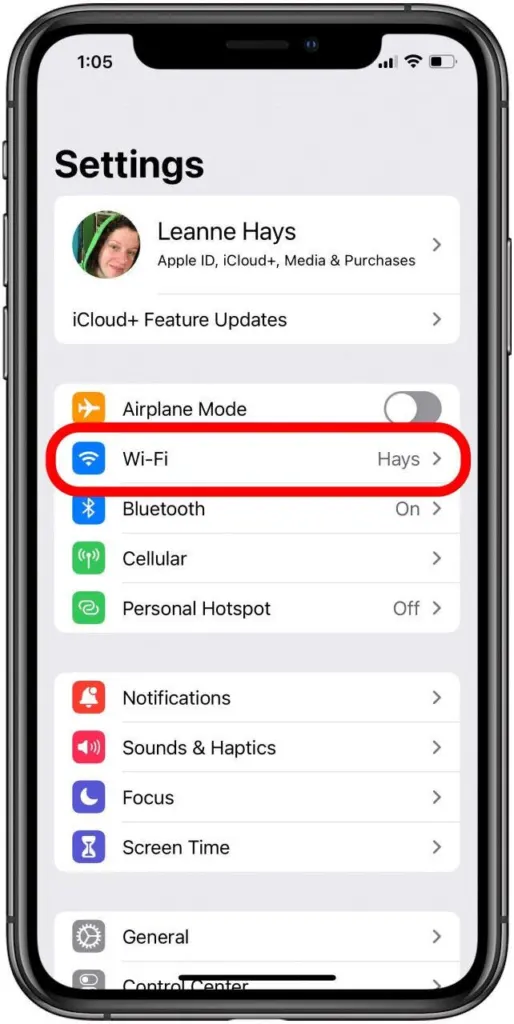
- Open Settings and tap Wi-Fi.
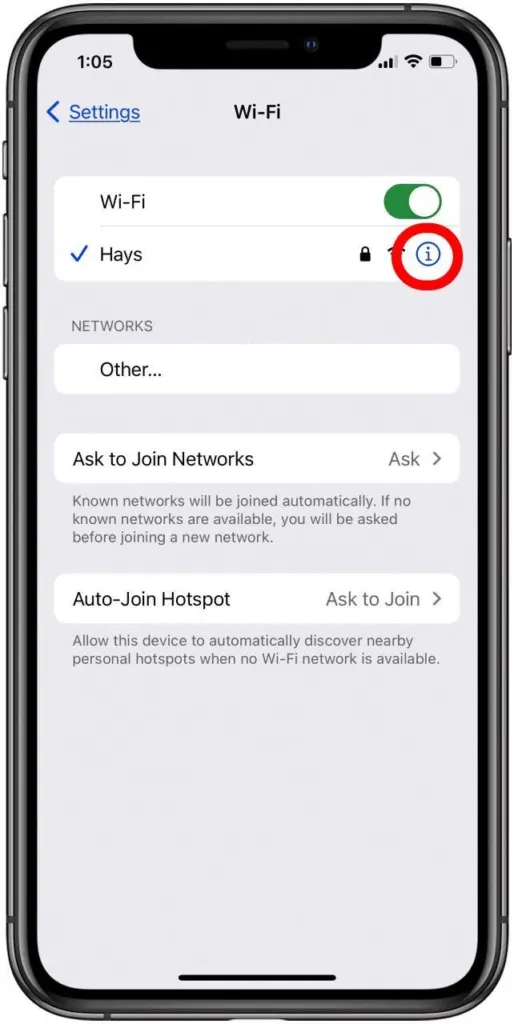
- Tap the (i) info button next to the network you’re connected to.
- Read the IP Address under IPV4 ADDRESS. Subnet mask and router address are on the same screen, and the router address is what you type into a browser to open the router’s admin page.
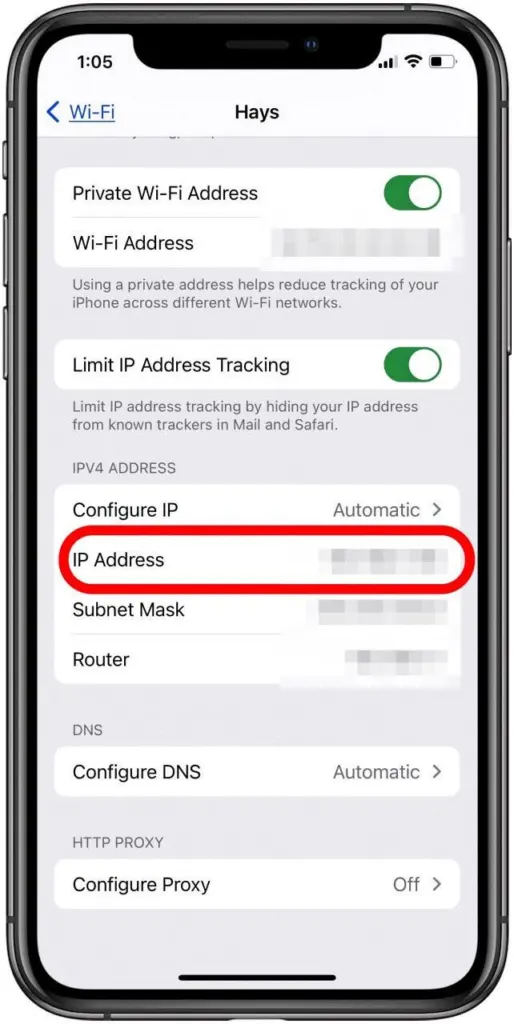
A home address typically starts with 192.168. or 10. Newer iOS versions may also list an IPv6 address, but IPv4 is the one most home-network tasks ask for. Don’t confuse the IP with Private Wi-Fi Address on the same screen, which is a hardware (MAC) address.
2. Check Your Public IP in Safari
The public address lives outside the phone, so Settings can’t show it. A lookup page reports whatever address your connection presents to the internet.
- Open Safari and search for
what is my IP, or visit an IP lookup site. - Read the public IPv4 address on the page.
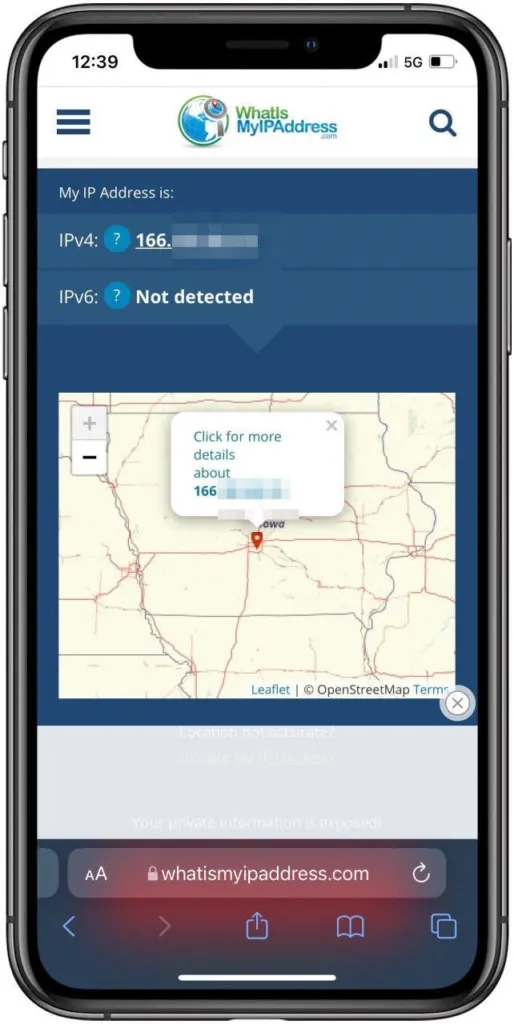
On Wi-Fi this is your whole home network’s address, shared by every device in the house. On cellular data, it comes from your carrier.
3. What About IP Address on Cellular Data?
Once you leave Wi-Fi, the local address in Settings disappears, because there’s no local network left. iOS has no screen that shows the address your cellular connection holds. Many US carriers put phones behind carrier-grade NAT, so the address a lookup site reports can belong to the carrier’s gateway, not your phone. If you need the real number, the Shortcuts app has a Get Current IP Address action. Turn Wi-Fi off, run it, and it returns the address the cellular modem holds.
4. Local vs. Public IP: Which One Do You Need?
| You want to | Use |
|---|---|
| Set up a printer, reserve an address on the router or reach a device at home | Local IP (Wi-Fi settings) |
| Check what websites see, or confirm a VPN is working | Public IP (Safari lookup) |
An iPhone doesn’t own an IP. It borrows one from each network it joins, so the local address can change when you switch networks, rejoin Wi-Fi or restart the router. To pin it, tap Configure IP in the same network details and choose Manual. That’s an advanced setting, and the address must be unused on your network. If the details look wrong or the iPhone can’t get an address at all, reset network settings on iPhone.
Can Someone Trace an iPhone IP Address?
A public IP can reveal your internet provider and a rough area, but not your street address. To keep it from websites, turn on iCloud Private Relay (part of iCloud+) or use a VPN. The Limit IP Address Tracking option on the same Wi-Fi details screen also hides your IP from known trackers in Mail and Safari. For what apps can see beyond that, read about turning off location on iPhone.
Knowing which address you are looking at saves time when you are troubleshooting a connection or just curious. Neither number is a secret on its own, but it helps to know what each one can show.


