Watching the bars drop to No Service in the middle of a call or a map route is more than annoying, since it can leave you without data or even emergency calling. When your iPhone keeps losing service, the cause is usually something you can check from home, and only sometimes the phone’s hardware. The steps below cover how to tell them apart and the fixes for each, for physical SIMs and eSIMs alike.
Table of Contents
Why the iPhone Keeps Losing Service
The usual causes are weak coverage or a congested tower, SIM issues, an iOS bug or outdated software, outdated carrier settings, and antenna damage. The phone may show No Service, Searching…, or SOS (emergency calls only in the US, Canada and Australia); for the last one, see our guide to an iPhone stuck on SOS only.
First rule out the area and the carrier. Does it happen everywhere or only in one place? Do others on the same carrier nearby have trouble? Check your carrier’s outage page or app. Full bars don’t always mean a usable signal when a tower is congested. If calls drop while service stays, see an iPhone that keeps dropping calls.
Toggle Airplane Mode and Restart
This forces the iPhone to search for the network again, and it fixes many short-lived drops.
- Open Control Center and turn Airplane Mode on.
- Wait about 15 seconds, then turn it off.
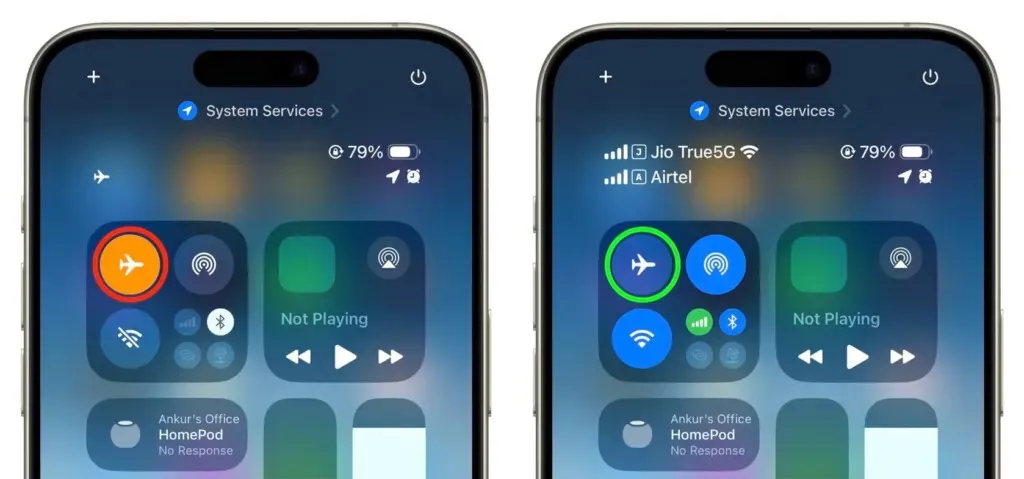
If the service keeps dropping, restart the iPhone.
Update Carrier Settings and iOS
No Service after a big iOS update is a common complaint that later point releases often fix, so updating is worth doing.
- Go to Settings > General > About. If a carrier settings update is available, a prompt appears; tap Update.
- Then open Settings > General > Software Update and install anything available.
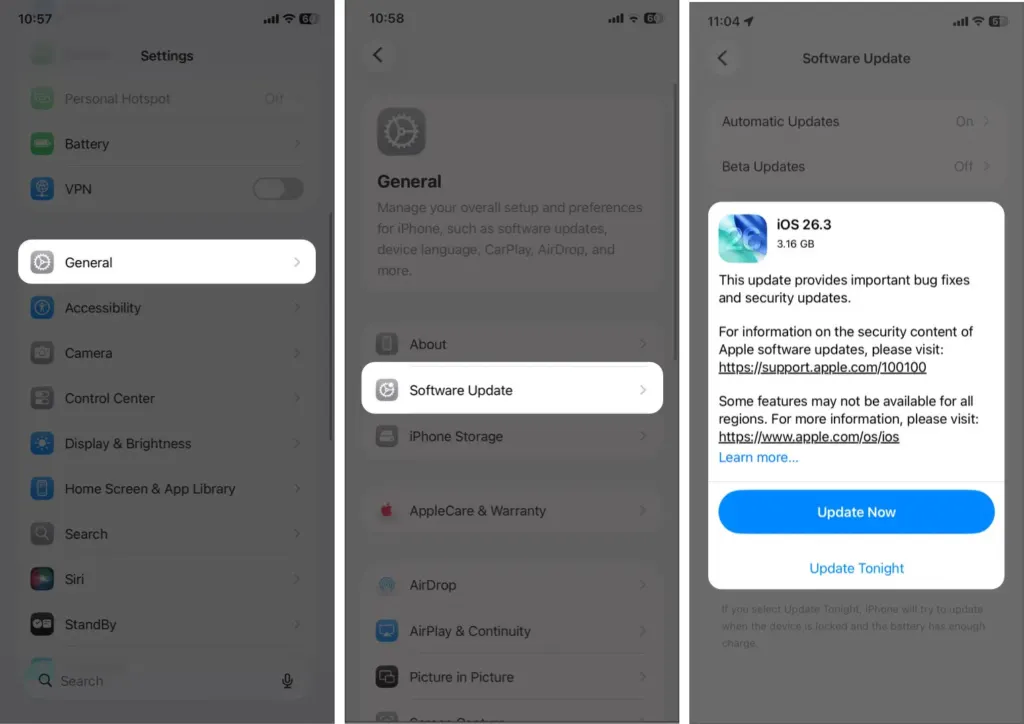
Our guide on how to update an iPhone has more detail.
Change Voice & Data Mode
Where 5G is patchy, switching modes can keep the connection steadier. Treat it as a test and switch back if it doesn’t help.
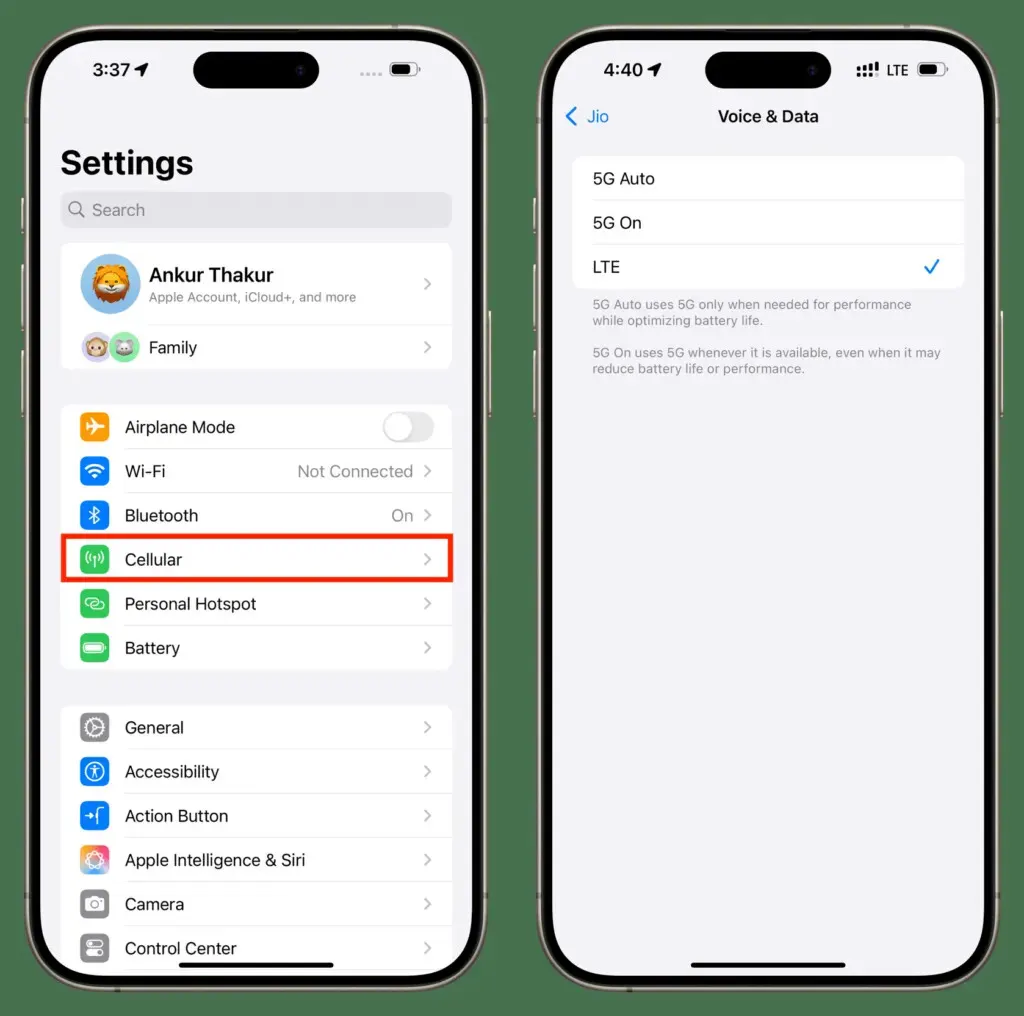
- Open Settings > Cellular > Cellular Data Options. On a dual SIM iPhone, pick the line first.
- Tap Voice & Data.
- Try LTE, or switch from 5G Auto to 5G On. Some people have cleared constant drops this way.
Check Network Selection
This mainly helps when you are traveling or roaming.
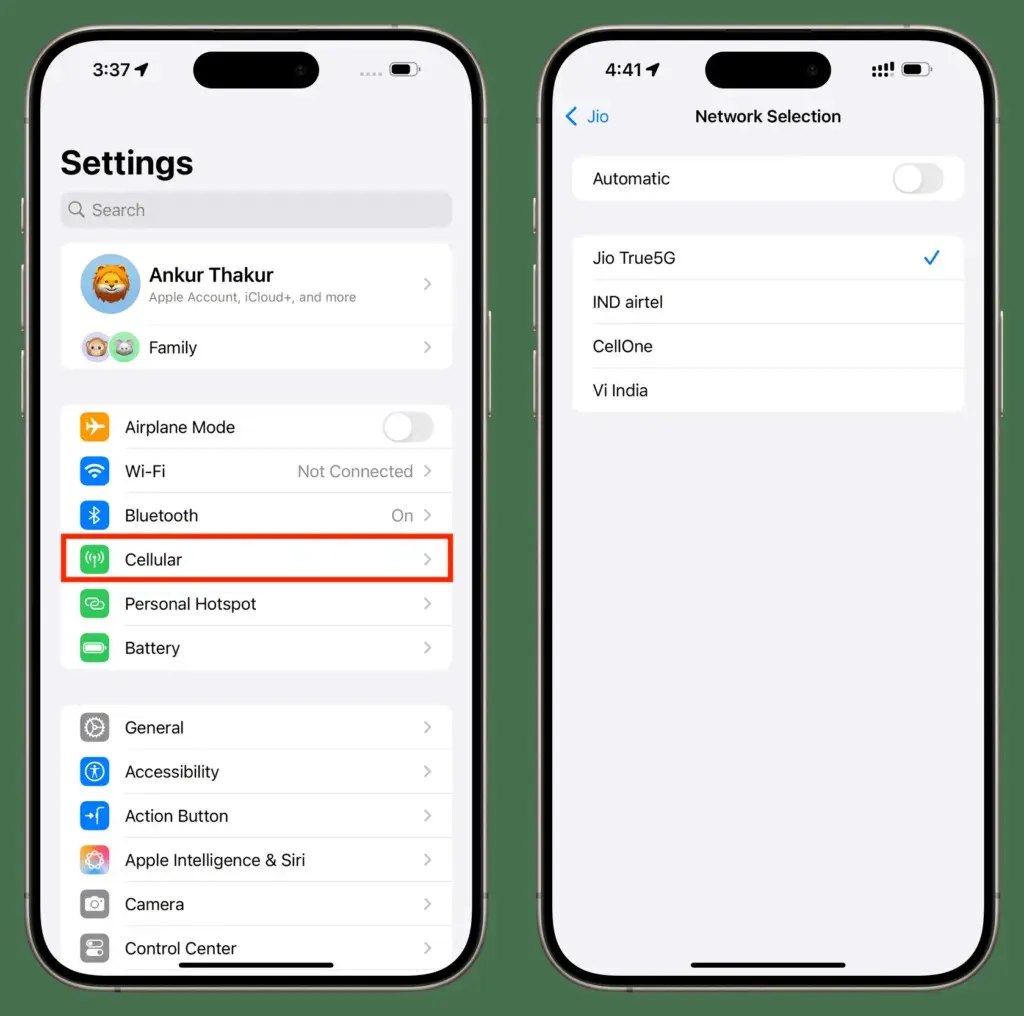
- Go to Settings > Cellular > Network Selection.
- Turn off Automatic and pick your carrier, or turn Automatic back on if it was off.
Reseat or Replace the SIM if the iPhone Keeps Losing Service
Remove and reinsert the physical SIM. Old SIMs fail, so ask your carrier for a replacement, or for an eSIM to be reissued. Our guide on an iPhone SIM card not working covers more SIM checks.
Reset Network Settings
If service still drops, resetting clears saved connection data.
- Open Settings > General > Transfer or Reset iPhone > Reset.
- Tap Reset Network Settings.
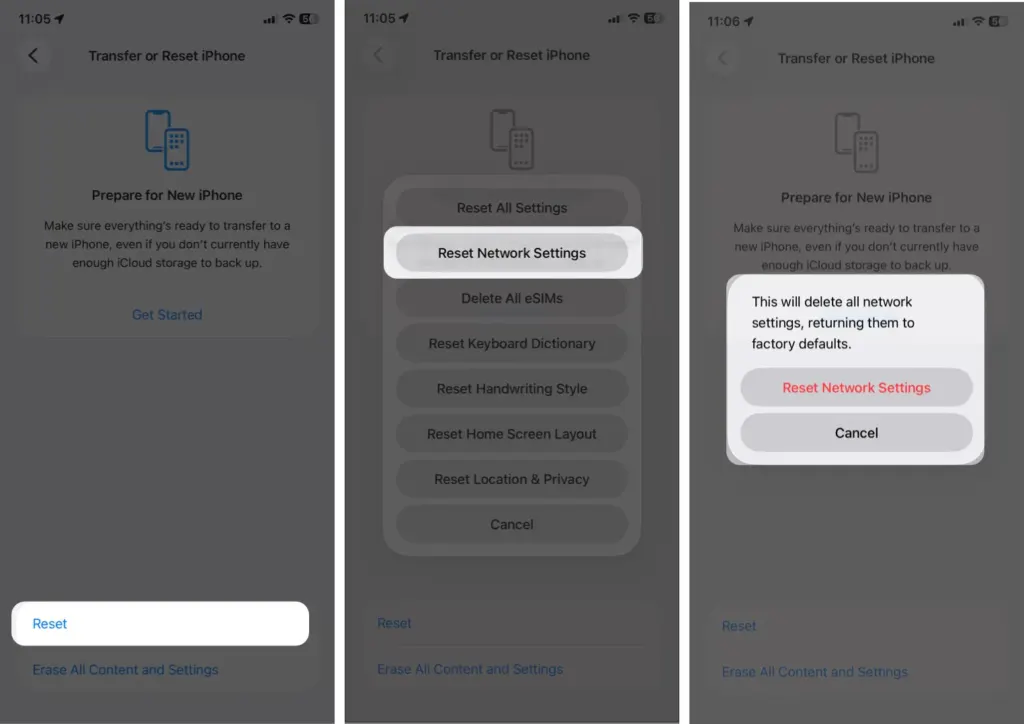
This erases Wi-Fi passwords, VPN and APN/cellular settings, so note down anything you need. See our guide to resetting network settings on an iPhone for details.
Restore the iPhone, and When It Is Hardware
As a last software step, back up the iPhone, then restore it with a computer using Finder, the Apple Devices app or iTunes. If the drops still happen after restoring and setting up as new, the cause is almost certainly hardware.
Drops after a fall or water exposure, or only when you hold the phone a certain way, point to the antenna or baseband. Contact Apple Support or visit an Apple Store.
Steady service matters for calls, maps and messages, and most drops can be sorted out without a repair. If the phone still struggles, your carrier or Apple can take a closer look.