
Few things are more annoying than a conversation cut off halfway through a sentence. When your iPhone keeps dropping calls, the cause is usually tied to signal, a carrier setting or a software glitch, and the pattern of when it happens points toward the answer. Ten fixes follow.
Table of Contents
- Why Your iPhone Keeps Dropping Calls
- Toggle Airplane Mode On and Off
- Restart Your iPhone
- Update iOS and Install Carrier Settings
- Turn On Wi-Fi Calling for Weak Signal at Home
- Switch Voice & Data to LTE
- Turn Off Call Forwarding
- Set Date & Time Automatically
- Turn On Show My Caller ID
- Reinsert the SIM Card
- Reset Network Settings
- Why Does My iPhone End Calls by Itself?
- When Your iPhone Keeps Dropping Calls Everywhere: Carrier or Apple
Why Your iPhone Keeps Dropping Calls
Weak signal is the most common cause: thick walls, basements, rural areas, or moving between towers. Software bugs, carrier settings, a bad SIM, a thick or metal case and antenna damage account for most of the rest. A carrier outage looks identical from your side, so a quick check with someone on the same network saves a lot of tweaking.
1. Toggle Airplane Mode On and Off
Airplane Mode forces the iPhone to drop and rebuild its link with the nearest tower, which clears a stuck connection.
- Turn on Airplane Mode from Control Center.
- Wait about 30 seconds, then turn Airplane Mode off.
2. Restart Your iPhone
A restart clears temporary software glitches that interfere with call connections. Turn the iPhone off completely, wait a few seconds, turn it back on and make a test call. If drops return within hours of each restart, move on to the update and reset fixes.
3. Update iOS and Install Carrier Settings
Dropped calls that begin right after an update are often a bug, and the next update is the likely patch. For example, iOS 26.0.1 fixed a case where a small number of iPhones could not connect to a cellular network after updating to iOS 26.
- Go to Settings > General > Software Update and install any update that is available. Our guide to updating iPhone covers the details.
- Go to Settings > General > About. If a carrier settings update prompt appears, install it.
4. Turn On Wi-Fi Calling for Weak Signal at Home
Wi-Fi Calling sends calls over your Wi-Fi network, which helps when cellular signal is weak indoors. It may not help if the drops are caused by the iPhone itself, since some users on iOS 18 saw no change from toggling it.
- Open Settings and tap Phone (or Cellular on some models).
- Tap Wi-Fi Calling and turn it on.
For the full setup, see our guide to turning on Wi-Fi Calling on iPhone.
5. Switch Voice & Data to LTE
LTE can be steadier than 5G where 5G coverage is weak, and carriers sometimes suggest this switch themselves.
- Open Settings > Cellular > Cellular Data Options.
- Tap Voice & Data and choose LTE.
- Keep VoLTE turned on if that option is shown.
6. Turn Off Call Forwarding
Call Forwarding sends incoming calls to another number, so a forgotten setting can make calls vanish or end oddly.
- Open Settings > Phone > Call Forwarding.
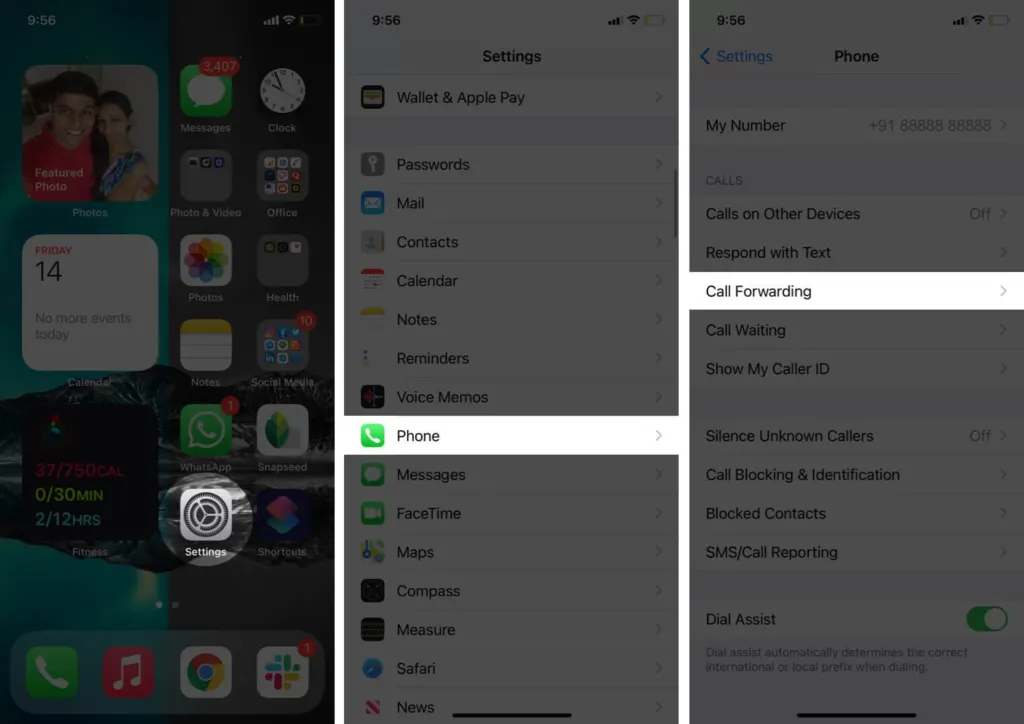
- Turn the Call Forwarding toggle off.
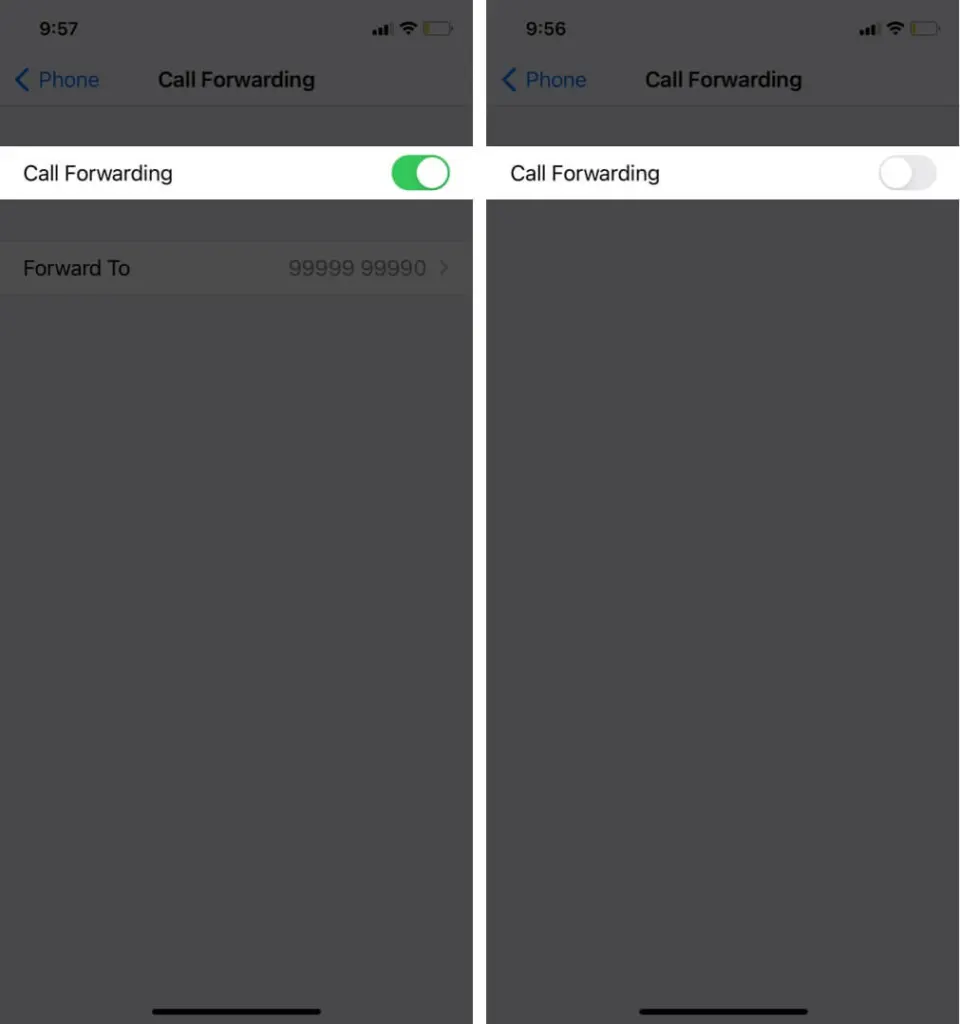
Some carriers manage forwarding through their own service settings or dial codes, so check with your carrier if the toggle is not there.
7. Set Date & Time Automatically
An iPhone that sets its own date and time stays in sync with the network.
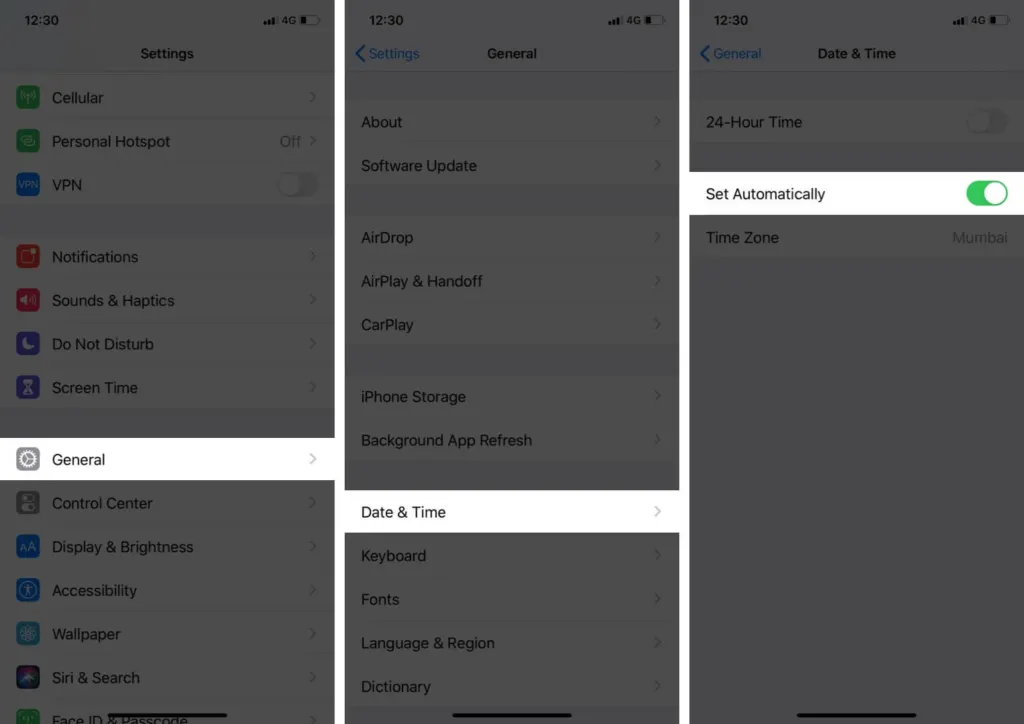
- Open Settings > General > Date & Time.
- Turn on Set Automatically.
8. Turn On Show My Caller ID
Show My Caller ID controls whether your number appears when you call, and a hidden number can sometimes interfere with a call getting through.
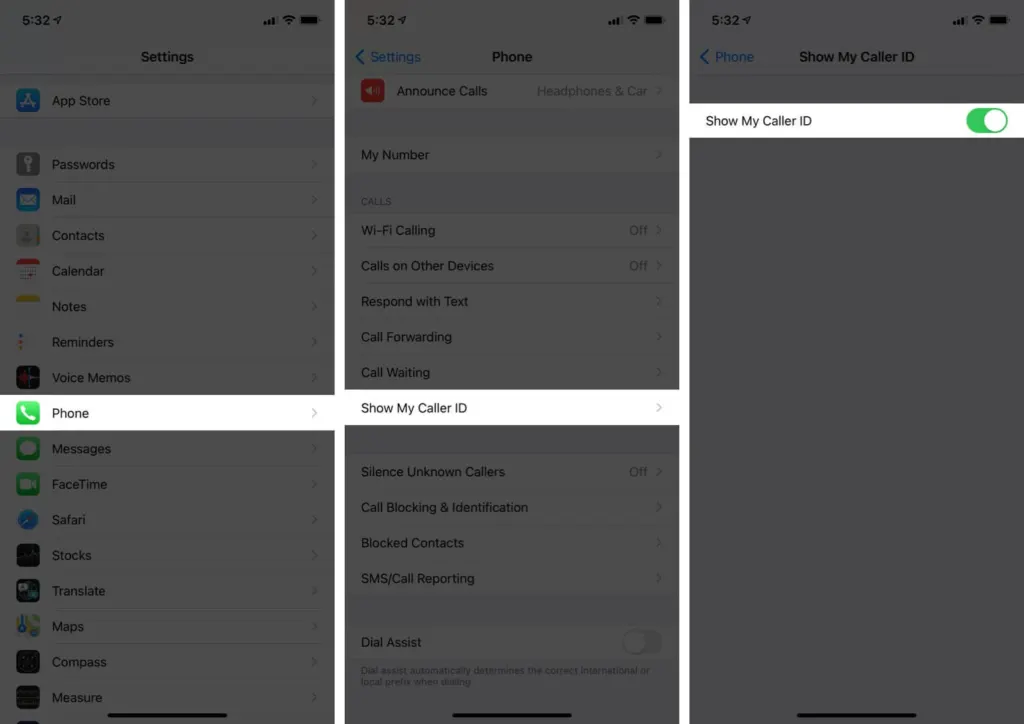
- Open Settings > Phone.
- Turn on Show My Caller ID.
9. Reinsert the SIM Card
Reseating a physical SIM clears a loose-card fault. Skip this on an eSIM.
- Eject the SIM tray and remove the SIM card. Check it for cracks or damage, since a damaged SIM should be replaced by your carrier.
- Gently wipe the SIM with a dry cloth, then reinsert it and wait for your signal to return.
If the SIM keeps causing trouble, see our guide to iPhone SIM failure.
10. Reset Network Settings
This clears the saved network configuration behind stubborn connection faults, and it is the last software step because it also removes saved Wi-Fi passwords, Bluetooth pairings and VPN settings. Write down any Wi-Fi passwords you need first.
- Open Settings > General > Transfer or Reset iPhone > Reset, then tap Reset Network Settings.
- Confirm the reset.
For the full steps, see our guide to resetting network settings on iPhone.
Why Does My iPhone End Calls by Itself?
The most likely cause is the side button being pressed, because the Lock button ends a call. A case that presses it is the first suspect.
- Open Settings > Accessibility > Touch.
- Turn on Prevent Lock to End Call (iOS 17 or later).
Calls that cut in and out are usually weak signal or a Bluetooth headset problem, so try a call on speaker without Bluetooth to tell which. A thick or metal case can also block signal, so make a test call without it. If calls from unknown numbers end right away, some users report that turning off Silence Unknown Callers in Settings > Phone helps.
When Your iPhone Keeps Dropping Calls Everywhere: Carrier or Apple
If the drops follow you to every location and nothing above helped, contact your carrier first, and Apple if the problem looks like hardware.
Your carrier can check for an outage, look at line provisioning on your account, or suggest a signal booster. Some people on iOS 18 report that neither Apple nor the carrier found a cause, and the calls only improved after a software update or a replacement phone. Ask Apple to run a diagnostic check on the iPhone, since damage to the antenna points to a hardware fault.
Most dropped calls have an ordinary explanation, so it is rarely time to worry about the phone itself. Keep a note of when and where the drops happen, since that helps your carrier or Apple look into it if the problem continues. See also setting up Wi-Fi Calling.


