
Calls that drop or fail at home, in the office or in a building with poor reception are a common annoyance. Support depends on the phone, the carrier and a few settings, so it is not always obvious what is available. The sections below show how to turn on WiFi calling on iPhone, how to tell it is working, and how to use it on other devices.
Table of Contents
1. How to Turn On WiFi Calling on iPhone
The switch is under Cellular in Settings, and you confirm it once with a pop-up.
- Open Settings and tap Cellular. With more than one SIM or eSIM, tap the line you want first, since the setting is kept per line. Older iOS versions put it under Settings > Phone instead.
- Tap Wi-Fi Calling.
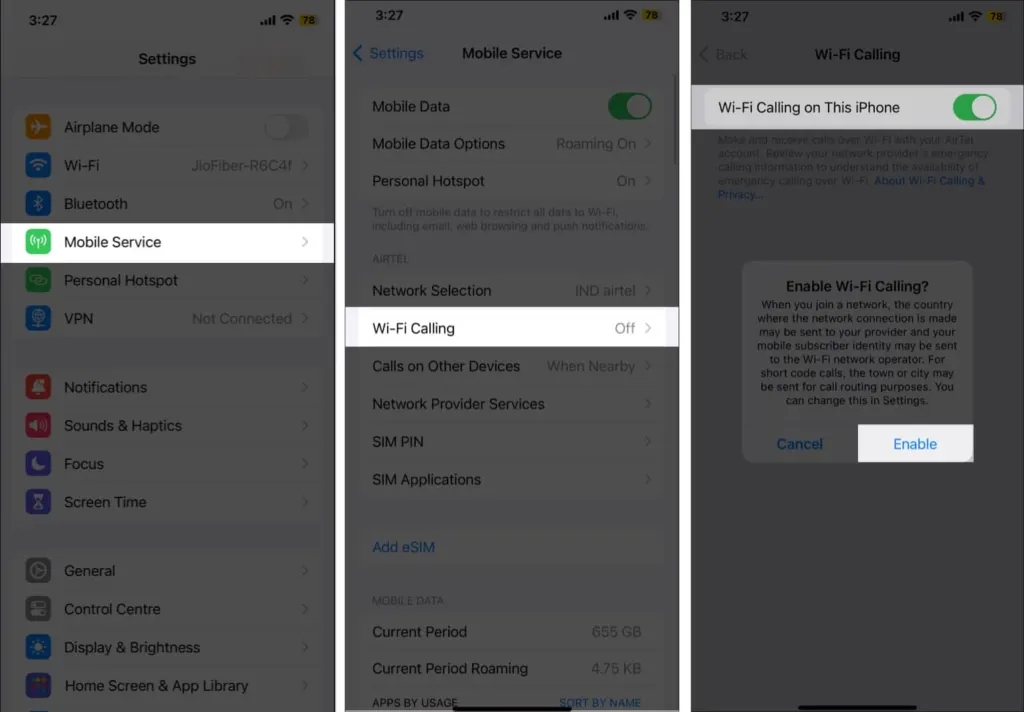
- Turn on Wi-Fi Calling on This iPhone.
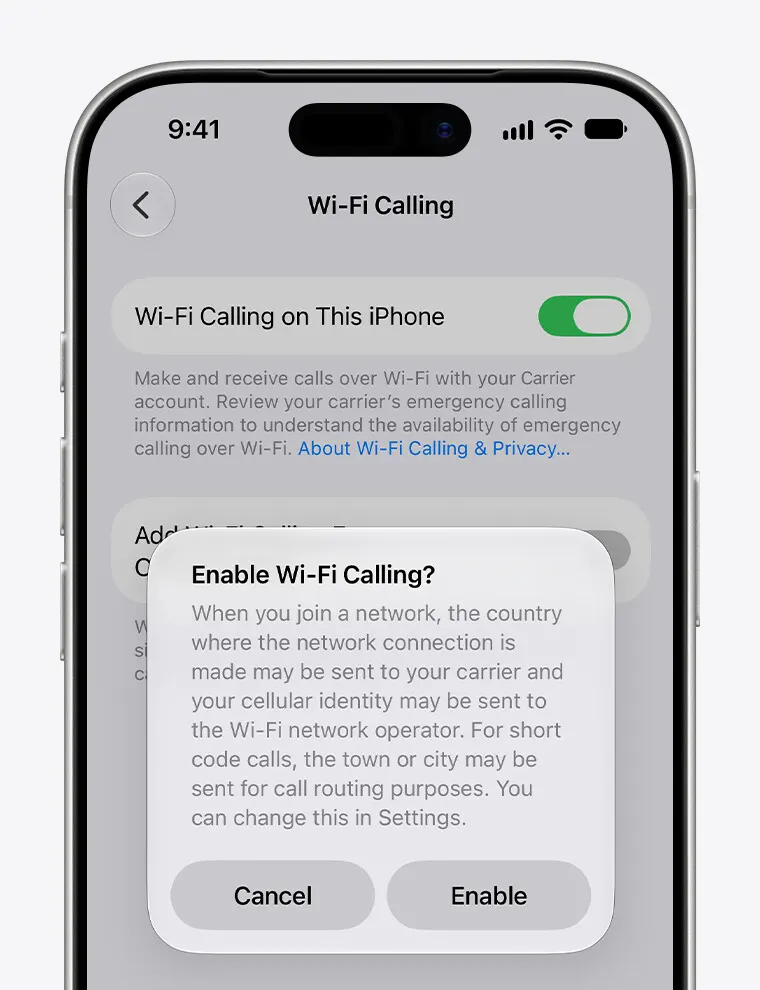
- Tap Enable in the pop-up. You may be asked to enter or confirm an address, which emergency services use if a call comes in over Wi-Fi.
How to Tell It Is Working
Open Control Center and look at the status bar. A “Wi-Fi” tag next to your carrier name means calls will go over Wi-Fi. For a harder test, switch on Airplane Mode, turn Wi-Fi back on, and place a call. If it connects, it is traveling over Wi-Fi, because the cellular radio is off.
Emergency calls follow different rules: the iPhone uses cellular when it is available, and only falls back to Wi-Fi Calling when it isn’t. Your device’s location may be shared to help responders, even with Location Services off.
2. Use WiFi Calling on iPad, Mac and Apple Watch
Other devices can ring for your iPhone’s number once you allow them on the iPhone and enable calls on each one. Update every device to current software first.
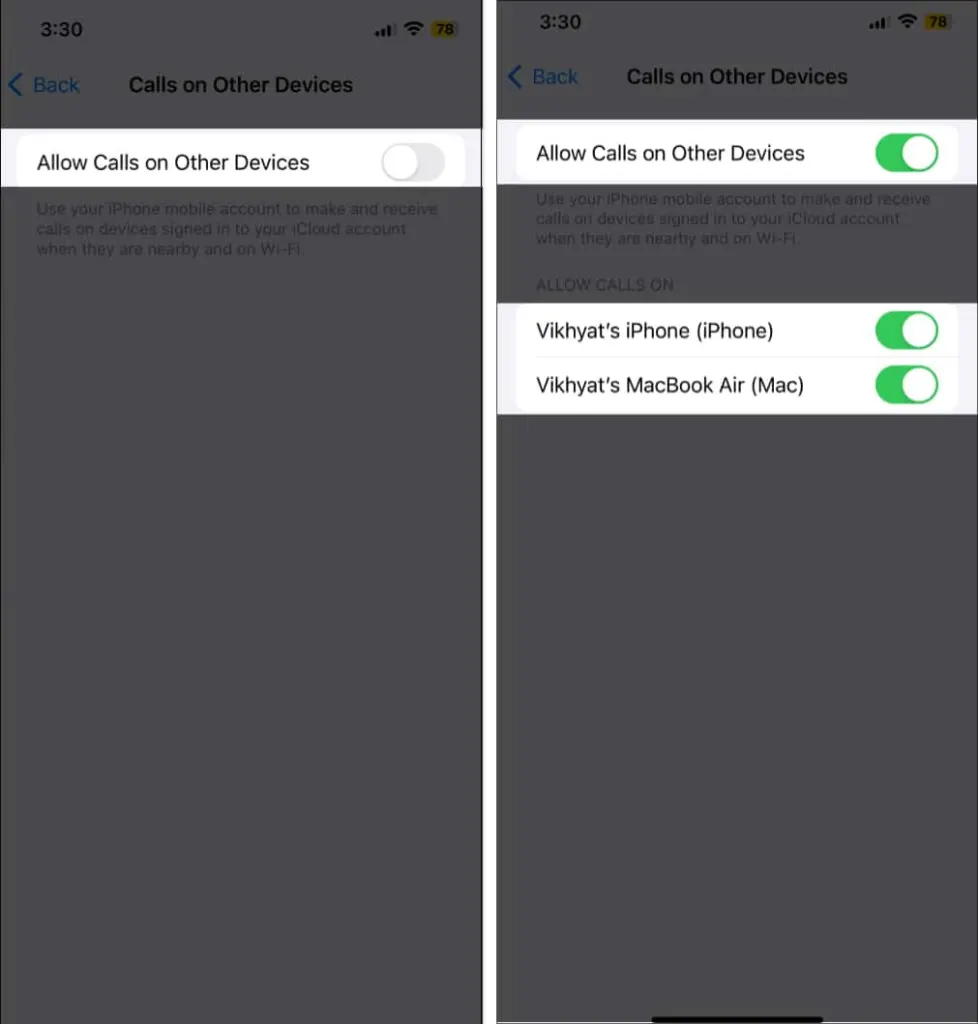
- On your iPhone, open Settings, tap Cellular, then tap Calls on Other Devices.
- Turn on Allow Calls on Other Devices, then turn on each device listed under Allow Calls On.
- On your iPad, open Settings, tap Apps, then FaceTime, and turn on Calls from iPhone.
- On your Mac, open FaceTime, choose Settings from the FaceTime menu, and turn on Calls from iPhone.
Apple Watch is enabled automatically once Allow Calls on Other Devices is on. Calls on iPad and Mac also depend on your carrier supporting Wi-Fi Calling on iCloud-connected devices.
If a device refuses to appear, confirm that Wi-Fi Calling and Allow Calls on Other Devices are both on, and that FaceTime and iCloud use the same Apple Account on the iPhone and the other device. To drop a device later, switch it off in the same Calls on Other Devices list.
Why WiFi Calling Isn’t Working on iPhone
If the option is greyed out or missing, your carrier or plan probably doesn’t offer it, and only the carrier can change that. When it exists but won’t start or calls fail, try these in order and wait about two minutes between each.
- Confirm that your carrier supports it and the iPhone is current. Update your iPhone if it isn’t.
- Check that the Wi-Fi Calling switch is still on, since a Wi-Fi Calling connection that drops sometimes needs the next step.
- Restart the iPhone.
- Join a different Wi-Fi network, because not every network works with Wi-Fi Calling. If yours keeps dropping, see why iPhone keeps disconnecting from Wi-Fi.
- Turn Wi-Fi Calling off and on again. Some owners with weak home coverage do this whenever calls start failing.
- As the last software step, reset your network settings. This erases saved Wi-Fi passwords, so have them ready.
If every step fails on current software with a carrier that supports the feature, call the carrier and ask them to check the feature on your line.
Is WiFi Calling Free on iPhone?
Most carriers count Wi-Fi calls as regular calls, so they use your plan’s minutes and add no separate fee. Calls to destinations outside your plan’s coverage area, including international numbers, can still cost extra, so check with your carrier first.
Having the option ready costs nothing and can save a call the next time reception is poor. Availability depends on the carrier, so the carrier is the right contact if the option is missing. A steady home network makes the biggest difference to call quality.


