
A connection that drops every few minutes is frustrating, especially in the middle of a call, video or download. When your iPhone keeps disconnecting from WiFi, the cause is usually a setting, the signal or the network itself rather than a broken phone. Eleven fixes follow.
Table of Contents
- Check the Signal Bars First
- Confirm Auto-Join and the Right Network
- Turn Off Wi-Fi Assist if Your iPhone Keeps Disconnecting From WiFi
- Turn Off Low Power Mode
- Toggle Wi-Fi and Renew the Lease
- Forget the Network and Rejoin
- Remove VPN Apps
- Install the Latest iOS Update
- Rule Out the Router When Your iPhone Keeps Disconnecting From WiFi at Home
- Reset Network Settings, Then All Settings
1. Check the Signal Bars First
A phone at the edge of the router’s range keeps losing and regaining the connection, so confirm the signal before changing anything.
- Open Settings and tap Wi-Fi.
- Check the bars beside your network. One filled bar means a weak signal; three means signal is not the problem.
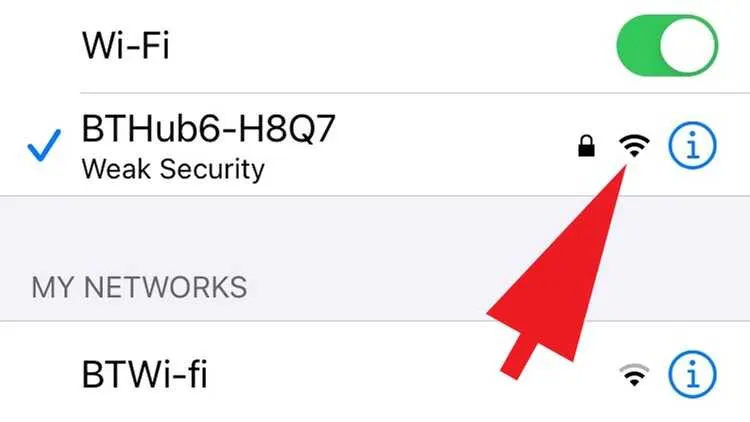
- With one bar, move closer to the router, or move the router to a central, raised spot. Old, large houses often have dead spots.
2. Confirm Auto-Join and the Right Network
If the phone is attached to an old network, such as a printer’s, it will keep falling off the one you actually want.
- On the same Wi-Fi screen, check that the checkmark is next to your home network.
- Tap the (i) button beside your home network.
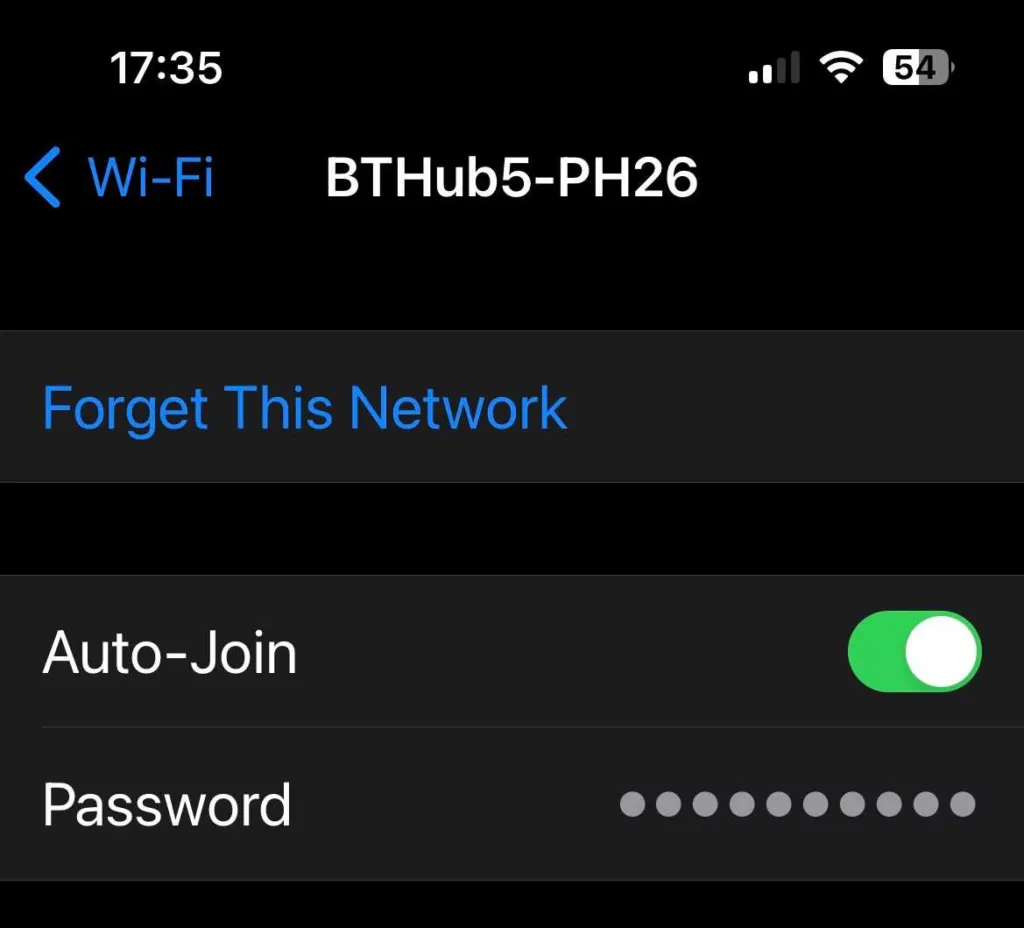
- Turn on Auto-Join.
3. Turn Off Wi-Fi Assist if Your iPhone Keeps Disconnecting From WiFi
Wi-Fi Assist moves traffic to cellular whenever Wi-Fi looks poor, which feels like a disconnect. An iOS update can switch it back on, so check it even if you turned it off long ago.
- Open Settings and tap Cellular.
- Scroll to the bottom and turn off Wi-Fi Assist.
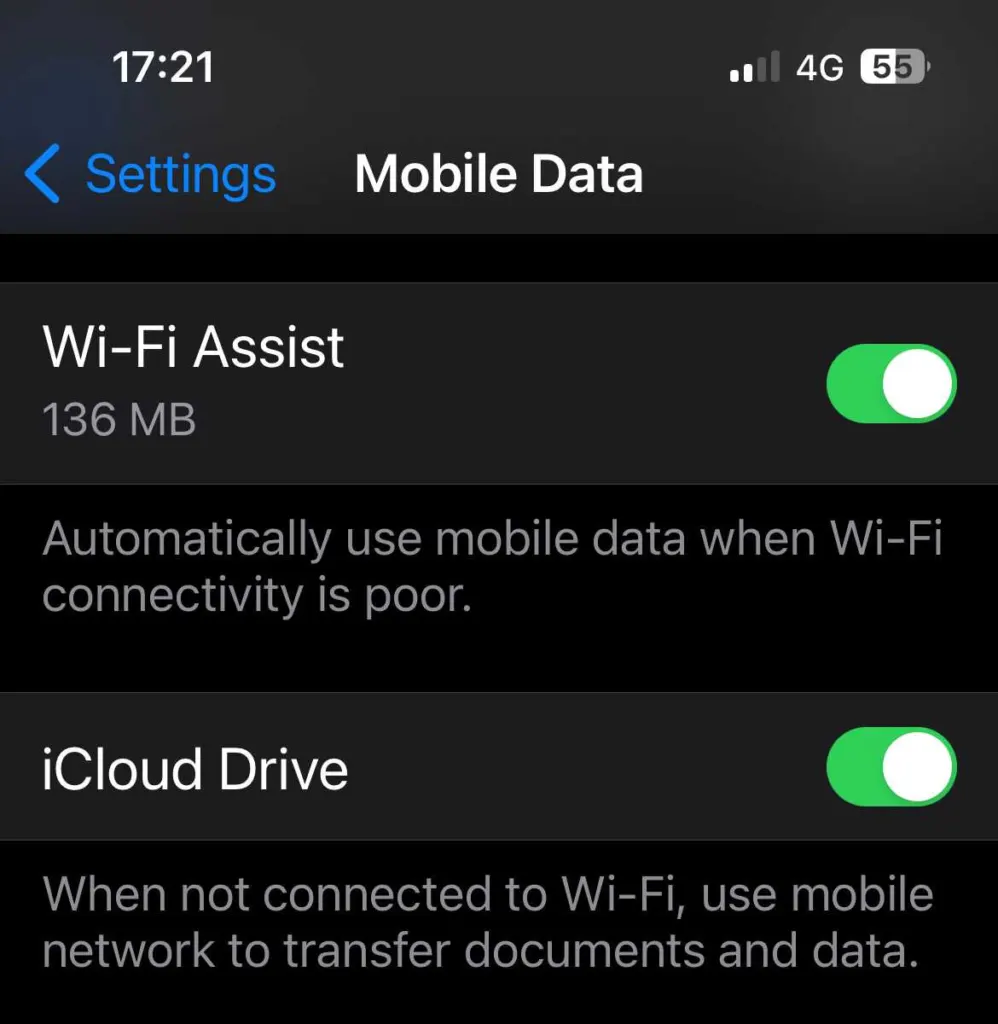
If it was already off, it is not your culprit, so keep going.
4. Turn Off Low Power Mode
Low Power Mode cuts background network activity, which is why the drops often appear when the screen is off or the phone is idle.
- Open Settings and tap Battery.
- Turn off Low Power Mode.
5. Toggle Wi-Fi and Renew the Lease
These two quick resets force a fresh connection and a fresh IP address, which clears a stale lease.
- Open Settings and turn Wi-Fi off. Use this switch, not the Control Center one.
- Wait 10 seconds, then turn it back on.
- If the drops continue, tap the (i) button beside your network, tap Renew Lease, and confirm.
6. Forget the Network and Rejoin
Forgetting a network deletes its saved profile, which can break after an iOS update or a router change. The iPhone builds a clean one when you rejoin.
- Open Settings, tap Wi-Fi, and tap the (i) button beside your network.
- Tap Forget This Network and confirm.
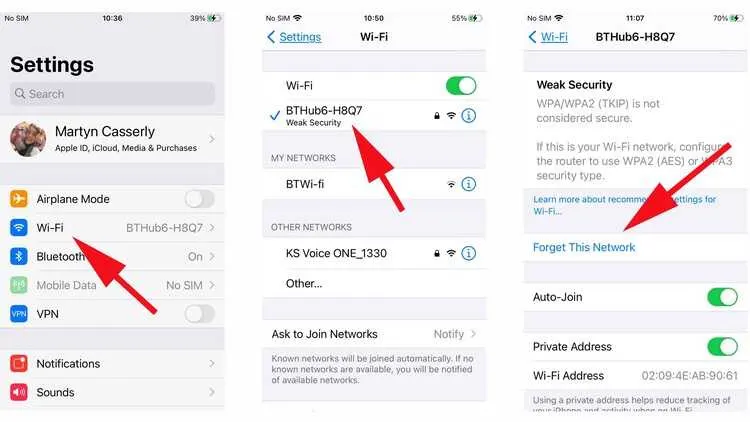
- Tap the network again and enter the password. It is case-sensitive.
After rejoining, the network name should show a checkmark with full bars. If only your iPhone drops, the (i) page also has a Private Wi-Fi Address switch; turning it off for that network is another thing worth testing.
7. Remove VPN Apps
A VPN app can interfere with Wi-Fi, including ones bundled with a past phone plan. Other users have fixed a stubborn drop loop by deleting an old carrier VPN app they no longer used.
- Open Settings, tap General, and tap VPN & Device Management.
- Turn off any active VPN configuration, then delete the VPN app and watch the connection for a day.
8. Install the Latest iOS Update
Point releases often fix Wi-Fi bugs, though some users report drops that began right after a specific update, so check which camp you are in. Our guide on how to update your iPhone covers the full process.
- Open Settings, tap General, and tap Software Update.
- If an update is listed, tap Download and Install.
9. Rule Out the Router When Your iPhone Keeps Disconnecting From WiFi at Home
If every device drops, or the iPhone only drops at home, start here. A router that has run for weeks can lose track of individual devices.
- Unplug the router, wait 30 seconds, plug it back in, and give it about 2 minutes.
- If the router has separate 2.4 GHz and 5 GHz networks, join the 5 GHz one. 2.4 GHz shares airwaves with microwaves, Bluetooth devices and baby monitors.
- In the router admin page, change the Wi-Fi channel. On 2.4 GHz, pick channel 1, 6 or 11.
- Update the router firmware.
Also check a site like Downdetector for a local outage. A line that gets worse in rain points to a cable problem worth reporting to your provider. If the iPhone cannot join at all, read what to do when an iPhone won’t connect to WiFi.
10. Reset Network Settings, Then All Settings
This is the last software step because it wipes every saved Wi-Fi password, Bluetooth pairing and VPN setting. Our walkthrough on resetting network settings on iPhone has more detail.
- Open Settings, tap General, and tap Transfer or Reset iPhone.
- Tap Reset, then tap Reset Network Settings.
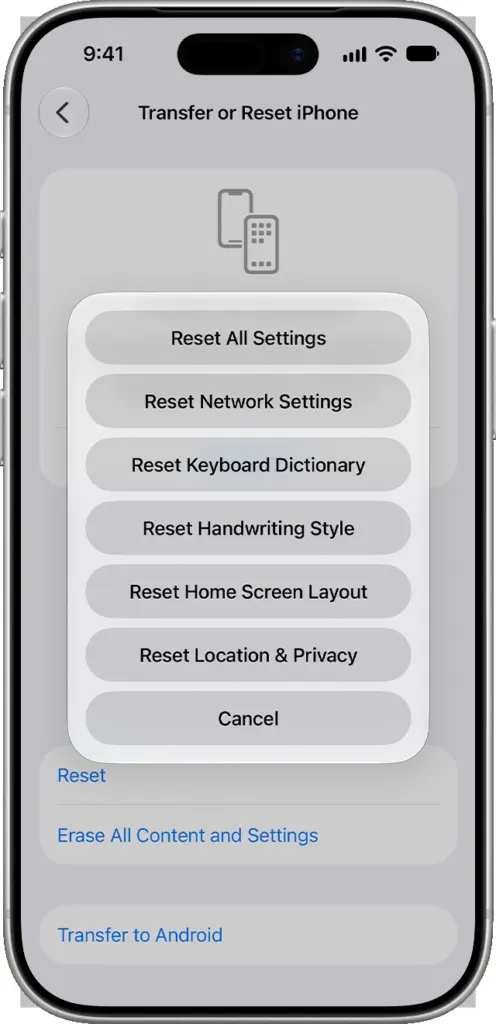
- Enter your passcode. The iPhone restarts; rejoin your network and enter the password again.
If it still drops, Reset All Settings on the same Reset menu is the stronger version, and it is wise to back up first. When that fails too and other devices stay connected, the Wi-Fi hardware may be faulty, so book an Apple Store or Apple Support appointment.
Most of these changes cost nothing and are easy to reverse, so there’s little risk in working through them. If the problem follows the phone everywhere, a repair appointment with Apple is the sensible next step.


