
A No SIM or Invalid SIM alert can leave you without calls or data right when you need them. Finding your iPhone SIM card not working may point to the card, the carrier line or the phone, and the wording of the alert helps narrow it down. The checks run from the quickest to those that need your carrier or Apple, and they cover phones with a physical card as well as eSIM.
Table of Contents
- Why Is My iPhone SIM Card Not Working? Common Causes
- Check Your Plan and Carrier Lock
- Turn Airplane Mode On and Off, Then Restart
- Turn On the SIM Line
- Remove and Reseat the SIM Card
- Update iOS and Carrier Settings
- Enter the SIM PIN for a Locked SIM
- Test With Another SIM Card
- Reset Network Settings
- When Your iPhone SIM Card Is Still Not Working
Why Is My iPhone SIM Card Not Working? Common Causes
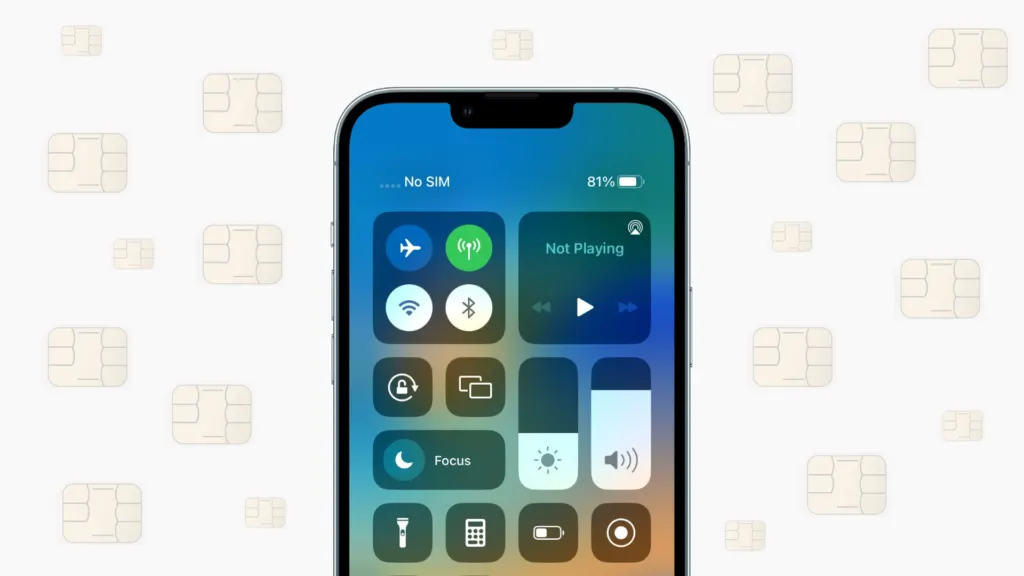
The alert names the likely cause, so start with which one you see.
You might see No SIM, No SIM Card Installed, Invalid SIM, SIM Not Valid, or SIM Not Supported.
| What the iPhone shows | What it usually means | Try first |
|---|---|---|
| No SIM / No SIM Card Installed | The phone can’t detect the card: seating, tray, or hardware | Section 4, then Section 7 |
| SIM Not Valid / SIM Not Supported | The SIM is from another carrier than the one the iPhone is locked to, or the line isn’t active | Section 1 |
| Invalid SIM | Plan, lock or carrier settings problem | Sections 1 and 5 |
| SIM Locked | A SIM PIN is set | Section 6 |
| Carrier name missing, two lines set up | The line is switched off | Section 3 |
On iPhones with a physical SIM, other causes include a dirty or damaged card, a tray from the wrong model, outdated carrier settings or an iOS bug, and a damaged SIM reader, often after a drop or water exposure. On US iPhone 14 models and later, there is no tray to check, so the eSIM line is what to review, and your carrier handles that.
1. Check Your Plan and Carrier Lock
Confirm the line is active and the iPhone isn’t locked to another carrier, because no setting on the phone fixes either one.
- Make sure your plan is active with your carrier. A new SIM may need activation, and an unpaid bill can suspend the line.
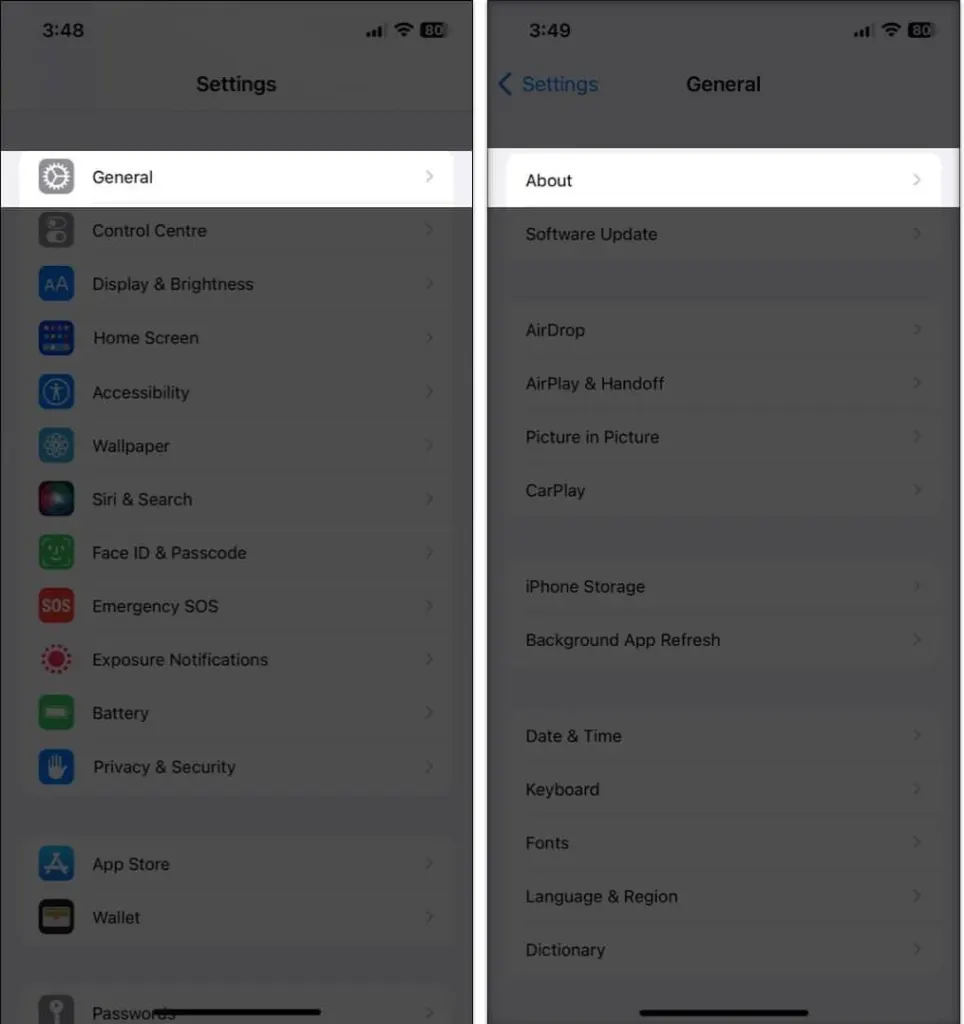
- Open Settings > General > About and find Carrier Lock. If it says No SIM restrictions, the iPhone is unlocked. If it’s locked, only SIMs from that carrier will work, and you may see SIM Not Valid or SIM Not Supported.
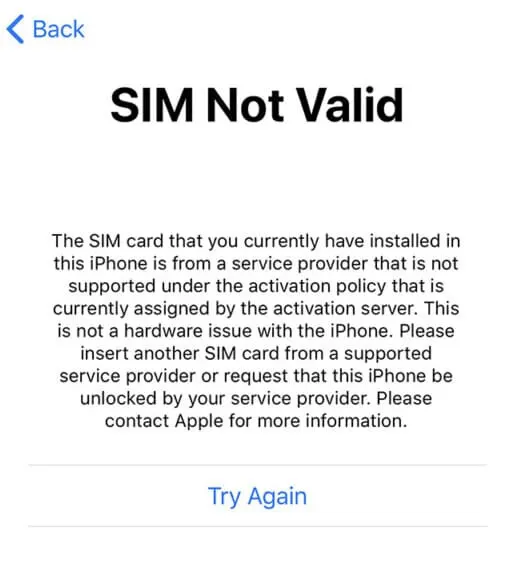
To use a different carrier, ask the original carrier to lift the lock. That’s the legitimate route.
2. Turn Airplane Mode On and Off, Then Restart
Toggling Airplane Mode makes the iPhone drop and rebuild its connection to the network, and a restart clears a stuck software state.
- Open Control Center and tap the Airplane Mode icon to turn it on. Wait a few seconds, then tap it again to turn it off.
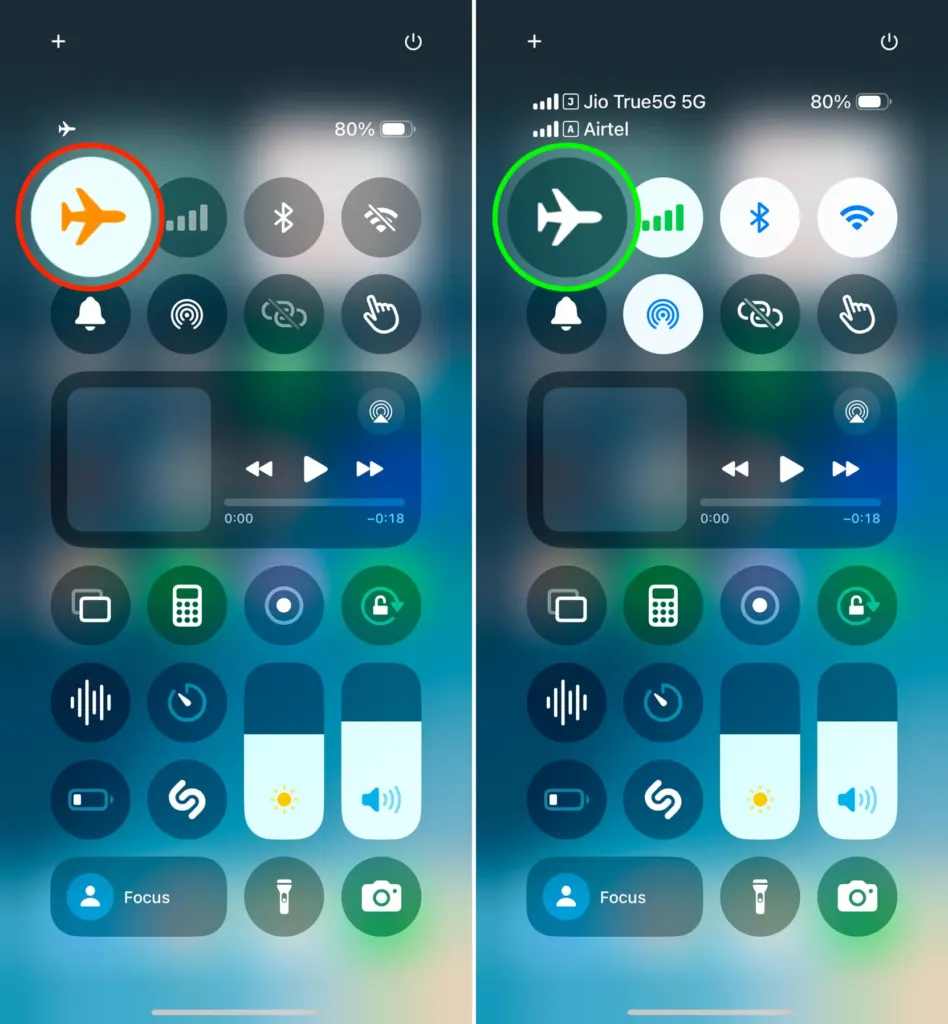
- Restart your iPhone, then check the status bar for your carrier name. That name appearing is the sign the SIM is back.
3. Turn On the SIM Line
With two lines set up, the one you need may be switched off.
- Open Settings > Cellular.
- Tap the line you need, then tap Turn On This Line.
4. Remove and Reseat the SIM Card
A SIM that sits slightly out of position, a dirty contact or the wrong tray all produce a “No SIM” alert.
- Insert the SIM eject tool into the small hole beside the tray and pull the tray out. Don’t force a tray that resists, since a jammed tray can damage the reader.
- Check the SIM for dirt or damage, and wipe the contacts with a dry, lint-free cloth.
- Set the SIM back with the notch aligned, then push the tray in until it closes completely and doesn’t wiggle.
- Use the tray that came with this exact iPhone model. A tray from another phone may not fit.
- Remove any thick case that presses on the tray.
5. Update iOS and Carrier Settings
Carrier settings tell the iPhone how to talk to your network, so outdated ones can look like a dead SIM.
- Open Settings > General > Software Update, then tap Download and Install if an update is available. For the full steps, see our guide to updating your iPhone.
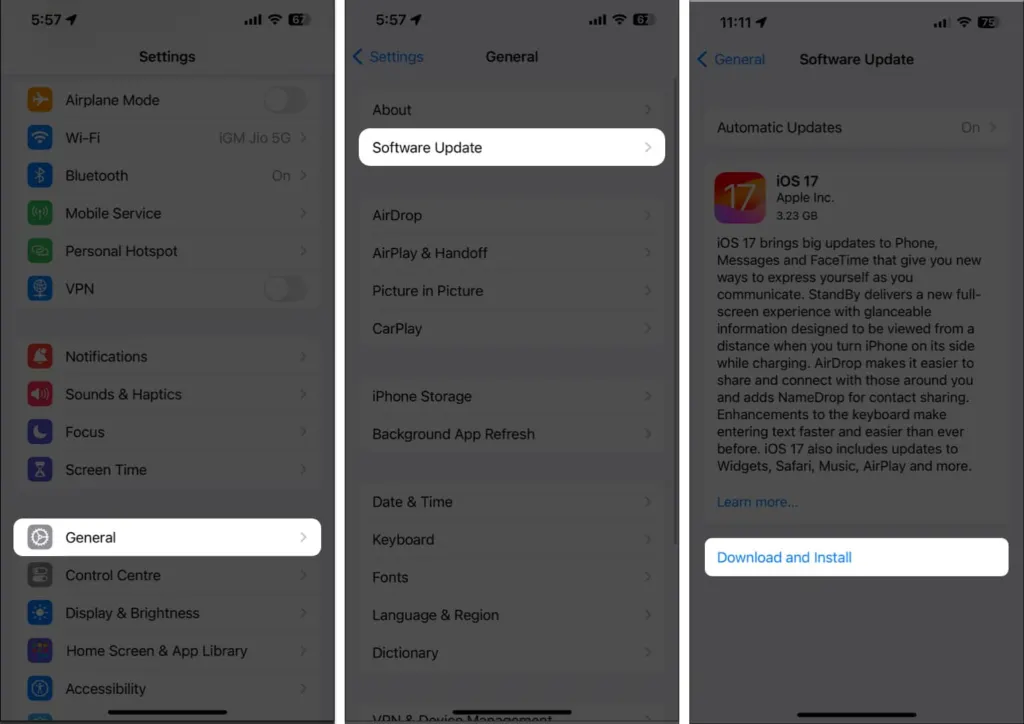
- Open Settings > General > About. If a carrier settings update is available, a prompt appears, so follow it to install the update.
6. Enter the SIM PIN for a Locked SIM
A SIM PIN locks the card until the correct code is entered.
- If you see SIM Locked, open Settings > Cellular > SIM PIN and enter your PIN.
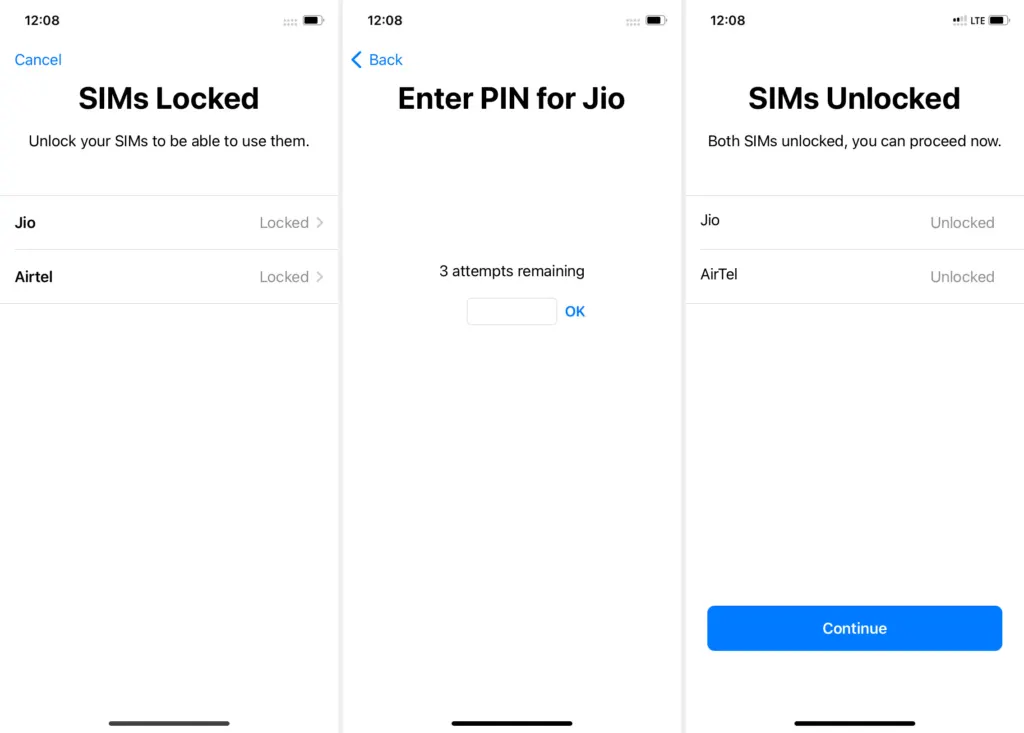
- After three wrong PIN entries, the iPhone requires the PUK from your carrier. Don’t guess the code, because it can permanently lock the SIM.
7. Test With Another SIM Card
Swapping SIMs between phones shows whether the card or the iPhone is the problem. A carrier store can also run this test with one of its own SIMs.
- Put a SIM you know works into this iPhone. If it connects, your original SIM is likely faulty, so ask your carrier for a replacement. Many carriers also offer eSIM conversion.
- Put your SIM into another phone. If it works there but not in this iPhone, the problem is likely in the iPhone itself, such as a lock or hardware issue.
8. Reset Network Settings
This clears the saved network configuration, which helps when the SIM is seated and active but still isn’t picked up.
- Open Settings > General > Transfer or Reset iPhone, tap Reset, then choose Reset Network Settings.
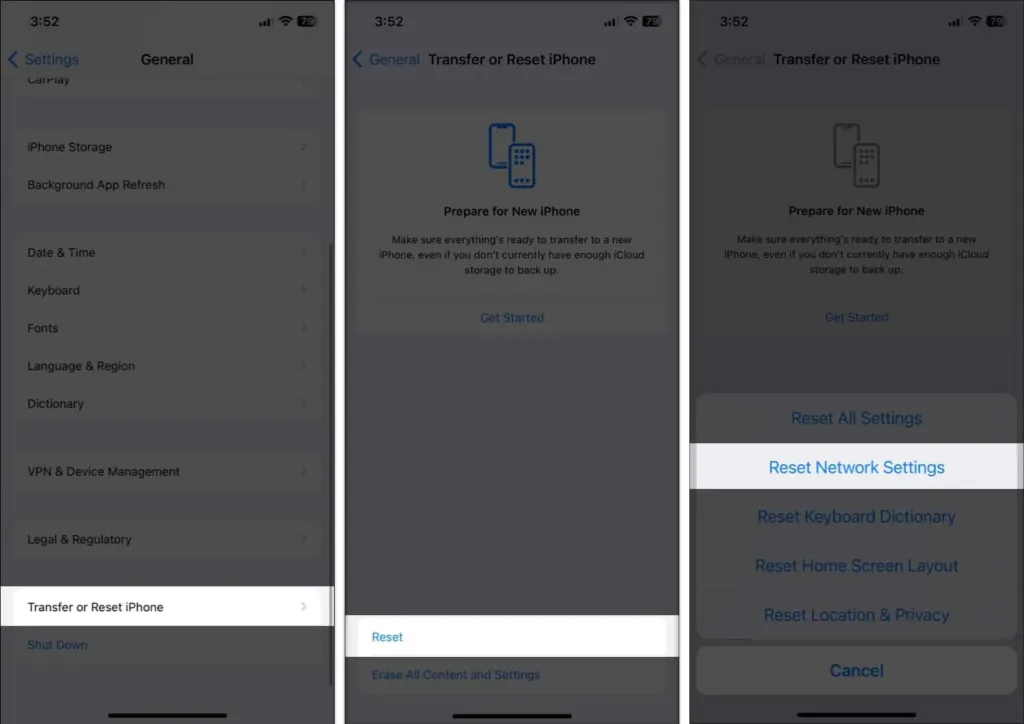
- This erases saved Wi-Fi passwords, VPN settings, and APN settings, so have those details ready. For the full walkthrough, read our Reset Network Settings on iPhone guide.
When Your iPhone SIM Card Is Still Not Working
If the SIM still isn’t detected, the next step depends on whether the card or the iPhone is at fault.
- If the SIM failed in another phone, contact your carrier for a replacement.
- If the SIM works elsewhere but not in your iPhone, take the iPhone to an Apple Store or an Apple Authorized Service Provider.
- Check Settings > General > About for an IMEI. A blank IMEI points to a board-level fault rather than the card or tray, and no SIM swap will fix it.
- A factory reset is the last software option, and only after a full backup. If a clean setup doesn’t bring the SIM back, the fault is in the hardware.
If your status bar shows SOS Only instead of a carrier name, read our iPhone SOS Only guide.
A SIM alert looks serious, but it often turns out to be simpler than a failed card, and most of the checks are free and easy to undo. If they do not settle it, your carrier or Apple can look at the line and the phone directly. If you are moving to a new iPhone, transfer your eSIM to the new phone next. For a different alert, our iPhone SIM failure guide covers it.


