
A SIM that worked fine yesterday can suddenly start flashing an alert, vanish for a minute, and then come back, leaving calls and data unreliable. When you find your iPhone keeps saying No SIM Available, the cause is usually something you can check yourself rather than a dead phone. The steps below cover the common causes and fixes, for both physical SIMs and eSIMs, and when the problem points to the hardware.
Table of Contents
- Why the iPhone Keeps Saying No SIM Available
- Check Your Plan and Carrier Lock
- Toggle Airplane Mode and Restart
- Update Carrier Settings and iOS
- Reseat the SIM and Check the Tray
- Try Another SIM if the iPhone Keeps Saying No SIM Available
- If You Use an eSIM
- Reset Network Settings
- When the Alert Points to Hardware
Why the iPhone Keeps Saying No SIM Available
The alert means the iPhone can’t read or use the SIM, and when it comes and goes the cause is often a loose connection, a worn SIM, or a line that isn’t fully active. An unpaid bill, an expired prepaid plan, or a line moved to an eSIM on another phone can all trigger it. For a broader look at every SIM alert, see our guide to an iPhone SIM card not working, and for that specific message see iPhone SIM Failure.
Check Your Plan and Carrier Lock
Start by confirming with your carrier that the plan is active and the line is still assigned to this iPhone.
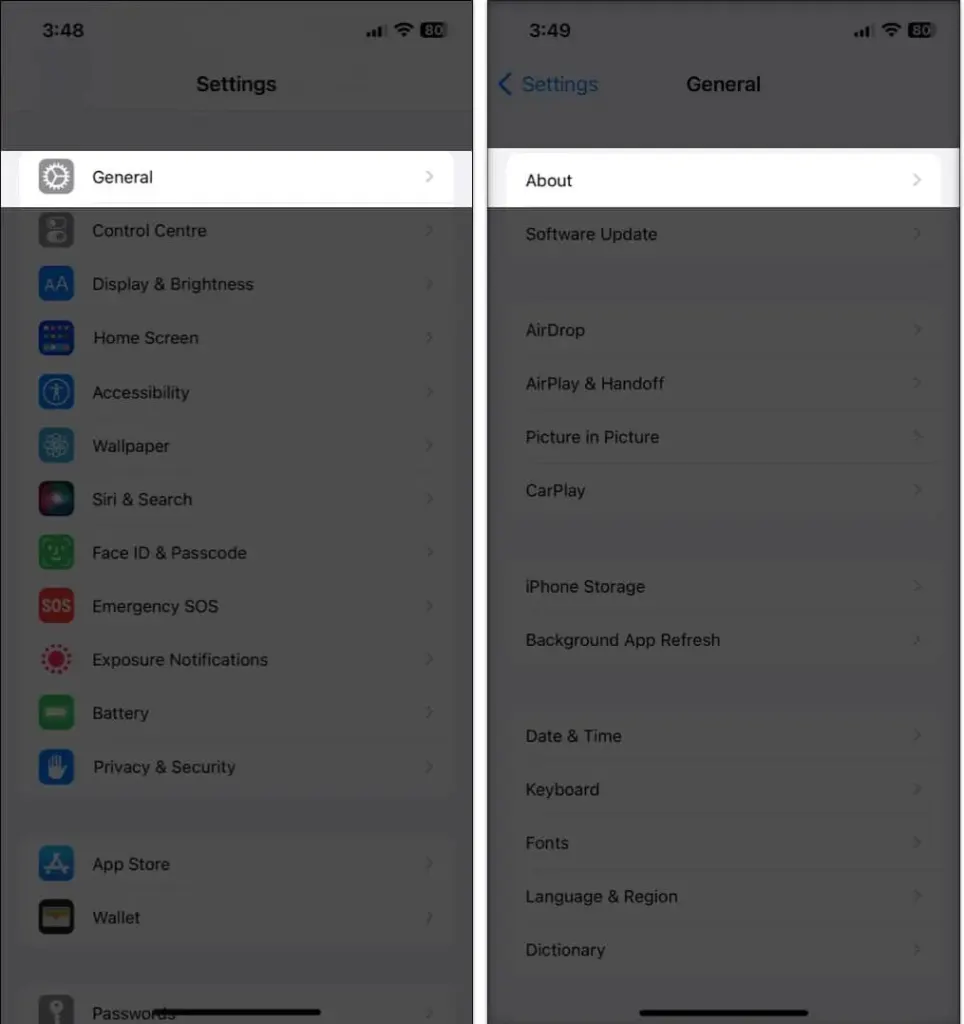
- Open Settings > General > About.
- Look next to Carrier Lock. No SIM restrictions means the iPhone is unlocked; a locked iPhone works only with its own carrier.
Toggle Airplane Mode and Restart
These force a fresh search for the network and clear temporary glitches.
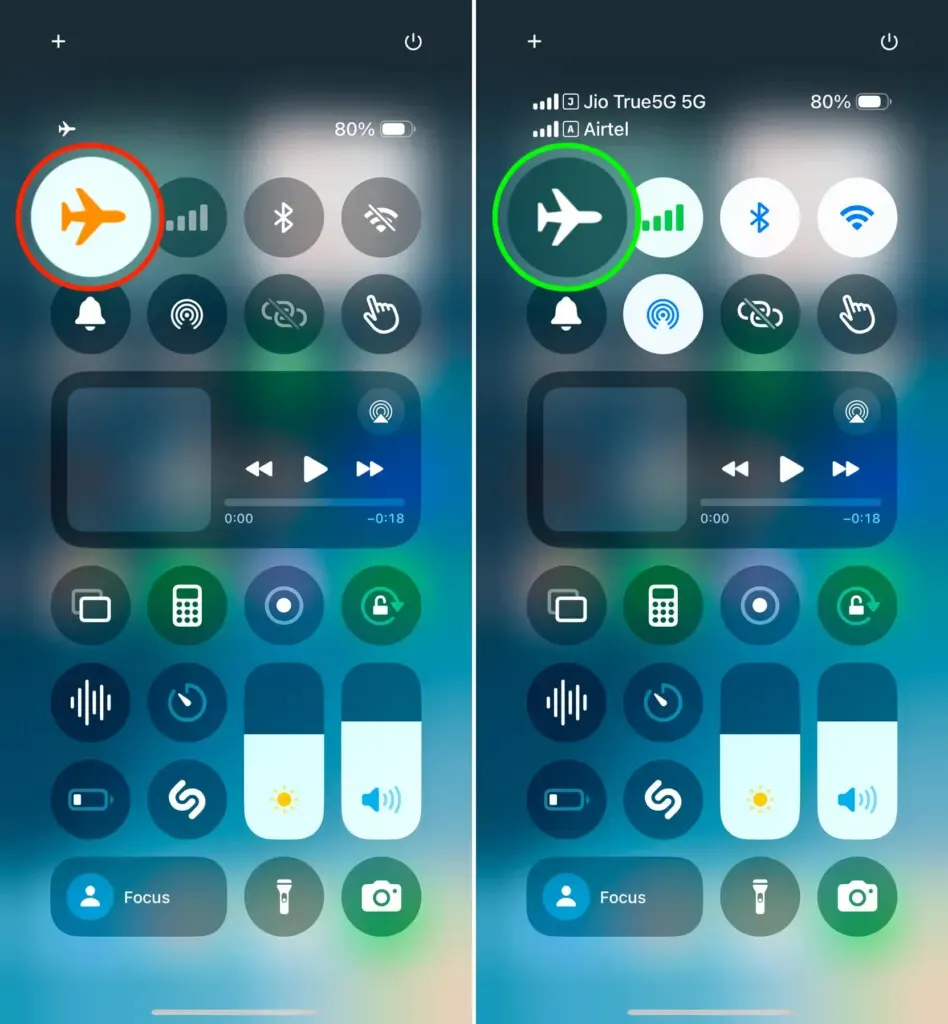
- Open Control Center and turn Airplane Mode on.
- Wait a few seconds, then turn it off.
If the alert returns, restart the iPhone.
Update Carrier Settings and iOS
An outdated carrier profile or iOS version can leave the iPhone unable to read the SIM reliably.
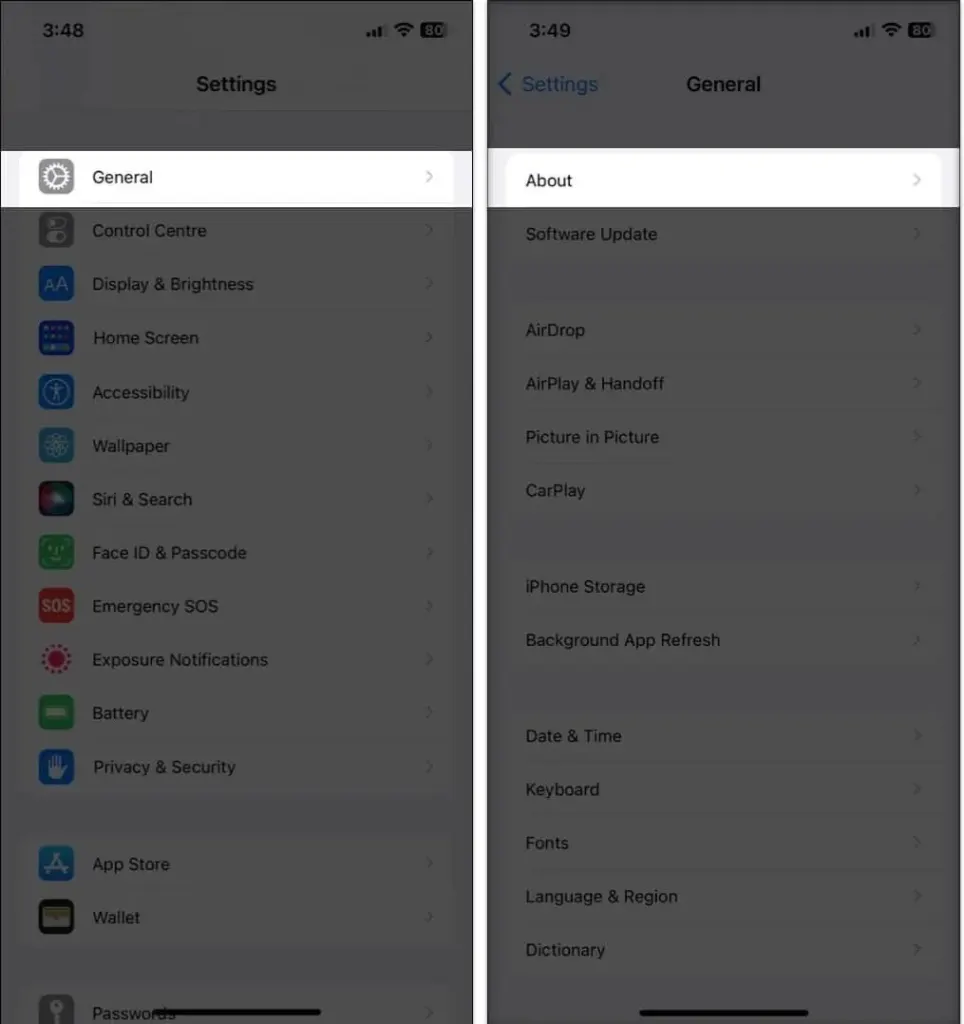
- Go to Settings > General > About and wait a moment. If an update is available, a prompt appears; tap Update.
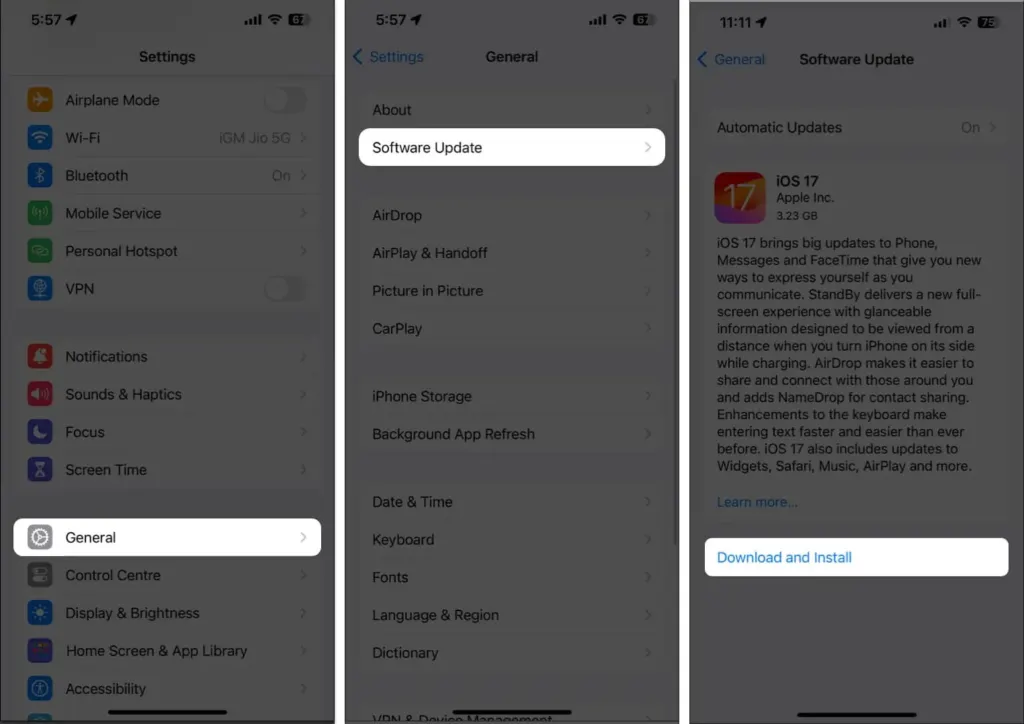
- Then open Settings > General > Software Update and install anything available. Our guide on how to update an iPhone has more detail.
Reseat the SIM and Check the Tray
A loose or dirty SIM is a classic cause of an alert that appears and disappears.
- Remove the SIM and put it back. The tray must close completely and not feel loose.
- A tray from a different iPhone model or another brand may not fit properly.
- If the SIM looks dirty, wipe it gently with a microfiber cloth.
- A damaged SIM needs a replacement from your carrier; a damaged tray needs a repair.
Try Another SIM if the iPhone Keeps Saying No SIM Available
Testing a different SIM shows whether the problem is the card or the iPhone. If you don’t have a spare, your carrier’s store can test the line with another SIM. Old, worn SIM cards are a common reason for on-off alerts, so ask for a new SIM, or move to eSIM if your carrier and model support it.
If You Use an eSIM
With an eSIM, contact your carrier, because the profile may need to be reissued. US iPhone 14 and later models have no SIM tray and use eSIM only.
Reset Network Settings
If the alert keeps returning, resetting network settings clears saved connection data.
- Open Settings > General > Transfer or Reset iPhone > Reset.
- Tap Reset Network Settings.
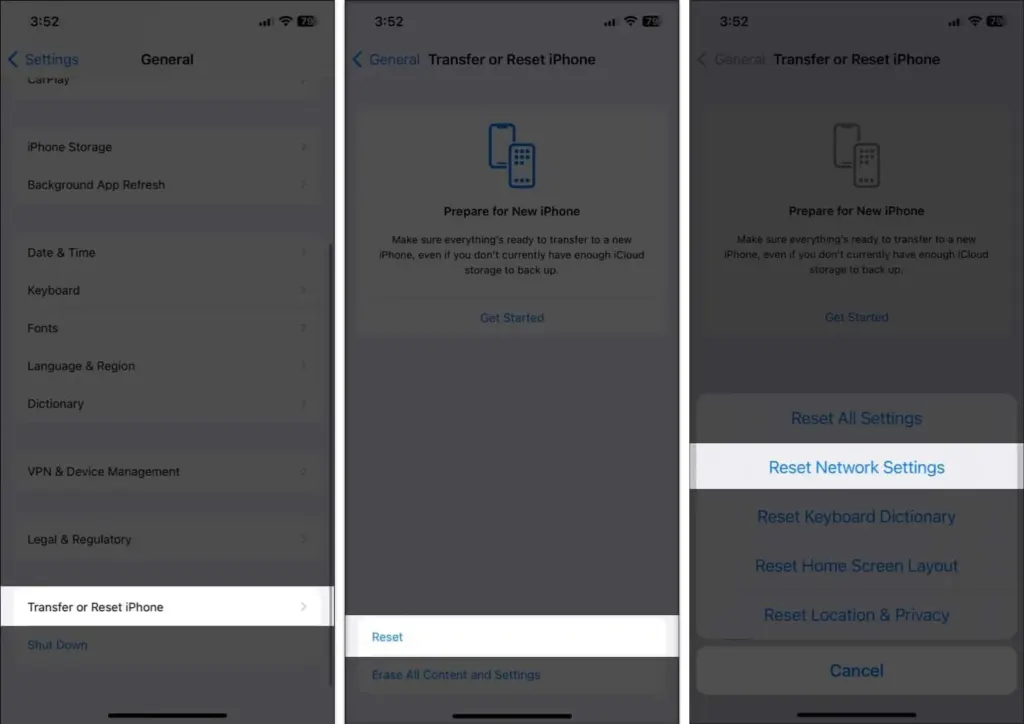
This erases Wi-Fi passwords, VPN and cellular settings, so you’ll need to set those up again. See our guide to resetting network settings on an iPhone for details.
When the Alert Points to Hardware
If it started after a drop or water exposure, or keeps returning with a new SIM, the SIM reader or logic board may be at fault. Contact Apple Support or an Apple Authorized Service Provider.
A SIM alert that keeps returning is frustrating, but it usually has a simple cause once the plan, the card and the software are ruled out. If the iPhone is locked to a carrier, that carrier is the right place to sort it out.


