
It happens to everyone: a guest asks for the Wi-Fi password and the sticker on the router is nowhere to be found. The good news is that your phone may already hold it, as long as it has joined that network before. The steps below show how to see the WiFi password on iPhone, including older saved networks, and how to share it without reading it out.
Table of Contents
How to See WiFi Password on iPhone in Settings
Open Settings, go to Wi-Fi, tap the (i) button next to the network, then tap Password and unlock to reveal it.
- Open Settings and tap Wi-Fi.
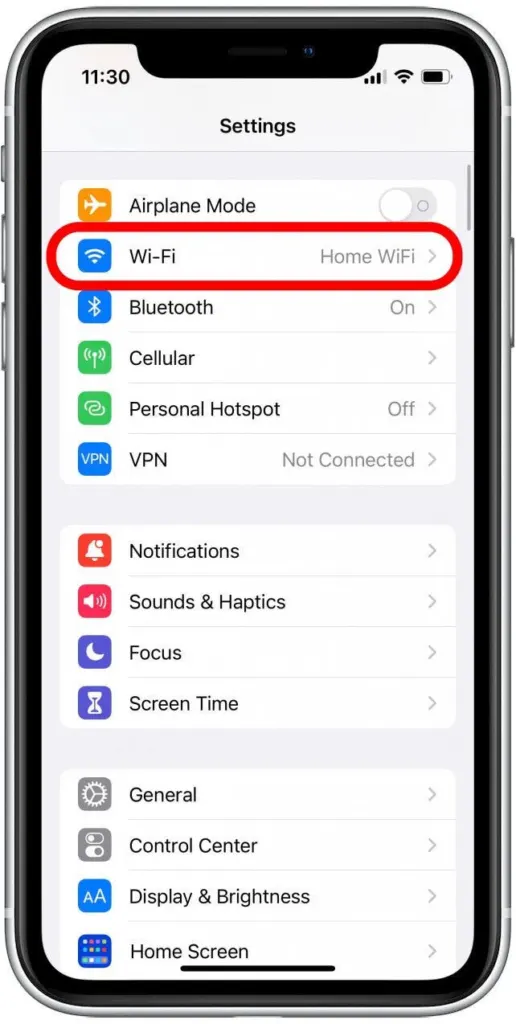
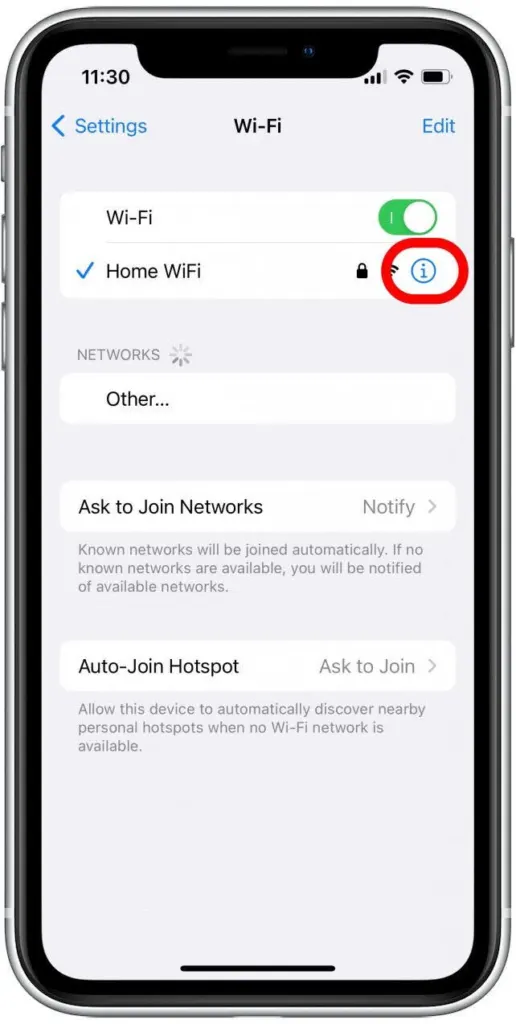
- Tap the (i) info button next to the network you’re connected to. For a network you joined earlier, tap Edit at the top right and unlock with Face ID, Touch ID or your passcode to list saved networks, then tap the (i) next to the one you want.
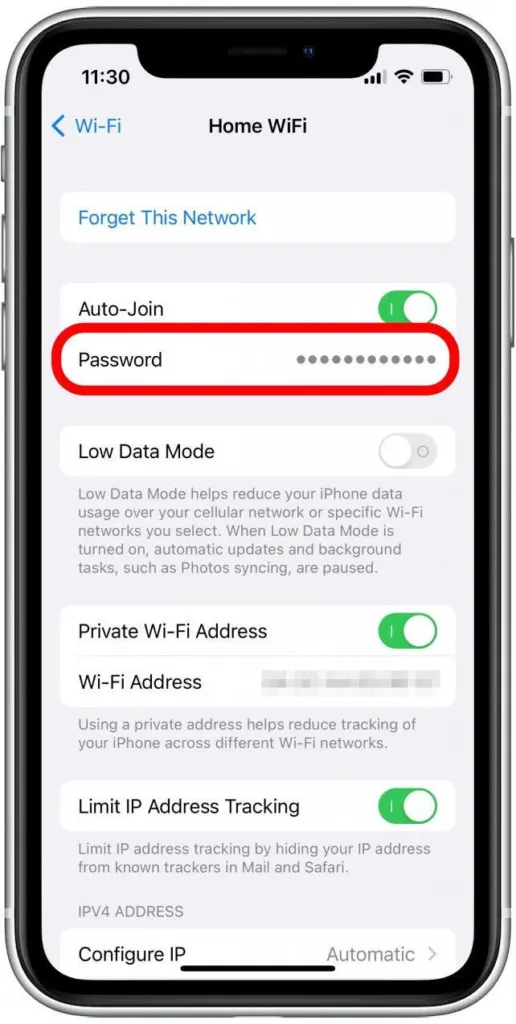
- On the network details screen, tap Password. It shows hidden dots until you unlock.
- Confirm it’s you. The password appears, and Copy puts it on the clipboard.
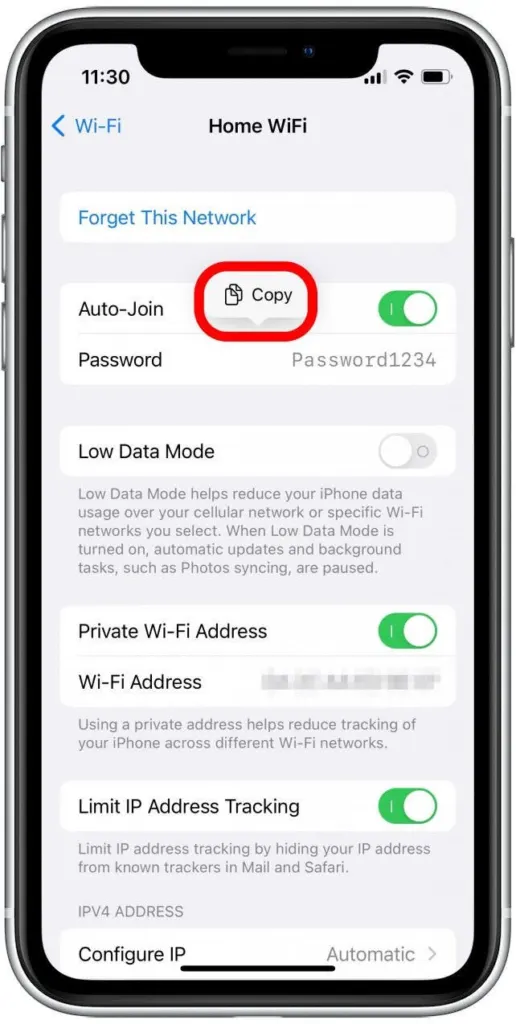
Copying is safer than reading it aloud, because Wi-Fi passwords are case-sensitive and one wrong capital letter fails the join.
See WiFi Password on iPhone in the Passwords App (iOS 18 and Later)
The Passwords app lists saved Wi-Fi networks in one place, which is quicker when you want a network other than the one you’re on.
- Open Passwords and unlock it.
- Tap Wi-Fi, then the network you want.
- Tap the Password field to reveal it.
Share Your Wi-Fi Password Without Typing It
Pick the method by who needs it.
- Another Apple device nearby: have it try to join your network. When your iPhone shows the Share Password prompt, tap Share Password. This works when the other person is in your contacts.
- An Android phone, or several people: on iOS 18 and later, open Passwords, tap the network and choose Show Network QR Code. Anyone can scan it, contact or not.
- Anyone else: open the password screen in Settings, tap Copy and paste it into a message.
Why a Network Doesn’t Show a Password
Some networks never display a Password field, so the password has to come from somewhere else.
- The network isn’t joined or saved on your iPhone.
- It’s a work or school network that uses a username or certificate.
- It was installed on your iPhone by a configuration profile.
If no device you own has the password, check the label on the router or its documentation, which may show the default password if it was never changed. If you manage the router, its admin page or app lets you view or change the password. A Mac on macOS 13 or later can copy it too: System Settings > Network > Wi-Fi > Advanced, then More next to the network and Copy Password.
If the password changed and your iPhone keeps failing to join, forget the network and join it again with the new one. Think twice before resetting network settings as a fix, since that erases saved Wi-Fi passwords, so copy the ones you need first. Our guide to resetting network settings on iPhone explains the process. For your Personal Hotspot password, see how to change your iPhone hotspot name and password.
Keeping a password within reach saves a lot of hassle the next time someone needs to connect. Share it only with people you trust, and change it on the router if it ends up in the wrong hands.


