
It is frustrating when your phone refuses to join a network that every other device in the house uses without trouble. The cause can sit with the phone, the router or the provider, and a few small clues can tell you which one. The fixes below start with quick checks and work up to bigger steps, so you can find the problem when an iPhone won’t connect to WiFi.
Table of Contents
1. Check the Wi-Fi Switch and Connectivity Assist
Make sure Wi-Fi is on and your network shows a blue checkmark before you change anything else.
- Open Settings and tap Wi-Fi.
- Check that the Wi-Fi switch is on. If it is dimmed or grayed out, restart the iPhone.
- Tap your network name. A blue checkmark means you’re connected.
- Turn Connectivity Assist off. It sits on the same screen.
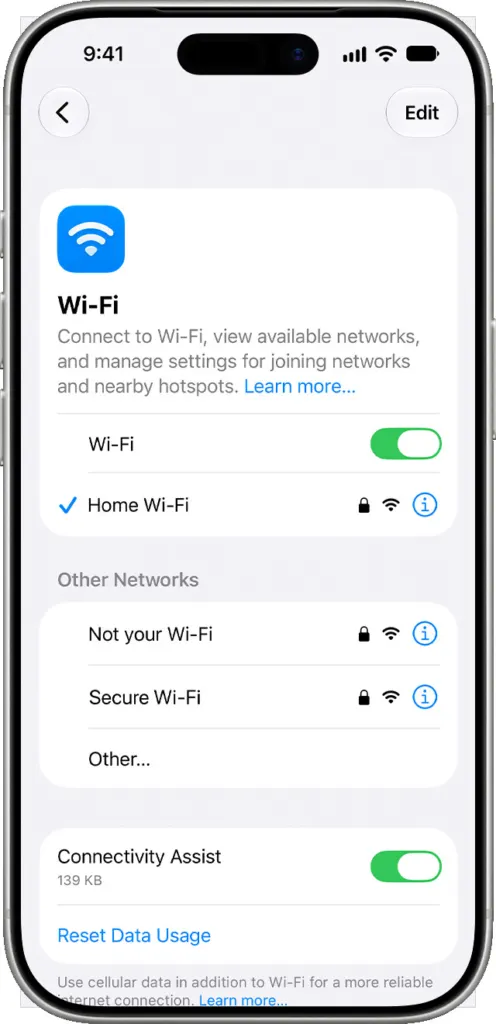
If the network name carries an orange “No Internet Connection” note, tap the name to read the details the iPhone gives about the problem.
2. Cycle Airplane Mode, Then Restart
Flipping Airplane Mode restarts the wireless radios, and a restart clears out glitches that survive that.
- In Settings, confirm Airplane Mode is off.
- Turn it on, wait a few seconds, then turn it off.
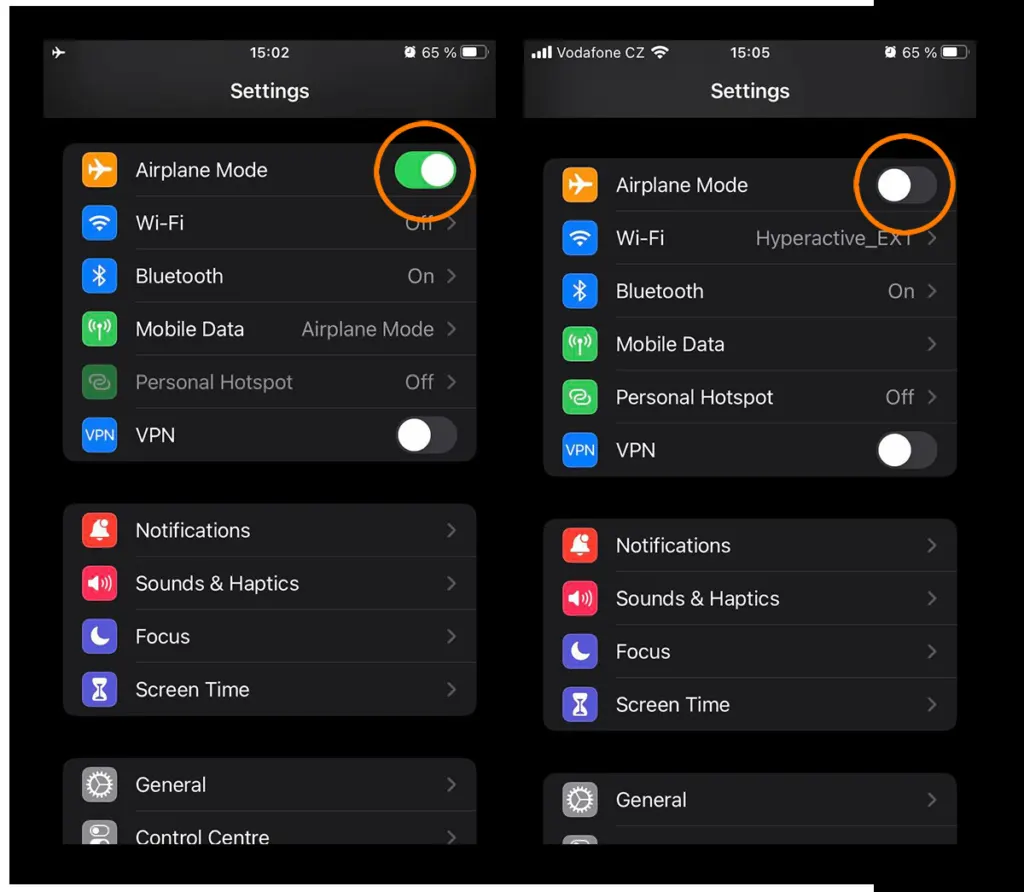
- Restart the iPhone and open the Wi-Fi screen again.
3. Forget the Network and Join It Again
Forgetting a network wipes its saved settings, so the iPhone negotiates a fresh connection with the password you type in.
- Go to Settings > Wi-Fi and tap the (i) icon beside your network.
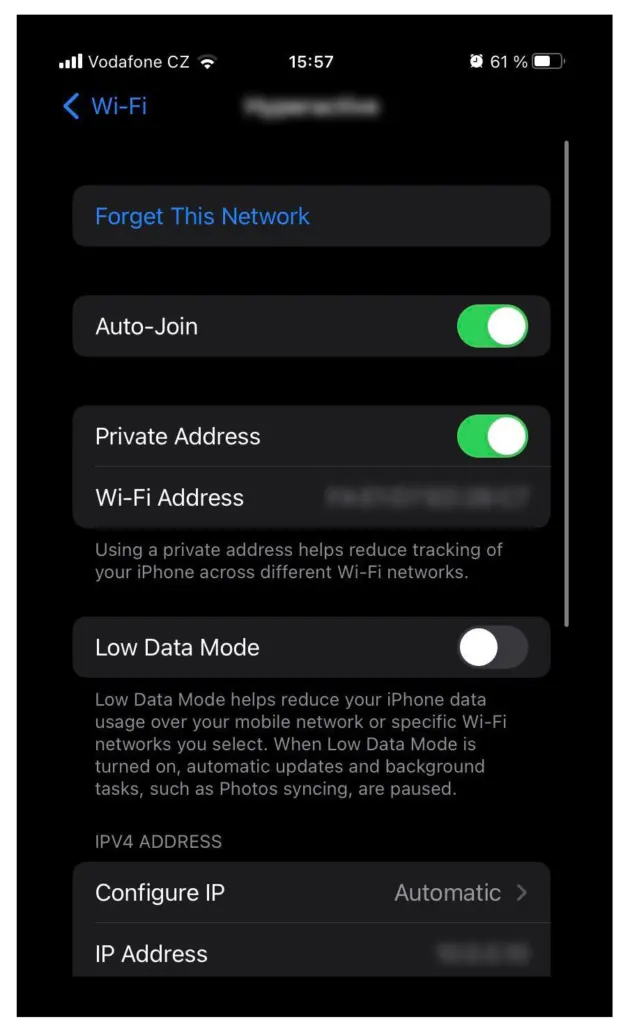
- Tap Forget This Network, then Forget.
- Select the network again and enter the password, watching the capital letters.
Still refusing? On that same (i) screen, switch off Private Wi-Fi Address for this network only. A router that filters by MAC address can reject the private address, though this isn’t a guaranteed fix.
4. Rule Out VPN, Security Apps, Screen Time and the Case
Four things on or around the phone can quietly block a connection, and each takes a minute to test.
- VPN or security app: uninstall it, restart the iPhone and try the network again. If Wi-Fi works and you still need the app, ask the VPN or security provider for help.
- Screen Time: open Settings > Screen Time > Content & Privacy Restrictions and see whether the switch is on. A phone that was once used for parental controls, or came from someone else, may still carry restrictions.
- Case: bulky or metallic cases can weaken reception by getting in the way of the antennas, so pop it off and try again.
5. Check the Router and Its Bands
Try another device on the same network. If it connects, the router and network are fine and the trouble sits on the iPhone side.
- Confirm the router is powered on and the iPhone is in range.
- If the router broadcasts separate bands, join 5 GHz instead of 2.4 GHz, or the other way round.
- Unplug the router and modem, wait about 30 seconds, then plug them back in.
- Update the router’s firmware.
When only one network turns the iPhone away, it may be hidden or may use device filtering on the router. If you don’t manage that network, ask whoever does, or your ISP. A home network that only started failing right after an iOS update is worth a router restart and firmware check first, since the router rather than the phone has turned out to be the cause in some reports.
6. Reset Network Settings When Your iPhone Won’t Connect to WiFi
This is the last resort. It removes every saved Wi-Fi network and password along with cellular, VPN and APN settings, so note down the passwords you need first. On a work or school iPhone, ask IT before resetting. Our full walkthrough of resetting network settings on iPhone covers what else changes.
- Open Settings > General > Transfer or Reset iPhone.
- Tap Reset.
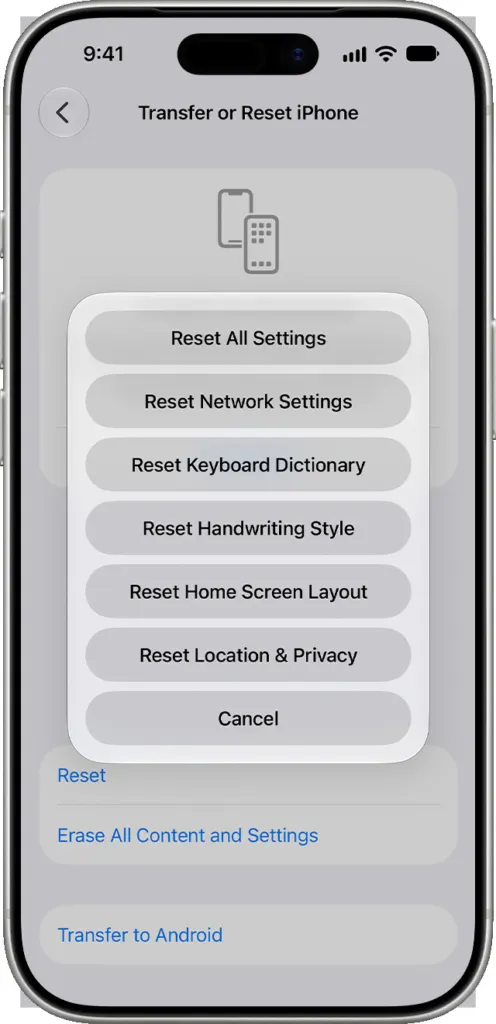
- Tap Reset Network Settings, then rejoin your network.
7. Is It the iPhone or the Network?
Take the iPhone to a different Wi-Fi network, such as a friend’s home or a cafe. If it can’t join any network at all, contact Apple, because the Wi-Fi hardware could be at fault. If it joins elsewhere but not at home, the router or your ISP is the problem, and the same goes for a connection that shows no internet after the reset.
Most connection problems clear up without a repair, and the order you work in saves time and avoids needless resets. If nothing helps on any network, your provider or Apple Support can take it from there, and our guide to seeing a Wi-Fi password on iPhone can help if you are unsure of the password.


