
A greyed-out Personal Hotspot switch is frustrating when you need to share your connection right now. When the iPhone hotspot greyed out problem appears, it usually comes down to a missing requirement or a setting rather than a broken phone. Seven fixes follow.
Table of Contents
- Turn On Cellular Data First: iPhone Hotspot Greyed Out
- Confirm Your Plan and Line Include Hotspot
- Fill In the Personal Hotspot APN
- Allow Cellular Data Changes in Screen Time
- Install a Carrier Settings Update
- Refresh the Connection, Restart and Update iOS
- Reseat the SIM or Try Another One
- Reset Network Settings
- Turn On Personal Hotspot Once It Is Available
- iPhone Hotspot Greyed Out After Every Fix
1. Turn On Cellular Data First: iPhone Hotspot Greyed Out
Personal Hotspot shares the cellular connection, so it can’t switch on while Cellular Data is off.
- Open Settings and tap Cellular.
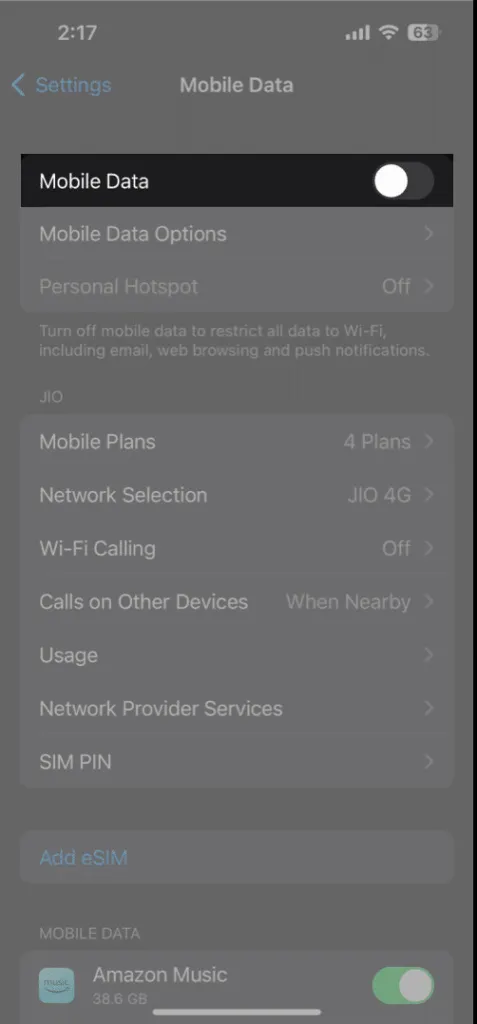
- Turn on Cellular Data.
If it won’t stay on, our guide to fixing iPhone cellular data that isn’t working covers that problem.
2. Confirm Your Plan and Line Include Hotspot
When Cellular Data is on and the switch is still dimmed, the likeliest cause is that the carrier hasn’t enabled hotspot on your line. That’s common after a plan change or a move to a new SIM or eSIM. Apple’s advice for a hotspot you can’t find or turn on is the same: the carrier must have enabled it and the plan must support it.
- Check your carrier’s app or online account for Personal Hotspot or tethering under your plan.
- If it’s missing or unclear, ask the carrier to add it to your line, and wait a few minutes after they confirm before checking again.
3. Fill In the Personal Hotspot APN
The APN tells the carrier how to route hotspot traffic, and a blank one can leave the option dimmed. Several people in a Reddit thread on this problem fixed it by entering the carrier’s values.
- Open Settings > Cellular > Cellular Data Network.
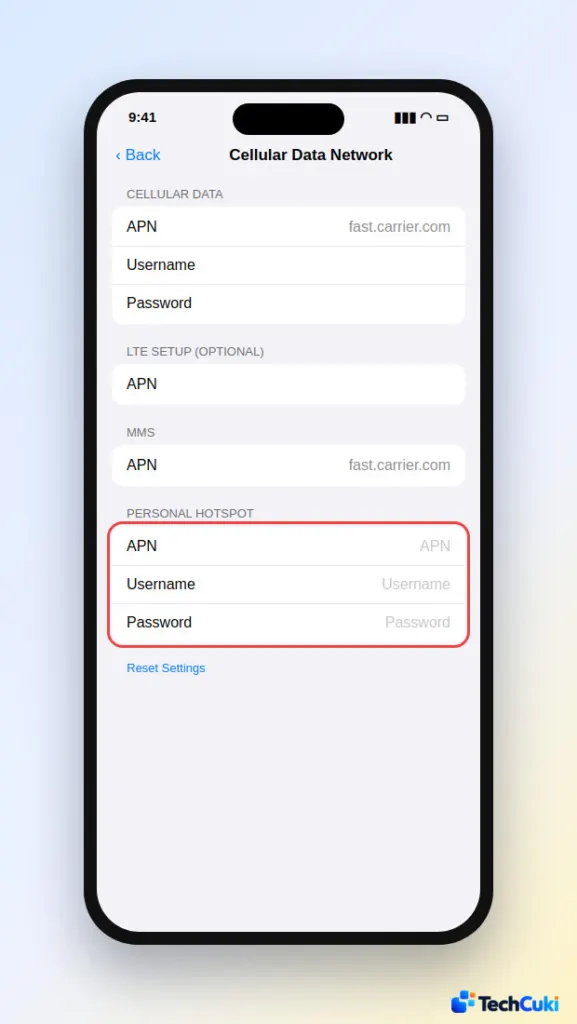
- Scroll to the Personal Hotspot section. If the APN, Username and Password fields are blank, enter the values from your carrier. The hotspot APN is often the same as the Cellular Data APN, but copy it from the carrier rather than guessing.
If the Cellular Data Network screen or its Personal Hotspot section doesn’t exist, your carrier doesn’t allow APN edits on this iPhone. In that case, editing is a dead end, and the answer comes from the carrier (Fix 2) or from the carrier settings update in Fix 5.
4. Allow Cellular Data Changes in Screen Time
A Screen Time restriction can lock cellular settings, which keeps Personal Hotspot unavailable. Check it if the iPhone is shared with a family member or has Screen Time turned on.
- Open Settings > Screen Time.
- Tap Content & Privacy Restrictions, then Cellular Data Changes.
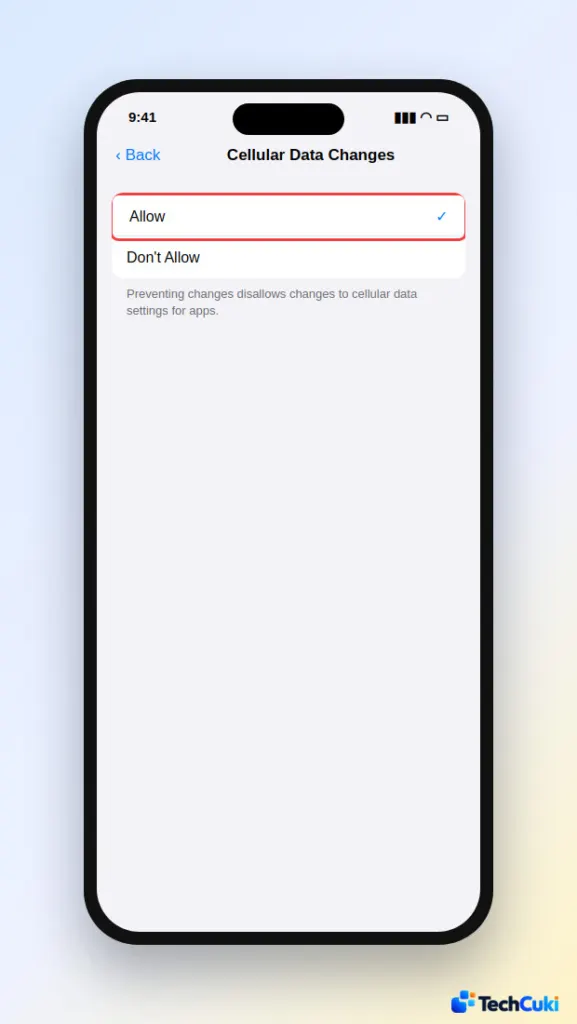
- If it says Don’t Allow, select Allow.
On a work or school iPhone, a management profile can block hotspot, and this screen won’t override it, so ask your IT team before changing anything.
5. Install a Carrier Settings Update
Carrier updates can restore a missing feature, and the prompt is the only way to get one. Open Settings > General > About and wait a moment. If an update is waiting, a prompt appears; follow it to install.
6. Refresh the Connection, Restart and Update iOS
These clear a stuck cellular state and pick up fixes in newer software.
- Turn Cellular Data off and on, or switch Airplane Mode on, wait a few seconds, and switch it off.
- Restart the iPhone.
- Install any iOS update. Our guide to updating your iPhone has the steps.
7. Reseat the SIM or Try Another One
This separates a SIM or line problem from an iPhone problem. Remove and reinsert the SIM, or put in a different SIM that has a hotspot-enabled plan. If hotspot is available with that SIM, the issue is the original line, and the carrier needs to fix it.
8. Reset Network Settings
Save this for last, because it clears cellular, Wi-Fi, VPN and APN settings in one go and can’t be undone.
- Open Settings > General > Transfer or Reset iPhone.
- Tap Reset, then Reset Network Settings.
Afterward, rejoin your Wi-Fi networks and re-enter any custom APN. Our Reset Network Settings on iPhone guide covers the details.
Turn On Personal Hotspot Once It Is Available
When the switch is no longer dimmed, you can share the connection.
- Open Settings > Cellular > Personal Hotspot.
- Turn on Allow Others to Join.
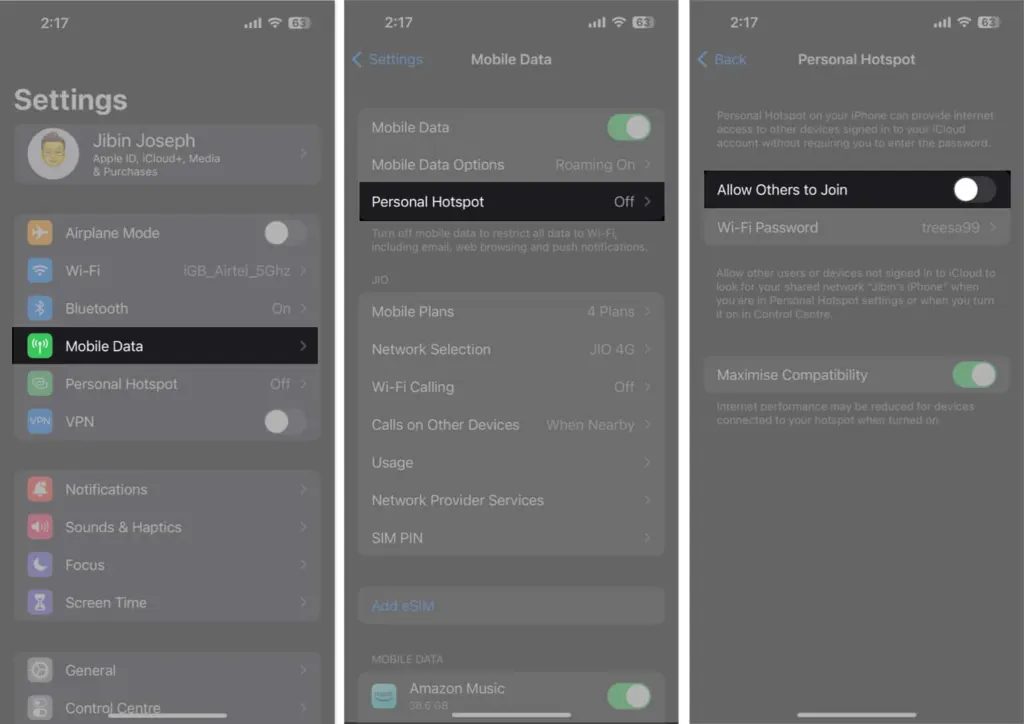
If a device can’t join, open this screen on the iPhone and turn on Maximize Compatibility (iPhone 12 and later), which can lower speed and Wi-Fi security for connected devices. Turn the hotspot off when you finish, since a computer plugged into the iPhone for charging can reconnect to it and use data. For other connection trouble, see our guide to fixing an iPhone hotspot that isn’t working.
iPhone Hotspot Greyed Out After Every Fix
A dimmed switch is rarely a sign of failing hardware, and most cases clear once the missing piece is found. If nothing changes, your carrier or an Apple Store can confirm what is happening with your line and phone.


