
You close a window and the PC still feels slow, because plenty of apps keep running out of sight. Those hidden processes quietly use memory, processor power and battery, and it isn’t always obvious which ones are safe to stop. Six ways to close background apps on Windows 11 are covered below, including how to keep them from starting again.
Table of Contents
- Close Background Apps on Windows 11 With Task Manager
- End Apps Directly From the Taskbar
- Quit Apps Hiding in the System Tray
- Stop an App From Running in the Background in Settings
- Limit Background Activity in Power & Battery Settings
- Turn Off All Background Apps on Windows 11 at Once
- Stop Apps From Starting With Windows 11
- Which Background Apps Are Safe to Close on Windows 11?
1. Close Background Apps on Windows 11 With Task Manager
Task Manager is the fastest way to see which apps are running in the background and close them instantly. It also shows how much CPU and memory each app is using, so you know which ones are slowing your PC down.
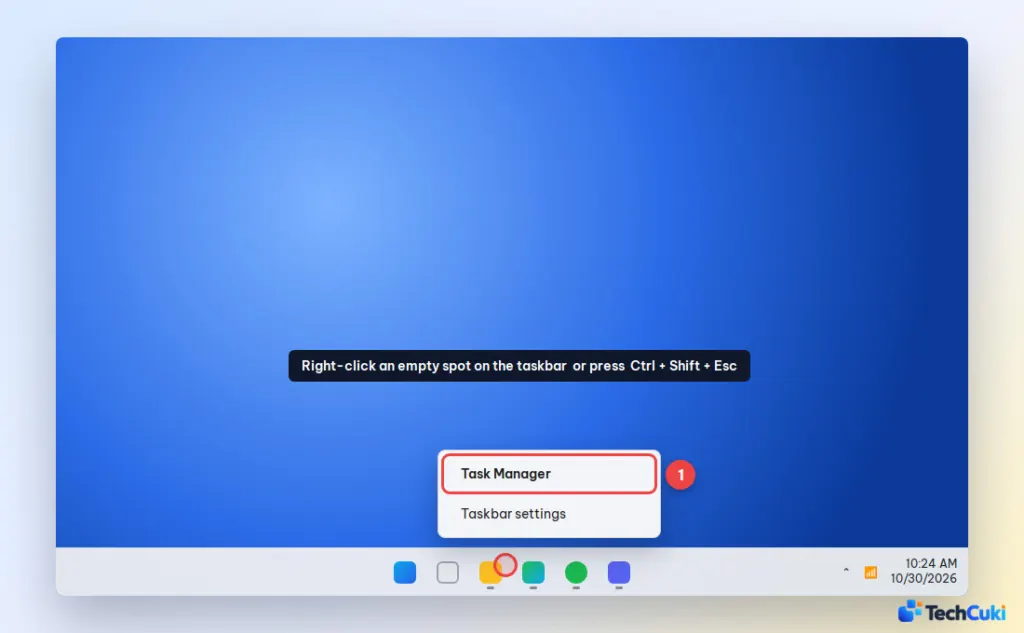
- Right-click an empty spot on the taskbar and select Task Manager, or press
Ctrl + Shift + Esc.
- On the Processes tab, scroll down to Background processes. Click the app you want to close, then click End task at the top of the window.
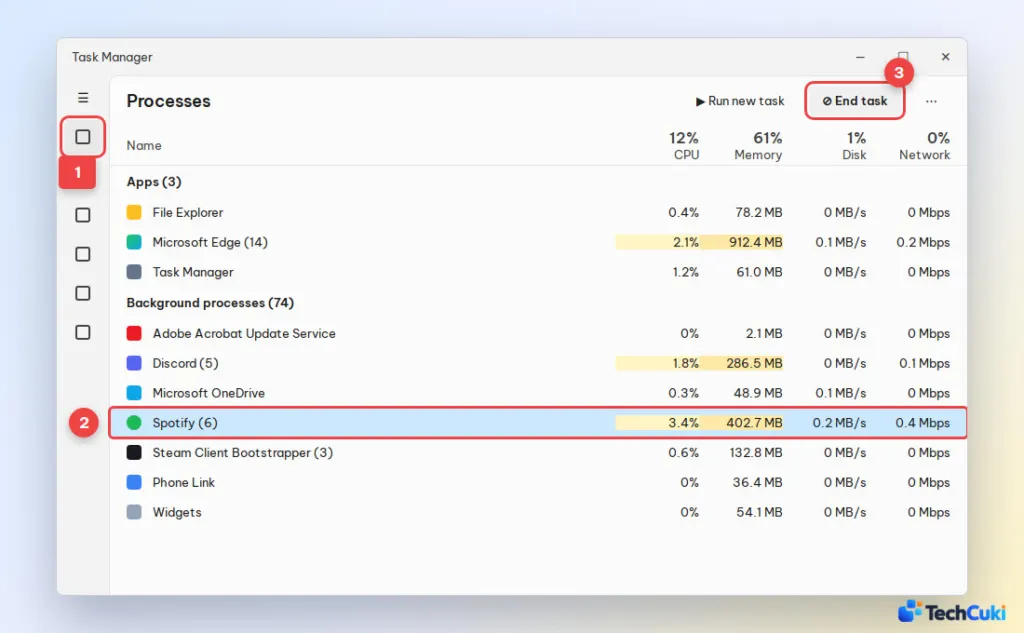
Tip: Click the CPU or Memory column header to sort apps by usage and find the heaviest ones first. Only end apps you recognize. Leave Windows processes such as Service Host, Desktop Window Manager and Windows Explorer alone.
2. End Apps Directly From the Taskbar
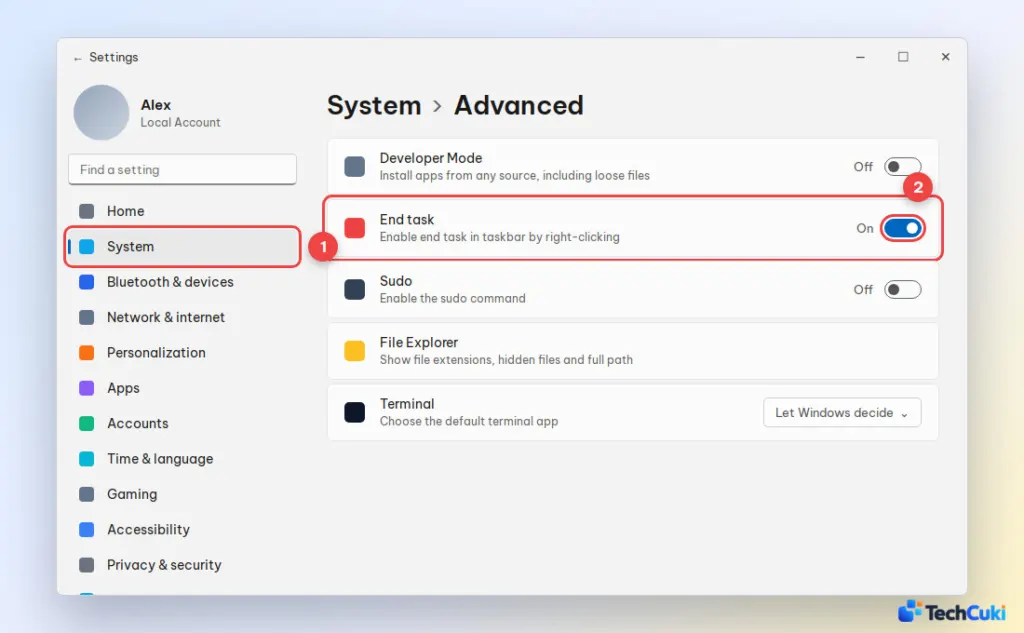
Windows 11 has a hidden End task option that lets you force close any app by right-clicking its taskbar icon, without opening Task Manager. You need to turn it on once.
- Press
Windows + Ito open Settings, go to System > Advanced (called For developers on older versions of Windows 11), and turn on End task.
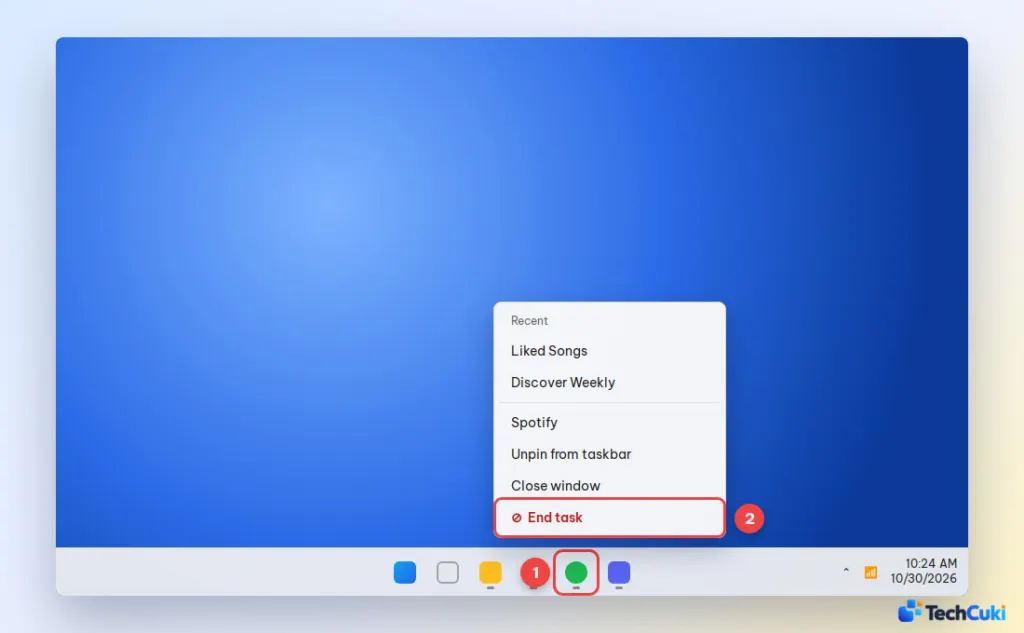
- Right-click the app on the taskbar and select End task. The app and all of its processes close immediately.
3. Quit Apps Hiding in the System Tray
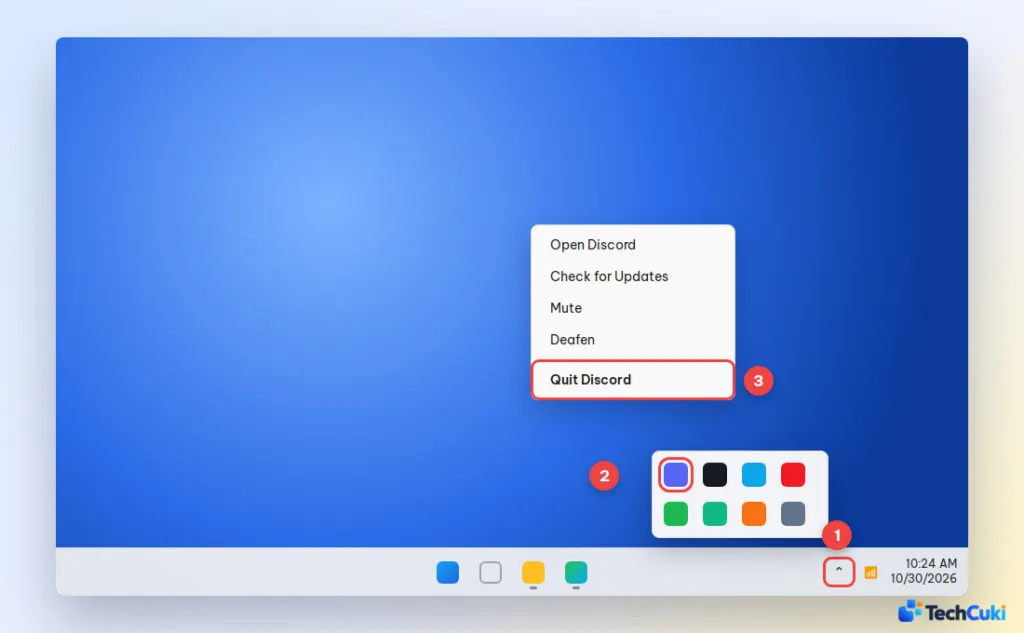
Apps like Discord, Steam, Spotify and OneDrive keep running in the system tray even after you close their window. Clicking the X only hides them.
- Click the up arrow (Show hidden icons) at the bottom-right corner of the taskbar.
- Right-click the app icon you want to close.
- Select Quit or Exit.
4. Stop an App From Running in the Background in Settings
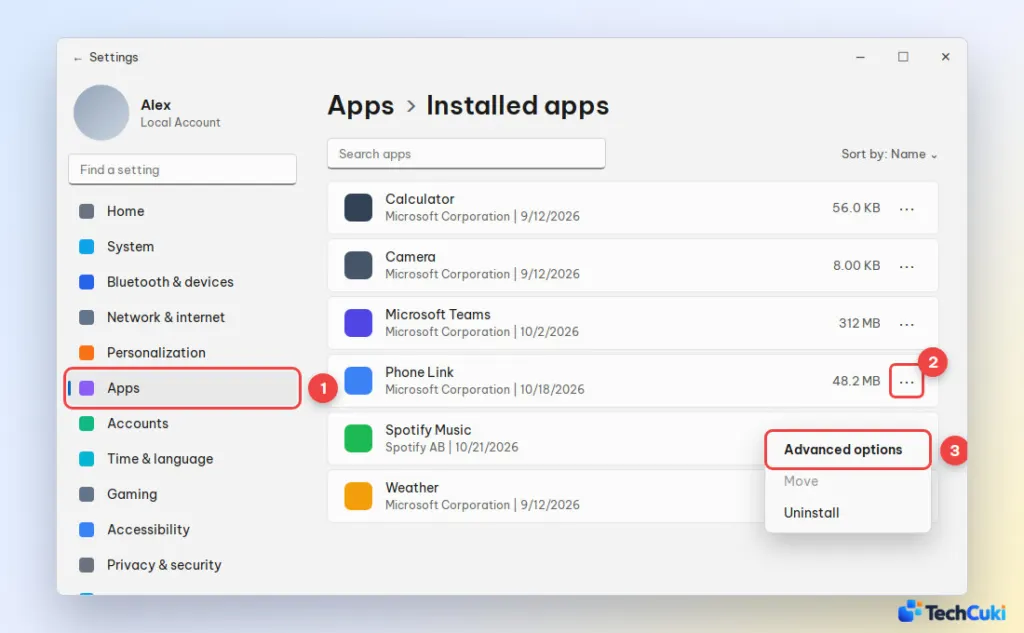
Closing an app only works until it starts again. To stop a specific app from running in the background permanently, change its background permission in Settings.
- Press
Windows + I, select Apps > Installed apps. Find the app, click the three dots (…) next to it and select Advanced options.
- Under Background apps permissions, open the Let this app run in background menu and select Never.
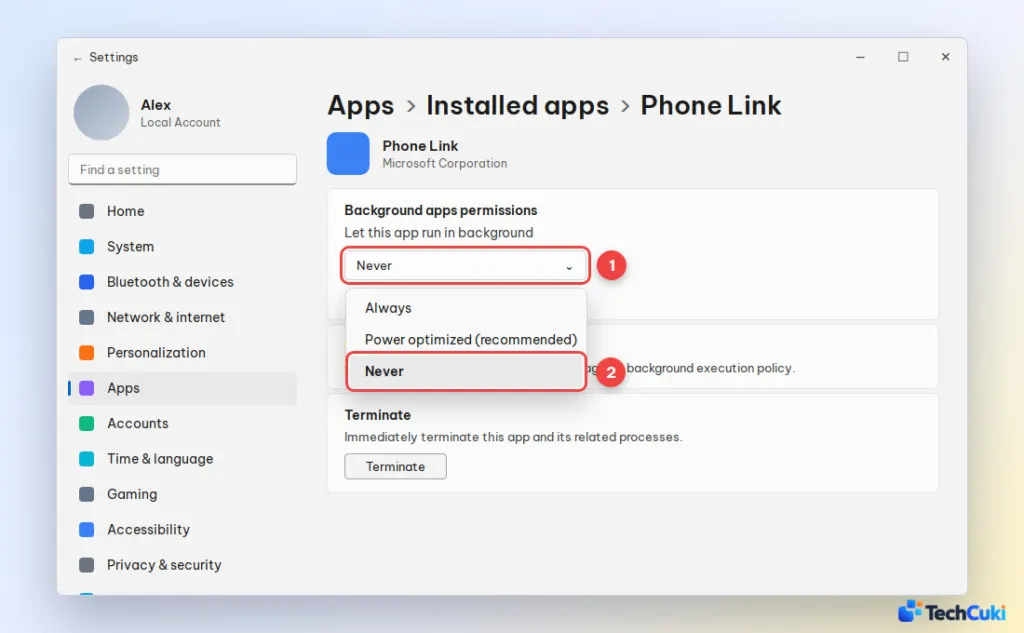
Here is what each option means:
- Always: the app can run in the background at any time.
- Power optimized (recommended): Windows decides when the app can run to save power.
- Never: the app does not run in the background, and you will not get its notifications or updates until you open it.
Why don’t I see “Advanced options” for some apps?
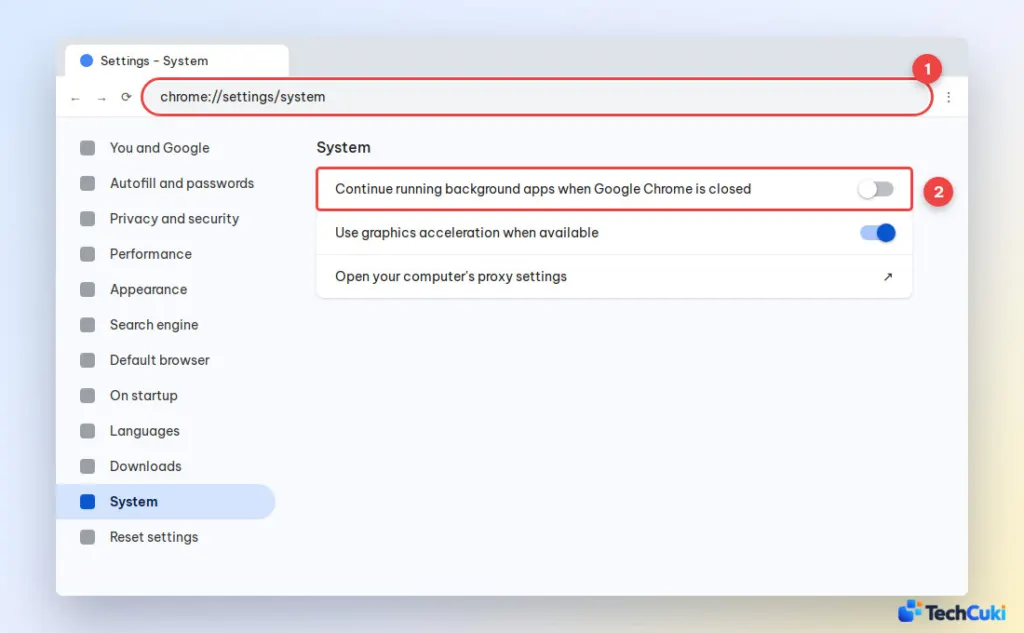
This setting only appears for apps installed from the Microsoft Store. Desktop apps such as Google Chrome, Discord, Steam and Zoom are not listed. To stop them, turn off the background option inside the app itself. For example, in Google Chrome go to chrome://settings/system and turn off Continue running background apps when Google Chrome is closed.
5. Limit Background Activity in Power & Battery Settings
On a laptop, the battery settings show exactly which apps use the most power in the background, so you can turn off the worst offenders first.
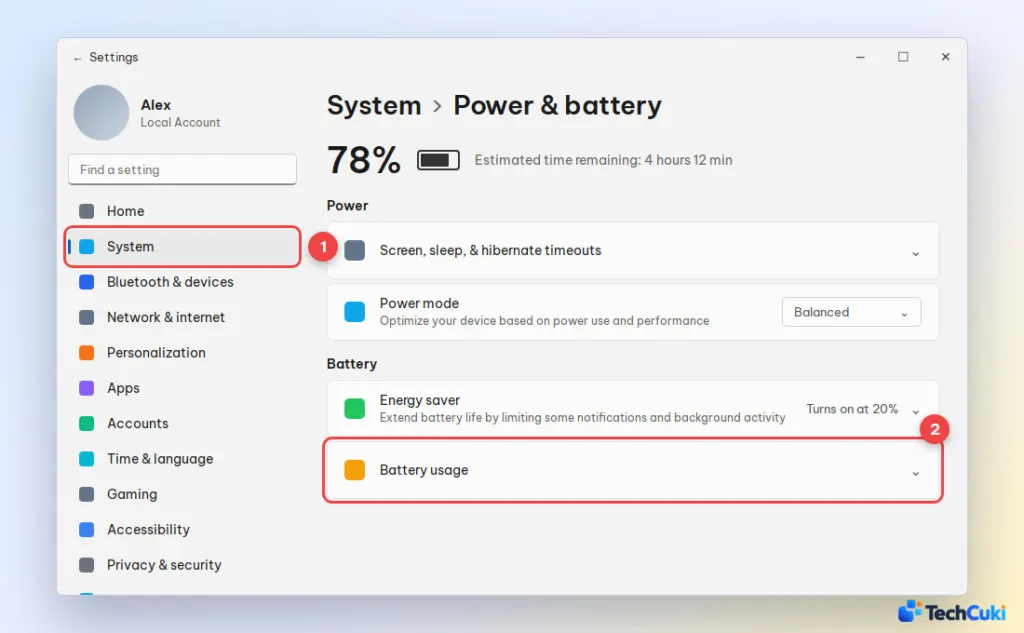
- Open Settings, go to System > Power & battery and expand Battery usage.
- Change Sort by to Background. Click the three dots next to an app that uses a lot of power and select Manage background activity, then set it to Never.
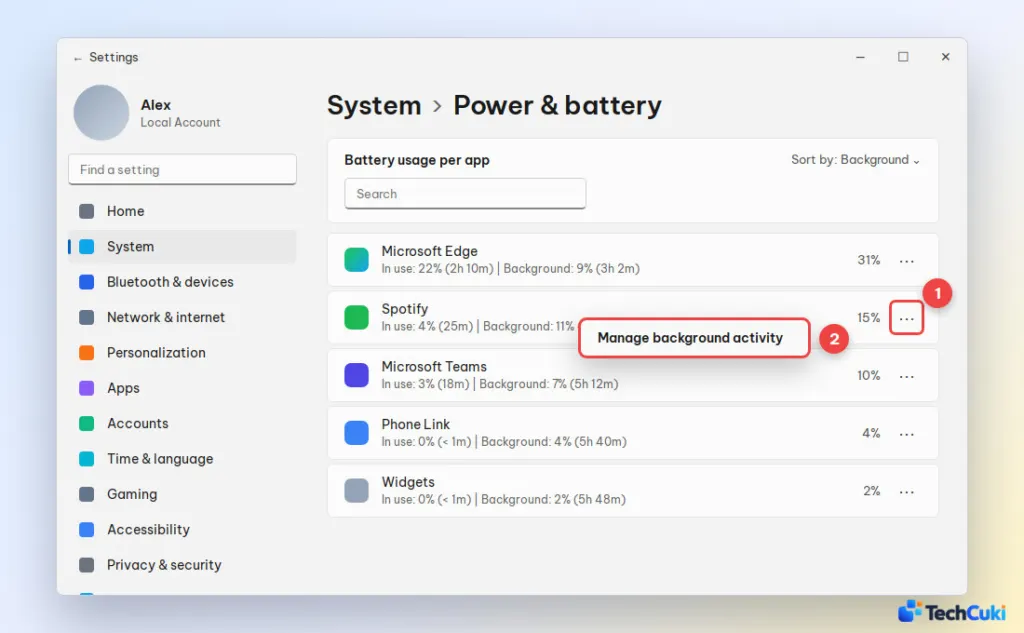
Turning on Energy saver on the same page also limits background activity for all apps while your battery is low.
6. Turn Off All Background Apps on Windows 11 at Once
Windows 11 no longer has a single switch to turn off every background app, and changing apps one by one takes forever. Group Policy and the Registry let you block background activity for all Microsoft Store apps in one go.
Using Group Policy (Windows 11 Pro, Enterprise and Education)
- Press
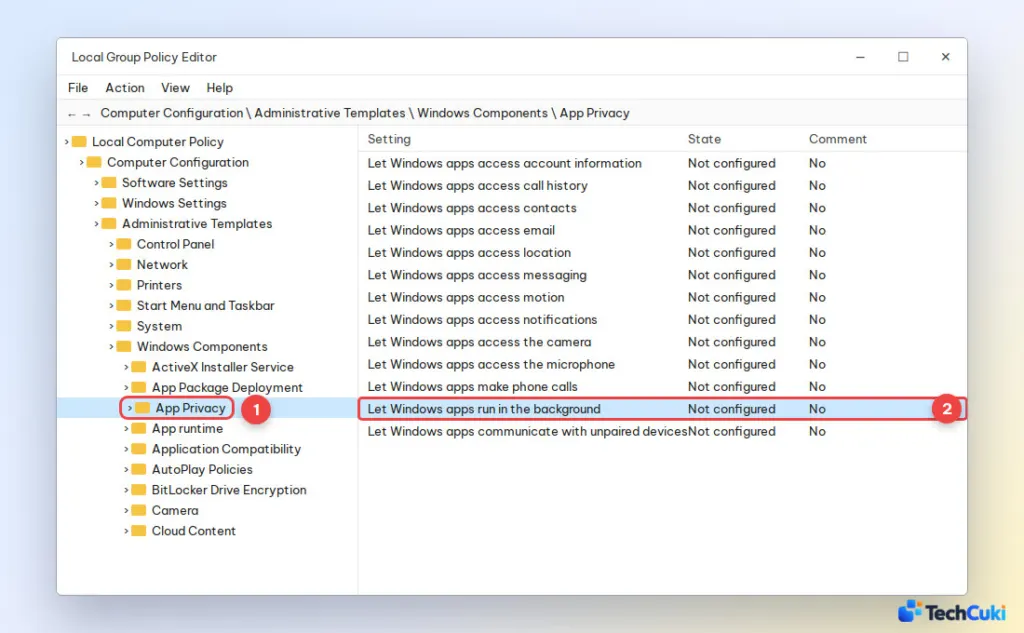
Windows + R, typegpedit.mscand press Enter. Go to Computer Configuration > Administrative Templates > Windows Components > App Privacy, then double-click Let Windows apps run in the background.
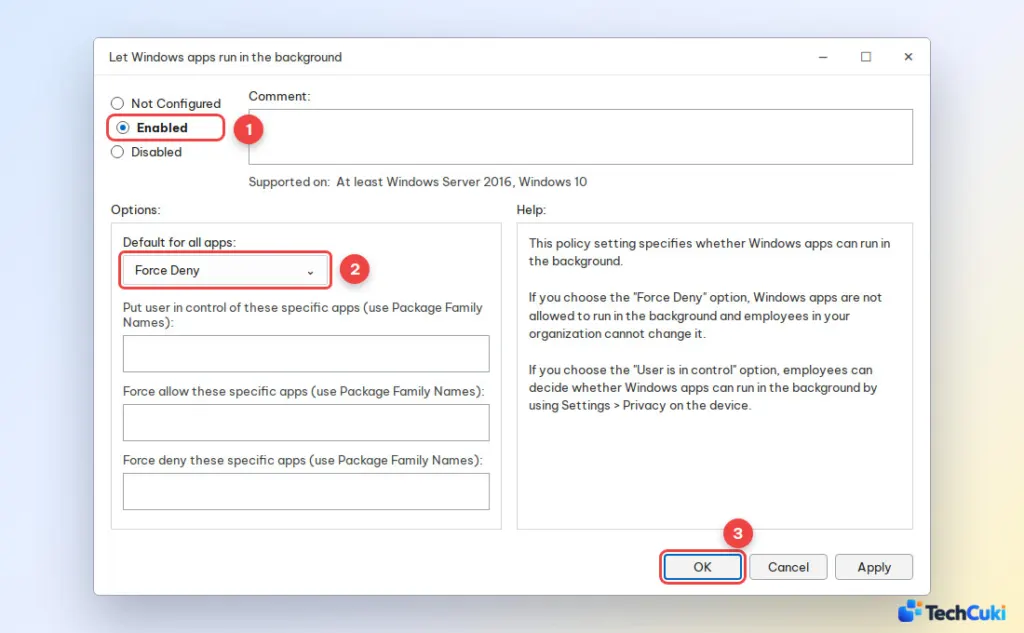
- Select Enabled, set Default for all apps to Force Deny, click OK and restart your PC.
Using the Registry Editor (works on Windows 11 Home)
Windows 11 Home does not include Group Policy Editor, but you can apply the same setting in the Registry. Editing the Registry incorrectly can cause problems, so follow the steps carefully.
- Press
Windows + R, typeregeditand press Enter. Go toHKEY_LOCAL_MACHINE\SOFTWARE\Policies\Microsoft\Windows. If there is no AppPrivacy key, right-click Windows, select New > Key and name itAppPrivacy. Then right-click the empty area on the right, select New > DWORD (32-bit) Value and name itLetAppsRunInBackground.
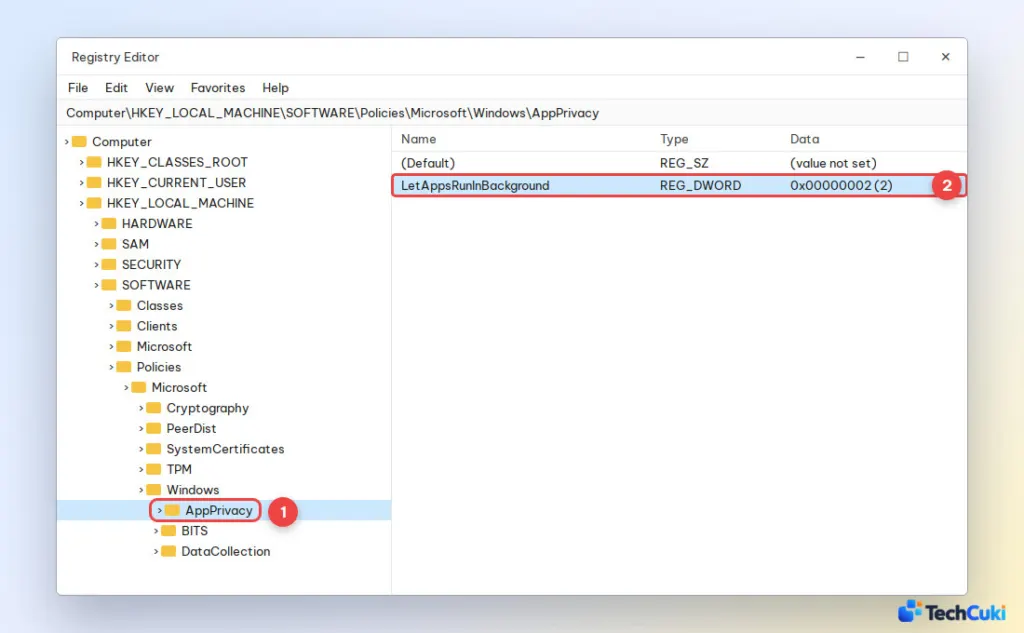
- Double-click LetAppsRunInBackground, set Value data to 2, click OK and restart your PC.
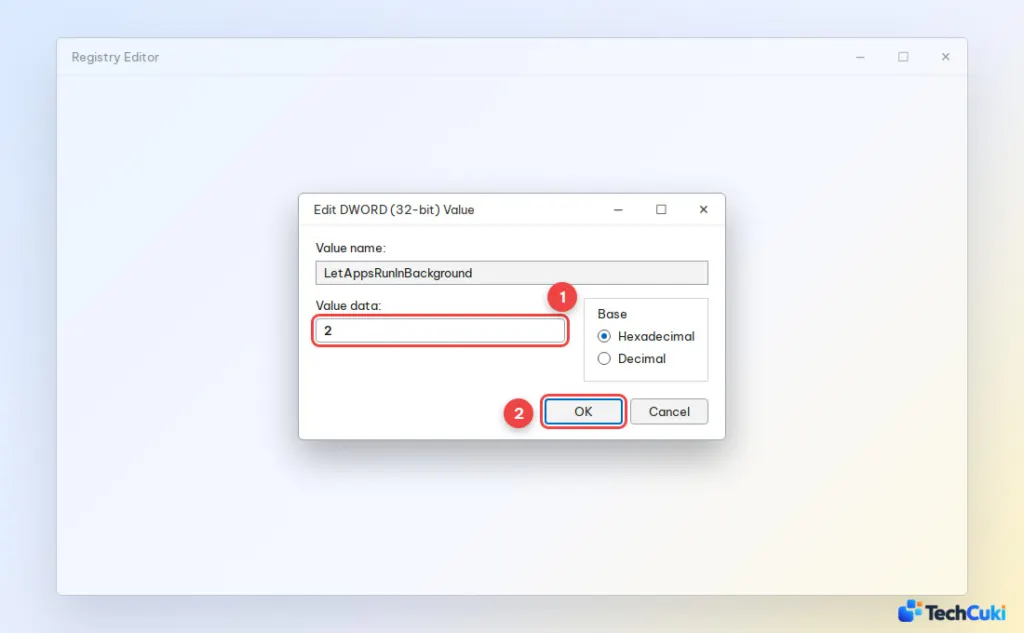
Value 2 blocks all apps from running in the background, 1 forces all apps to run, and 0 gives control back to you in Settings. To undo the change, delete the LetAppsRunInBackground value.
Stop Apps From Starting With Windows 11
Many background apps come back every time you turn on your PC because they are set to launch at startup. Disabling them keeps them from running in the background in the first place and helps your PC boot faster.
- Open Settings and go to Apps > Startup.
- Set Sort by to Startup impact and turn off apps you do not need right after signing in.
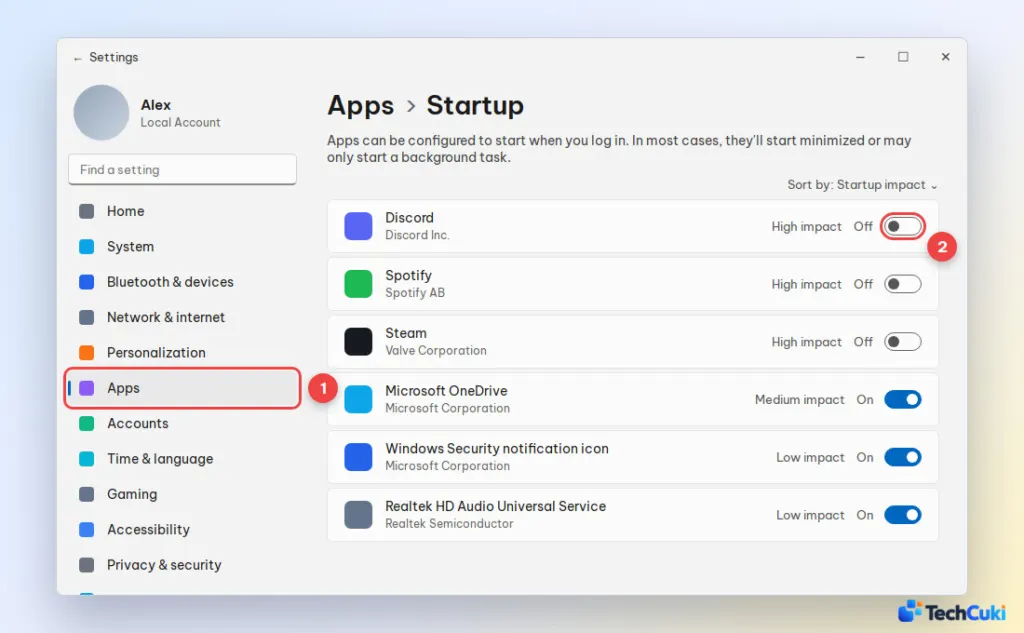
You can also manage the same list in Task Manager on the Startup apps tab.
Which Background Apps Are Safe to Close on Windows 11?
Yes, it is safe to turn off background apps you do not use. The only trade-off is that those apps will not send notifications or sync until you open them.
- Safe to close: third-party apps you are not using, such as Spotify, Discord, Steam, Zoom, Adobe updaters and game launchers, plus Microsoft Store apps like Phone Link, Weather, News and Widgets.
- Close with care: OneDrive and other cloud storage apps (files stop syncing), and chat apps like Teams or Slack if you need to receive messages.
- Do not close: Windows system processes (Service Host, Windows Explorer, Desktop Window Manager, Client Server Runtime Process), your antivirus, and driver services for audio, graphics or touchpad.
Stopping what you don’t need can make a sluggish PC feel noticeably lighter, and it’s easy to undo if something you rely on stops working. If the PC still drags, our guide on how to speed up Windows 11 covers more ground.


