
A PC that feels slow right after you sign in is a common annoyance, and the cause is often what loads along with Windows. Too many apps launching at once can slow startup, though not every entry on the list is safe to remove. The steps below show how to disable startup apps in Windows 11 in more than one place, and which entries are generally fine to turn off.
Table of Contents
Disable Startup Apps in Windows 11 Using the Settings App
Settings is the simplest route and shows every app registered with a startup task. Switching a toggle off only stops the automatic launch; the app stays installed and works normally when you open it yourself.
- Click Start, then open Settings.
- Select Apps, then click Startup.
- Sort the list by Startup impact so the heaviest apps come first, then set the toggle to Off for each one you don’t need at sign-in.
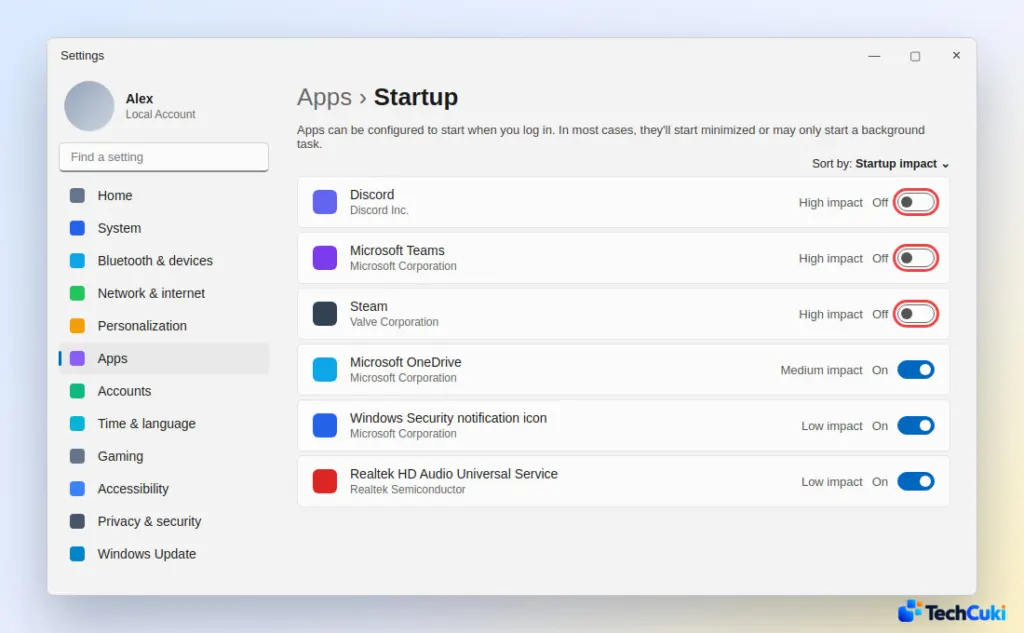
The chevron on each row opens extra options for that app. Chat apps and cloud sync such as OneDrive won’t run in the background until you launch them, so their notifications pause. To trim background activity beyond sign-in, see how to close background apps on Windows 11.
Use Task Manager to See the Real Startup Cost
Task Manager lists the same apps as Settings, but it adds a rating for how much each one slows sign-in, which makes it the better tool for deciding what to cut.
- Right-click the Start button and select Task Manager, or press
Ctrl + Shift + Esc. - Select Startup apps in the left sidebar.
- Select an app, then click Disable. Right-clicking the app and choosing Disable does the same.
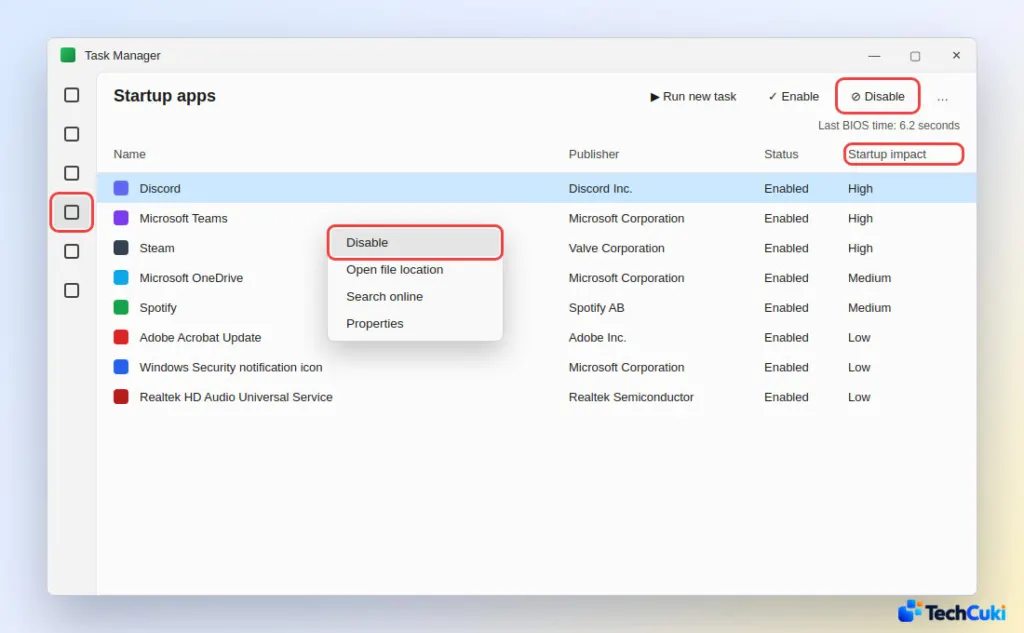
The Startup impact column reads like this:
- High: more than 1 second of CPU time, or more than 3 MB of disk at startup.
- Medium: 300 ms to 1 second of CPU time, or 292 KB to 3 MB of disk.
- Low: under 300 ms of CPU time and under 292 KB of disk.
- Not measured: no data yet, and the app is still enabled.
- None: the app is disabled.
Once an app is disabled, its row flips to Disabled and the impact shows None. The same page also shows your Last BIOS time, the firmware portion of boot that no startup toggle can shorten.
Remove Apps From the Windows 11 Startup Folder
Apps that aren’t registered with a startup task never appear in Settings or Task Manager. They launch because a shortcut sits in a Startup folder, so deleting that shortcut stops them.
- Right-click the Start button and select Run.
- Type
shell:startupfor apps that start for your account only, orshell:common startupfor apps that start for every user on the PC, then press Enter.
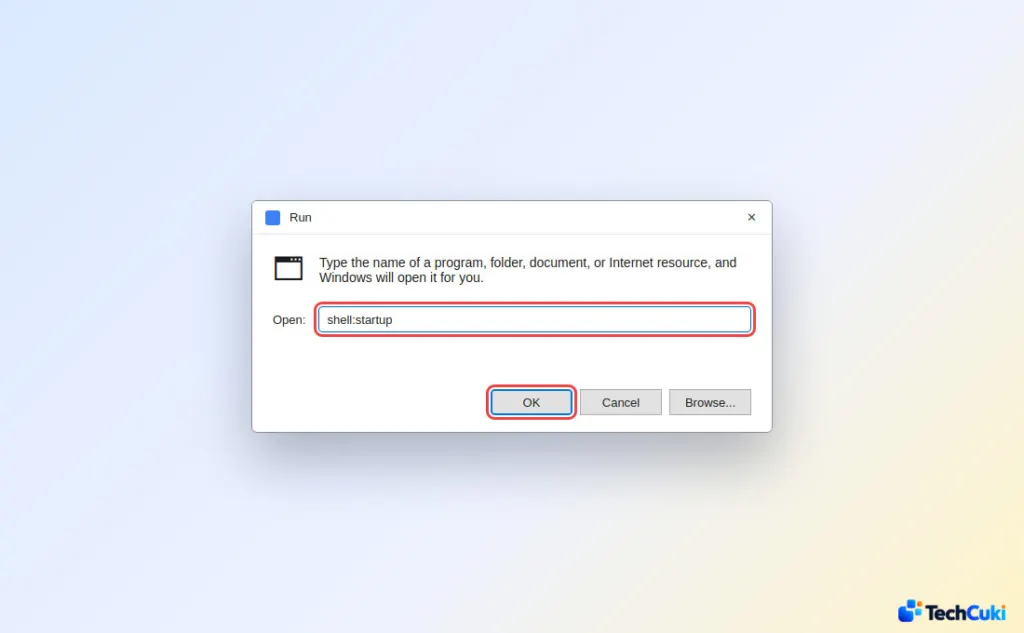
- File Explorer opens the folder. Find the shortcut for the app you don’t want.
- Delete that shortcut. The program itself is not uninstalled.
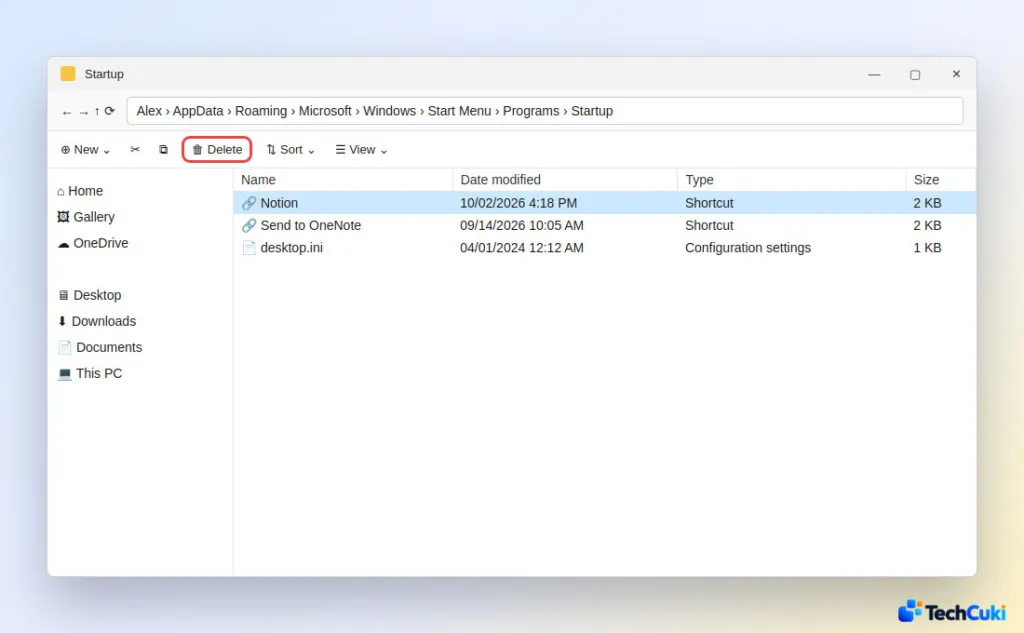
These two shortcuts point to %userprofile%\AppData\Roaming\Microsoft\Windows\Start Menu\Programs\Startup and %ProgramData%\Microsoft\Windows\Start Menu\Programs\Startup.
What to Do When an App Keeps Starting Anyway
If a program still launches after you disabled it, it usually has its own launch-at-login option. Discord, Steam, Spotify and Teams all do, and turning it off inside the app stops it from re-enabling itself.
When it isn’t in Settings, Task Manager or the folder, the entry lives elsewhere. The registry stores startup entries under HKEY_CURRENT_USER\Software\Microsoft\Windows\CurrentVersion\Run for your account, and under HKEY_LOCAL_MACHINE\Software\Microsoft\Windows\CurrentVersion\Run (plus HKEY_LOCAL_MACHINE\Software\Wow6432Node\Microsoft\Windows\CurrentVersion\Run for 32-bit apps) for all users. Back up the registry before deleting anything there. Some programs also start from a scheduled task: open Task Scheduler, select Task Scheduler Library, and choose Disable on the task. On Pro and Enterprise editions, the Group Policy setting Run these programs at user logon (under Computer Configuration > Administrative Templates > System > Logon) can switch off everything it lists.
If a row reads We couldn’t find this app, the program was uninstalled or sits on a removable or network drive. Select the info icon next to its toggle to see the exact registry location or file path that is broken; reinstalling the app often clears the entry.
Which Startup Apps Are Safe to Disable?
You can turn off nearly everything, as long as you don’t need it the moment you sign in. Leave security software and hardware helpers such as audio, touchpad and graphics utilities running, since they set up devices at login. Anything that merely waits for you to open it is a good candidate; remember that OneDrive and similar sync tools pause until you launch them.
Turn a Startup App Back On
Use the tool you used to turn it off. In Settings, toggle the app On under Apps > Startup. In Task Manager, open Startup apps, select the app and click Enable. For the folder method, open shell:appsfolder in a Run box and drag the app into the Startup folder window to create a shortcut.
A shorter startup list can make sign-in feel noticeably lighter without removing anything from your PC. Every change can be reversed, so you can experiment safely and turn an app back on if you miss it.


