
Spam calls and unwanted texts can wear you down, and sometimes it is just one person who will not stop getting in touch. The tools to stop them are built into the phone, and they work a little differently for calls, messages and unknown numbers. Below are several ways to block a number on iPhone, what the other person sees, and how to reverse it later.
Table of Contents
Block a number on iPhone from the Phone app
This is the route to use when the number has already called, because nothing needs to be typed.
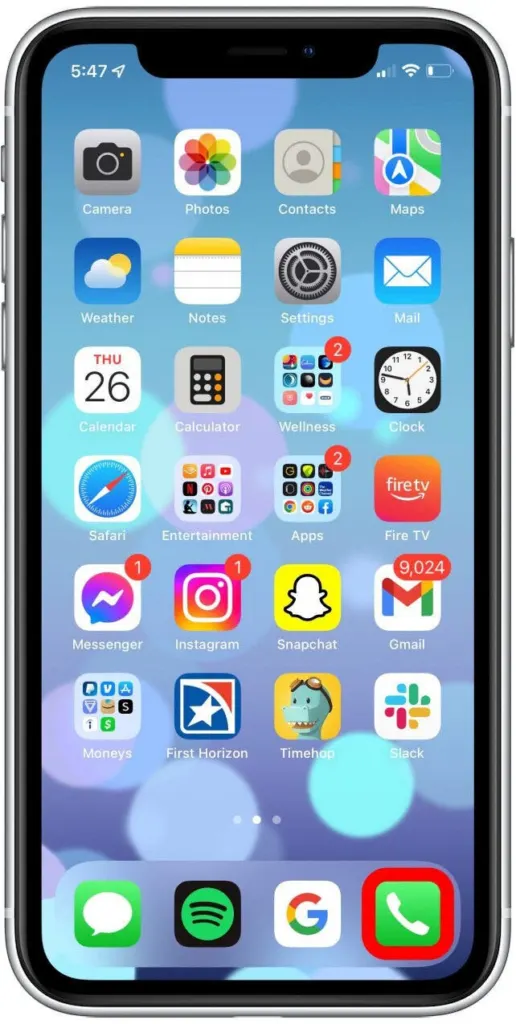
- Open the Phone app from your Home Screen.
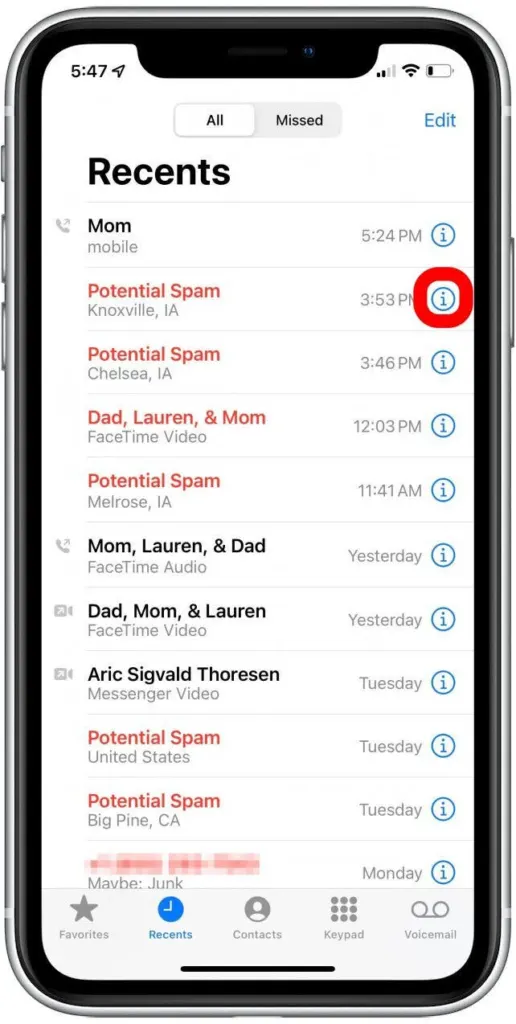
- Tap Recents, then tap the info button (i) next to the number or contact.
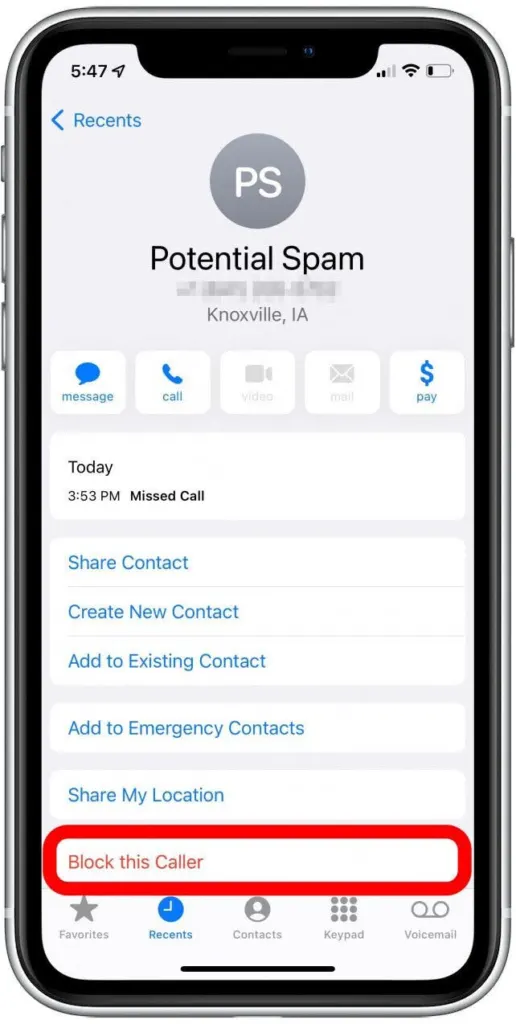
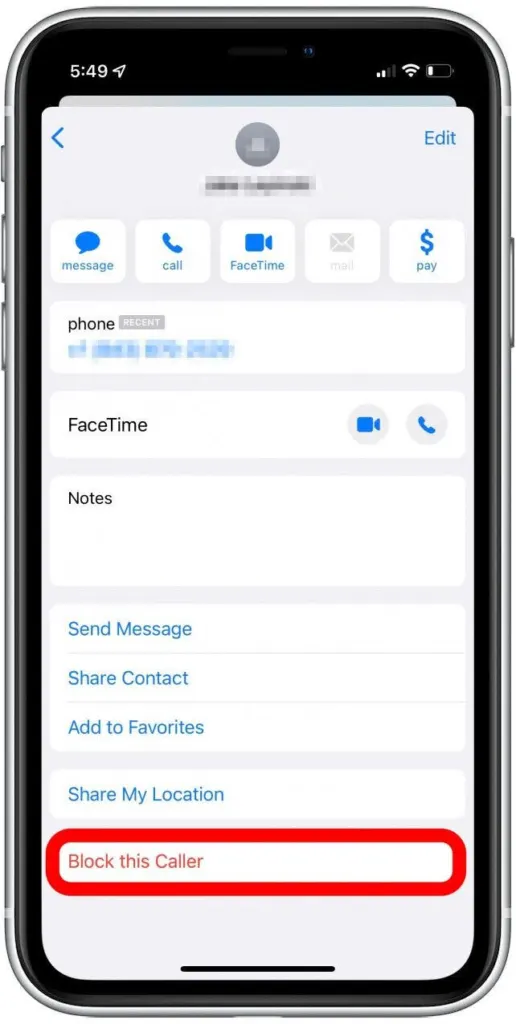
- Scroll down and tap Block Caller. Older iOS versions label it Block this Caller, which is the wording in the screenshot.
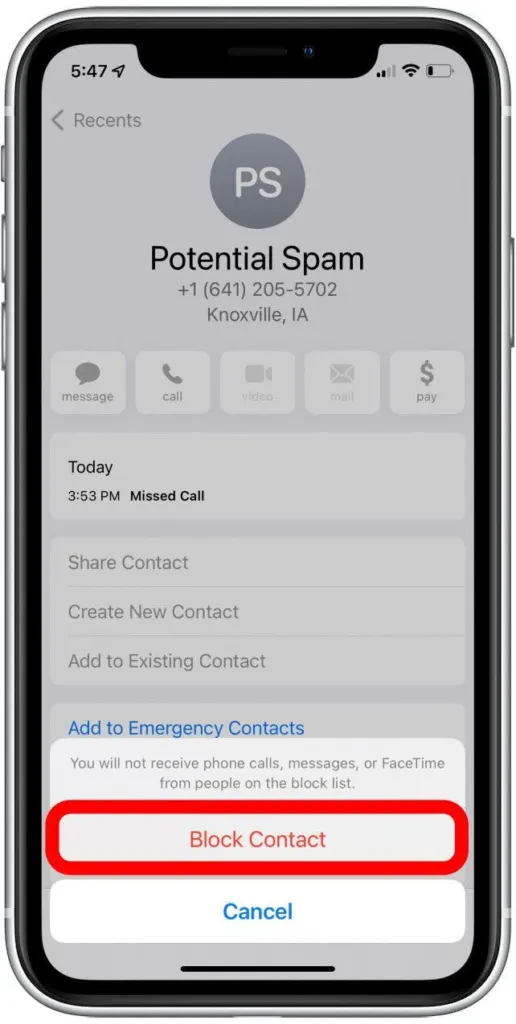
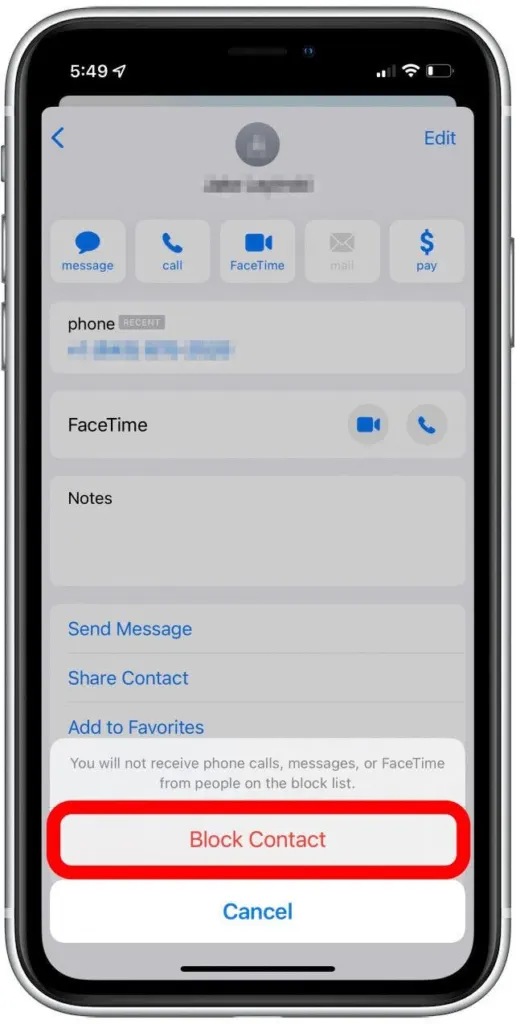
- Tap Block Contact to confirm.
If you can’t find the i button, the newer unified Phone layout is the usual reason. Switch the Phone app to the Classic layout and it returns under Recents, or try swiping left on the number in Recents to reveal a block button. If Block Caller is missing even then, users report that restarting the iPhone brings it back. If your Phone app looks nothing like these screenshots, your iOS may be out of date, and our guide to updating your iPhone explains how to get current.
Block a number on iPhone from Messages
Use this when the problem is texts, since the conversation is already open. It is the same block, so calls and FaceTime from that number stop too.
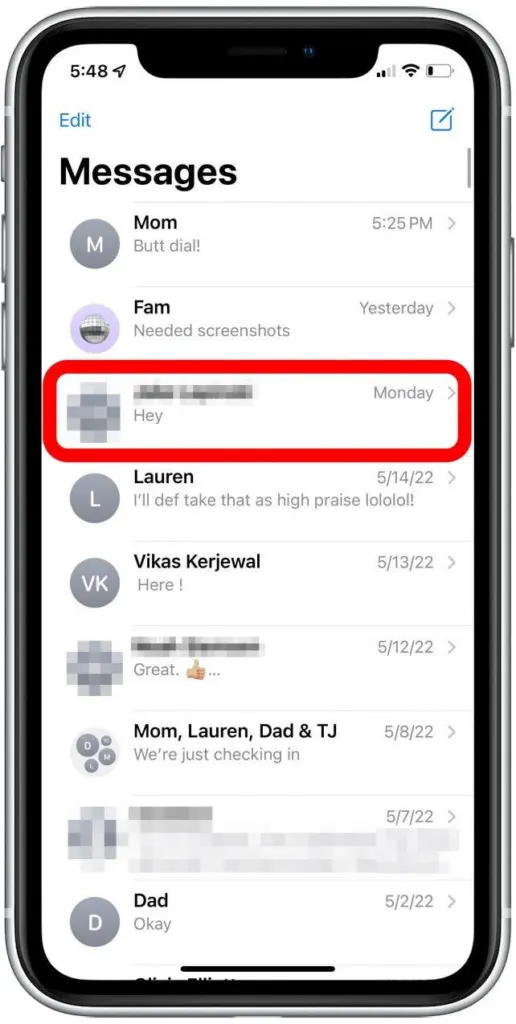
- Open the Messages app and tap the conversation with the number.
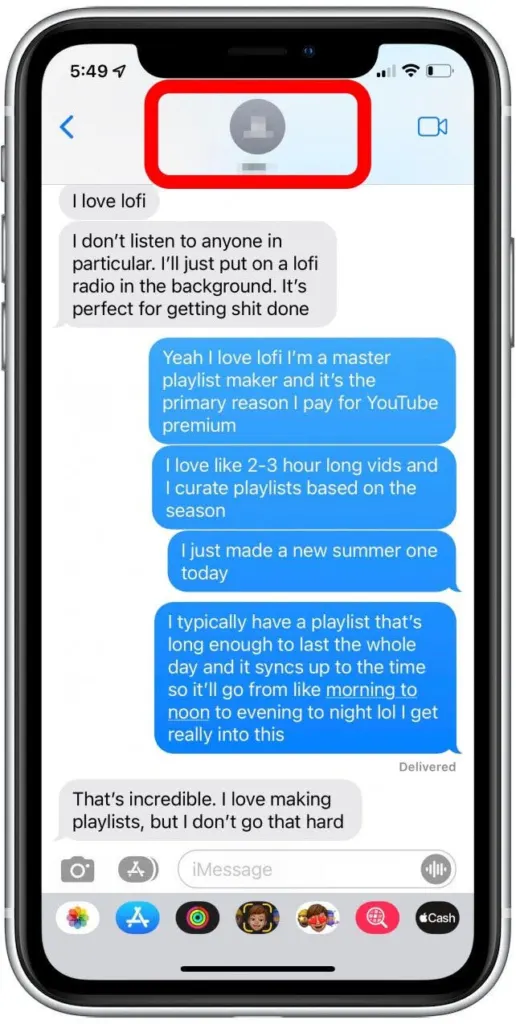
- Tap the contact name at the top of the conversation.
- Scroll down and tap Block Caller.
- Tap Block Contact to confirm.
The same Block Caller button also appears when you tap a number or contact in the FaceTime app. In Mail, open the email, tap the sender, choose View Contact Card, then Block this Contact. Blocked email goes to the Trash folder and the block carries across your Apple devices.
Block a number that has never called you
Unknown numbers don’t need to be saved as contacts first. Add them straight to the blocked list before they get through.
- Open Settings and tap Privacy & Security.
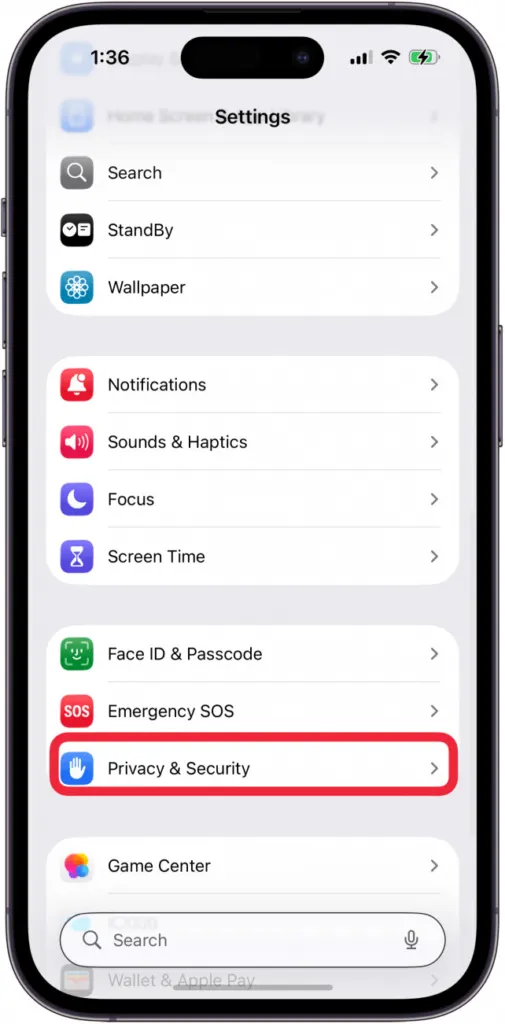
- Tap Blocked Contacts, then tap Add Blocked Contact.
- Enter the number, or choose the contact from your list.
- Tap Block Contact.
The same list also lives under Settings > Apps > Phone > Blocked Contacts, which is where Apple’s current guide points. That Phone page also holds broader tools for spam you can’t chase one number at a time: Call Screening (Ask Reason for Calling or Silence for unsaved numbers) and the Unknown Callers and Spam filters. Silencing sends unsaved callers to voicemail and keeps them in Recents, so a real caller you forgot to save isn’t lost.
What happens when you block a number
- The caller isn’t told that they were blocked.
- They can still leave a voicemail, but you get no notification for it.
- Messages sent or received aren’t delivered.
- The block stays until you remove it yourself.
How to unblock a number
Unblocking is done from the same list, and the number can reach you again right away, so only do it when you’re sure.
- Open Settings, tap Privacy & Security, then tap Blocked Contacts.
- Tap Edit, then tap the red minus button next to the contact.
- Tap Unblock.
Does *67 block anyone from reaching you?
No. Dialing *67 before a call hides your own caller ID from the person you’re calling on US phones, and it doesn’t stop anyone from reaching you. To keep a number from calling or texting you, use one of the block methods above.
A few minutes spent blocking the right contacts can make your phone feel quiet again. Blocking is easy to reverse, so you can change your mind at any time, and your voicemail is worth a glance now and then.


