
Keeping a phone current brings new features, security fixes and fewer odd glitches, but updating can feel intimidating when the screen says something unexpected. Several routes lead to the same result, and which one fits depends on your phone and your setup. Below you’ll find how to update your iPhone to the newest iOS 27 release, plus what to do when an update gets stuck.
Table of Contents
Before you start
- Back up your iPhone first, to iCloud or to a computer. If the install goes wrong, the backup is what protects your photos, messages and settings.
How to Update iPhone in Settings
The wireless route needs power, Wi-Fi and a few taps.
- Plug your iPhone into power and connect it to Wi-Fi.
- Open Settings and tap General.
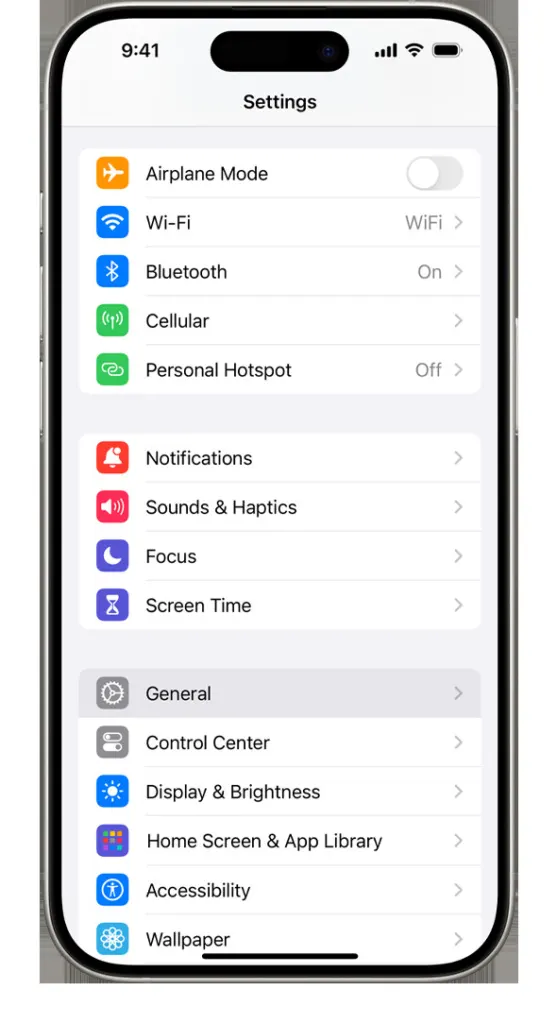
- Tap Software Update. The screen shows your current iOS version and whether an update is waiting.
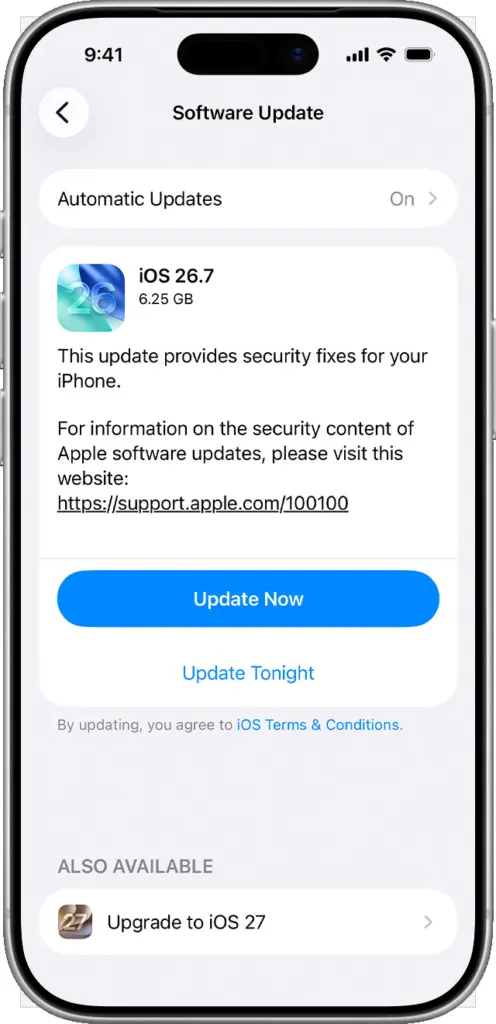
On iOS 26, Apple keeps shipping security updates, and an Upgrade to iOS 27 option may appear under Also Available if you want the newest version. Older release lines are patched too, so a model that cannot run iOS 27 is not left without fixes.
- Tap Download and Install, or Update Now if it has already downloaded, then enter your passcode.
- For an overnight install, tap Update Tonight instead. The phone installs while it charges.
Turn On Automatic iPhone Updates
Automatic updates install new versions while you sleep, so you stop falling behind on security fixes.
- Go to Settings > General > Software Update, then tap Automatic Updates.
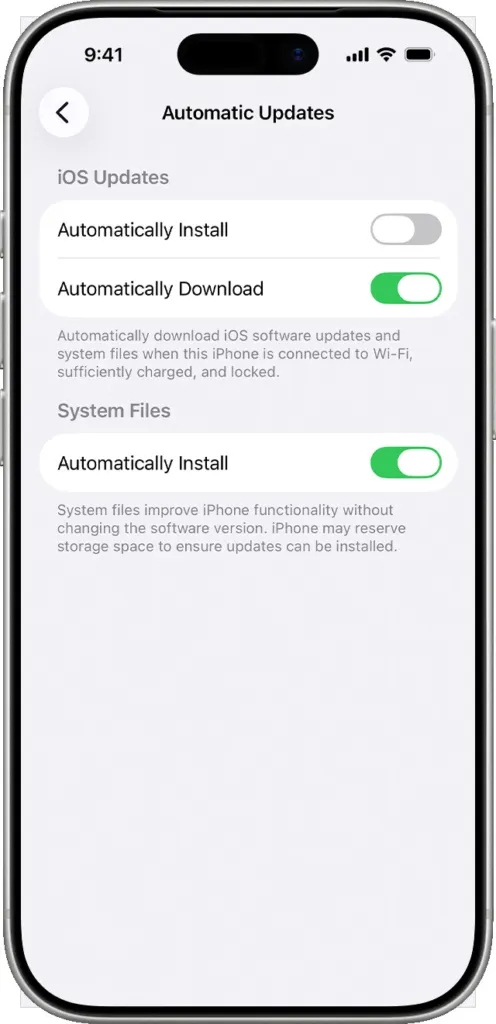
- Turn on Automatically Install. The iPhone updates overnight while charging on Wi-Fi, and it notifies you before it installs.
- Prefer to choose the moment? Turn Automatically Install off and turn on Automatically Download. The update downloads in the background and waits for you.
- Under System Files, turn on Automatically Install to receive system file updates that improve features without changing your iOS version.
How to Update iPhone With a Computer
Use a computer when the update does not appear on the phone or fails over Wi-Fi. If the computer is sharing the iPhone’s Personal Hotspot, connect the computer to a different Wi-Fi or Ethernet network first, as Apple advises.
On a Mac
Macs on macOS Catalina or later use Finder. On macOS Mojave or earlier, use iTunes as described below.
- Connect your iPhone to the Mac and open Finder.
- Select the iPhone in the sidebar, then click General.
- Click Check for Update.
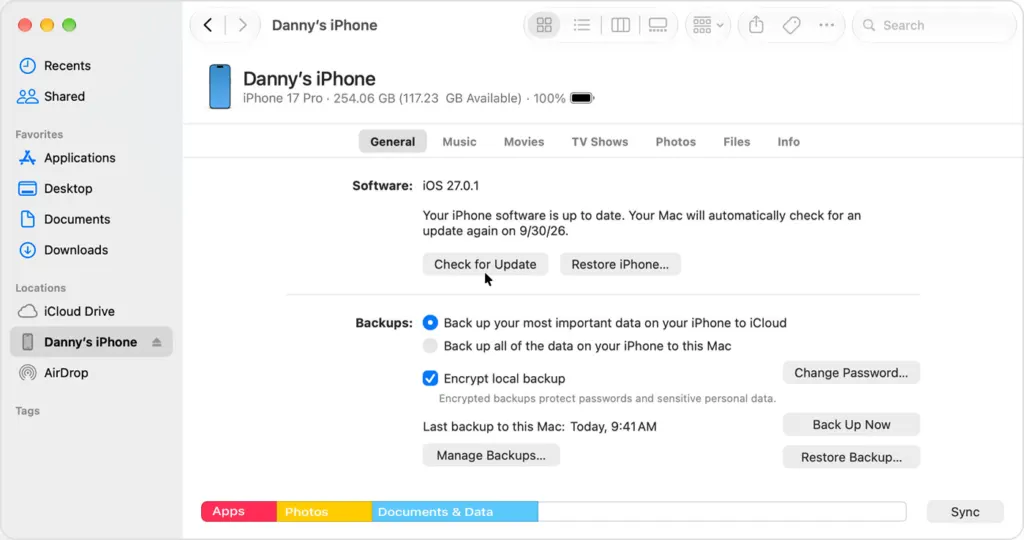
- Click Download and Update, then enter your passcode on the iPhone.
On a Windows PC
- Connect the iPhone and open the Apple Devices app. On older versions of Windows, or a Mac running Mojave or earlier, use iTunes.
- Select your iPhone, open the General or Summary tab, and click Check for Update.
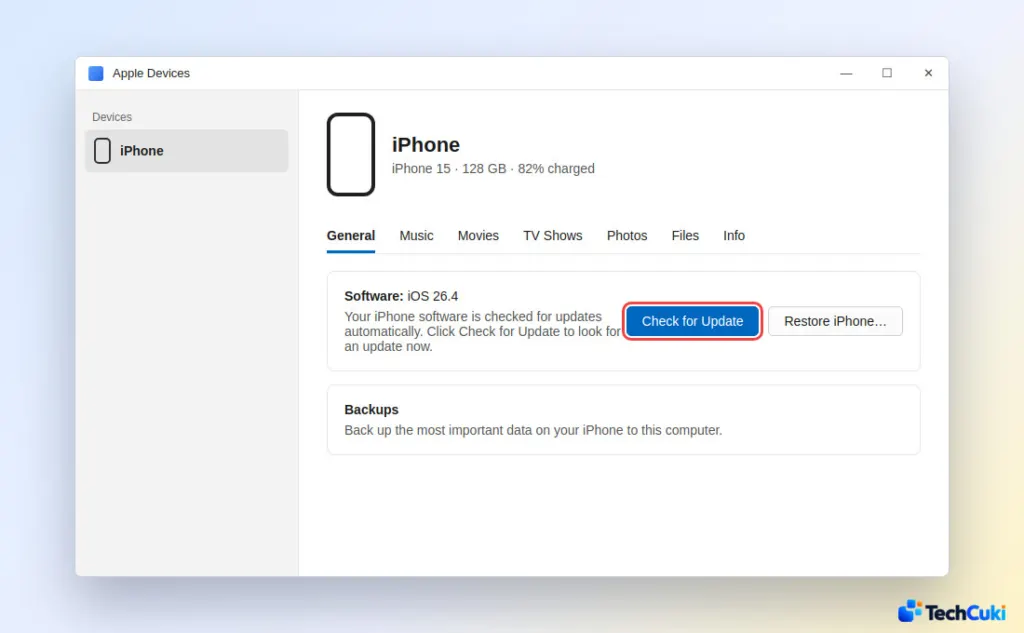
- Follow the prompts and enter your passcode on the iPhone.
The computer only starts the process, and the files come from Apple’s servers. Stay near the iPhone so you can enter the passcode when it asks.
iPhone Won’t Update? What to Check
No button forces an update, so match the symptom to the cause.
- The update never appears. iOS 27 needs iPhone 11 or later, and older models stay on their own release line. Open Settings > General > About to check your model name.
- “Not enough space.” Tap Continue to let iOS temporarily remove apps, which are reinstalled automatically afterward. Updates typically need more than a gigabyte free, so you can also delete content yourself.
- Download won’t start. Some updates are not available wirelessly, and a VPN or proxy can stop the iPhone from reaching Apple’s update servers. Turn them off and use a stable Wi-Fi network.
- Battery low. Charge the iPhone. Updates may not begin until it has about 50% charge, so keep it plugged in until it finishes.
- Busy servers. Right after a release, many people download at once, so wait and retry. Apple’s System Status page shows any outage.
- Broken download. Go to Settings > General > iPhone Storage, tap the update, choose Delete Update, then download it again.
- Stuck on the Software Update screen or the install wheel. Restart the iPhone and check again. If the screen is frozen, a force restart is the next step. Updating from a computer also avoids a corrupted wireless download.
If the iPhone ends up in recovery mode after an update, connect it to a computer and use Finder or iTunes to restore it. A restore wipes the device before loading data back, which is another reason to back up first.
A current iPhone is a safer and smoother one, and a fresh update is a good moment to look at your privacy habits too. Our guide to turning off location on iPhone is a good next read, and Apple Support can help if an update keeps failing.


