
A silent phone or a little moon in the status bar can leave you wondering why calls and texts aren’t reaching you. The mode has changed over the years, and it can switch itself on through settings you may have forgotten about. The sections below explain how to turn off Do Not Disturb on iPhone, why it keeps coming back, and how to keep it from returning.
Table of Contents
Which Fix to Try First
- Phone is silent right now: Control Center (section 1). If the moon stays, a different Focus is active.
- Moon is gone but calls still don’t ring: check the Silent switch and other Focus modes (the end of section 1).
- It turns on by itself: section 3.
1. Turn Off Do Not Disturb on iPhone in Control Center
This is the one-tap route, since Do Not Disturb sits on the Focus button.
- Open Control Center: swipe down from the top-right corner on iPhone X and newer, or swipe up from the bottom edge on iPhone SE and iPhone 8 and older.
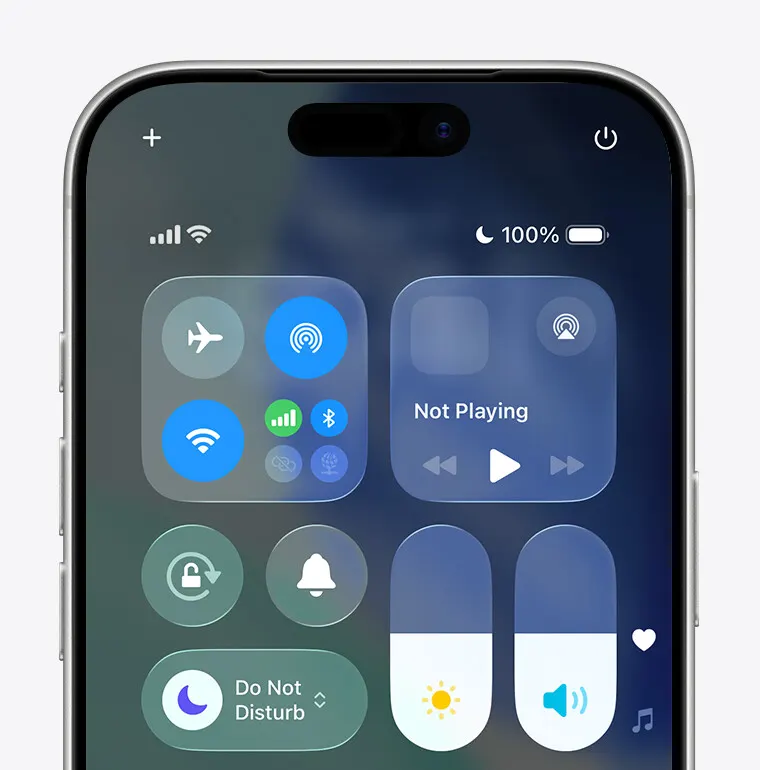
- Tap the Do Not Disturb icon on the Focus button, not the text beside it, because the text opens the settings instead of switching the mode.
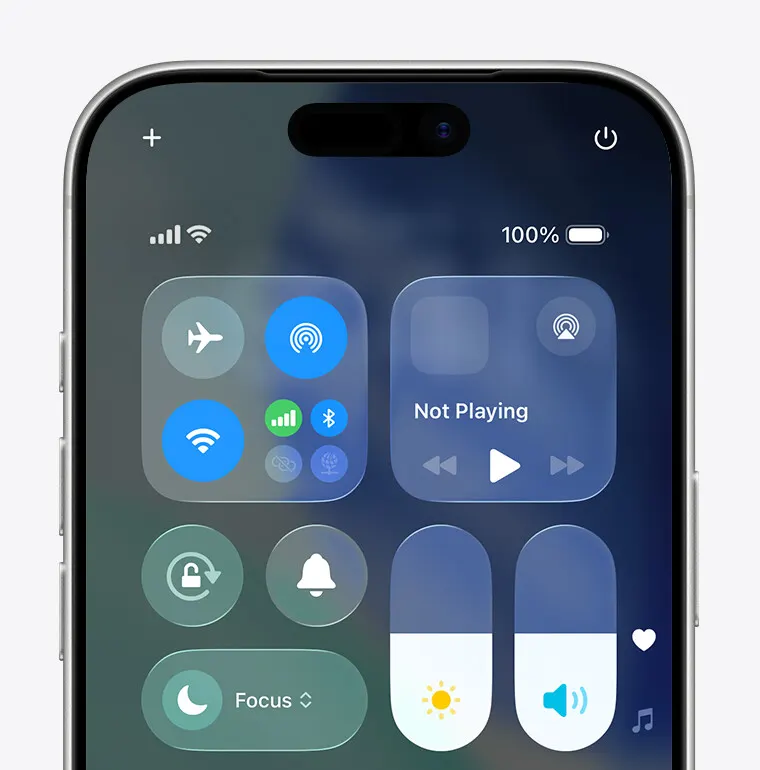
Once the icon fades and the label switches to Focus, the mode is off and the moon leaves both the status bar and the Lock Screen.
If the Moon Is Still There or the Phone Is Still Quiet
Another Focus such as Personal, Work, Sleep, Reduce Interruptions or Driving may be active, and each one can block calls and alerts. Tap its icon in Control Center to turn it off. Also look at the Silent switch on the left side of the phone: an orange strip showing means Silent Mode is on, which is separate from Do Not Disturb and silences ringing on its own. On iPhone 15 Pro and iPhone 16 or later running iOS 18.2 or newer, Intelligent Breakthrough & Silencing under Settings > Focus can also mute notifications it judges unimportant. If one particular caller is the problem, see our guide on how to block a number on iPhone.
2. Use the Focus Menu or Siri
This menu lists every mode, so you can spot which one is silencing you.
- Open Control Center and touch and hold the Focus button.
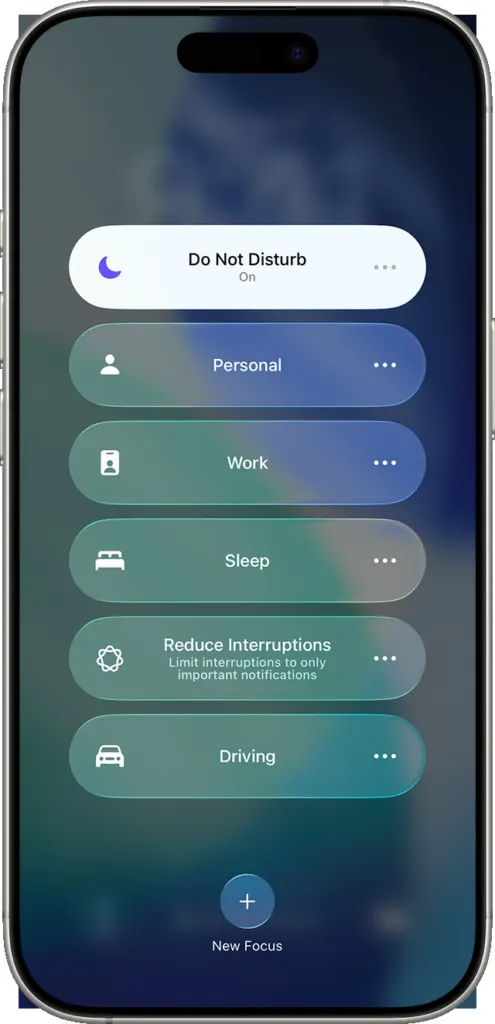
- Tap Do Not Disturb to switch it off.
Saying “Hey Siri, turn Do Not Disturb off” does the same.
3. Stop It From Turning Back On
A schedule, a linked Lock Screen wallpaper or Share Across Devices can each turn it on behind your back. Go through them in that order.
Turn Off Schedules
- Open Settings > Focus > Do Not Disturb.
- Tap Set a Schedule to list the schedules attached to it.
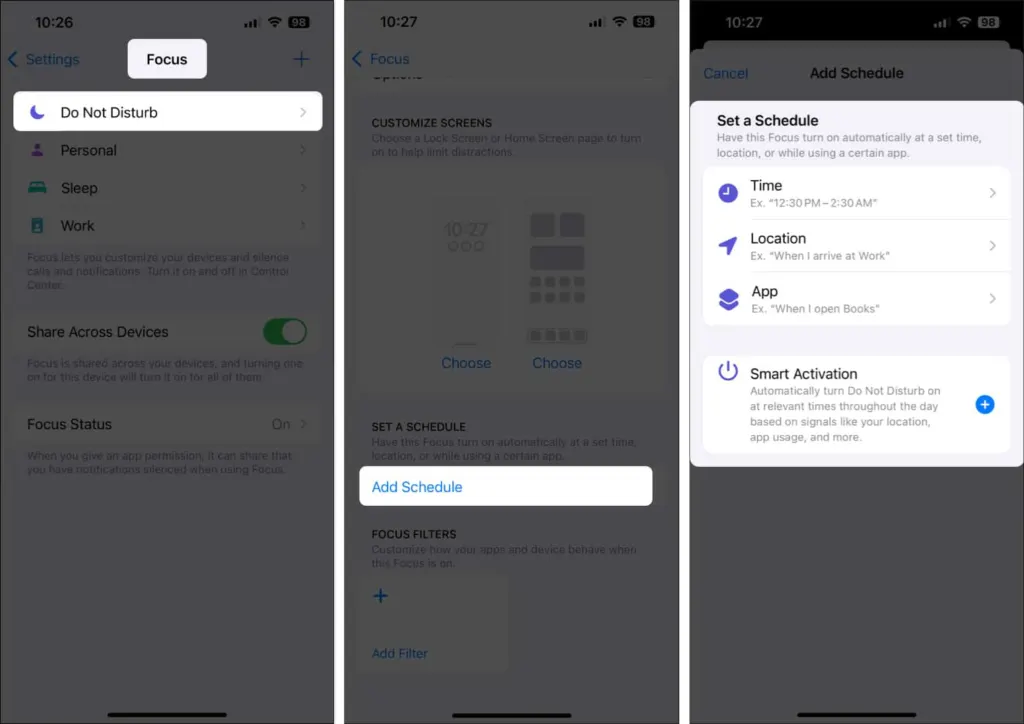
- Turn off every active schedule. A schedule is the usual cause when it happens at the same time each day.
Unlink the Lock Screen Wallpaper
From iOS 16 on, a wallpaper can be tied to Do Not Disturb, and choosing it switches the mode on. Those wallpapers carry a Do Not Disturb label at the bottom of the gallery.
- Touch and hold the Lock Screen to open the wallpaper gallery.
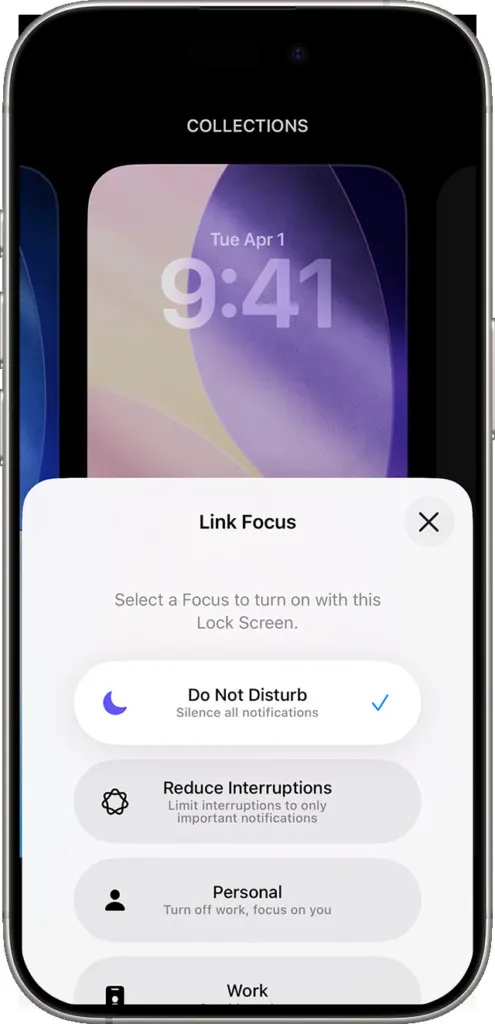
- Swipe to a wallpaper that doesn’t show Do Not Disturb, or tap the Focus label on the current one to change it. The link can also be removed under Settings > Focus > Do Not Disturb > Customize Screens.
Check Share Across Devices
When Share Across Devices is enabled, a change made on another Apple device carries over to this iPhone. If it flips at odd moments, check your iPad and Mac.
A phone that quiets itself at the wrong moment is easy to fix once you know what is controlling it, and the choice to quiet things down stays entirely yours. Sorting it out means fewer missed calls and messages. If something still seems off, Apple Support can take a closer look.


