
Anyone nearby can see the name your iPhone broadcasts when you share its internet connection, and the default often includes your own name. Changing it is quick, though the setting lives somewhere you might not expect. The steps below cover how to change the hotspot name on iPhone, how to confirm it worked, and how to choose a new password.
Table of Contents
How to change the hotspot name on iPhone
The Personal Hotspot name is the same as the device name, so you edit it in the About screen.
- Open Settings and tap General.
- Tap About.
- Tap Name, clear the old name, and type the new one.
- Tap Done.
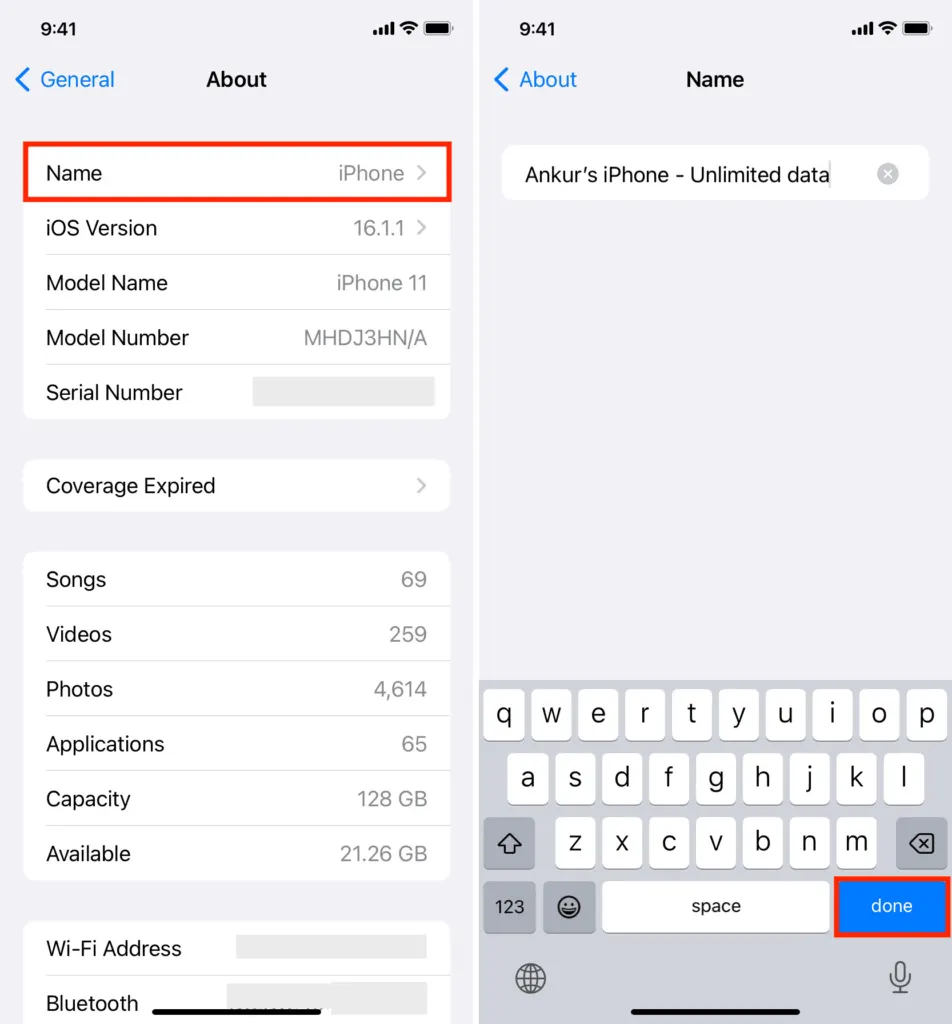
If the hotspot is switched on while you rename, turn it off and on again so other devices pick up the new name. Because it is the device name, it also changes for iCloud, AirDrop, Bluetooth and your computer. Leave out your full name, since anyone nearby can see it. For renaming the phone more broadly, read our guide to changing your iPhone name.
If you want to keep an old network name, such as one your other devices already know from a previous phone, type that exact name here. Devices holding the same name and password reconnect automatically.
Check the new hotspot name
The new name shows in the connection instructions on the Personal Hotspot screen.
- Open Settings and tap Personal Hotspot.
- Find the “To connect using Wi-Fi” instructions, which show the new name, and turn on Allow Others to Join.
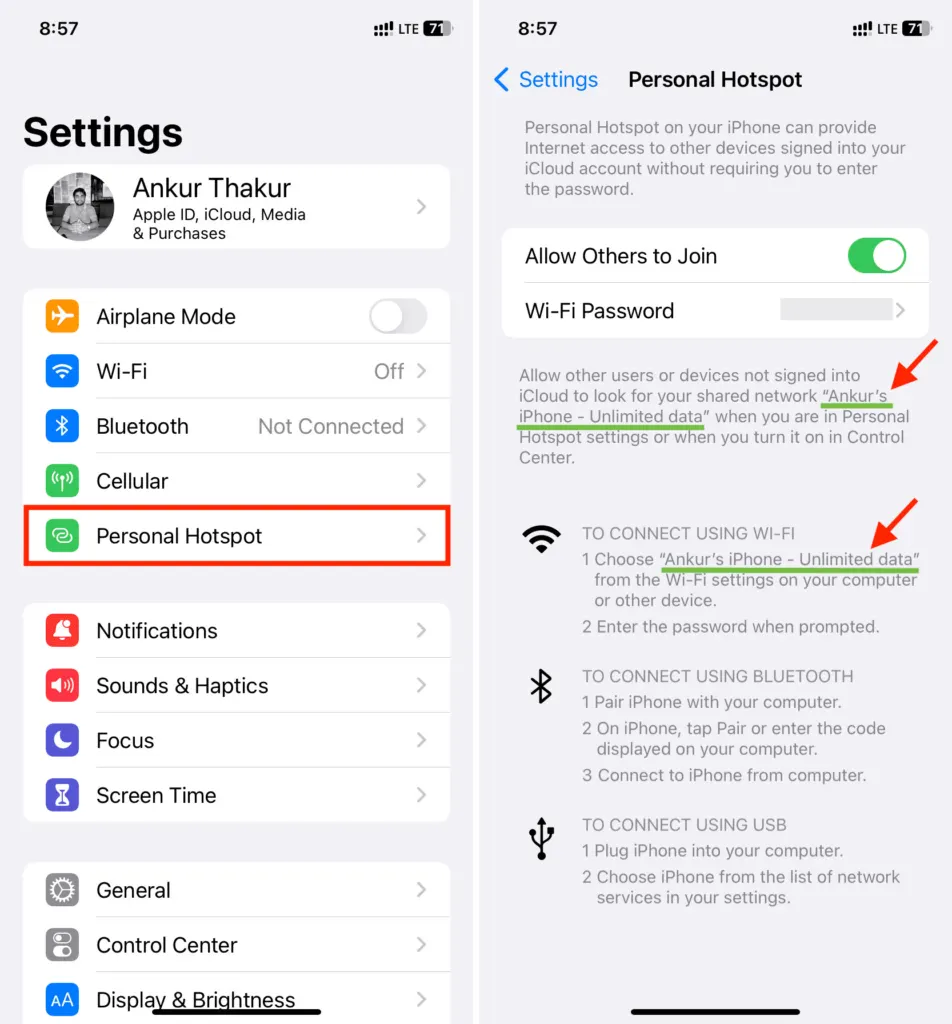
- On any device that connected before, pick the new network name and enter the hotspot password again if it asks.
If the hotspot still won’t connect, restart the iPhone and the other device first, and check that your mobile plan includes hotspot sharing, since some carriers limit it. A last resort is to reset network settings on iPhone. That erases saved Wi-Fi passwords and sets the device name back to “iPhone”, so you will need to rename it afterward.
Change the hotspot password on iPhone
The password is separate from the name and lives on the same screen.
- Open Settings and tap Personal Hotspot.
- Tap Wi-Fi Password, type a new password with at least 8 characters, and tap Done.
A neutral name and a fresh password make your connection more private and easier to recognize in a crowded list. You can change either one again whenever you like, and nothing else on the phone is affected. Take a minute to set it up before you next need it.


