
An iPhone that still calls itself “iPhone”, or carries a previous owner’s name, is easy to lose in a crowded list of nearby devices. That label is shared with other devices in several places, so it matters more than it seems. Here you’ll find how to change your iPhone name, where the new name shows up afterward, and how it works on other Apple devices too.
Table of Contents
How to Change iPhone Name in Settings
The Name field on the About screen can be erased and retyped. The steps are the same on iOS 27, iOS 26 and iOS 18.
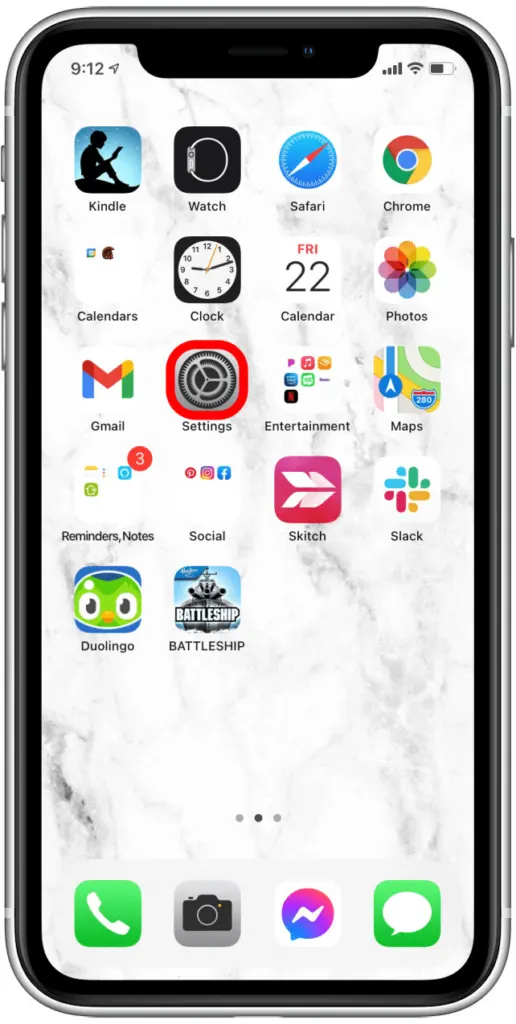
- Open the Settings app.
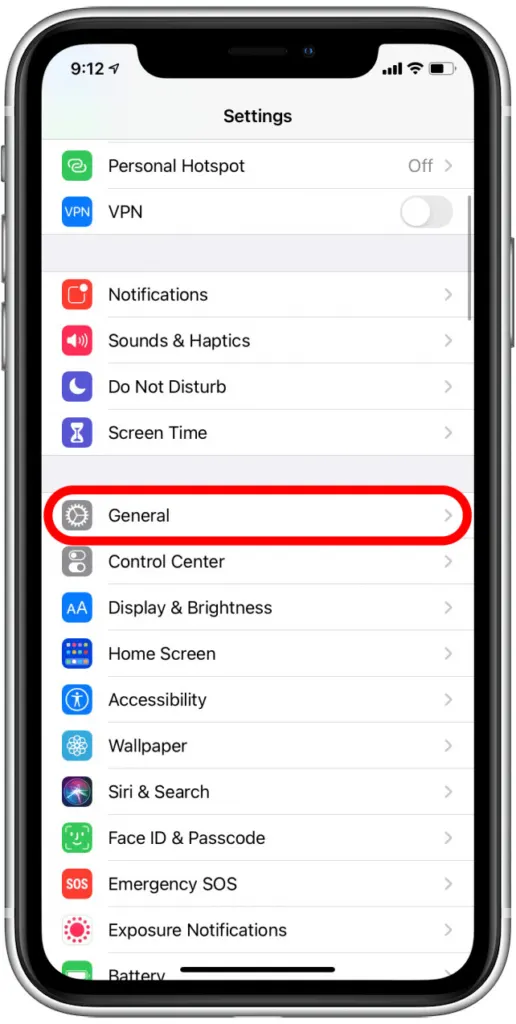
- Tap General.
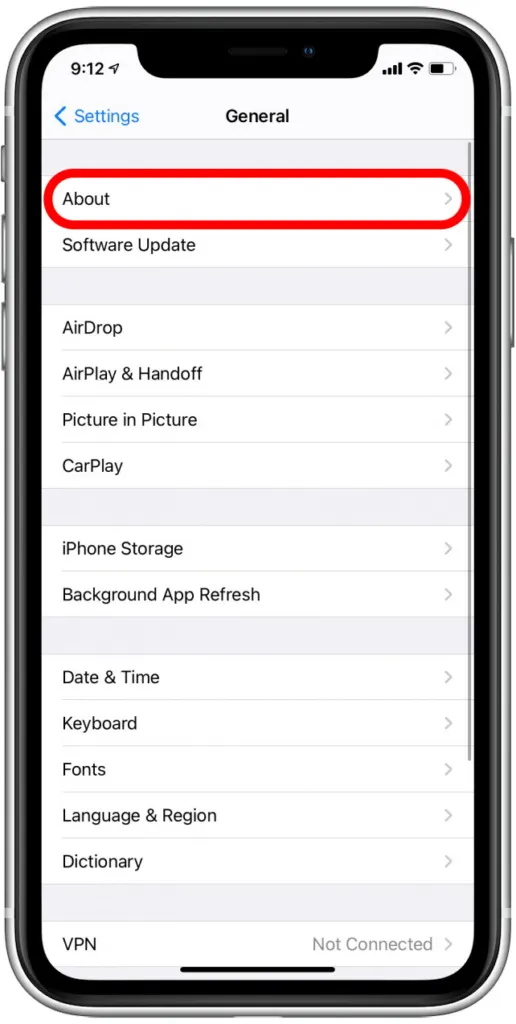
- Tap About.
- Tap Name.
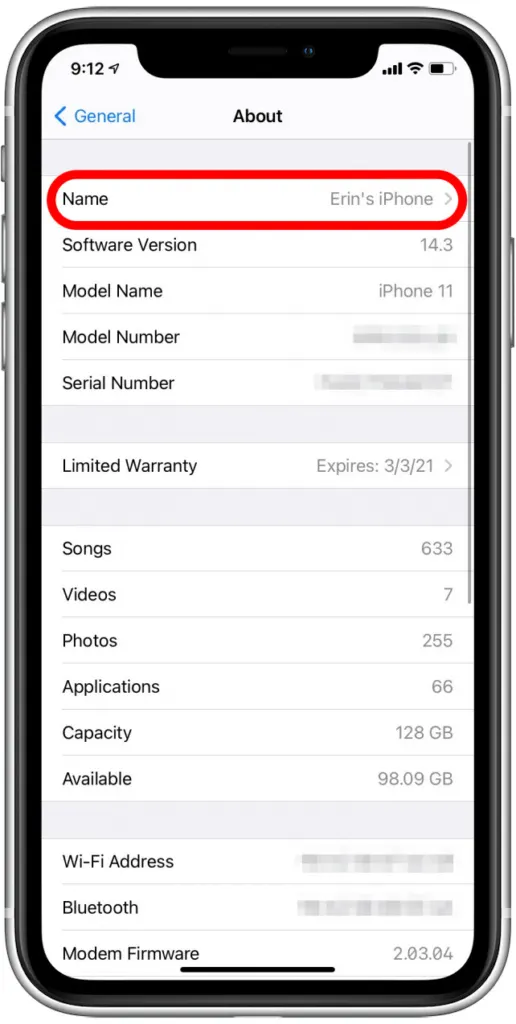
- Tap the X button to erase the current name.
- Type the new name.
- Tap Done on the keyboard.
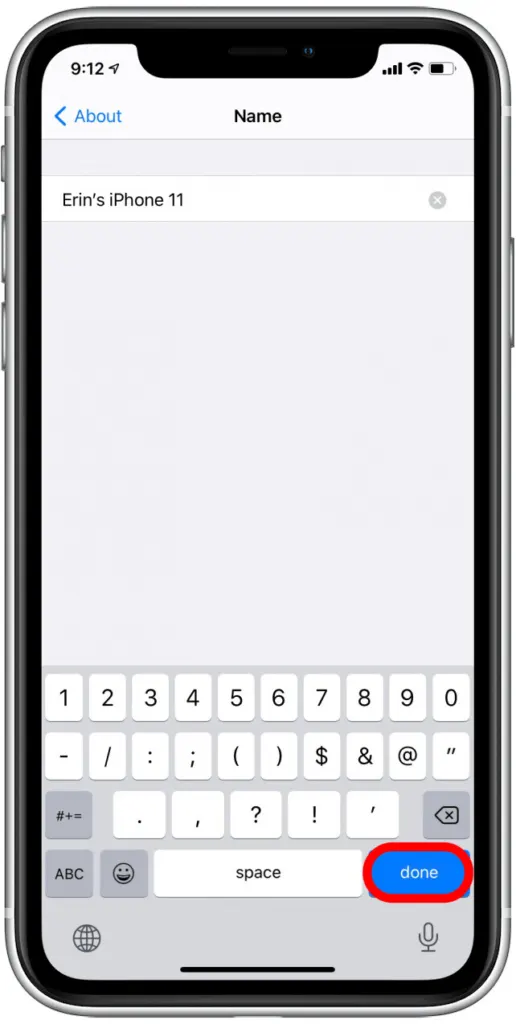
The About screen now shows the new name next to Name. Going back also saves it, you can rename as often as you like, and nothing else on the phone changes. An iPad uses the same path.
Rename From a Computer Instead
With the iPhone connected to a Mac, select it under Locations in Finder, click the name at the top and type a new one. On Windows with iTunes, click the name at the top of the device page. Use this when the phone is across the room or you are renaming several devices.
Where Your iPhone Name Shows Up
There is no separate setting per feature, so one rename updates every place below.
- AirDrop: nearby people see this name when sharing files with you.
- Personal Hotspot: it is the Wi-Fi network name other devices see when joining.
- Bluetooth: headphones, cars and speakers list the phone by this name.
- iCloud and Find My: your device list uses it.
- Your computer: Finder on a Mac, or the Apple Devices app on Windows, shows the iPhone by this name.
Your Apple Account name is a different thing, set under your name at the top of Settings, so renaming the phone leaves it alone. Since strangers nearby can see the label in AirDrop and hotspot lists, a first name or nickname is a safer choice than your full name or phone number.
Old iPhone Name Still Showing
Match the symptom to the cause:
- Find My or iCloud shows the old name: those lists update with a delay, so check again after a while.
- A Bluetooth accessory shows the old name: it may have cached it. Remove the pairing and pair again.
- A new iPhone has the old phone’s name: restoring from a backup carries the name over. Rename it with the steps above. The same applies if the name reverts after a system update.
- The Name row is locked: a work or school iPhone managed by an organization may not allow renaming, and your IT team has to change it.
A name that you and your friends recognize at a glance, and that reveals little about you, makes everyday sharing smoother. If you are tidying up your phone anyway, our guide on hiding apps on iPhone is a natural next step.


