
Some apps are better kept out of sight, for families who share a phone or anyone who likes a little privacy. Apple built a way to do this into newer versions of iOS, and it keeps hidden apps out of the usual places they appear. The sections below explain how to hide apps on iPhone, how to find or unhide them later, and the simpler option for decluttering.
Table of Contents
Hide Apps on iPhone With Face ID
You hide an app from the same menu that locks it, so the option is easy to miss. Only apps you downloaded from the App Store qualify.
- Long-press the app’s icon until its Quick Actions menu pops up.
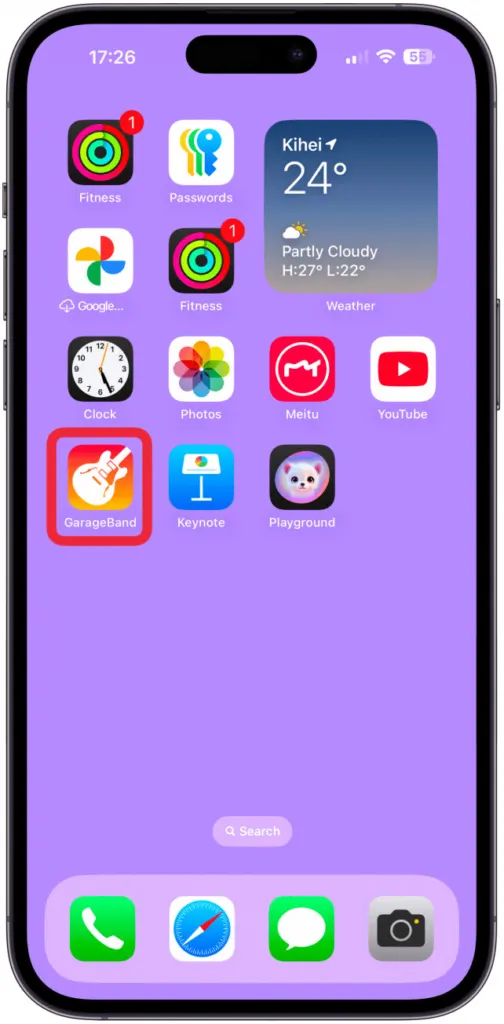
- Tap Require Face ID. On other iPhones the label reads Touch ID or Passcode.
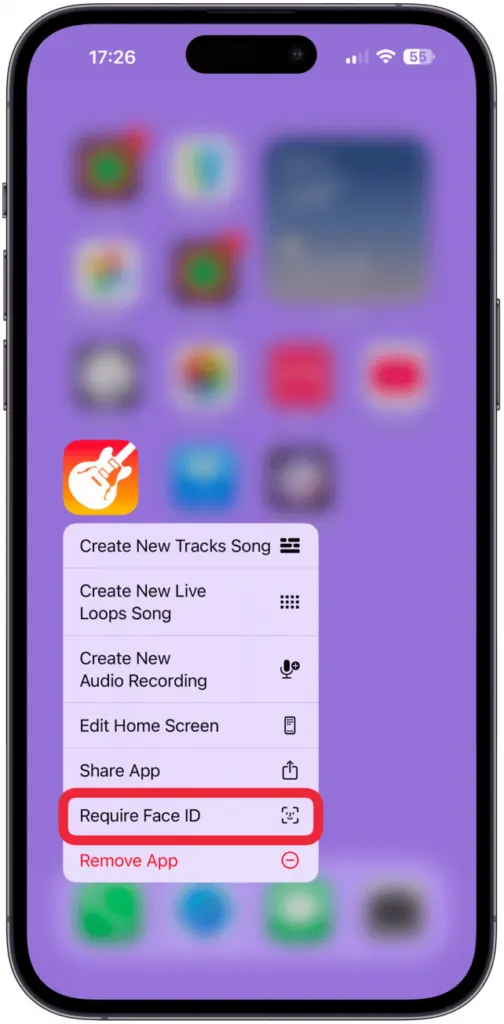
- Choose Hide and Require Face ID and verify it’s you.
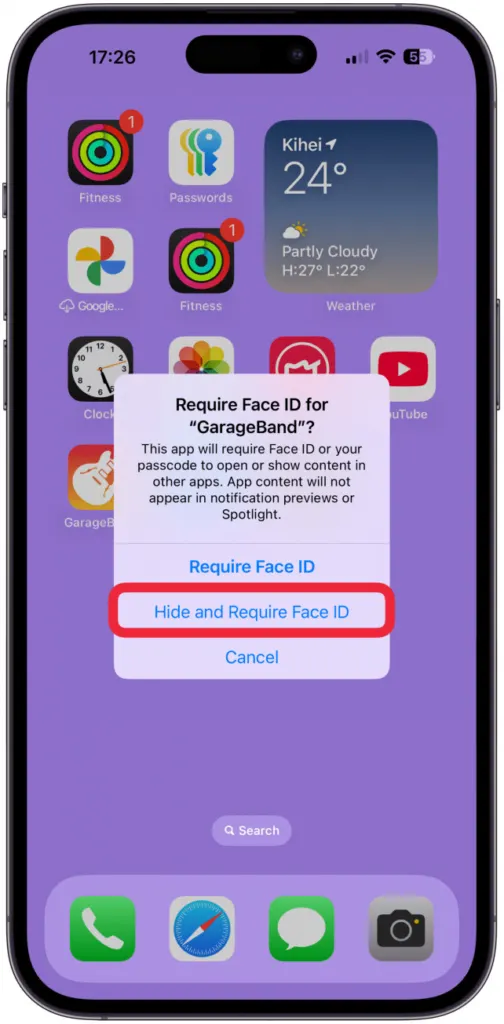
- On the confirmation screen, tap Hide App.
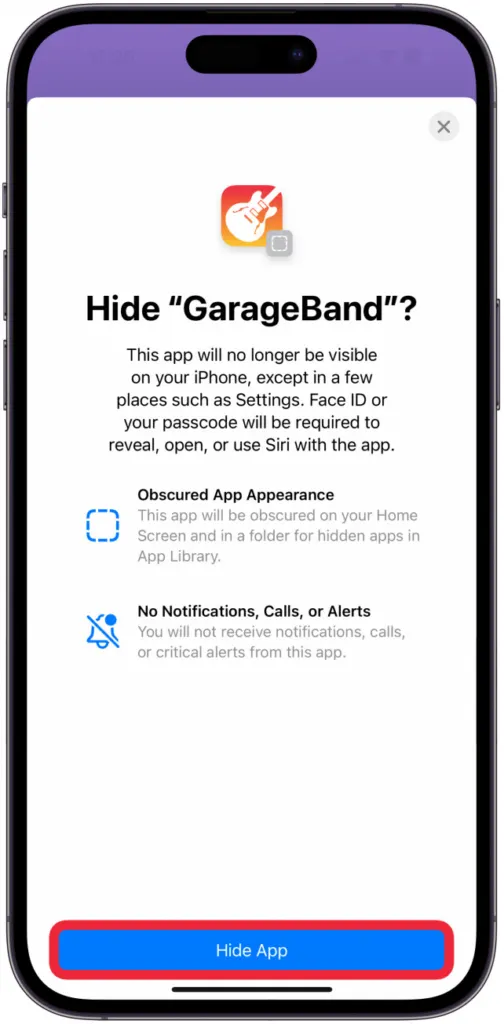
The app drops into the Hidden folder and stops sending notifications. Apps that shipped with iOS are excluded, as is whichever app you’ve chosen as your default browser. The setting belongs to this one iPhone and doesn’t follow your Apple Account through iCloud.
To lock an app without hiding it, choose Require Face ID at the second tap and go no further. The icon stays on the Home Screen, and the app asks you to verify every time it opens. Its contents also stay out of notification previews, search, Siri suggestions, CarPlay and call history.
Find and Open Hidden Apps on iPhone
Everything you hide collects in one place, and it stays closed until you authenticate.
- Keep swiping left on the Home Screen until App Library appears.
- Scroll to the bottom and open the Hidden folder.
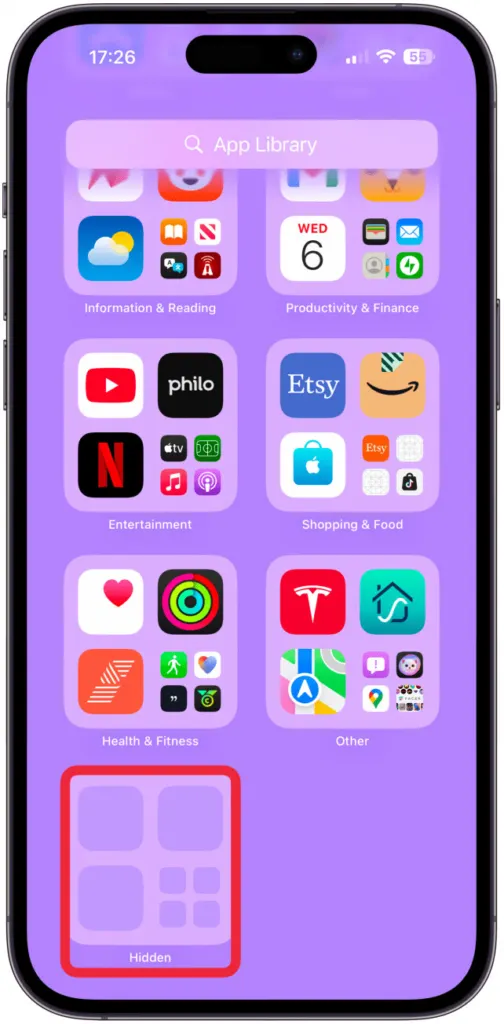
- Verify with Face ID, Touch ID or your passcode, then tap the app.
For a complete list, go to Settings > Apps > Hidden Apps and authenticate. That list is also how to check a phone for hidden apps.
Unhide an App on iPhone
Turning off the lock is what unhides the app, so it behaves normally again.
- Open the Hidden folder in App Library and authenticate.
- Press and hold the app, then tap Don’t Require Face ID.
- Authenticate once more.
It reappears near the top of App Library. Drag the icon onto a Home Screen page to put it back there.
Hide an App From the Home Screen Without a Lock
If you only want a tidier screen and don’t need privacy, removing an app from the Home Screen is enough.
- Touch and hold the app, then tap Remove App.
- Tap Remove from Home Screen.
The app stays in App Library and Search, one tap from opening. To hide a whole Home Screen page, touch and hold an empty area, tap the page dots, uncheck the page and tap Done.
What Hiding Does Not Hide
A hidden app is out of sight, not invisible, and a few places still show it:
- Screen Time and battery usage. The app can still turn up in Screen Time and in the per-app battery list in Settings.
- App Store history. It stays in your purchase history. Open the App Store, tap your account button, find the app in your purchases, swipe left and tap Hide.
- Background activity. If Background App Refresh is on, a hidden app can keep refreshing its data.
- Family Sharing. Kids under 13 in a family group can’t lock or hide apps at all. Teens aged 13 to 17 can, but a parent still sees the download and usage time and can restrict the app with Screen Time.
- Apple’s built-in apps. For some of these, Settings > Screen Time > Content & Privacy Restrictions > Allowed Apps & Features turns them off, so they disappear from the Home Screen.
Hiding an app is a light layer of privacy, not a complete lock on everything it stores. Privacy goes further when you also review what each app can access, and the guide to turning off location on iPhone is a good place to continue.


