
Getting a new phone is exciting until you remember your cellular plan has to come along, and an eSIM does not work like a card you can pull out. The process depends on your carrier, your iPhone models and sometimes your iOS version. The sections below show how to transfer an eSIM to a new iPhone three ways, with a check to run before you let go of the old phone.
Table of Contents
Before you start
- Sign in to both iPhones with the same Apple Account, and keep both nearby with Bluetooth on.
- Keep the old iPhone unlocked with its passcode entered.
- Confirm your carrier supports eSIM Quick Transfer.
- Update both iPhones to iOS 18.4 or later. See how to update your iPhone.
1. Transfer eSIM to New iPhone During Setup
This is the easiest route: the transfer prompt appears on its own, and no call to the carrier is needed. The new iPhone needs a Wi-Fi network or hotspot to activate the plan.
- When the Set Up eSIM screen appears on the new iPhone, tap Transfer From Nearby iPhone.
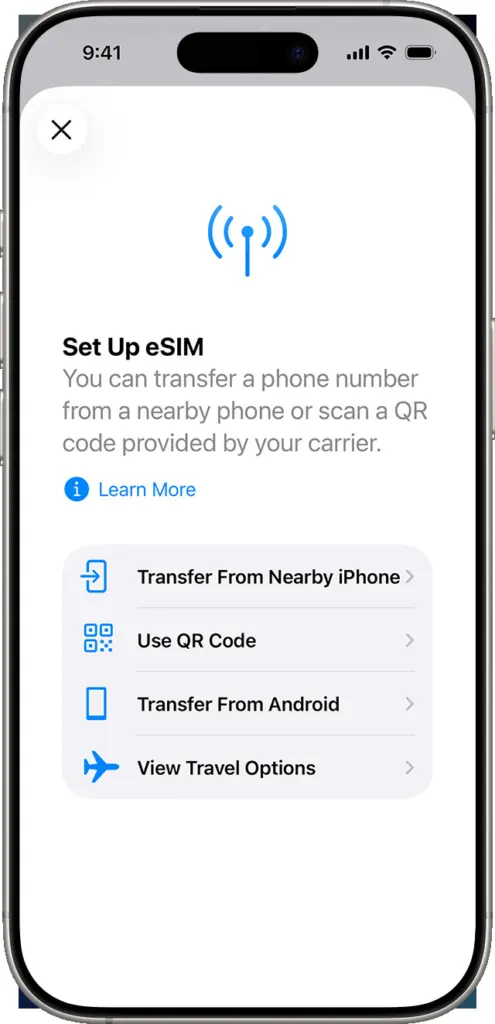
- When asked to transfer your phone number, follow the onscreen prompts on both iPhones.
- Let the new iPhone finish activating. The old SIM switches off at that moment, so the old iPhone loses service then.
With some carriers the same prompt can also convert a physical SIM into an eSIM. To bring apps and photos along, see our guide to transferring data between iPhones.
2. Transfer eSIM to New iPhone After Setup
If you skipped the prompt during setup, the same transfer can be started from Settings on the new iPhone.
- Open Settings, tap Cellular, then tap Set Up Cellular or Add eSIM.
- Choose the plan to transfer from another iPhone. If no list appears, tap Transfer From Nearby iPhone.
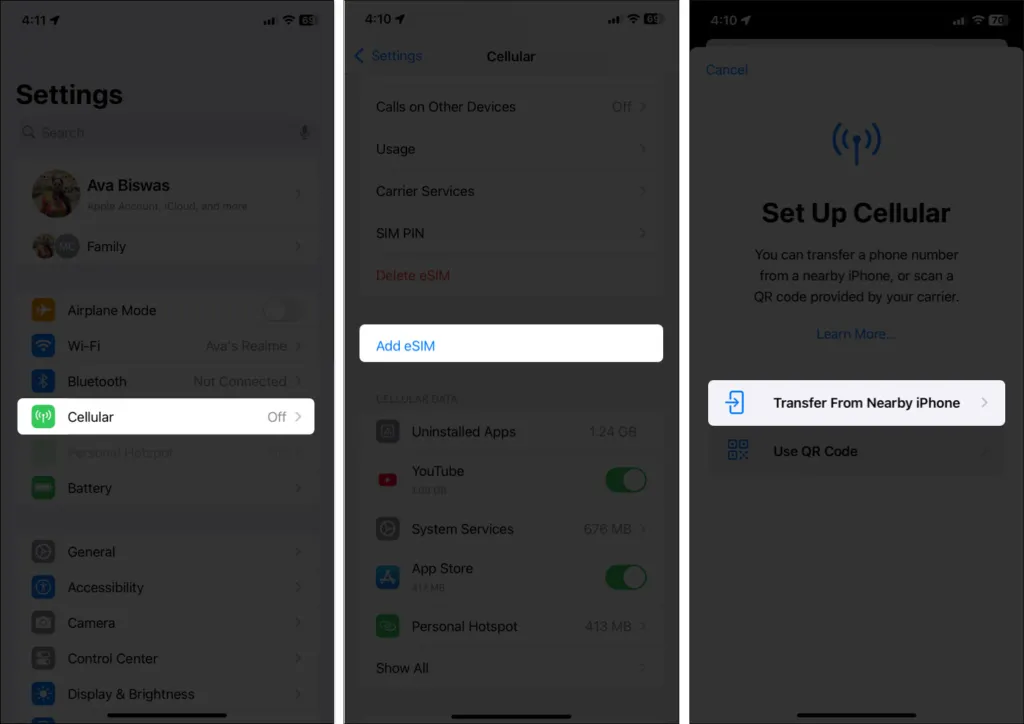
- On the old iPhone, follow the instructions. On the Transfer Phone Number card, tap Continue, then Transfer, or enter the verification code shown on the new iPhone.
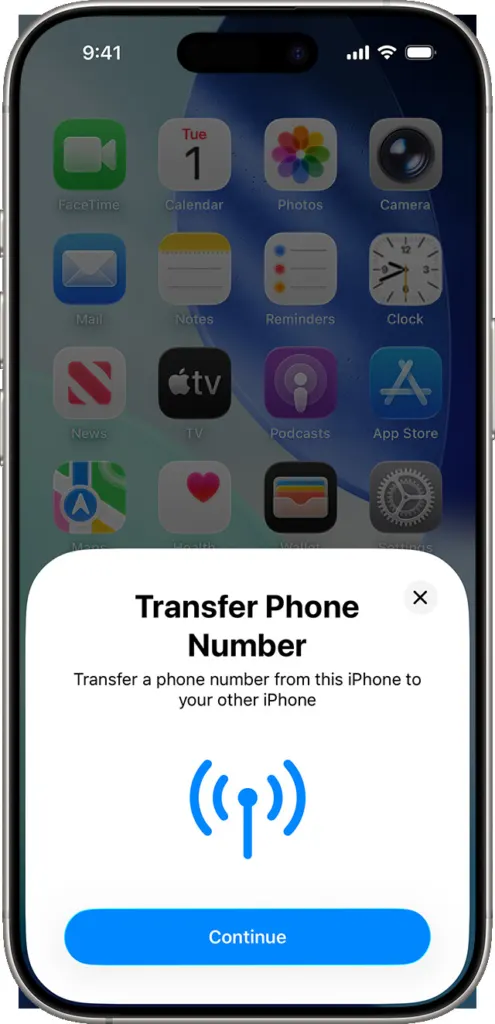
- Give the new iPhone a moment to activate the plan.
Some carriers show a Finish Setting Up Your Carrier’s Cellular Plan banner on the new iPhone. Tap it, and the carrier’s webpage opens so the carrier can complete the move.
3. Use a Carrier QR Code, Link or App
When Quick Transfer isn’t available, the carrier issues a fresh eSIM instead. Ask for a QR code, activation link or app prompt through your carrier account, app, chat or a store, because the iPhone cannot generate one.
- During setup, tap Use QR Code on the Set Up Cellular screen. After setup, go to Settings > Cellular > Set Up Cellular and tap Use QR Code.
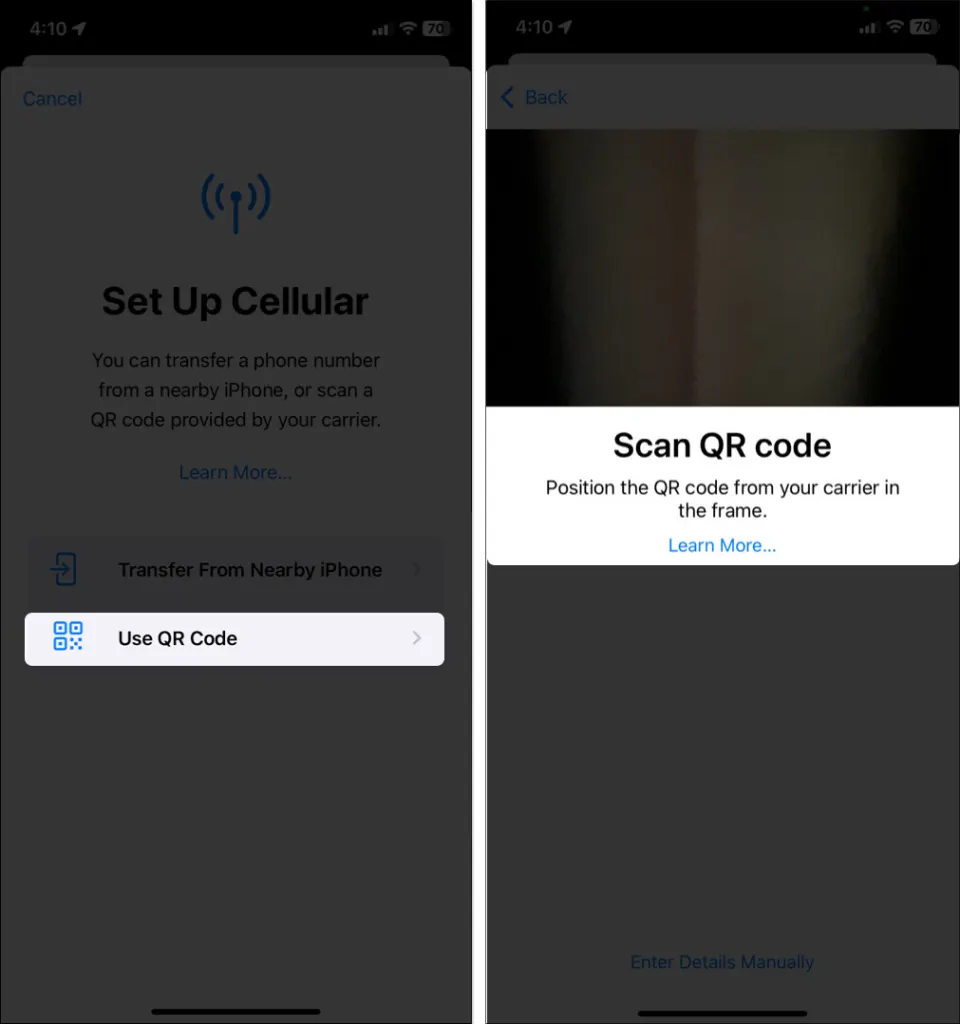
- Scan the code. You can also open the Camera app, scan it, and tap the Cellular Plan Detected notification. If the QR code is in an email or browser, tap and hold it and tap Add eSIM (iOS 17.4 or later).
- Tap Continue, then Add Cellular Plan, and enter the confirmation code if your carrier gave you one.
If your carrier pushes the eSIM digitally, a Carrier Cellular Plan Ready to Be Installed notification appears; tap it, then Continue. If the new plan replaces one on a physical SIM, remove that SIM and restart the iPhone. A link or app works similarly: tap the link, tap Allow, then Continue, or follow the carrier app’s steps. As a last option, go to Settings > Cellular > Add Cellular Plan > Enter Details Manually.
Moving an eSIM From Android to iPhone
Starting with iOS 26, a few carriers and Android phones can hand an eSIM directly to an iPhone. You need an iPhone 11 or later, an Android 16 or later phone, Wi-Fi and Bluetooth on both, and a supported carrier. In the US, Apple lists AT&T, Cricket, FirstNet, T-Mobile, Verizon and Xfinity Mobile.
- On the iPhone, open Settings and tap Set Up Cellular, then Transfer from Android. If the iPhone already has another SIM, tap Cellular, then Add eSIM, then Transfer from Android.
- Scan the QR code on the iPhone with the Android camera, pick the number, and tap Transfer.
- Tap Yes if the iPhone asks whether the moved SIM should be your primary eSIM.
When the camera can’t read the code, tap Other Options beneath it. Then, on the Android, open Settings, choose Pair with iPhone or iPad and type in the session ID and pairing code from the iPhone. When a phone or carrier isn’t supported, contact the carrier for an eSIM Carrier Activation or a QR code instead.
eSIM Won’t Transfer: What to Check
- No Transfer From Nearby iPhone option: your carrier may not support Quick Transfer. Use a QR code from the carrier.
- The old iPhone doesn’t respond: both phones need the same Apple Account, Bluetooth on, an unlocked old iPhone, and iOS 18.4 or later.
- Plan shows but calls fail: try resetting network settings, then contact the carrier.
Remove the Old eSIM After Testing the New One
Delete the old eSIM only after the new iPhone makes a call, since deleting it removes your fallback.
- On the new iPhone, make a test call.
- On the old iPhone, go to Settings > Cellular, tap the plan, then tap Delete eSIM.
A little care during the move keeps you from losing service in the middle of switching phones. Confirm that everything works on the new iPhone before you trade in or reset the old one, and contact your carrier if anything looks off.


