
Getting a new iPhone is exciting, until you start worrying about your photos, messages and apps coming along. The right method depends on the timing, since what is available changes once the new phone has been set up. The sections below show how to transfer data from iPhone to iPhone on iOS 27, with or without iCloud, and what to do if the new phone is already set up.
Table of Contents
Before you start
- Back up your old iPhone to iCloud or a computer. A fresh backup protects you if a transfer goes wrong, and it is the starting point for the iCloud and computer methods.
- Charge both iPhones or keep them plugged in until the transfer finishes.
1. Transfer Data From iPhone to iPhone With Quick Start
Quick Start copies your data from the old iPhone with no backup or computer, but it occupies both phones for several minutes, so pick a time when you will not need the old one. Update both iPhones first, turn on Wi-Fi and Bluetooth on the old one, and leave it unlocked on the Home Screen.
- Turn on the new iPhone and place it next to the old one. A Set Up New iPhone prompt appears on the old iPhone. Tap Continue.
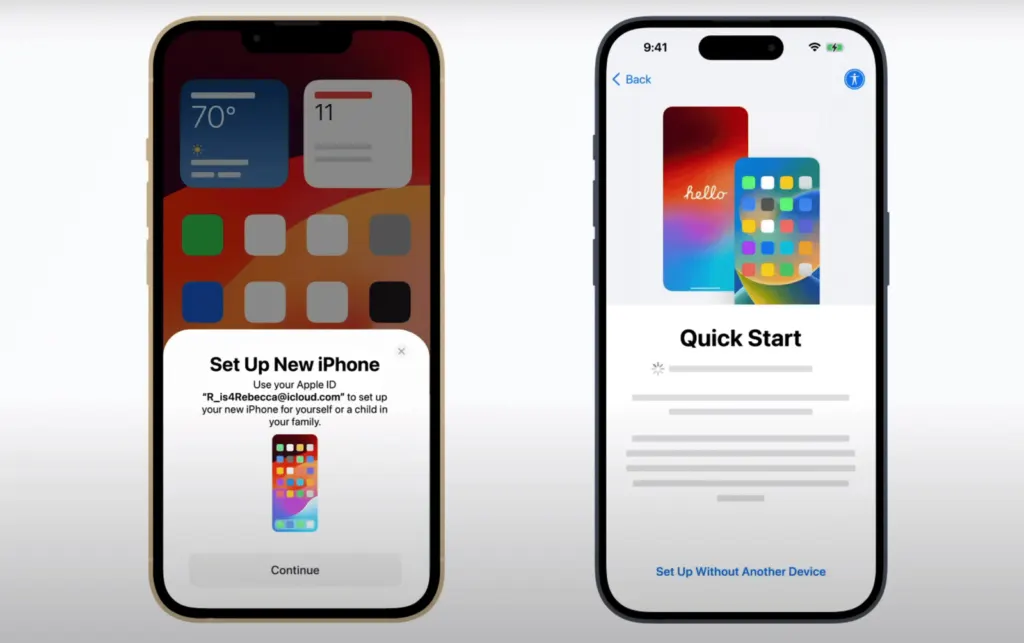
- Scan the animation on the new iPhone with the old iPhone’s camera. If scanning doesn’t work, choose to authenticate manually.
- Enter your old iPhone’s passcode on the new iPhone.
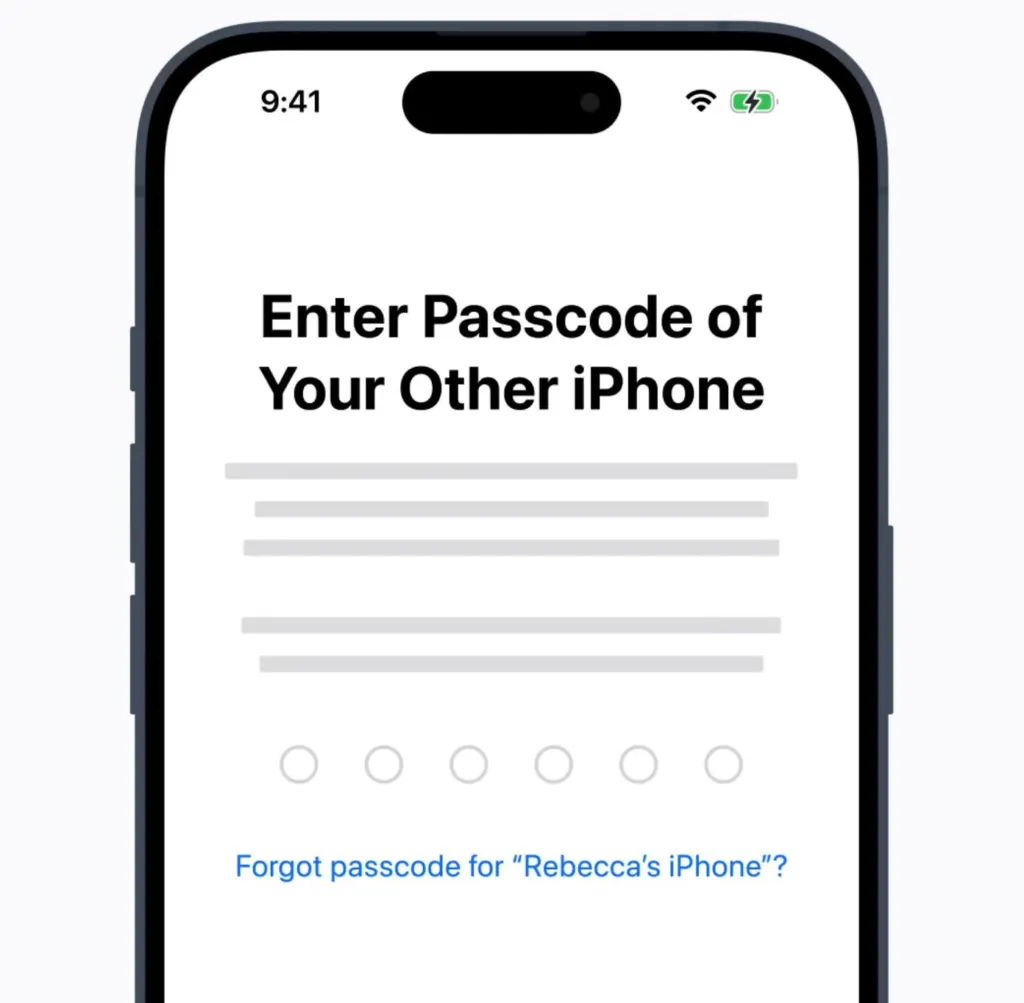
- Connect to Wi-Fi or cellular, activate cellular service if asked, then set up Face ID or Touch ID on the new iPhone.
- On the Transfer Your Data screen, choose one of these options:
- Download from iCloud: apps and data download in the background, so you can use the new iPhone right away.
- Transfer from iPhone: data moves directly between the two phones. Wait for it to finish on both devices before you use them.
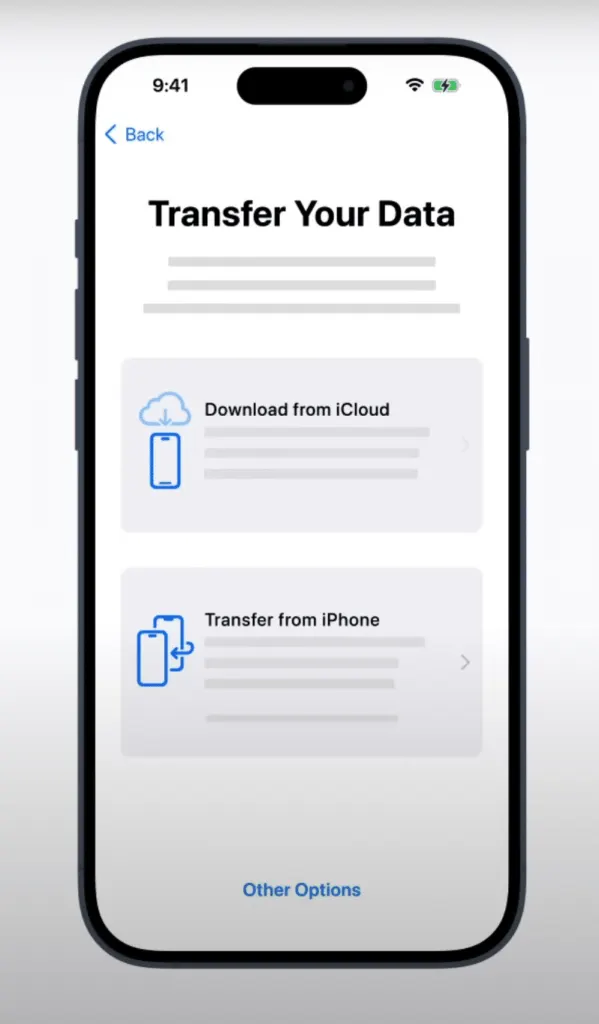
- Keep both iPhones close and plugged in until the transfer is complete.
Direct transfer over Wi-Fi can take over an hour for a large photo library, and the phones show a time estimate once it starts. A cable is faster: connect the two iPhones with a fast data cable, with an adapter if the older phone is an iPhone 14 or earlier with a Lightning port. If the prompt disappears from the old iPhone, restart both devices and try again. Quick Start is unavailable if the new iPhone is enrolled in Apple School Manager or Apple Business.
2. Transfer Data From an iCloud Backup
This is the route when you cannot use Quick Start, and it works from any network because the data comes from Apple’s servers. If your last backup is more than a day or two old, open Settings on the old iPhone, search for iCloud Backup and tap Back Up Now before you start.
- Start setup on the new iPhone. When the Quick Start screen appears, tap Set Up Without Another Device.
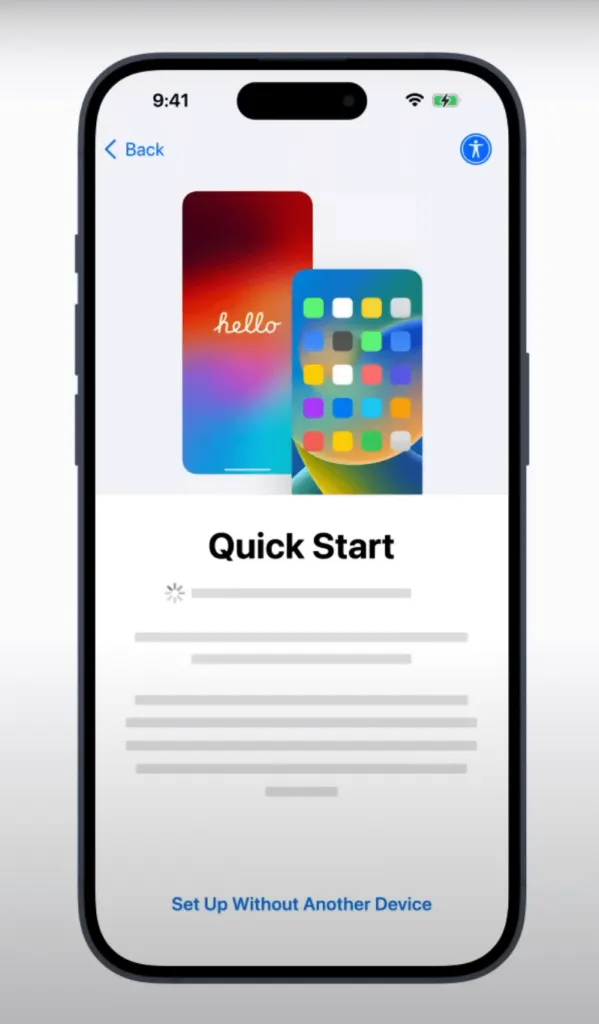
- On the Transfer Your Apps & Data screen, tap From iCloud Backup.
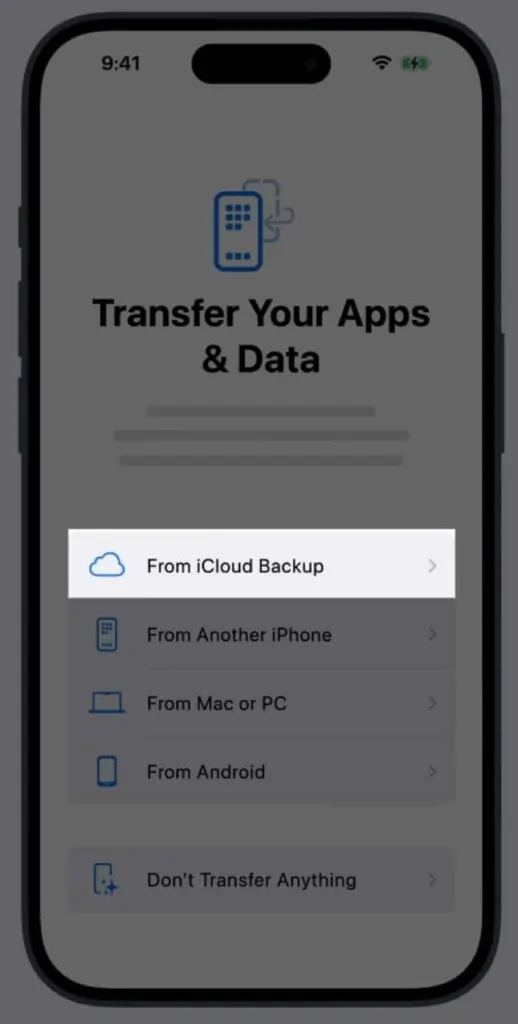
- Sign in with your Apple Account, then choose the latest backup from the list.
Settings come back first and the phone is usable in about 15 minutes, while apps keep downloading in the background. Expect to sign back in to some accounts afterward.
3. Transfer Data From iPhone to iPhone With a Computer
A computer backup works without iCloud. Turn on the encrypt-backup option when you make it, because an unencrypted backup leaves out your Health and Activity data, and an encrypted one also restores most app sign-ins. Write the password down, since you need it to restore.
- Connect your old iPhone to your computer and make a fresh backup.
- On the new iPhone, tap Set Up Without Another Device, then choose From Mac or PC on the Transfer Your Apps & Data screen.
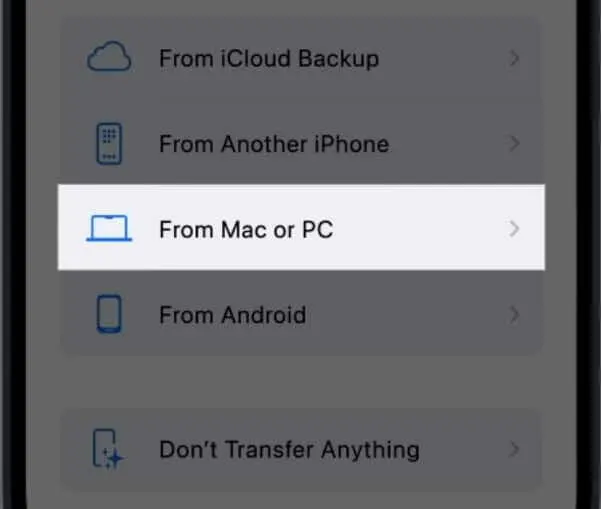
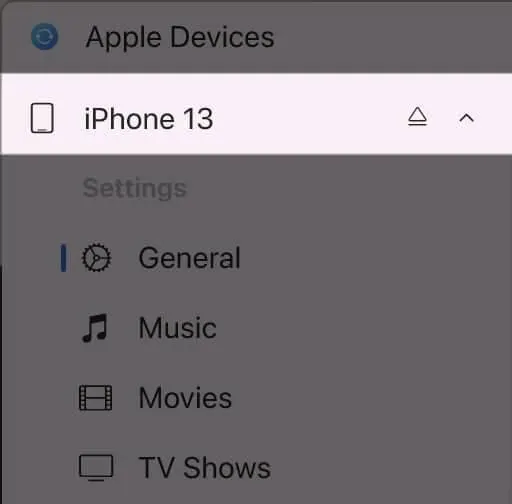
- Connect the new iPhone to the same computer. On a Mac, open Finder. On Windows, open the Apple Devices app, or iTunes on older versions of Windows. Select the iPhone and tap Trust if asked.
- In the Backups section, click Restore Backup.
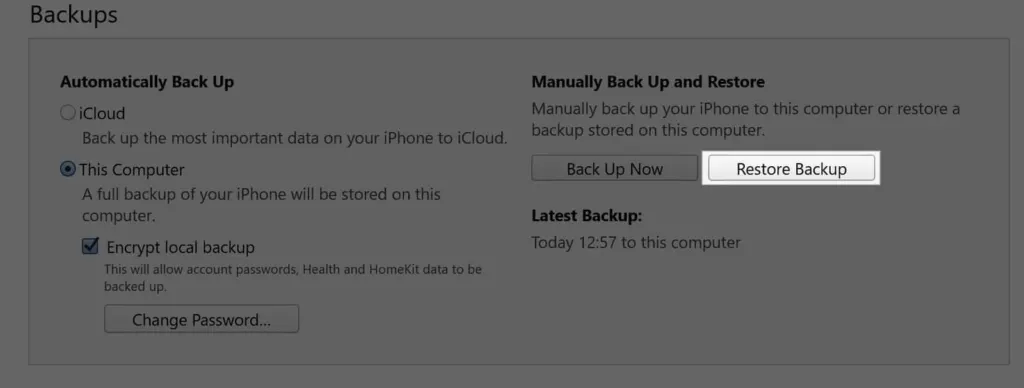
- Choose the backup by checking its date and size, then click Restore.
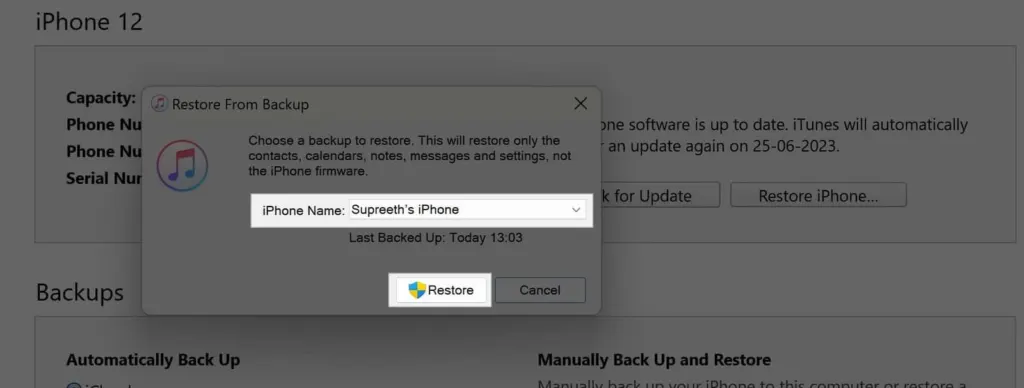
- If the backup is encrypted, enter its password when asked.
After setup finishes, stay on Wi-Fi and plugged in so photos, music and apps stored in iCloud can download back to the phone.
4. If Your New iPhone Is Already Set Up
Quick Start only runs during setup, so a phone that is already running must be erased before you can use any method above. Erasing wipes everything on the new iPhone, so do it only if it holds nothing you need.
- Open Settings on the new iPhone, then go to General and tap Transfer or Reset iPhone.
- Tap Erase All Content and Settings and follow the prompts.
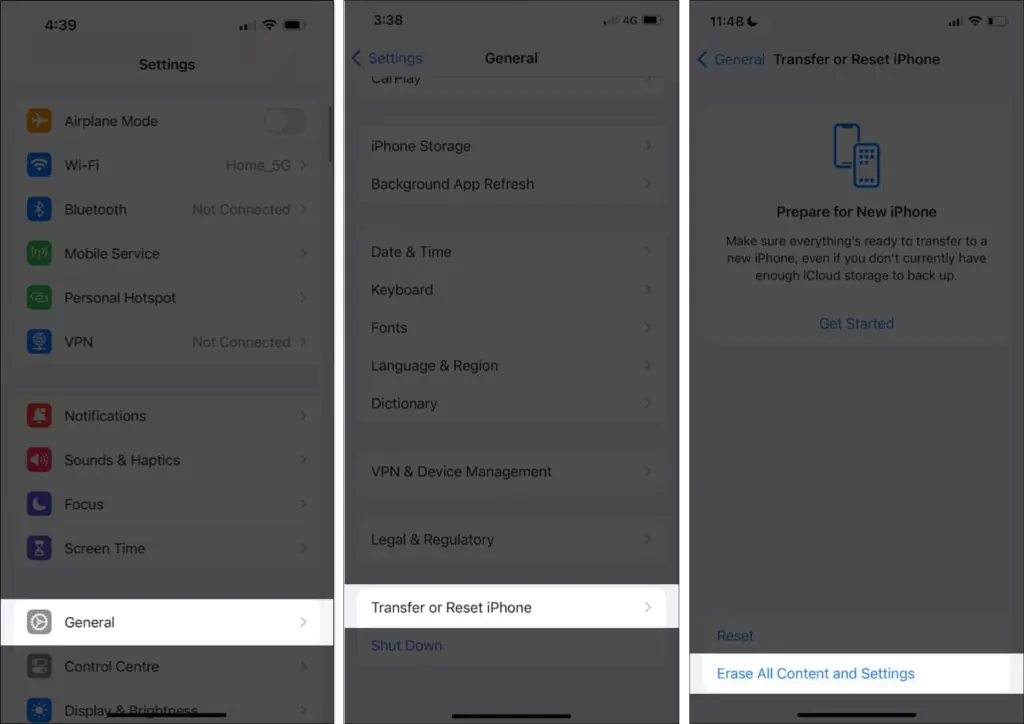
- Set up the iPhone again and pick one of the methods above.
If you only need some items, skip the erase. iCloud sync can carry over Photos and Contacts, and AirDrop sends individual files from the old iPhone.
Taking a little time over the move means nothing important gets left behind. Once everything has arrived, a small personal touch helps, and our guide on how to change your iPhone name shows how.


