
When a laptop or tablet won’t connect through your phone, it’s easy to waste time guessing which side is at fault. When you find your iPhone hotspot not working, it usually comes down to the phone’s connection, a setting or the device trying to join. Eight fixes follow, ordered so you can pinpoint which side is failing and get back online.
Table of Contents
Check Cellular Data First
Sharing starts with the iPhone itself being online, so verify that first.
- Open Settings and tap Cellular.
- Switch Cellular Data on if it’s off.
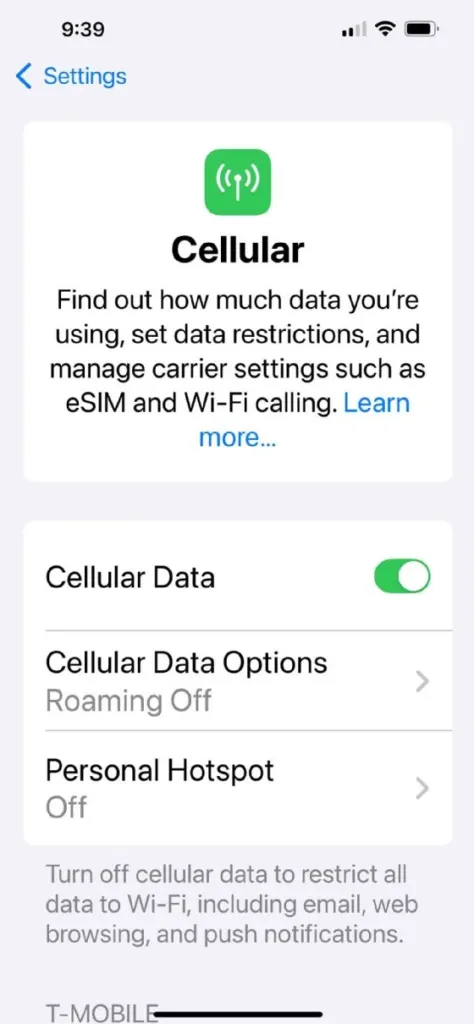
- Open a web page in a browser on the iPhone. If it won’t load, the hotspot has nothing to pass along.
- If Cellular Data won’t turn on, the account itself needs attention from your carrier.
Turn On Allow Others to Join and Check the Password
Nothing can join until this switch is on, so check it before anything else.
- Go to Settings > Personal Hotspot.
- Turn on Allow Others to Join.
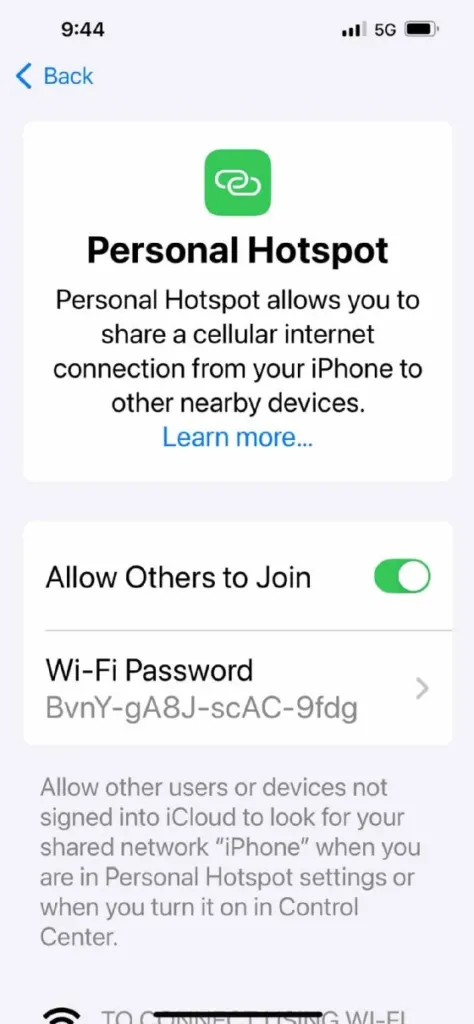
- Look at the Wi-Fi Password on the same screen. If the other device shows a password error, compare it with what you typed, or tap it to set a new one.
Keep this screen open while the other device searches. If the switch is greyed out or Personal Hotspot is missing, work through four suspects: Cellular Data is off; your plan has no tethering; Screen Time is restricting cellular changes (Settings > Screen Time > Content & Privacy Restrictions); or the iPhone belongs to an employer whose profile blocks hotspot, which only they can lift. “Personal Hotspot Not Available” points to the carrier not enabling it, the plan lacking it, or an exhausted hotspot allowance.
Turn On Maximize Compatibility
Try this when an older laptop or game console can’t see the hotspot. It moves the hotspot to 2.4 GHz, which more devices can find, and costs speed and Wi-Fi security. It’s available on iPhone 12 and later, so leave it off until you need it.
- Go to Settings > Personal Hotspot.
- Turn on Maximize Compatibility.
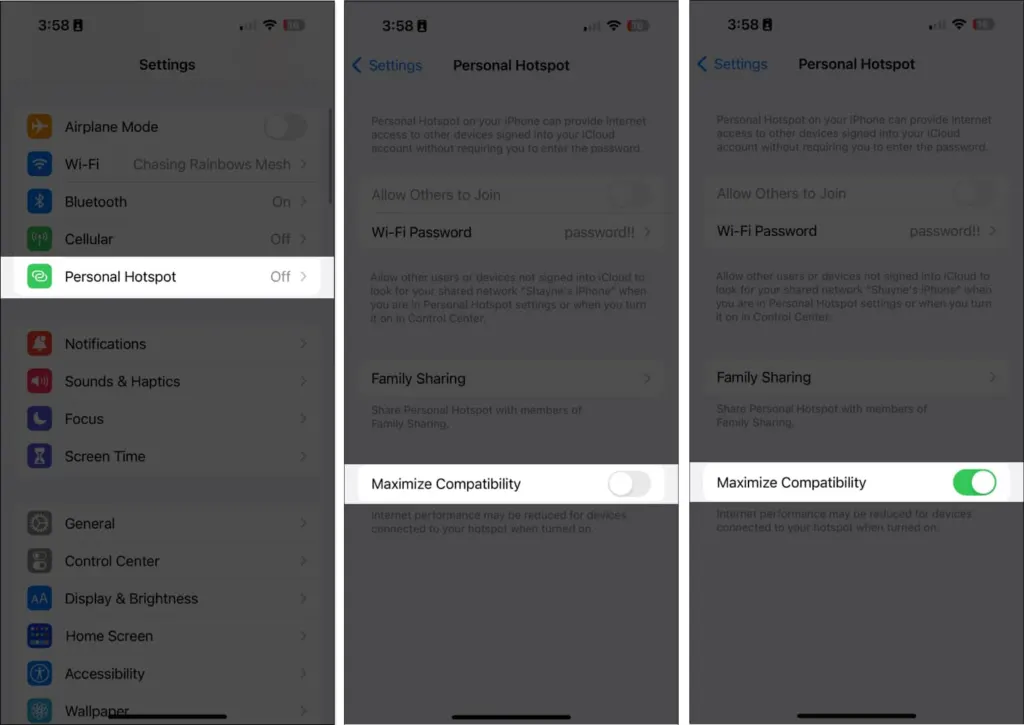
- Try connecting the other device again. When it works, you can turn the setting off later to get your speed back if the device still connects.
Reconnect from the Other Device
Picking the wrong network is an easy slip, since nearby hotspots and Wi-Fi names look alike.
- Toggle Wi-Fi off, then on.
- Pick the network that matches your iPhone’s name. A hotspot icon may appear next to it.
- Type the password shown on the iPhone’s Personal Hotspot screen.
If it still fails, rename the iPhone under Settings > General > About > Name to something plain without spaces or special characters. A forum poster who manages hundreds of iPhones reports that Windows can choke on an apostrophe in a name like “Sam’s iPhone.” Our guide on how to change your iPhone hotspot name covers the rename. If your Mac or iPad uses the same Apple Account, it can join from its Wi-Fi menu with no password at all.
Restart Both Devices and Update iOS
A restart clears a hotspot that never fully started, which one forum user describes as needing “a million retries.” Reboot the iPhone and the other device, then flip Airplane Mode on for a few seconds and back off. After that, install any pending update in Settings > General > Software Update.
Check Your Plan and Connected Devices
When the other device connects yet gets no internet, limits are a likelier culprit than settings. Some plans allow only one connection, and a used-up hotspot allowance can stop sharing. Disconnect devices you aren’t using and check your hotspot usage with how to check data usage on iPhone. Roaming or weak coverage can also leave the iPhone itself with no internet.
Switch the hotspot off when you finish. Otherwise a computer you plug the iPhone into just to charge may latch onto it and burn through data.
Reset Network Settings
Save this for last. It wipes saved Wi-Fi networks and passwords, cellular settings, VPN and APN configurations, so expect to re-enter them.
- Go to Settings > General > Transfer or Reset iPhone.
- Tap Reset, then tap Reset Network Settings.
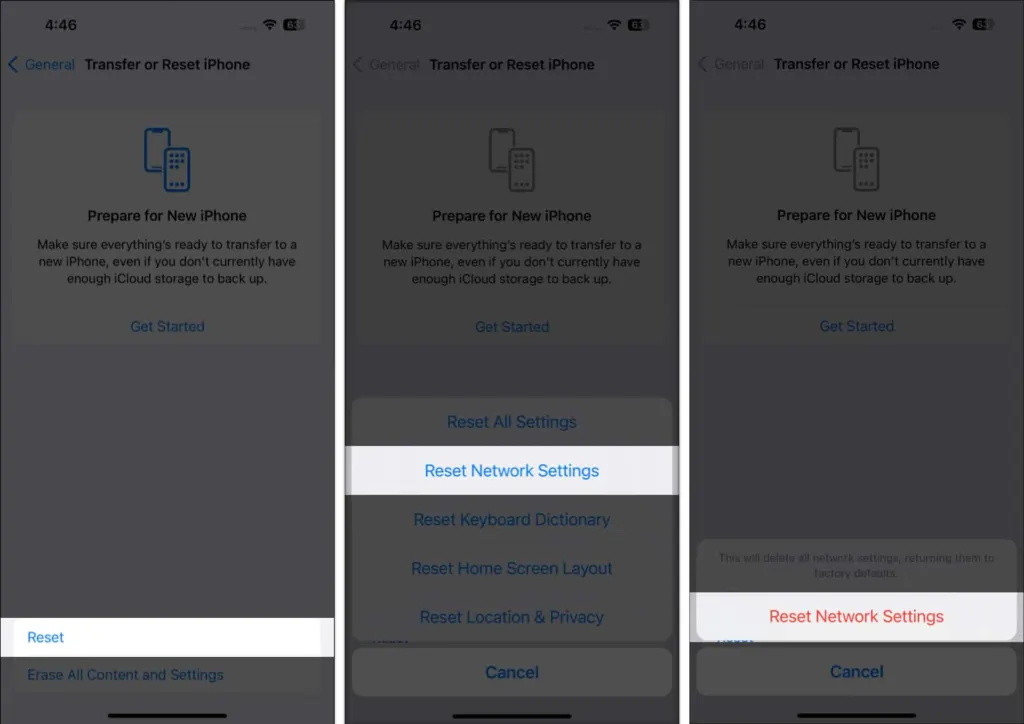
- Reconnect the other device as described above.
The full walkthrough is in how to reset network settings on iPhone.
Fix iPhone Hotspot Not Working on a Mac Over USB
A USB tether has two prerequisites: an updated Mac and an iPhone that has been marked as trusted.
- Install the latest macOS update.
- Plug the iPhone in and accept the Trust prompt.
- Open System Settings > Network. No iPhone USB entry? Add it as a new service.
- If it is listed, click it, choose Make Inactive, then Make Active (macOS Ventura and later). On older macOS, use the More button below the list, choose Make Service Inactive, click Apply, then repeat with Make Service Active.
Most hotspot trouble is fixable at home, and the changes are easy to undo if one doesn’t help. If everything on the phone looks right and the problem remains, your carrier is the right place to ask next.


