
The data figure on your iPhone often looks much bigger than you would expect, and that can be alarming when your plan has a limit. Those numbers do not always match your billing cycle, which makes them easy to misread. The steps below show how to check data usage on iPhone, line the totals up with your plan, and see which apps use the most.
Table of Contents
How to Check Data Usage on iPhone
Total cellular usage and the per-app breakdown share one screen in Settings.
- Open the Settings app.
- Tap Cellular. In some regions this is labeled Mobile Data or Mobile Service.
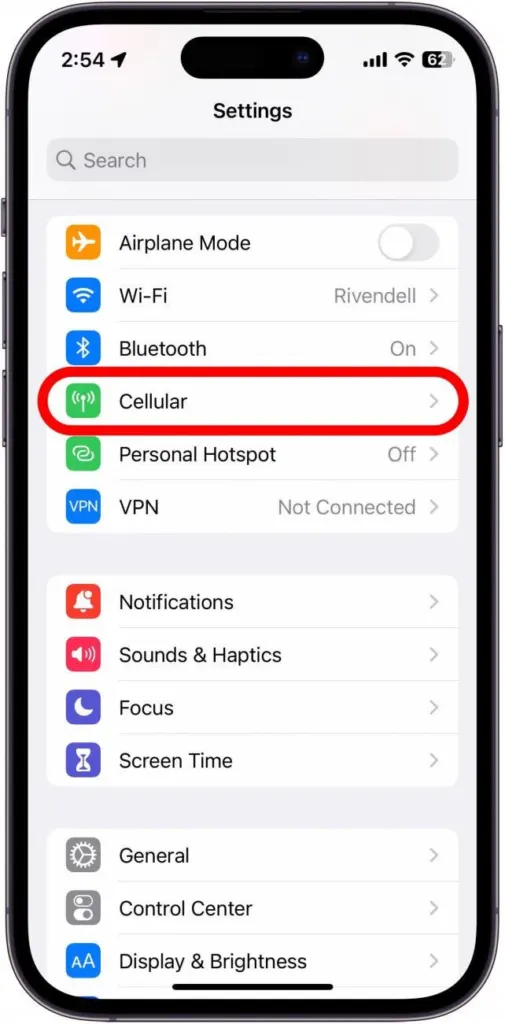
- Under Cellular Data, read the total for Current Period. Some carriers also add This Billing Period and Last Billing Period tabs at the top.
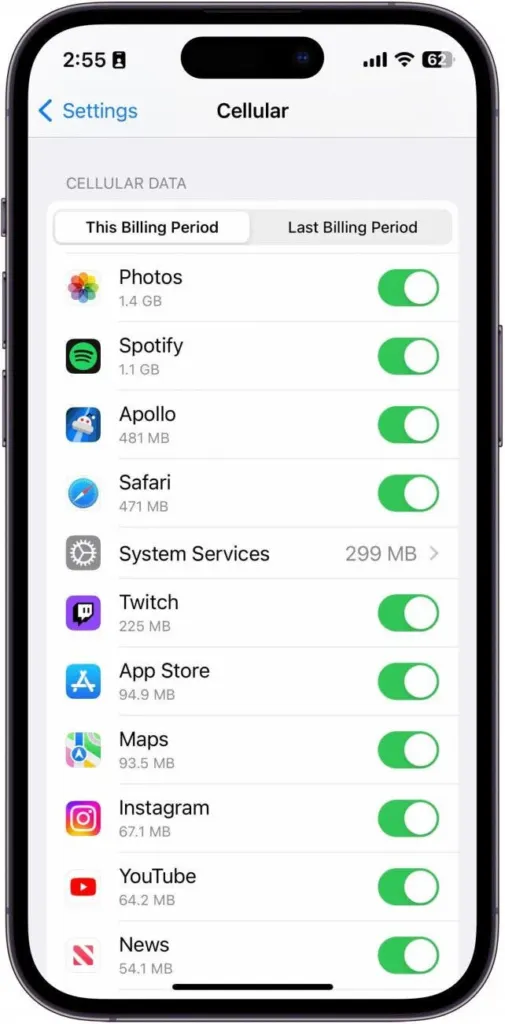
- Scroll down to see how much cellular data each app used.
On a Dual SIM iPhone, the figure covers the line you selected. Only wireless data counts here, so Wi-Fi use never appears in this total. Apple also notes that for the most accurate count of the current period you should ask your carrier, since the iPhone’s counter is its own tally.
Reset the Counter to Match Your Billing Month
Current Period is simply the time since statistics were last reset, and if you never reset it, it is a lifetime total. Carriers that support billing-period tabs fill in the months for you; for everyone else, reset on the first day of the cycle.
- Open Settings and tap Cellular.
- Scroll to the bottom and tap Reset Statistics on the first day of your billing cycle.
- Read the date of the last reset at the bottom of the same screen to confirm when the count began.
The reset clears the per-app numbers as well, so note any figure you want to keep before you tap it. To avoid doing it by hand every month, a Shortcuts automation can run the Reset Mobile Data Statistics action once a month, though it cannot read the value for you first.
Find Which Apps Are Draining Your Data
The app list under Cellular Data ranks apps by usage and also lists System Services and Personal Hotspot.
- Open Settings and tap Cellular.
- Scroll to the app list and find the apps with the largest numbers.
- Turn off the switch next to an app to stop it from using cellular data. It can still use Wi-Fi, and it shows a “Cellular Data is Turned Off” alert when it tries cellular.
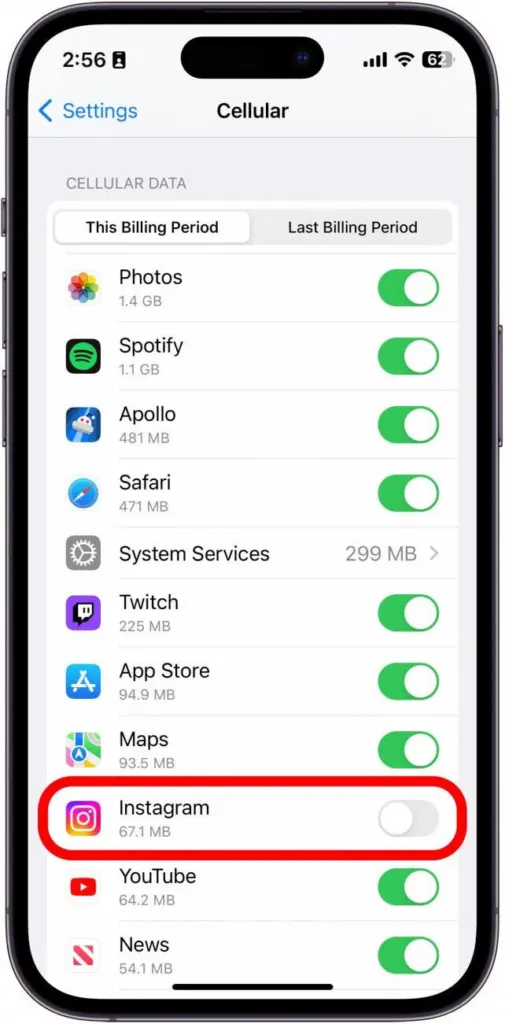
Some entries cannot be switched off. Cellular data cannot be turned off for individual System Services, and an Exchange ActiveSync account may keep using cellular even after you turn it off for Mail and Calendar. Personal Hotspot also draws on your allowance, and the guide to changing your hotspot name on iPhone covers that feature.
Ways to Use Less Cellular Data
- Low Data Mode: go to Settings > Cellular > Cellular Data Options > Data Mode and select Low Data Mode.
- Wi-Fi Assist: scroll to the bottom of the Cellular screen and turn it off. Apple describes this feature (Connectivity Assist) as using cellular alongside a weak or busy Wi-Fi connection, which can add to your usage and cost.
- Data Roaming: under Cellular Data Options, turn it off when you travel internationally to avoid roaming charges. Leave it on if you have an international data plan.
How Much Data Do You Have Left?
The iPhone reports what you have used, not what remains, so your carrier is the source for the remaining allowance. Open your carrier’s app or website, sign in, and check the plan page.
A quick look at your usage now and then helps you avoid surprise charges at the end of the month. Your carrier has the final say on what you have used, so treat the phone as a guide and not the last word. If the connection still acts up, our guide to resetting network settings on iPhone is a good next read.


