
A sudden alert and a phone that has lost service is stressful, especially when you rely on it for calls and data. An iPhone SIM Failure message usually comes down to the SIM, the plan or a software hiccup rather than a dead phone. Seven fixes follow, from quick free checks to getting help from your carrier.
Common causes include a loose or wrong tray, a worn SIM, an inactive plan or carrier lock, outdated carrier settings, an iOS bug after an update, a temporary carrier outage and, rarely, damage from a drop or water.
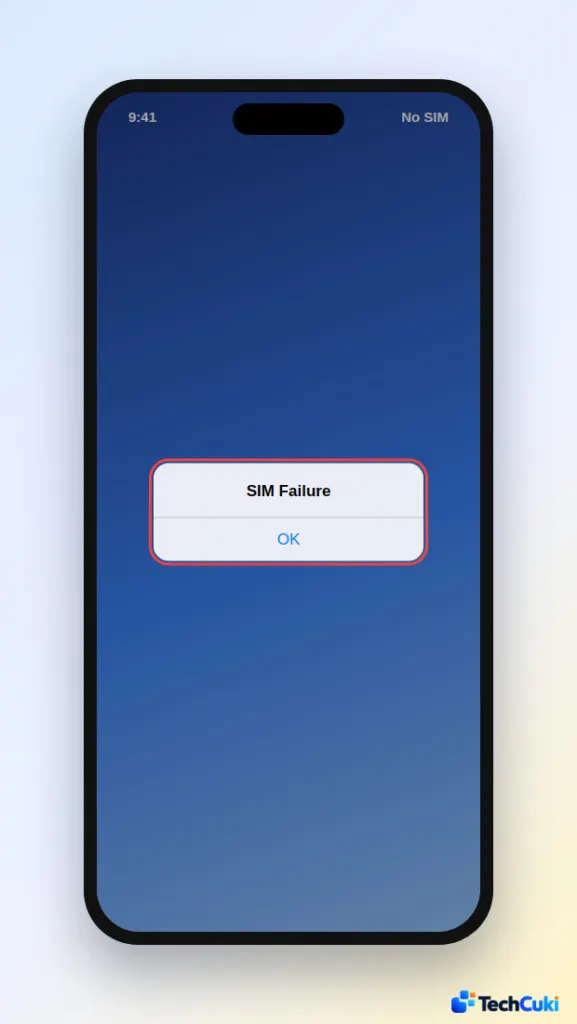
Table of Contents
1. Check Your Plan and Carrier Lock
An inactive plan or a locked iPhone produces the same alert as a bad SIM, so rule these out before touching hardware.
- Confirm your plan with the carrier is active.
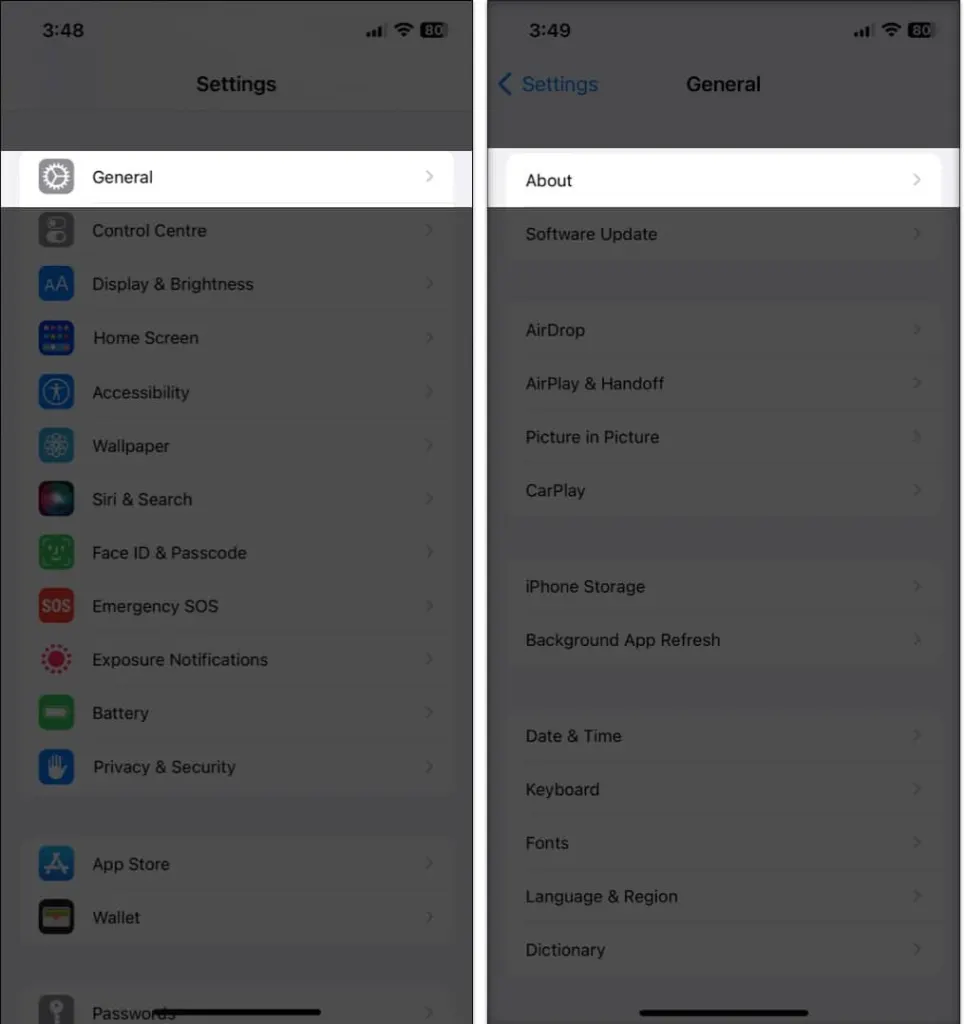
- Go to Settings, then General, then About.
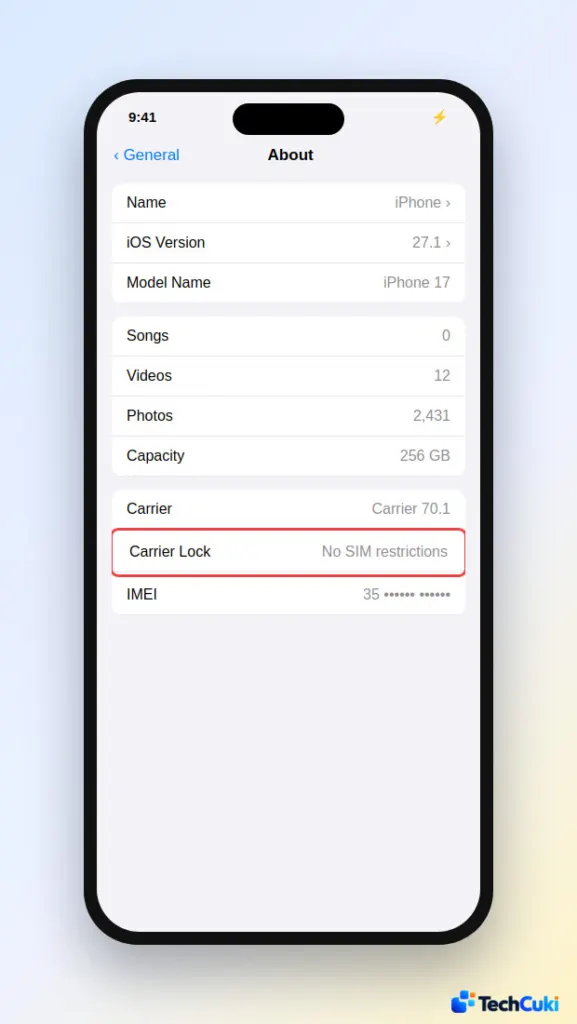
- Find Carrier Lock. No SIM restrictions means the iPhone is unlocked. A locked iPhone works only with its own carrier, so a SIM from any other carrier will fail.
2. Restart and Toggle Airplane Mode
Both force the iPhone to renegotiate with the cellular network, which clears a one-off glitch at no cost.
- Restart the iPhone.
- Turn on Airplane Mode, wait a few seconds, then turn it off.
If service returns but the alert comes back later, the restart only hid the real cause, so keep going down the list.
3. Install a Carrier Settings Update
Carriers push network settings to the iPhone, and an outdated set can stop it from talking to the SIM correctly.
- Go to Settings, then General, then About.
- If an update is available, a prompt appears. Tap Update.
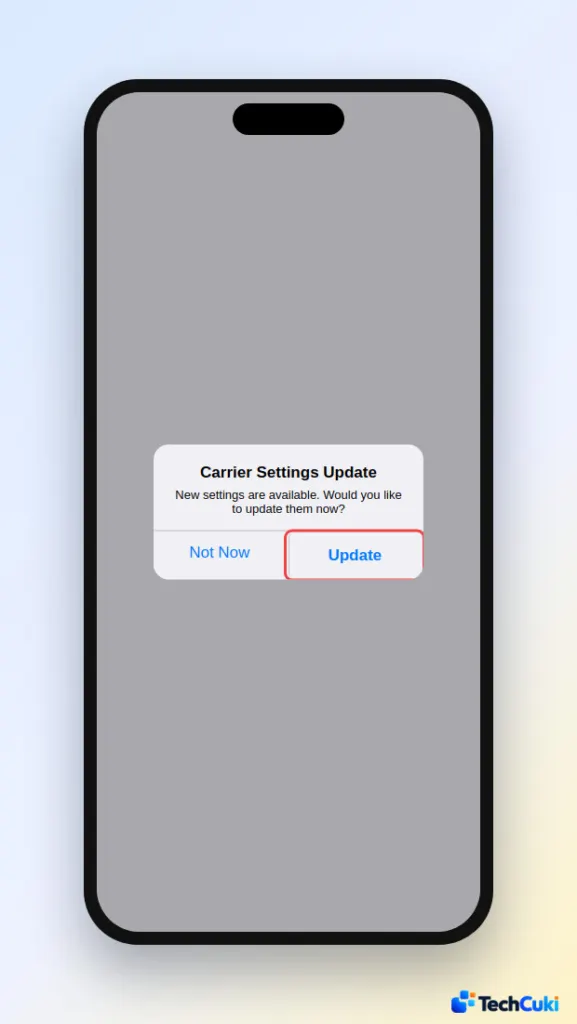
No prompt means your settings are current.
4. Reseat or Clean the SIM Card
A loose tray or a smudged card breaks the contact the iPhone needs to read the SIM, so this is the main fix for a physical card.
- Eject the SIM tray.
- Take out the SIM and look for scratches or cracks.
- Wipe the card and the tray with a dry cloth.
- Put the SIM back and push the tray in until it closes fully and doesn’t wobble. A tray from another iPhone model or a different brand’s phone may not fit properly.
5. Update iOS
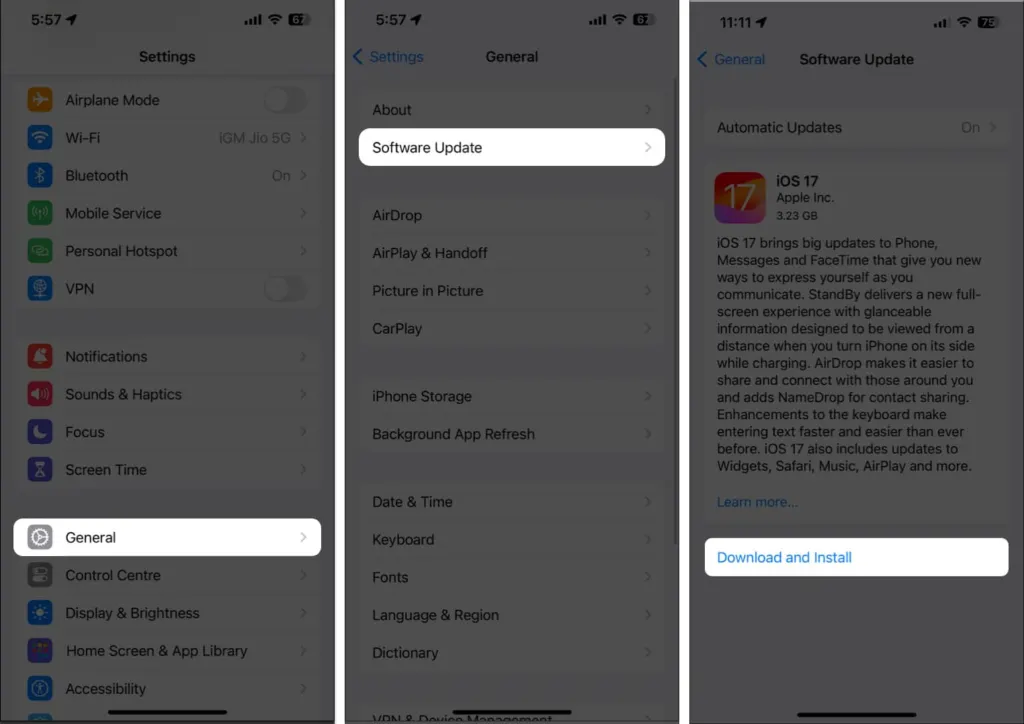
If the alert began after an iOS update, a newer release may carry the fix. Full steps are in the guide to updating an iPhone.
- Go to Settings, then General, then Software Update.
- Tap Download and Install.
6. Reset Network Settings
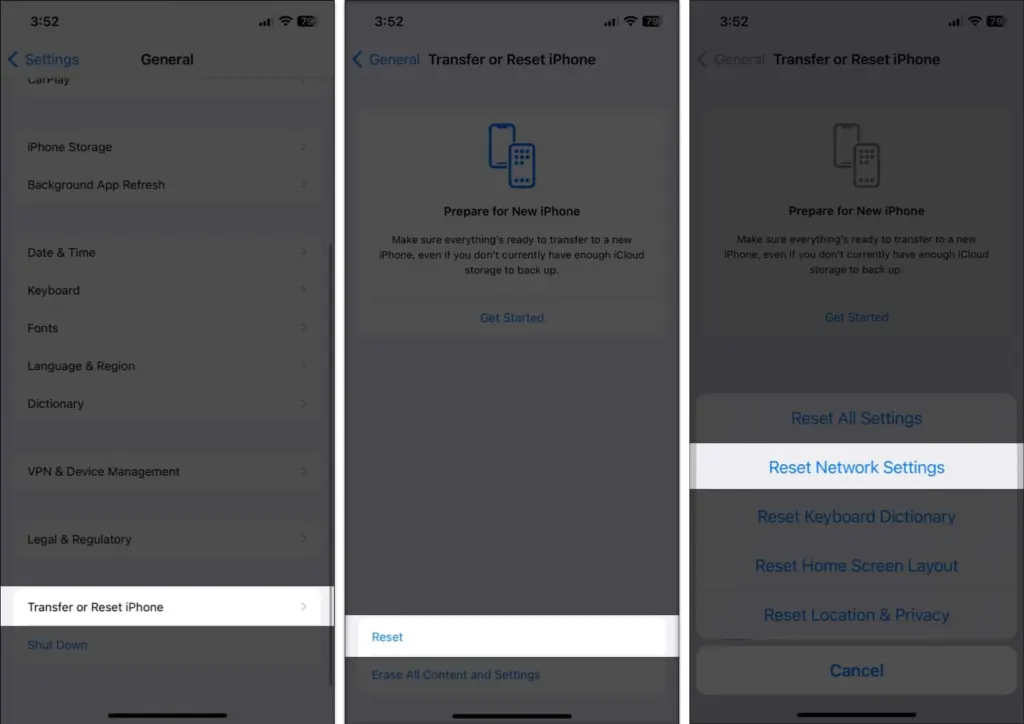
This clears the saved network configuration, so try it only after the steps above. It erases saved Wi-Fi passwords and network settings, and you’ll re-enter the passwords afterward. The guide to resetting network settings on iPhone has more detail.
- Go to Settings, then General, then Transfer or Reset iPhone, and tap Reset.
- Tap Reset Network Settings.
7. Try Another SIM or Reissue the eSIM
A different SIM tells you whether the card or the phone is at fault.
- With a physical SIM, test another SIM card, or ask the carrier’s store to test one. You may need a replacement.
- With an eSIM, contact the carrier, which can reissue it. iPhone 14 and later models sold in the US have no SIM tray and are eSIM only, so the carrier is the fix there.
If the alert returned a few days after a new SIM, the card may not have been the problem, and forum users often suggest an eSIM as the alternative.
Why SIM Failure Keeps Coming Back
An alert that repeats usually means a worn SIM or loose tray, or something on the carrier’s side. Any carrier, Verizon included, can replace the SIM or reissue the eSIM. An alert that appears only now and then can still end with data cutting out, so don’t just keep tapping OK.
If the alert keeps coming back with a different SIM, the phone itself may need a repair, and Apple Support can arrange one. Once calls and data are working again, enabling MMS on iPhone is a useful next step if picture messages still fail.


