
Sending a picture to a friend with a different kind of phone sometimes ends with an error instead of a delivered photo. The cause usually comes down to a setting that depends on your iOS version and your carrier. Below you will find how to enable MMS on iPhone, what to do when the option is missing, and how to track down pictures that still won’t send.
Table of Contents
How to Enable MMS on iPhone
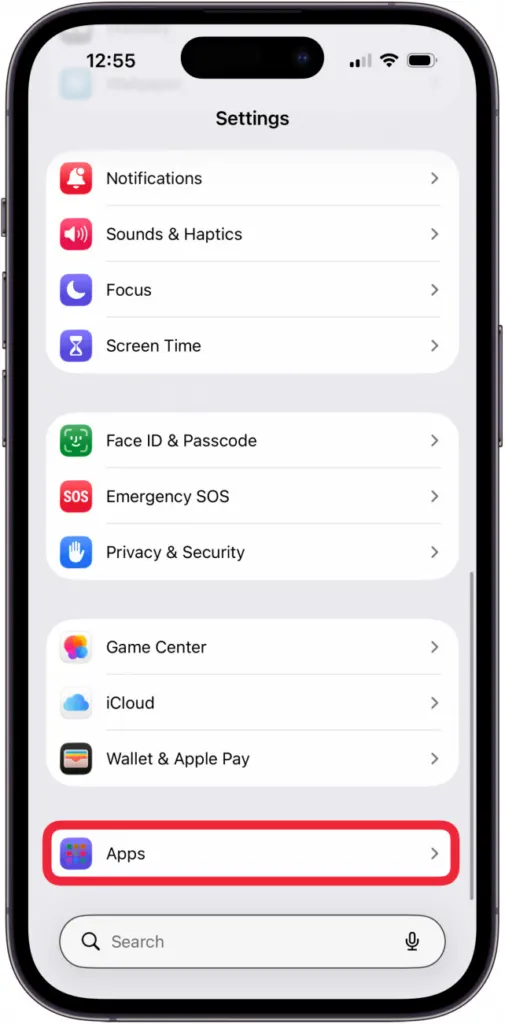
On iOS 18 and later, including iOS 26, the MMS switch sits under the Apps section of Settings.
- Open the Settings app.
- Tap Apps.
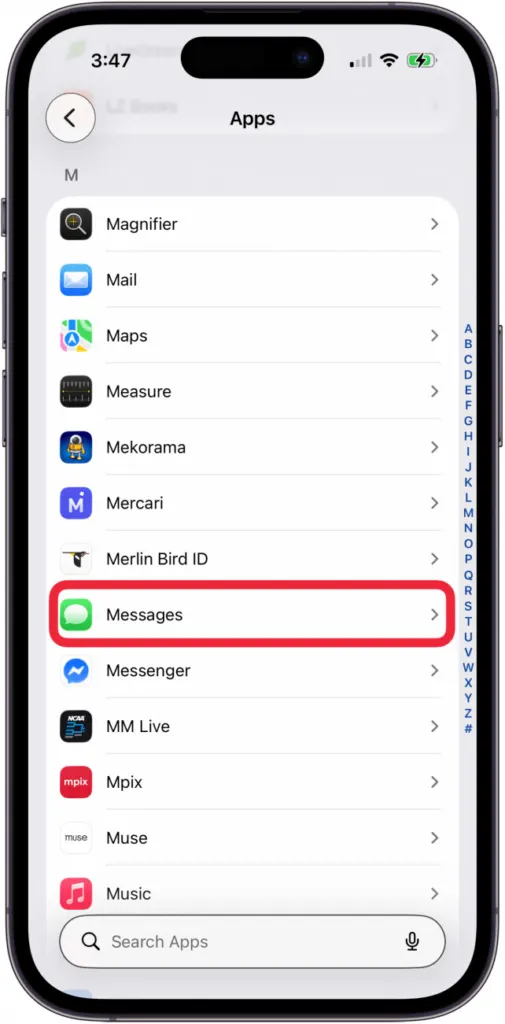
- Tap Messages.
- Turn on MMS Messaging, under the Text Messaging (SMS/MMS) section. Also check that Send as SMS is on, which lets a message fall back to a text when iMessage can’t deliver it.
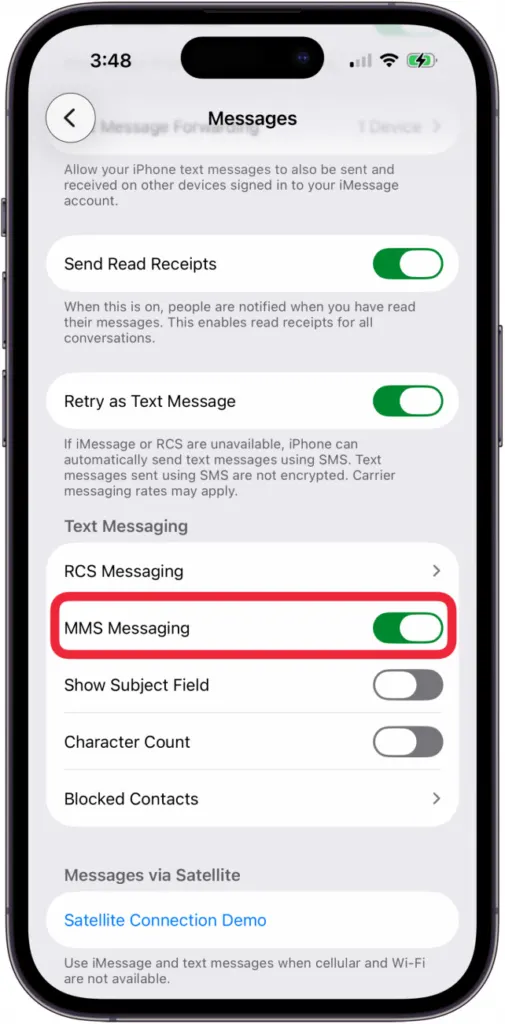
- Turn on Group Messaging on the same screen if you want group texts with non-iPhone users.
On iOS 17 and earlier, open Settings, tap Messages, and turn on MMS Messaging. Either way, MMS needs Cellular Data turned on in Settings > Cellular, even when you’re connected to Wi-Fi. You don’t need to switch iMessage off, because iMessage keeps handling chats between Apple devices while MMS covers everyone else.
No Option to Enable MMS on iPhone
If MMS Messaging doesn’t appear, only SMS is offered, or the line isn’t set up for it, the carrier or plan probably doesn’t support MMS yet.
- Go to Settings > General > About. If a carrier settings update is available, a prompt appears, so follow it.
- Make sure iOS is current by checking for a newer version, as explained in our guide to update your iPhone’s iOS.
- Contact your carrier and ask them to confirm that MMS is turned on for your plan.
MMS Still Not Sending? Fixes by Cause
When the switch is on and pictures still fail, one of these is usually responsible. Try them in this order.
- Confirm that Cellular Data is on, since most carriers won’t send MMS over Wi-Fi alone.
- Turn off Wi-Fi Calling in Settings > Cellular, choose your line, and switch Wi-Fi Calling off, then resend. Some carriers block MMS while Wi-Fi Calling is active, and you can turn it back on afterward.
- Send a smaller file. Large photos and videos can fail over MMS even when everything else is set up correctly.
- Restart your iPhone.
- As a last step on your own device, reset network settings on your iPhone under Settings > General > Transfer or Reset iPhone > Reset. This also clears saved Wi-Fi passwords.
- If pictures still won’t send, contact your carrier.
Picture messages between different kinds of phones depend on a mix of settings and your carrier, so a one-time check is usually enough. If everything looks right and sending still fails, your carrier can confirm what your plan supports. Once it works, you can mostly forget about it.


