
Apps that stop refreshing, photos that sit unsynced and music that sounds flat are common signs of a phone trying to save data. It usually comes down to a setting that was switched on once and then forgotten, and it can apply differently depending on the connection. The sections below explain how to turn off Low Data Mode on an iPhone for cellular and Wi-Fi, and what changes once it is off.
Table of Contents
1. Turn Off Low Data Mode on Cellular
The switch sits in Cellular Data Options, and where exactly depends on your network type and SIM setup.
- Open Settings and tap Cellular (some carriers label it Mobile Data).
- Tap Cellular Data Options.
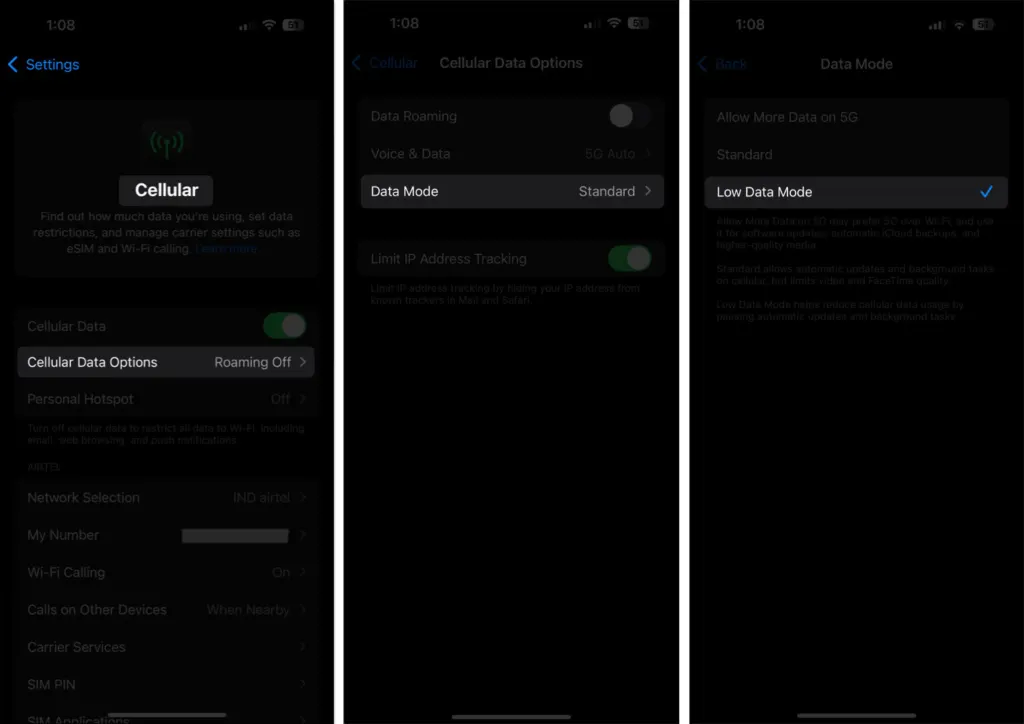
- On LTE or 4G, switch Low Data Mode to off.
- On 5G, tap Data Mode and choose Standard or Allow More Data on 5G. Either one replaces Low Data Mode.
- With dual SIM, go back to Cellular, tap the number you want to change, and switch Low Data Mode off there. Each line has its own switch.
2. Turn Off Low Data Mode on Wi-Fi
Wi-Fi works per network, so a home network can be clear while the office network is still restricted.
- Open Settings and tap Wi-Fi.
- Tap the (i) icon next to the network you are connected to.
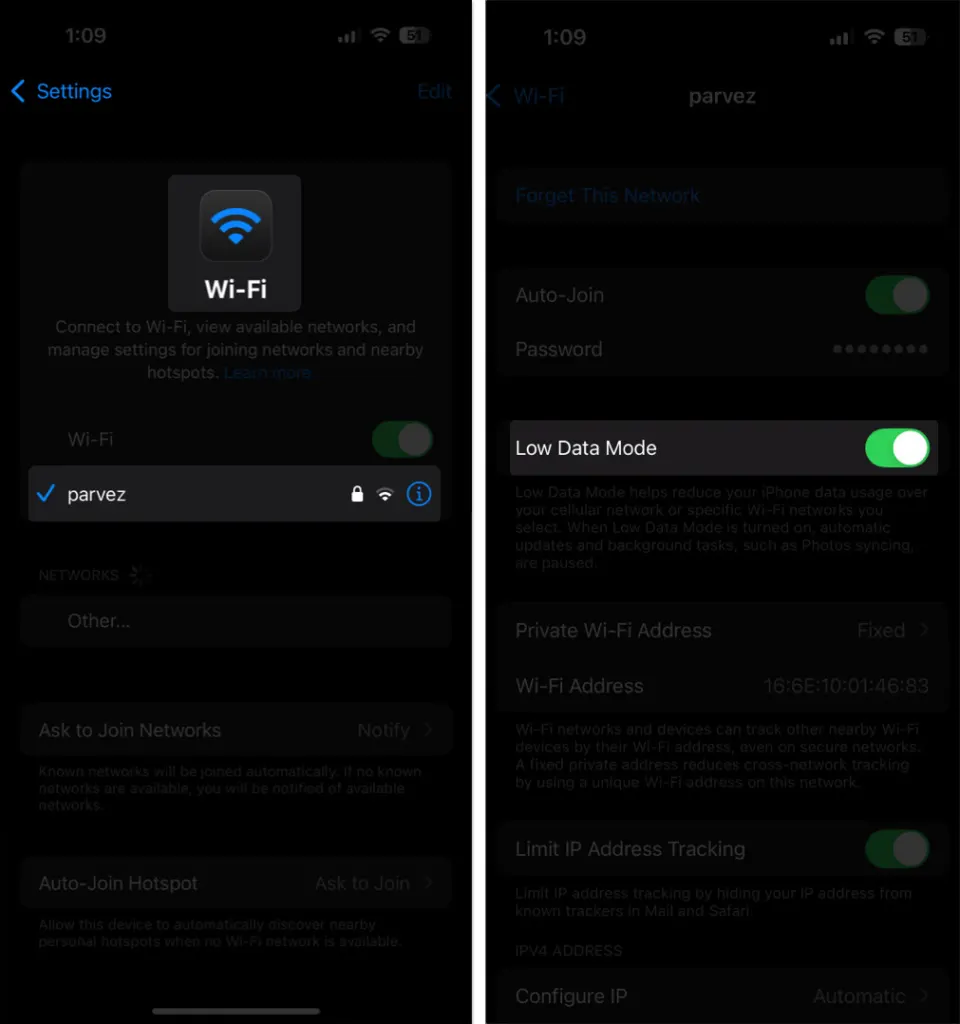
- Slide Low Data Mode to off.
iCloud keeps this preference in sync for each Wi-Fi network across your devices. If you flip it on one, the same network changes on the others signed in to your Apple Account.
3. What Comes Back, and What Does Not
Switching it off lifts its restrictions, but only for features that were enabled before. If you had Background App Refresh switched off yourself, it stays off, so check it separately if apps still do not refresh.
- Background network use and Background App Refresh resume.
- Automatic downloads and backups restart, and iCloud Photos updates continue.
- Streaming quality is no longer reduced, and FaceTime stops lowering its video bitrate.
- App Store autoplay and automatic updates return, and Music allows automatic downloads and high-quality streaming.
- Podcasts no longer limits feed updates or downloads only on Wi-Fi, and News prefetches articles again.
More background use means more data. Checking data usage on iPhone a few days later shows whether your plan can absorb it.
4. When the Setting Keeps Turning Itself Back On
If the switch returns after you turn it off, something other than you is setting it. The usual suspects are your carrier’s profile, a work or school management (MDM) profile on the phone, and Wi-Fi Assist. Ask your carrier first, or the organization that manages the device if it is not yours alone.
Low Data Mode vs. Low Power Mode
Low Power Mode is a separate battery setting that shows a yellow battery icon, so it will not clear when you change anything above. To turn it off, open Settings, tap Battery, and switch off Low Power Mode.
Saving data still has its place, so it is worth remembering the option for times when a connection is limited or costly. Turning it off is easy to reverse later. If a shared connection is the real trouble, see why an iPhone hotspot isn’t working.


