
Leaving Wi-Fi and finding that maps, messages and browsing all stall is frustrating, especially when the phone still shows bars. Often the cause is a setting, a recent change or the connection itself rather than a broken phone. If you find your iPhone cellular data not working, the sections below go through 8 fixes, from quick checks to the point where your carrier gets involved.
Table of Contents
1. Check Cellular Data and the App’s Access
Cellular can be off for the whole phone or for one app, and a green Cellular Data icon in Control Center shows the phone-wide switch is on.
- Open Settings and tap Cellular. On a dual-SIM phone, check that the line you use for data is on.
- Make sure Cellular Data is turned on.
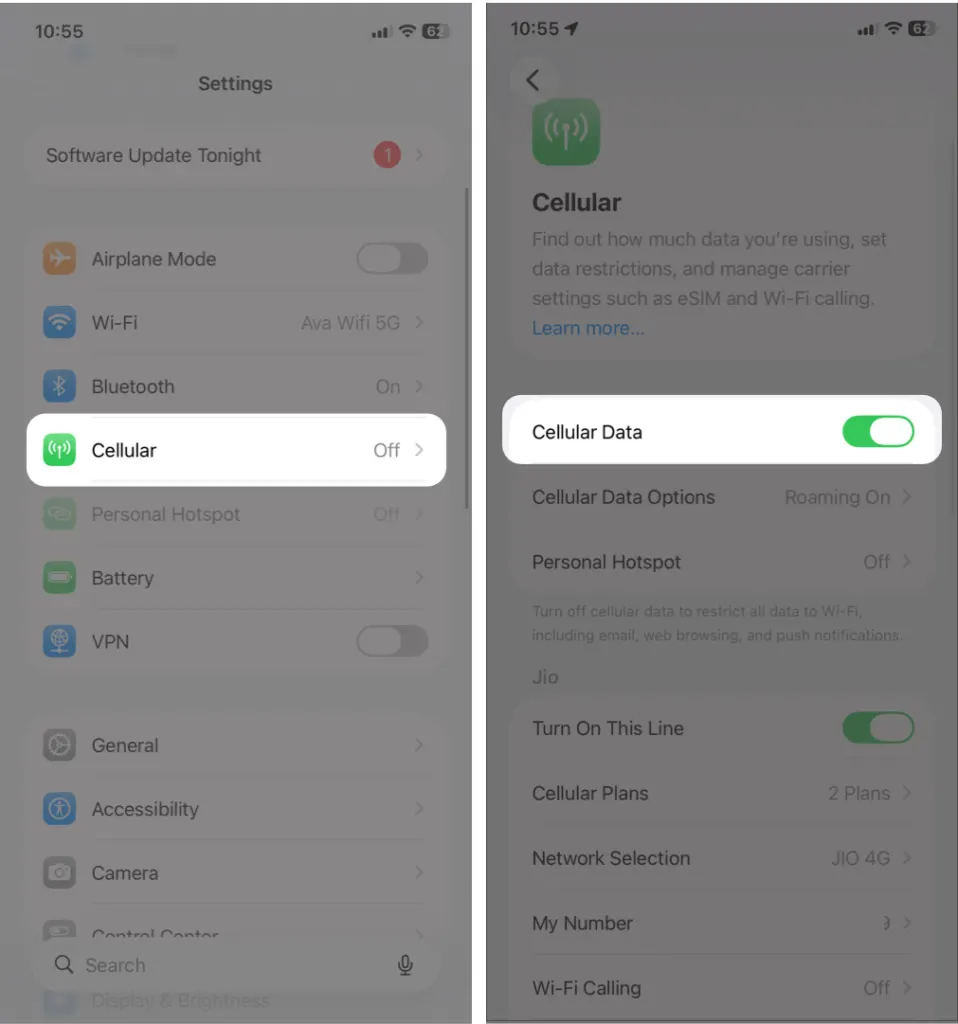
- Scroll down the app list and turn on the switch next to the app that won’t load.
Then turn Wi-Fi off and load a page. A weak router can hold the iPhone on Wi-Fi so that cellular never gets a turn. If pages load now, the router was the problem.
2. Toggle Airplane Mode and Restart
Airplane Mode cuts every cellular connection, and switching it on and off forces the phone to re-register with the nearest tower.
- Open Control Center.
- Tap the Airplane Mode icon to turn it on, wait a few seconds, then tap it again to turn it off.
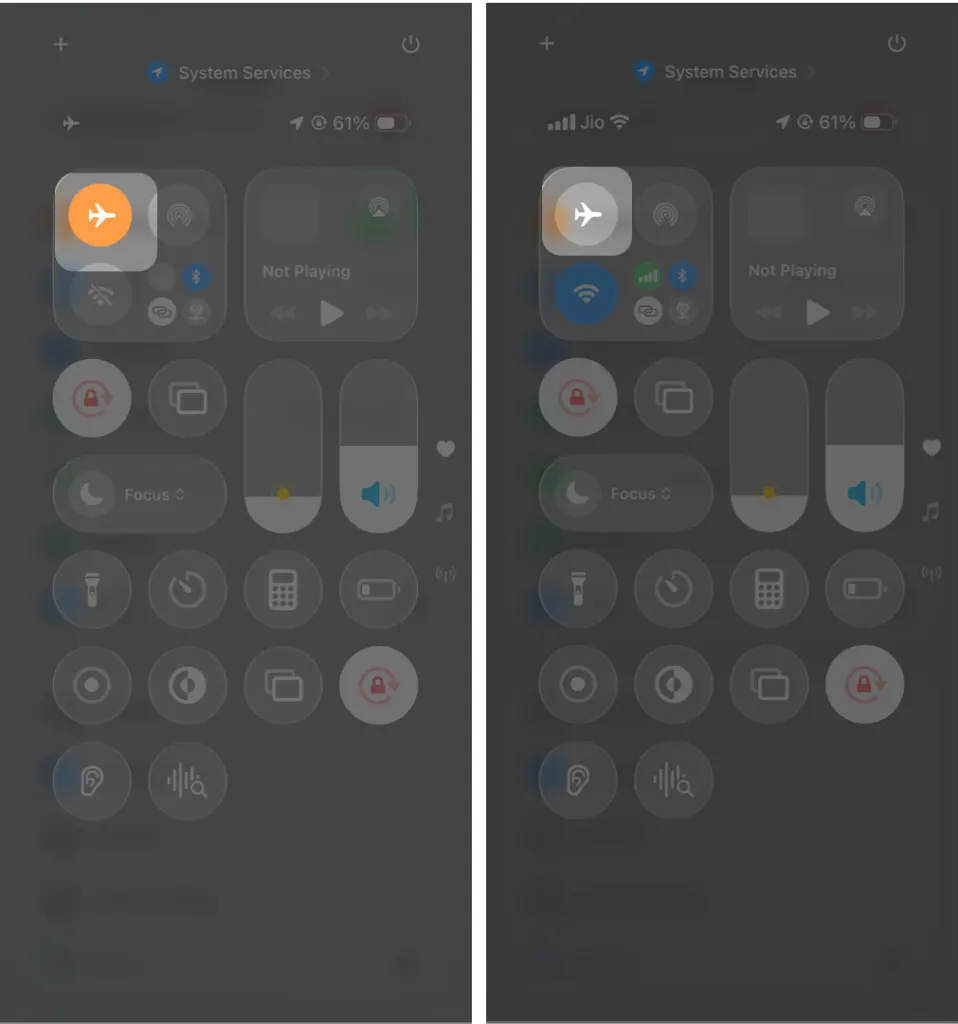
- Restart your iPhone, then check cellular data again.
If the bars stay empty or say No Service even in a spot where other phones work, skip ahead to the SIM fix.
3. Turn On Data Roaming When You’re Abroad
Outside your carrier’s network, Data Roaming has to be on, and it often ships switched off to avoid surprise charges.
- Open Settings, tap Cellular, then tap Cellular Data Options.
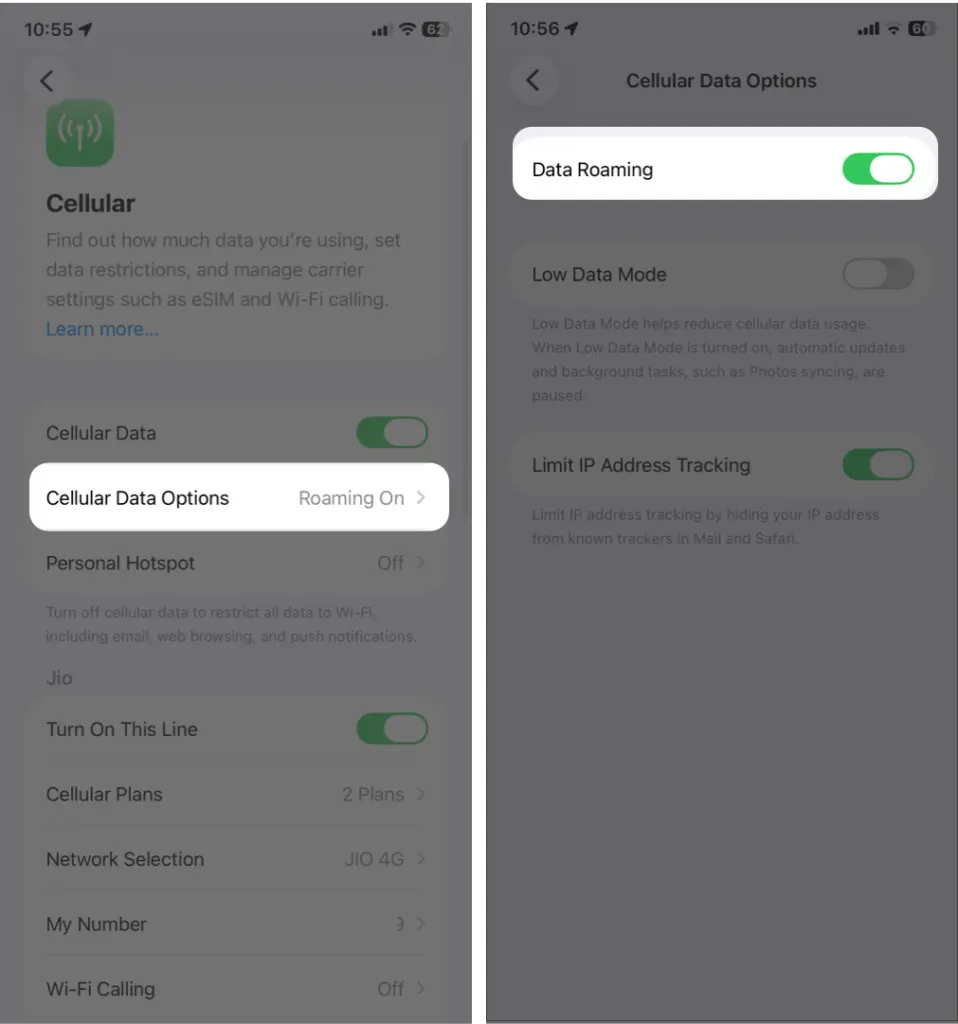
- Turn on Data Roaming. Check your plan’s roaming rates first.
If you bought a travel eSIM, confirm it finished activating and is the line selected for data.
4. Turn Off Your VPN
A VPN that can’t reach its server blocks all traffic, and the phone looks offline even though cellular works fine.
- Open Settings and tap VPN.
- Turn the VPN switch off, or disconnect in your VPN app, then reload a page.
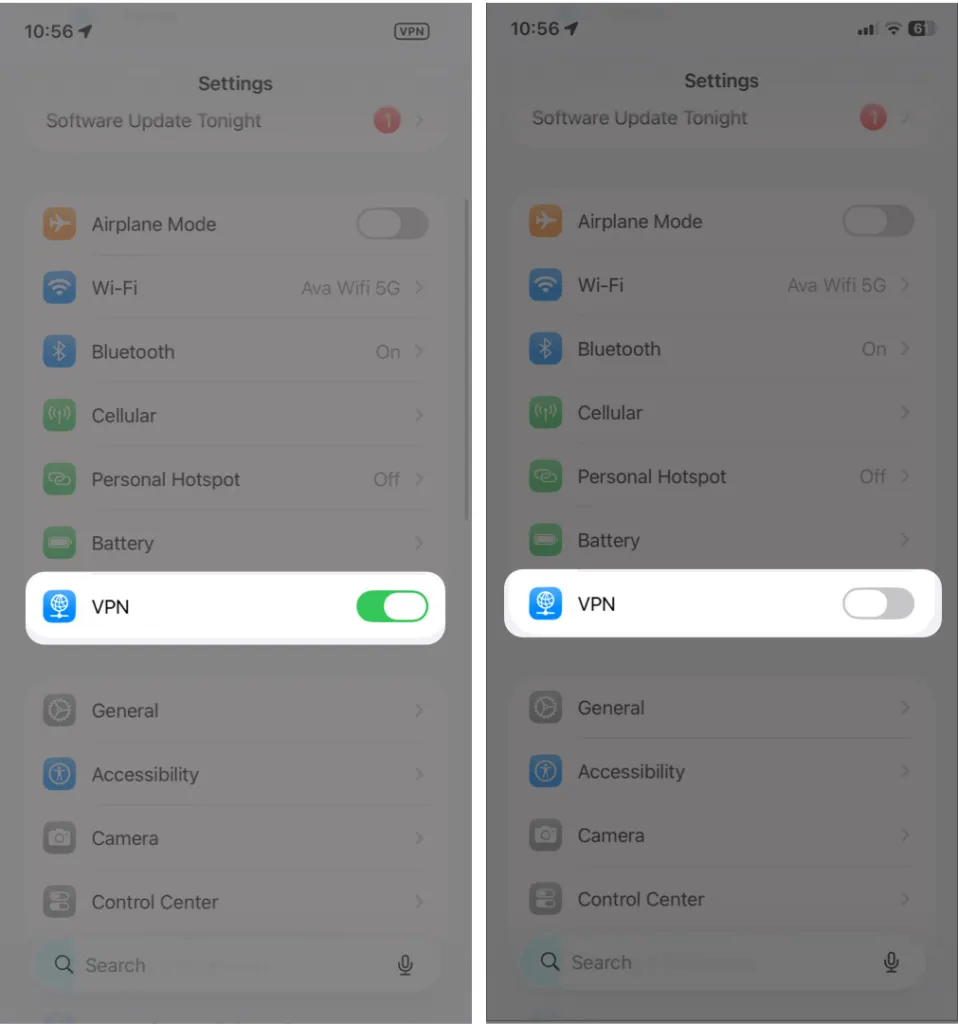
If that was it, one reader on a community thread fixed their data the same way. Reconnect the VPN later and see whether it fails again before you reinstall it.
5. Check Your Data Allowance
Many plans slow down or cut off data once you pass a cap, so this is worth ruling out before you reset anything.
Open your carrier’s app or website and look at the data you have left. Not sure where your own usage shows up? Our guide to checking data usage on iPhone covers it. If you’re out of data, buy more or wait for the plan to reset.
6. Install the Carrier Settings and iOS Updates
Carrier settings tell the iPhone how to connect to your network, so an outdated set can leave you with bars but no data.
- Open Settings, tap General, then tap About. Wait on this screen for a few seconds. If a carrier settings update appears, tap Update.
- Go back, tap Software Update, and install any iOS update that’s offered.
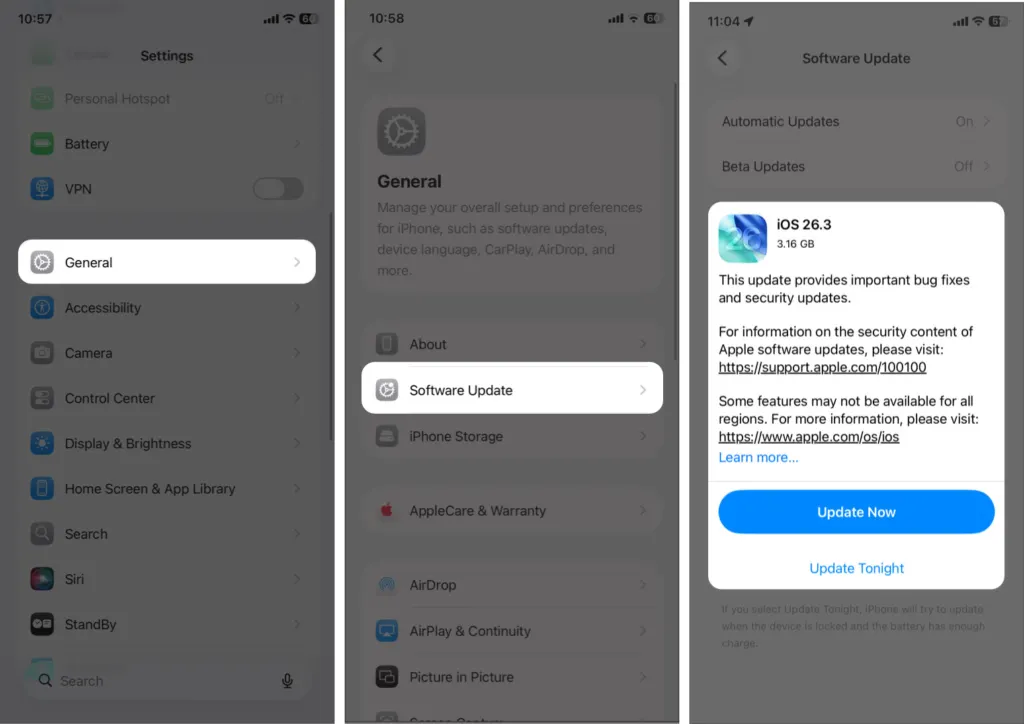
Some users on a support thread found data fixed itself after the latest iOS update, and another needed a network profile from the carrier before data would connect at all. If the phone offers to install one, accept it.
7. Reset Network Settings
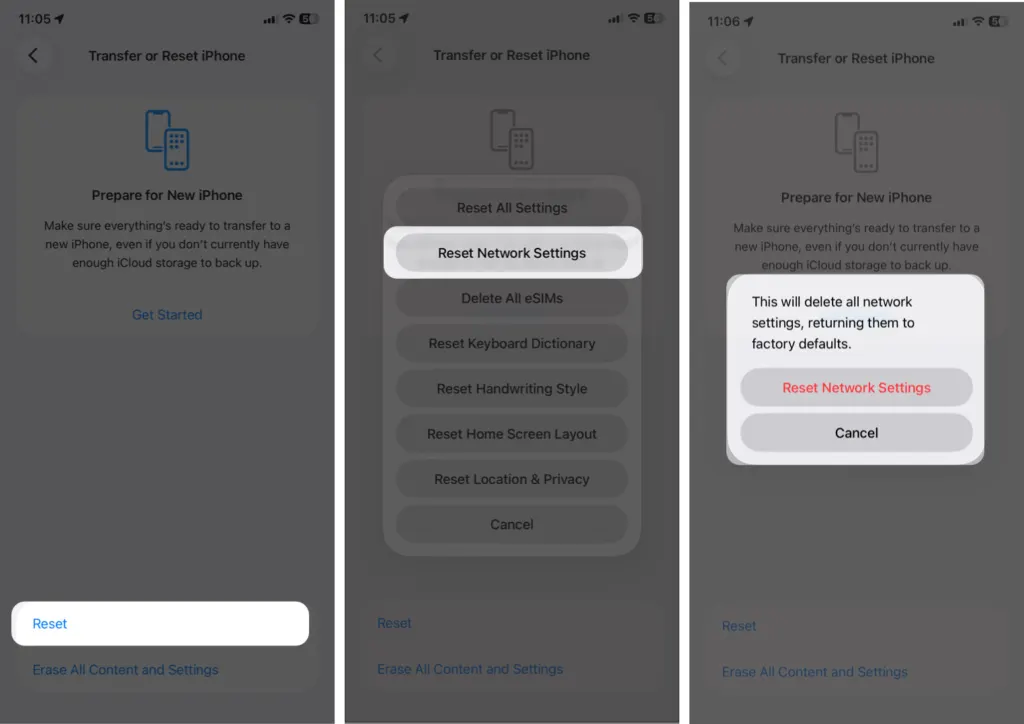
This clears saved Wi-Fi networks, cellular settings, VPN and APN configuration. There’s no separate cellular-only reset, so use it when a bad network setting is the likely cause, such as a persistent “PDP authentication failure” error. Write down any Wi-Fi passwords you need first, because you’ll have to rejoin each network afterward. Our guide to resetting network settings on iPhone shows the screens in more detail.
- Open Settings, tap General, then tap Transfer or Reset iPhone.
- Tap Reset, then tap Reset Network Settings.
8. Reseat the SIM or Contact Your Carrier
If nothing above worked, the fault is probably the SIM or the account, and only those two remain.
- Power off your iPhone.
- Eject the SIM tray, wipe the SIM with a dry, lint-free cloth, and reinsert it.
- Power your iPhone back on and check cellular data.
An eSIM has no tray, so call your carrier to have it reissued or checked. Ask them about outages in your area, account restrictions and the correct APN. Some carriers list the APN under Settings > Cellular > Cellular Data Network. Enter values only from your carrier, since a wrong APN breaks data. A different SIM, borrowed from another carrier if you can, also tells you whether the tray or the phone is at fault.
A SIM alert on screen has its own cause, covered in fixing iPhone SIM failure messages. If a working SIM still gets no data at home or elsewhere, take the phone to your carrier or an Apple Store, because the problem may be hardware.
Most connection problems turn out to be small and fixable without a trip to a store. Some steps do carry a cost, so it helps to take them in order. If nothing changes, your carrier or Apple Support can check the line and the hardware.


