
Many people who liked the side layout in earlier versions of Windows were disappointed to find the taskbar stuck along the bottom. You can now move the taskbar to the left in Windows 11, and the way to do it depends on which version your PC runs. The steps cover each option and how to go back to the default.
Table of Contents
Set Taskbar Position to Left
Pick Left under Taskbar behaviors, and the whole bar jumps to the left edge. Top and Right work the same way, if you prefer another side.
- Right-click an empty area of the taskbar and select Taskbar settings. You can also go to Settings > Personalization > Taskbar.
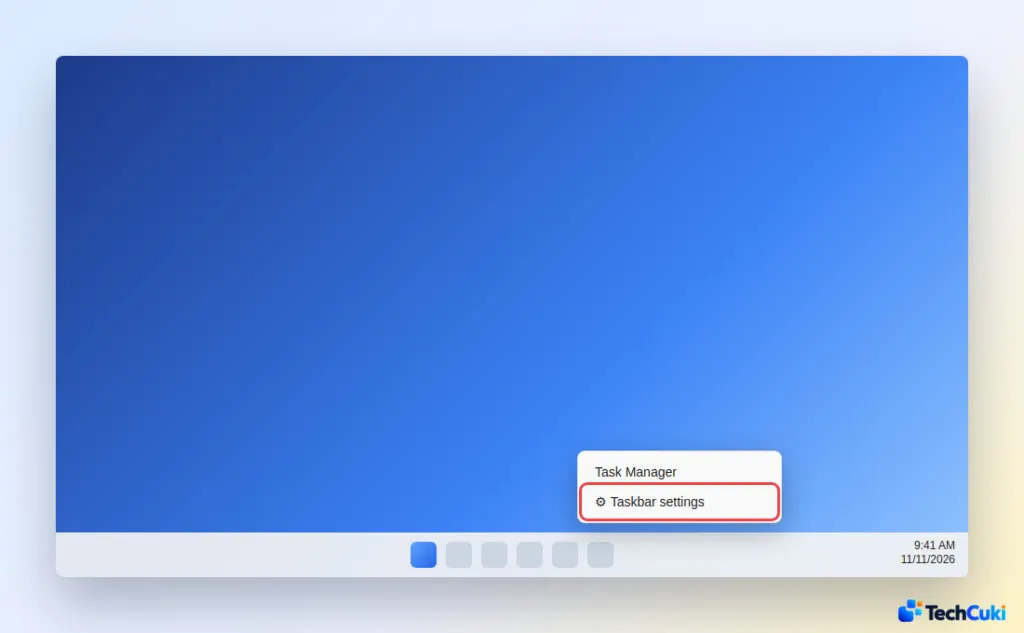
- Expand Taskbar behaviors.
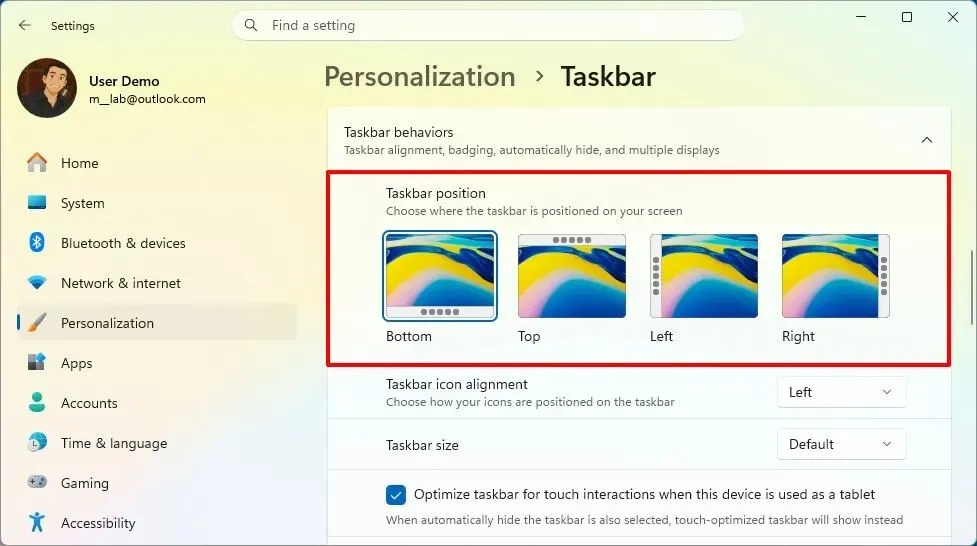
- Under Taskbar position ("Choose where the taskbar is positioned on your screen"), select Left.
- Optional: set Taskbar size to Small for a slimmer bar.
The bar changes position as soon as you pick it. A slimmer bar takes less width on a wide monitor, which is where a side taskbar helps most. Choosing Bottom later restores the original arrangement.
Taskbar Position Option Missing in Windows 11
If the drop-down isn’t there, the PC hasn’t received the September 2026 update for version 25H2 yet. Older builds only have the alignment option covered in the next section.
- Open Settings and select Windows Update.
- Install the latest updates, restart, then return to Taskbar behaviors and look again.
If you need help with the update, see our guide on how to update Windows 11.
Position or Alignment: Which One You Need
| You want | Use | Needs the update |
|---|---|---|
| A vertical bar on the left, right or top edge | Taskbar position | Yes, September 2026 on 25H2 or later |
| Bar at the bottom, Start button and icons in the left corner | Taskbar alignment | No, any Windows 11 version |
Align the Taskbar Icons to the Left Instead
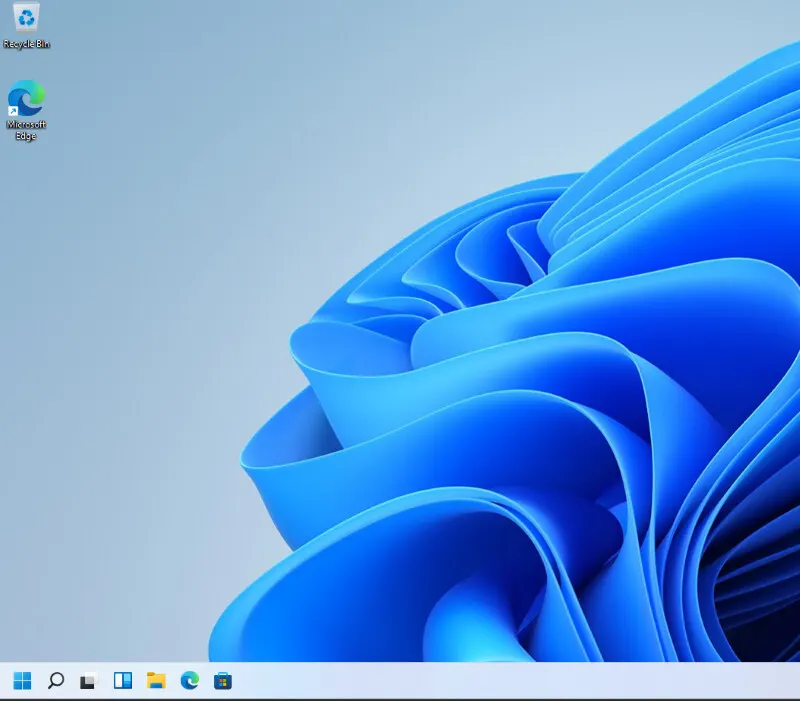
Alignment shifts only the Start button and app icons, which gives the Windows 10 look.
- Open Taskbar settings the same way as before.
- Expand Taskbar behaviors again.

- Open the Taskbar alignment dropdown (called Taskbar icon alignment on newer builds) and change it from Center to Left.
Move the Taskbar Back to the Bottom
Set Taskbar position back to Bottom, and Taskbar alignment back to Center if you also changed the icons.
- Open Taskbar settings and expand Taskbar behaviors.
- Set Taskbar position to Bottom.
Can You Move the Taskbar to the Left in Windows 11 Before the Update?
Not with a built-in setting. Before this update, the Windows 10 trick of dragging the bar to a side edge didn’t work, and the only route to a side taskbar was third-party tools such as Windhawk, ExplorerPatcher and Start11. Each comes with limits: with Windhawk’s “Taskbar on top for Windows 11” mod, for instance, the Start menu still opens from the bottom and Notification Center stays at the bottom. ExplorerPatcher can break after Windows changes until its developer ships a fix, and its side placement needs the Windows 10 option under Taskbar style before the Primary taskbar location setting offers Left, Top or Right. Its installer is flagged by some browsers as untrusted because it changes system files, so install it only if you accept that risk. To undo a Windhawk mod, click Disable on it and then Uninstall. If you only want the icons on the left, the alignment setting above covers that without any tools.
A side layout suits wide monitors, since it uses spare width instead of scarce height. It is easy to reverse, so feel free to try it and see what fits how you work. If you would rather have the bar out of the way entirely, you can hide the taskbar in Windows 11.


