
A permanent bar across the bottom of the screen takes space you may want for your work, particularly on a small laptop. The steps show how to hide the taskbar in Windows 11, including on a second monitor and what to do when it keeps coming back. Everything can be reversed whenever you change your mind.
Table of Contents
Turn On Auto-Hide in Taskbar Settings
Tick Automatically hide the taskbar in Taskbar settings, and the bar slides away until you move the pointer to the bottom edge.
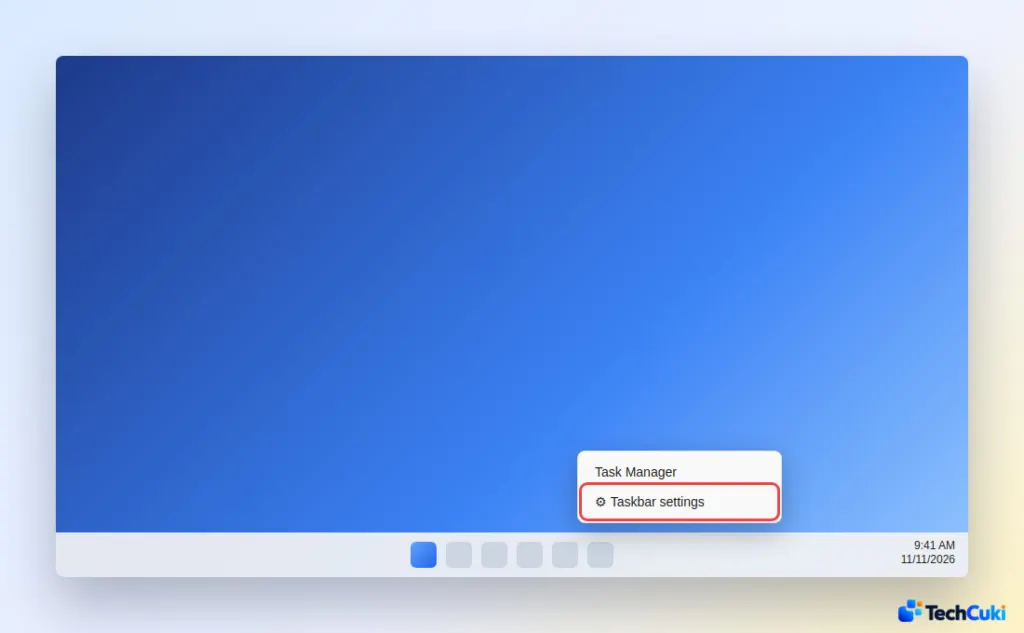
- Right-click an empty spot on the taskbar, then select Taskbar settings. You can also go to Settings > Personalization > Taskbar.
- Expand Taskbar behaviors.
- Check Automatically hide the taskbar.
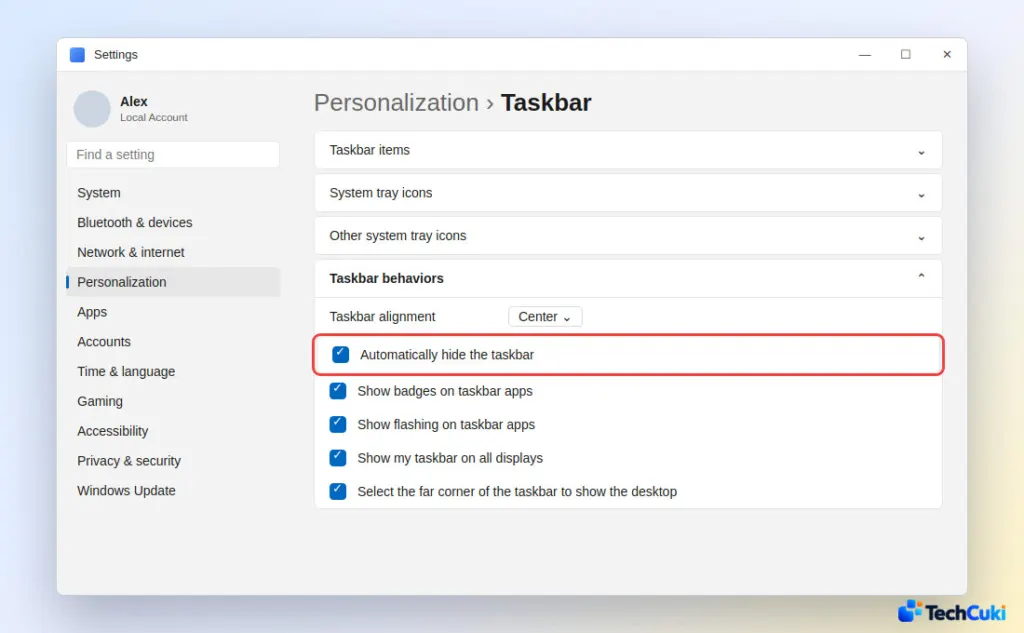
The bar disappears right away. Move the pointer to the bottom edge of the screen to bring it back, or press the Windows key, which also opens Start. On a touch screen, swipe up from the bottom edge. To undo the change, clear the same checkbox.
The tablet-style option Automatically minimize the taskbar when using your device as a tablet only appears on 2-in-1 devices. Windows 11 has no setting that hides the taskbar for good: hovering at the edge or pressing the Windows key always brings it back. If you’re tuning the rest of the look, our Windows 11 dark mode guide is a good next stop.
Hide It on a Second Monitor
Windows 11 shows the taskbar on every connected display by default, and one checkbox limits it to your main screen.
- Open Taskbar settings by right-clicking the taskbar, or go to Settings > Personalization > Taskbar.
- Expand Taskbar behaviors.
- Uncheck Show my taskbar on all displays.
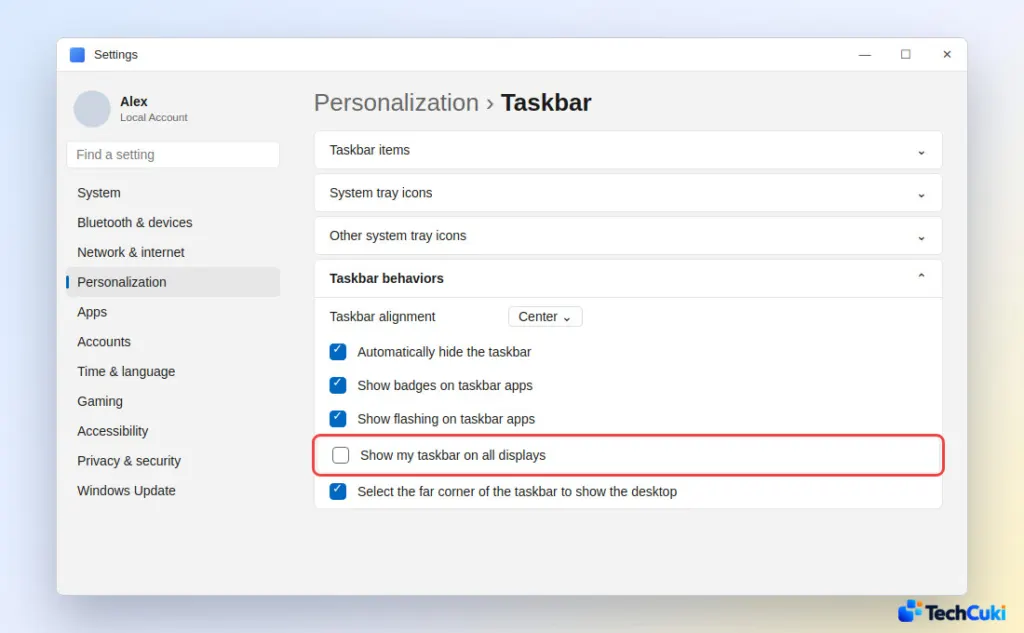
The second monitor now shows no taskbar, and the main display keeps it.
Hide the Taskbar in Windows 11 When It Keeps Reappearing
The usual culprit is an app that flashes or shows a badge, because Windows keeps the taskbar up to get your attention. Turn those alerts off first.
- Open Taskbar settings and expand Taskbar behaviors.
- Uncheck Show flashing on taskbar apps and Show badges on taskbar apps.
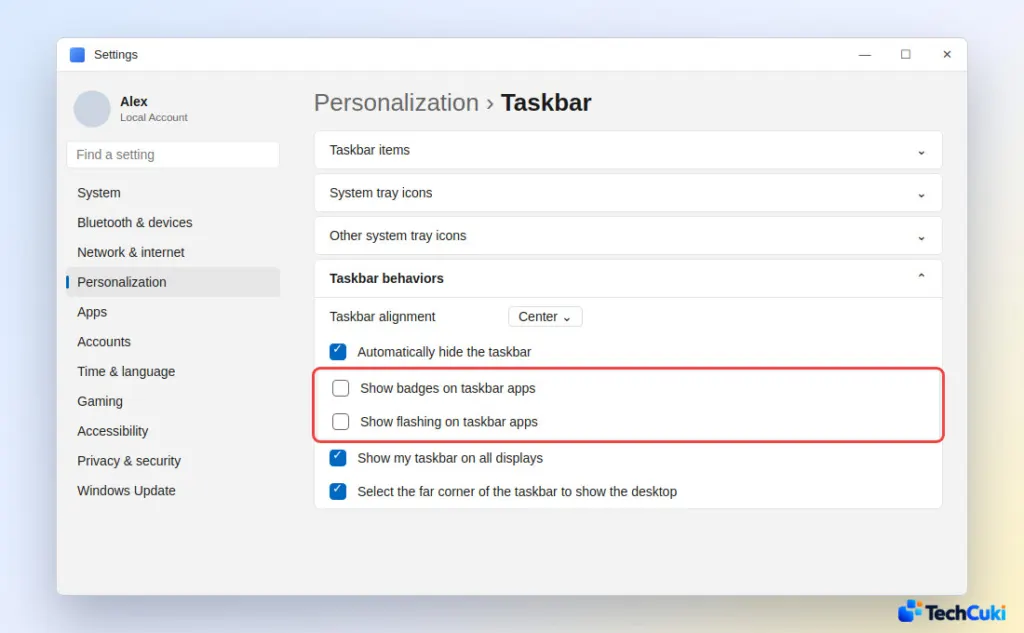
Of the two, the flashing option is the one people most often report as the cause, and it sits just one line below the auto-hide checkbox. Also look for a flashing icon, clear pending notifications with Windows+N, or close the app that keeps calling for attention.
If the taskbar pops up after you graze the bottom edge, press the Windows key twice. Users report that this tucks it away again until the pointer returns to the edge.
Restart Windows Explorer
Restarting Explorer reloads the taskbar without a reboot. It clears glitches, but if an app’s flashing is the cause, the problem comes back within a short time.
- Press
Ctrl+Shift+Escto open Task Manager, then open the Processes tab. - Find Windows Explorer in the list.
- Right-click it and select Restart, or select it and click Restart task at the top.
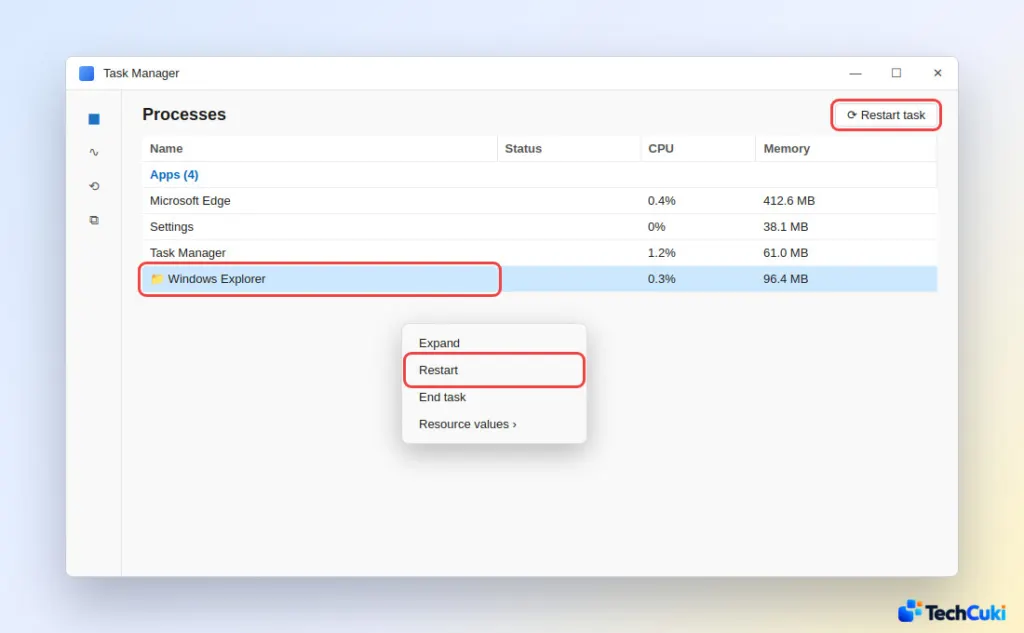
The taskbar disappears for a second, then reloads. If Task Manager won’t open, see our guide on how to open Task Manager in Windows 11.
If It Still Won’t Hide
Install pending updates from Settings > Windows Update, then run sfc /scannow in a Command Prompt opened as administrator to repair damaged system files, and restart. If the taskbar freezes or stops responding altogether, our Windows 11 taskbar not working guide goes further.
Is There a Keyboard Shortcut to Hide the Taskbar?
No. Windows 11 has no built-in shortcut to show or hide the taskbar. The nearest thing is the Windows key, which pulls the taskbar up with Start. For video or games, press F11 in a browser for full screen, where the taskbar is usually covered. If it still shows over a full-screen window, restart Windows Explorer as above.
A tidier screen is a small change that gives your windows more room and takes only a moment to set up. If the bar still behaves oddly afterward, it is worth looking at what is running before assuming something is broken.


