
Task Manager is worth learning to open before you need it, since it’s where you go when an app freezes or your fans suddenly start roaring. It lets you see what’s running and close anything that has stopped responding. There are eight ways to open Task Manager in Windows 11, from keyboard shortcuts to mouse-only and command-line options.
Table of Contents
- Open Task Manager in Windows 11 With Ctrl + Shift + Esc
- Open Task Manager in Windows 11 Without a Keyboard
- Open Task Manager From the Power User Menu
- Open Task Manager From the Ctrl + Alt + Delete Screen
- Open Task Manager From Start Menu Search
- Open Task Manager With the Run Dialog
- Open Task Manager in Windows 11 From Command Prompt
- Pin Task Manager to the Taskbar
- Task Manager Won’t Open in Windows 11? Try These Fixes
1. Open Task Manager in Windows 11 With Ctrl + Shift + Esc
Press Ctrl + Shift + Esc to open Task Manager directly. This is the fastest method.
- Press
Ctrl + Shift + Escon your keyboard.
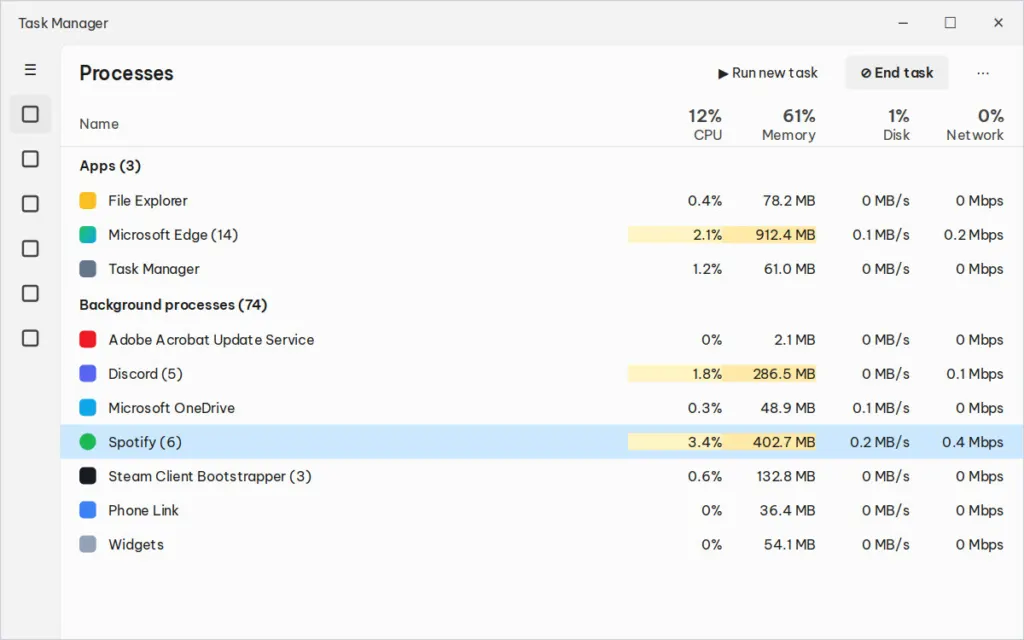
Not sure what to close? You can safely end apps you aren’t using and disable unneeded Startup apps. Avoid ending Windows processes, though, since that can cause problems. For more on this, see our guide to close background apps on Windows 11, or read speed up Windows 11 if your PC feels slow overall.
2. Open Task Manager in Windows 11 Without a Keyboard
Right-click an empty spot on the taskbar and choose Task Manager. This method works with a mouse alone.
- Right-click an empty area of the taskbar.
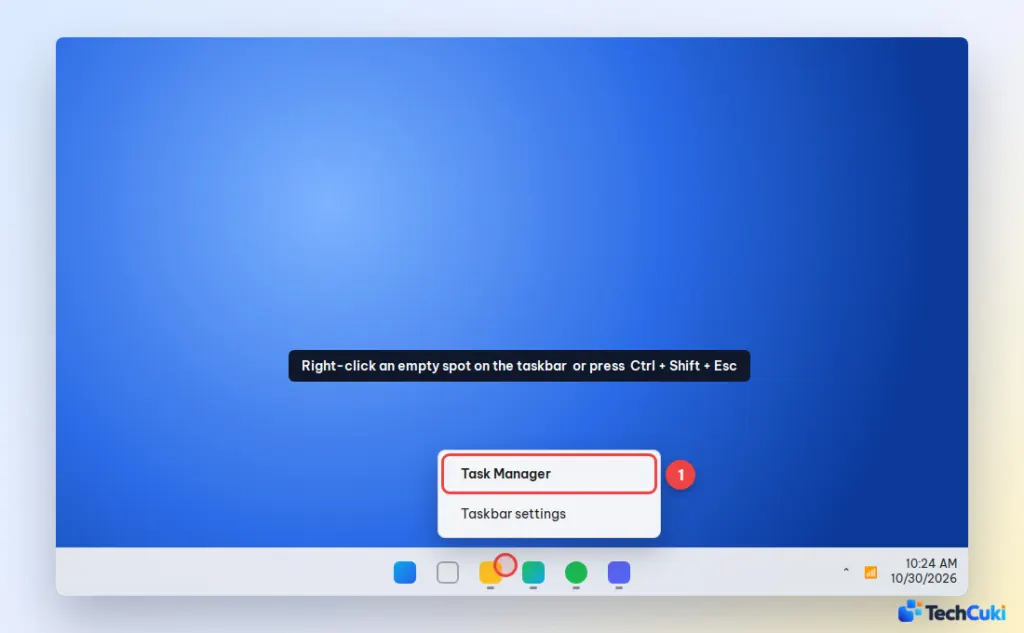
- Click Task Manager in the menu.
3. Open Task Manager From the Power User Menu
Press Windows + X and choose Task Manager from the list.
- Press
Windows + X, or right-click the Start button.
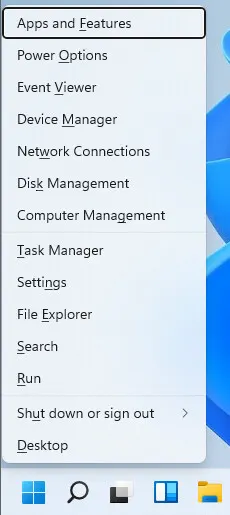
- Click Task Manager in the list.
4. Open Task Manager From the Ctrl + Alt + Delete Screen
Use this method when your PC seems frozen. Press Ctrl + Alt + Delete, then select Task Manager.
- Press
Ctrl + Alt + Delete.
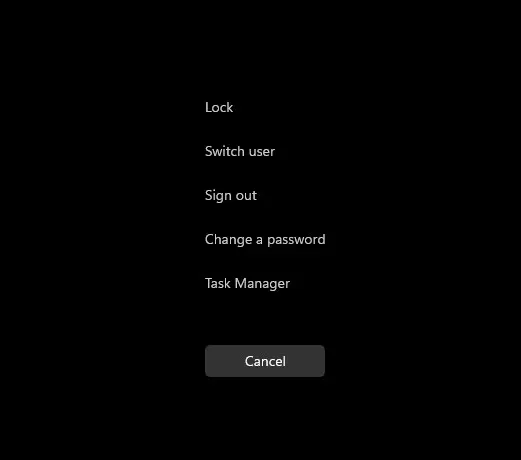
- Select Task Manager on the security screen.
5. Open Task Manager From Start Menu Search
Search for Task Manager from the Start menu and open it from the results.
- Click Start or press the Windows key, then type
task manager.
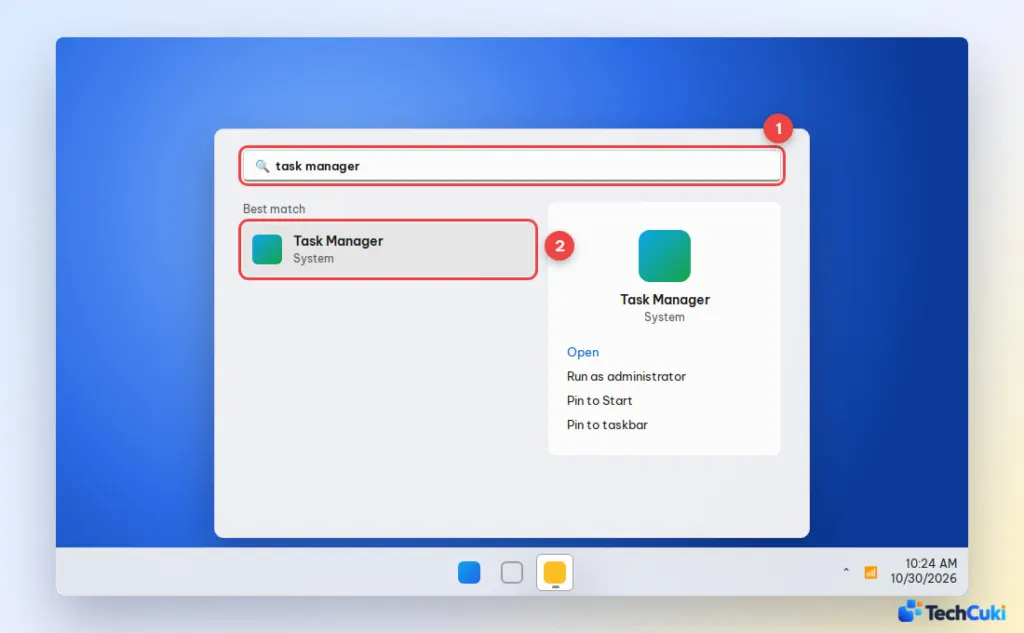
- Click Task Manager under Best match. The right panel also offers Run as administrator and Pin to taskbar.
6. Open Task Manager With the Run Dialog
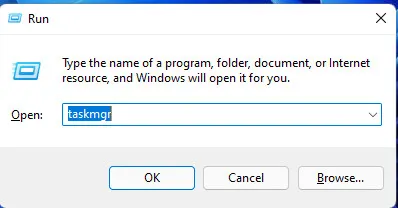
The Run box opens Task Manager with a single command.
- Press
Windows + Rto open Run. - Type
taskmgrand press Enter, or click OK.
7. Open Task Manager in Windows 11 From Command Prompt
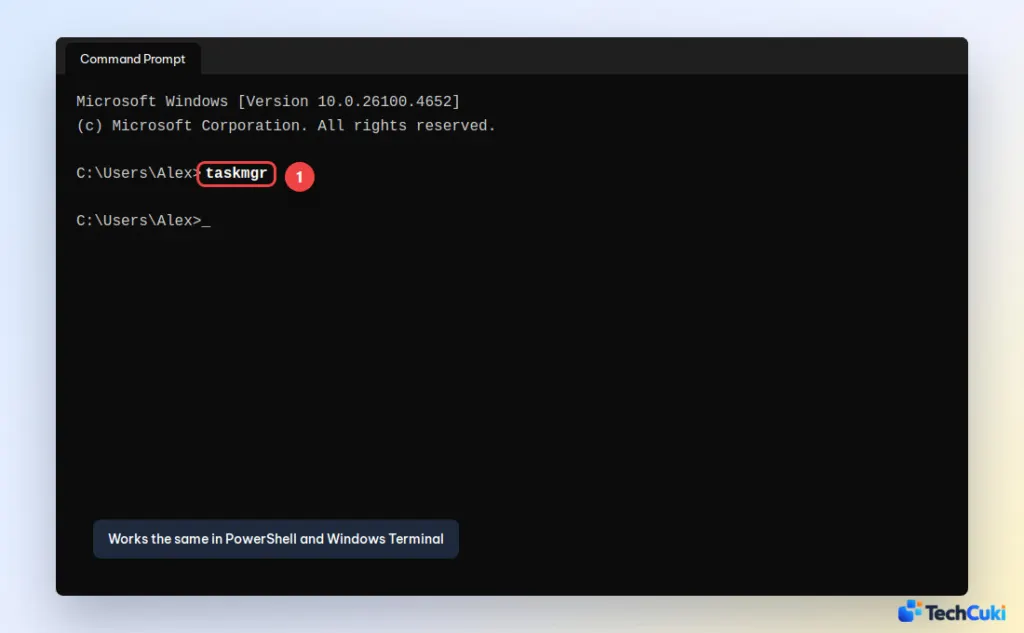
You can launch Task Manager from the command line with one command.
- Open Command Prompt or PowerShell.
- Type
taskmgrand press Enter. The same command works in Windows Terminal.
8. Pin Task Manager to the Taskbar
Pinning Task Manager gives you one-click access the next time you need it.
- Open Task Manager using any method above.
- While it’s open, right-click its icon on the taskbar and choose Pin to taskbar.
Task Manager Won’t Open in Windows 11? Try These Fixes
If Task Manager won’t open, work through these fixes in order.
- Try another method above, such as
Ctrl + Alt + Delete, and restart your PC. - Check whether a policy has disabled it. In Group Policy Editor (
gpedit.msc, Pro editions), go to User Configuration > Administrative Templates > System > Ctrl+Alt+Del Options, open Remove Task Manager, and set it to Not Configured. On Home editions, open Registry Editor and go toHKEY_CURRENT_USER\Software\Microsoft\Windows\CurrentVersion\Policies\System, then delete theDisableTaskMgrvalue if it exists. Back up the registry before making changes. - Run a malware scan with Windows Security, since malware sometimes disables Task Manager.
- Open Command Prompt as administrator and run
sfc /scannowto repair system files.
Knowing a few ways in means you can still reach it when one of them fails, such as when the screen is frozen. Pick the one that suits how you work and you’ll have it ready the next time something misbehaves.


