
An SOS label where the signal bars should be is unsettling, especially when you need to make a call or use data. Seeing iPhone SOS only is often down to coverage, but it can also come from a setting, a recent update or the line itself. Below are the causes and several fixes to try in order, from quick checks to the more involved ones.
Table of Contents
- What iPhone SOS Only Means
- Why iPhone SOS Only Won’t Go Away
- Toggle Airplane Mode
- Check Coverage and Outages
- Restart Your iPhone
- Turn On Your Cellular Line
- Turn On Data Roaming When Traveling
- Switch From 5G to LTE
- Pick Your Carrier Manually
- Update Carrier Settings and iOS
- Reinsert the SIM Card
- Reset Network Settings
- Call Your Carrier
What iPhone SOS Only Means
The label appears in the status bar and Control Center when the phone isn’t connected to your carrier. The emergency-call fallback is available in the US, Canada and Australia; elsewhere you’ll see No Service instead.
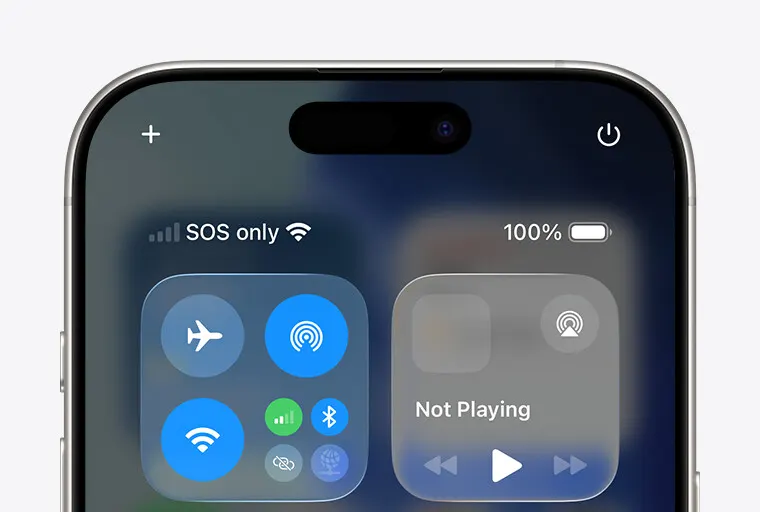
It isn’t the same as Emergency SOS via satellite, which is available on iPhone 14 and later and shows a satellite icon when there’s no cellular or Wi-Fi connection. The Emergency SOS call you trigger with the side button is a separate function too.
Why iPhone SOS Only Won’t Go Away
If the label sticks in a place where you normally have service, match it to the likely cause:
| What you notice | Likely cause | Go to |
|---|---|---|
| Only one building or area | Weak coverage or local outage | Fix 2 |
| Other phones on your carrier work, yours doesn’t | SIM or phone-side fault | Fixes 1, 3, 9 |
| Dual SIM or eSIM phone | Line turned off | Fix 4 |
| Abroad | Data Roaming off | Fix 5 |
| Started after an update or new SIM | Stale carrier settings | Fix 8 |
| Nothing works anywhere | Account, barred device or bad SIM | Fix 11 |
Mobile data that fails while bars look normal is a different problem, covered in our guide to iPhone cellular data not working.
1. Toggle Airplane Mode
This makes the phone search for your carrier again. Many people stuck here fix it with this alone, especially on an eSIM.
- Open Control Center or Settings and turn on Airplane Mode.
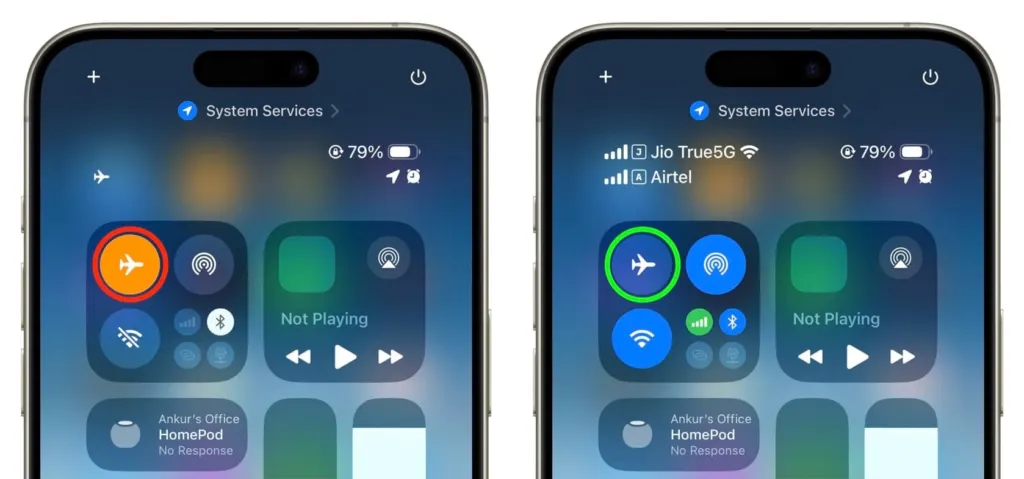
- Leave it on for at least 15 seconds, then turn it off. Your carrier name should replace SOS in the status bar.
2. Check Coverage and Outages
Move to a spot with better coverage, such as outdoors or near a window, and watch for your carrier name to return. Ask someone nearby on the same carrier whether they have service, or check your carrier’s outage page. If their phone shows bars and yours shows SOS, the area isn’t the problem and your phone or SIM is.
3. Restart Your iPhone
A restart clears a temporary glitch that keeps the modem from reconnecting. Restart the phone, then check the status bar.
4. Turn On Your Cellular Line
On a dual-SIM or eSIM phone, a line that’s switched off leaves nothing to connect with.
- Open Settings and tap Cellular.
- Tap the line you want to use.
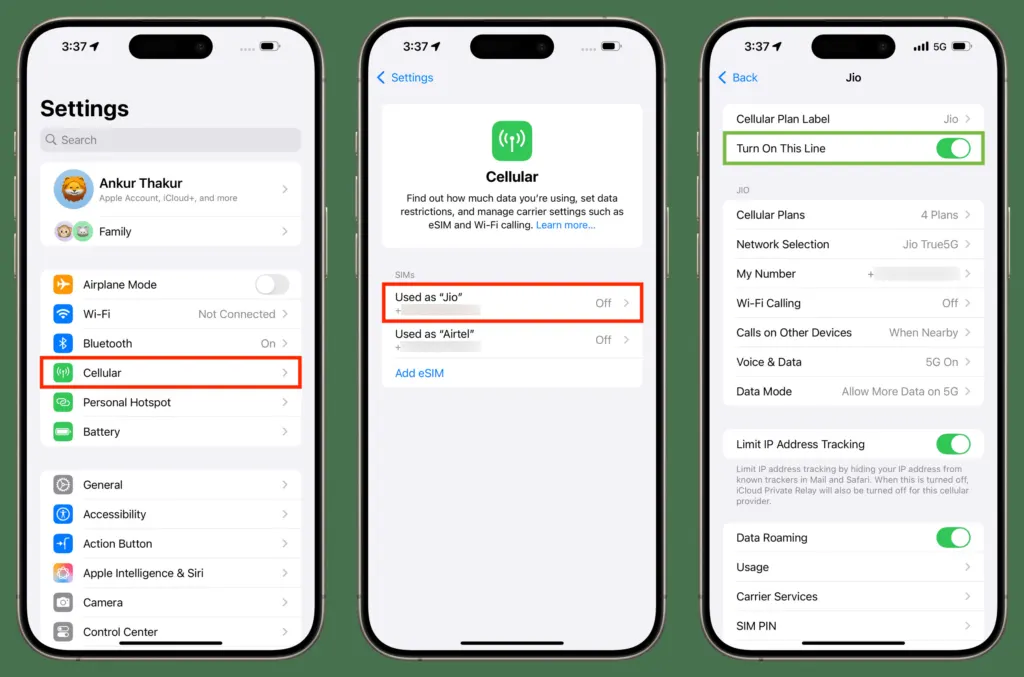
- Tap Turn On This Line, then check for service.
If the line isn’t listed at all, ask your carrier to set up the eSIM, or reinsert the physical SIM as in fix 9.
5. Turn On Data Roaming When Traveling
Outside your home network, the phone needs roaming permission to join a partner network.
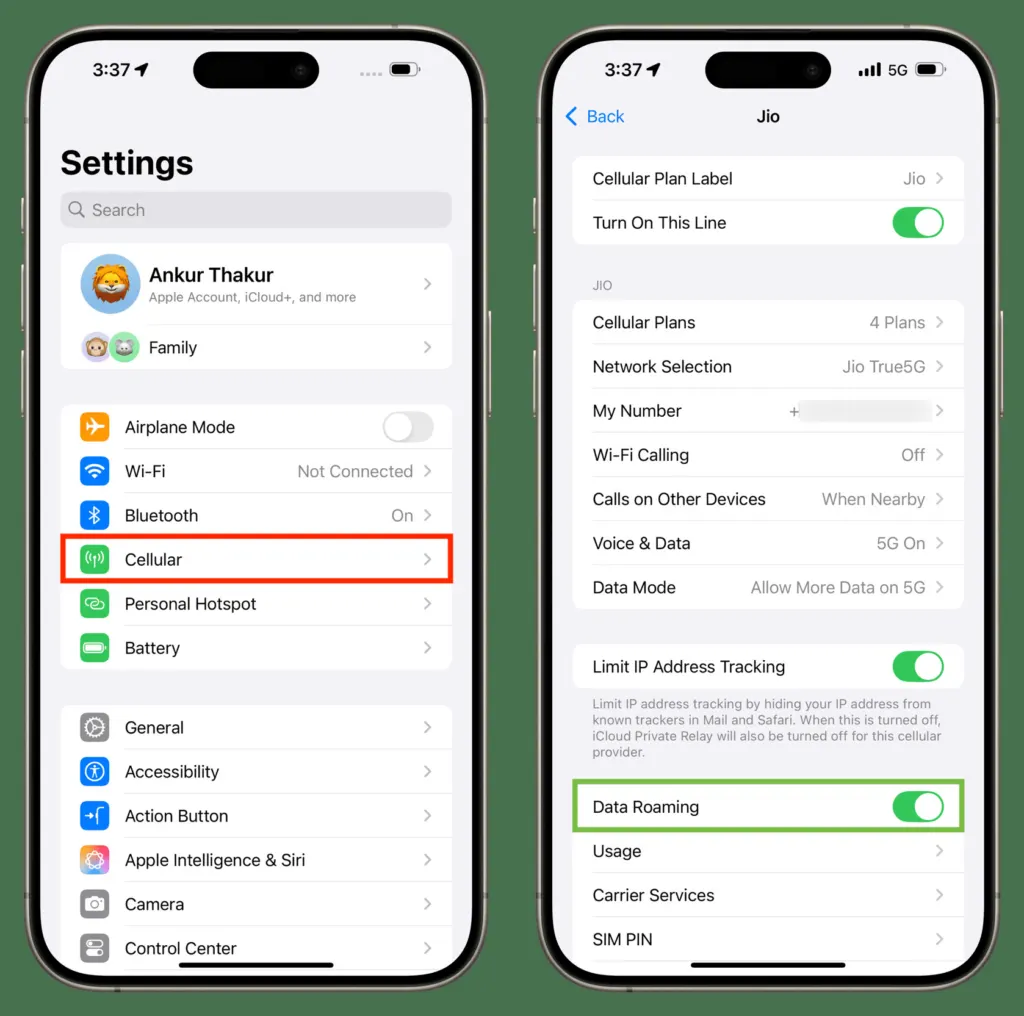
- Open Settings > Cellular > Cellular Data Options. On dual SIM, pick the line first.
- Turn on Data Roaming.
6. Switch From 5G to LTE
If the phone can’t hold a 5G connection where you are, LTE may register when 5G won’t. Switch back afterward.
- Open Settings > Cellular > Cellular Data Options.
- Tap Voice & Data and select LTE.
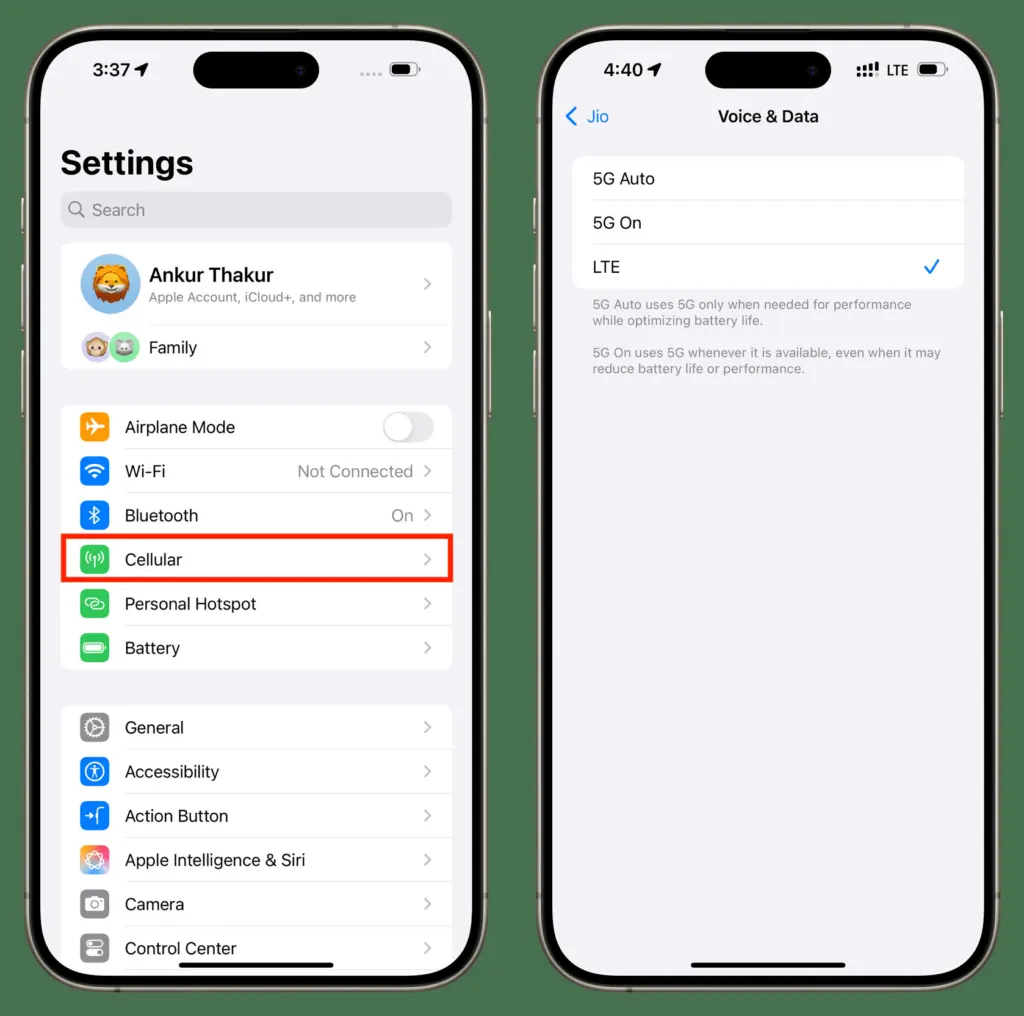
When the signal is back, return Voice & Data to 5G Auto.
7. Pick Your Carrier Manually
When automatic selection fails to lock on, choosing the carrier yourself can force a connection.
- Open Settings > Cellular > Network Selection.
- Turn off Automatic and wait for the scan to finish.
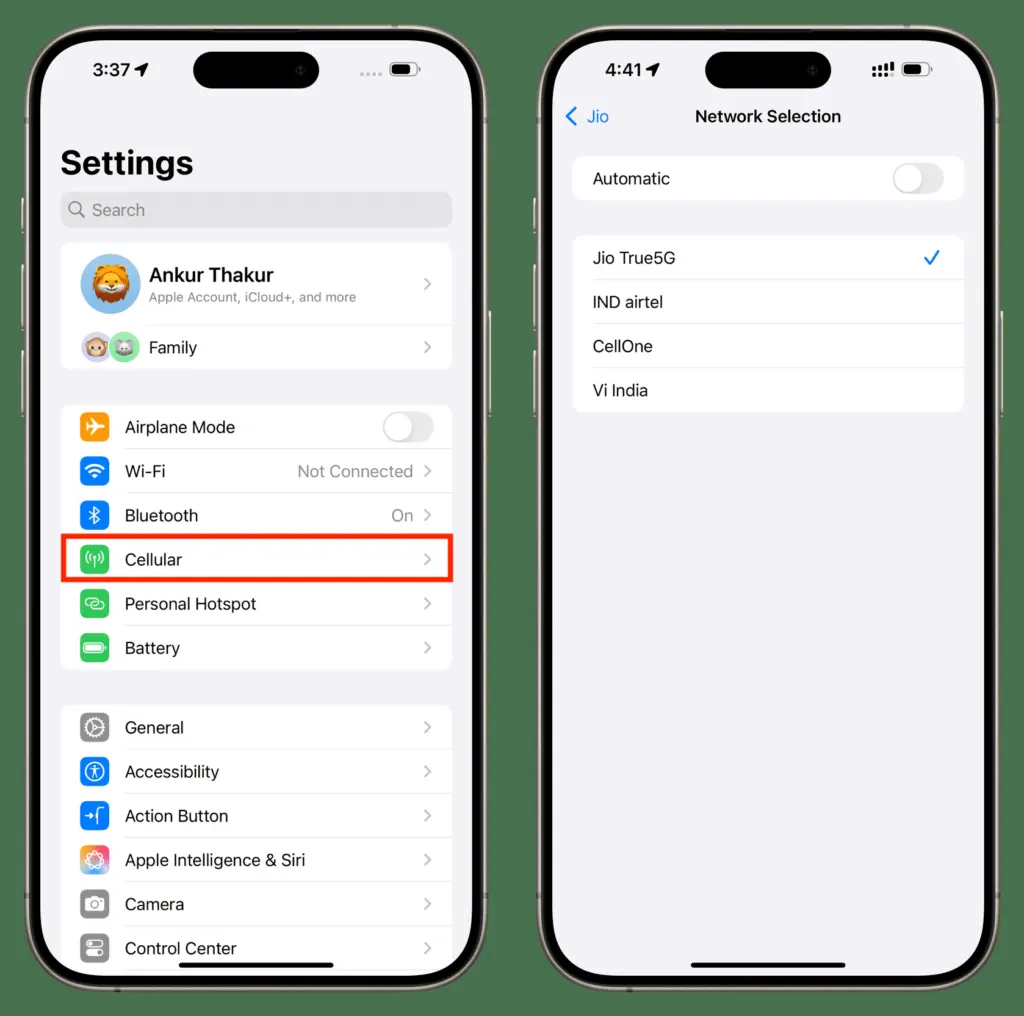
- Tap your carrier in the list.
Turn Automatic back on once you’re connected, or the phone won’t move to another network when you travel.
8. Update Carrier Settings and iOS
Carrier settings tell the phone how to register with your network, and a new SIM needs its carrier’s settings downloaded before it connects properly.
- Connect to Wi-Fi, then open Settings > General > About. If an update exists, a prompt appears. The installed version is listed next to Carrier.
- Go to Settings > General > Software Update and install any iOS update. Our guide to updating your iPhone has the full steps.
9. Reinsert the SIM Card
A SIM that has shifted in the tray is a common cause on a phone that has been dropped. Use a SIM eject tool to remove the tray, put the SIM back and close the tray fully before checking the status bar.
If SOS comes back a few hours later, or the SIM is damaged, doesn’t fit the tray, or came from another phone, ask your carrier for a new SIM. Our iPhone SIM failure guide covers related errors.
10. Reset Network Settings
This is a bigger step, so try the fixes above first. It erases saved Wi-Fi passwords, VPN settings and APN settings, so have those details ready.
- Open Settings > General > Transfer or Reset iPhone.
- Tap Reset > Reset Network Settings.
Our guide to resetting network settings on iPhone walks through it.
11. Call Your Carrier
If nothing has worked, the cause is likely on your account. Ask the carrier to confirm that:
- your account is active and in good standing, not suspended over an unpaid bill
- the device isn’t blocked or barred, and you’re on the right plan
- there are no outages in your area
Some governments require IMEI registration for an iPhone bought in another country, so ask about that too. If the carrier finds no problem on its side, the remaining suspect is hardware and the phone may need service. On iOS 18 or later, the Apple Support app can run extra diagnostics first.
When SOS shows up only now and then, it is usually just coverage, but one that follows you everywhere deserves a closer look. If it appears in just one building, Wi-Fi Calling can help you stay reachable there. Should the label refuse to go away, your carrier or Apple can check the line and the phone.


