
It is frustrating when your phone sees the Wi-Fi network but the connection fails with an alert, especially when the password is correct. An iPhone unable to join network alert usually comes down to the phone, the router, or the way the two are set up to talk to each other. The sections below cover the likely causes in order, with fixes for home, hotspot and work or school networks.
Table of Contents
- iPhone Unable to Join Network: What the Alert Means
- Forget the Network and Join Again
- Turn Off Private Wi-Fi Address for That Network
- Restart the iPhone and the Router
- Check the Router’s Security Mode, Device Limit and Filters
- Fix It When Joining a Personal Hotspot
- Remove VPN and Security Profiles
- Work or School Networks
- Reset Network Settings
- If Your iPhone Is Still Unable to Join the Network
iPhone Unable to Join Network: What the Alert Means
The alert appears with a single OK button, and the network stays unjoined.
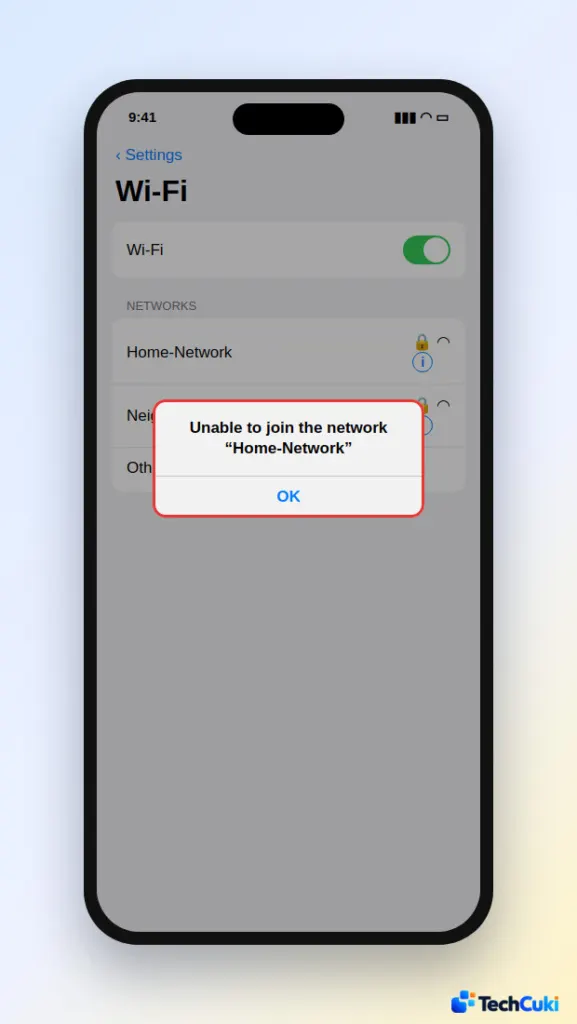
If iOS says Incorrect password instead, the password is wrong, so check it first (see how to see a saved Wi-Fi password on iPhone). Use this table to pick where to begin.
| What you see | Start with |
|---|---|
| Only one network fails, after the router password or security changed | Fix 1, then Fix 4 |
| Home network fails, router uses an allowed-device list | Fix 2 |
| Other phones join, new devices can’t | Fix 4 (device limit) |
| Only another iPhone’s hotspot fails | Fix 5 |
| Every network fails | Fixes 3, 6 and 8 |
| Office or school Wi-Fi fails | Fix 7 |
1. Forget the Network and Join Again
This clears a saved profile that no longer matches the router, which is common after the router’s password or security mode changed.
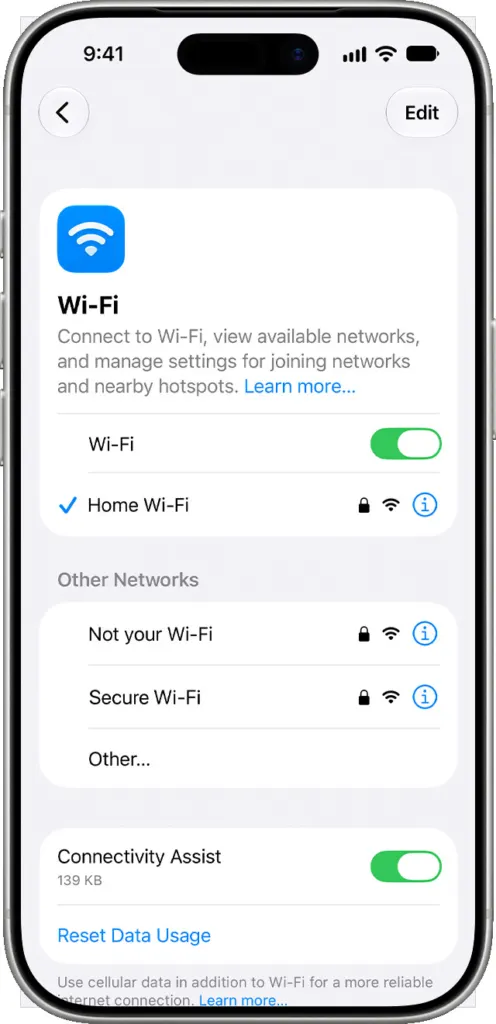
- Open Settings > Wi-Fi and tap the (i) button next to the network.
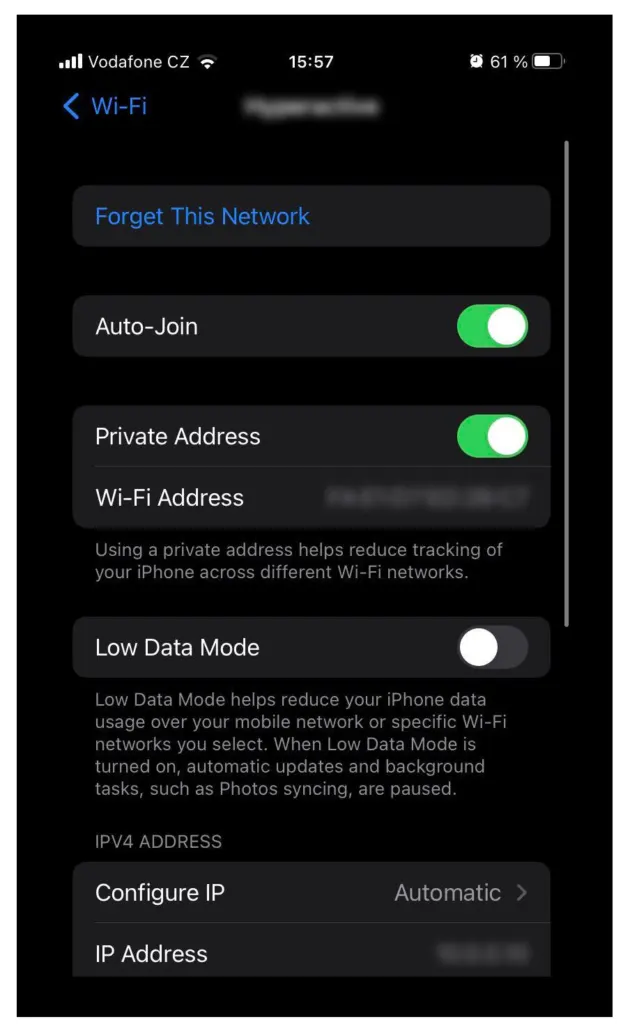
- Tap Forget This Network, then Forget.
- Tap the network in the list and type the password again.
2. Turn Off Private Wi-Fi Address for That Network
Routers with MAC filtering, access control, a parental “allowed device” list or a DHCP reservation only know the phone’s old address, so a new private address gets refused.
- Go to Settings > Wi-Fi and tap (i) next to the network.
- Tap Private Wi-Fi Address and choose Off. On iOS 18 and later the choices are Off, Fixed and Rotating; older versions have a single switch.
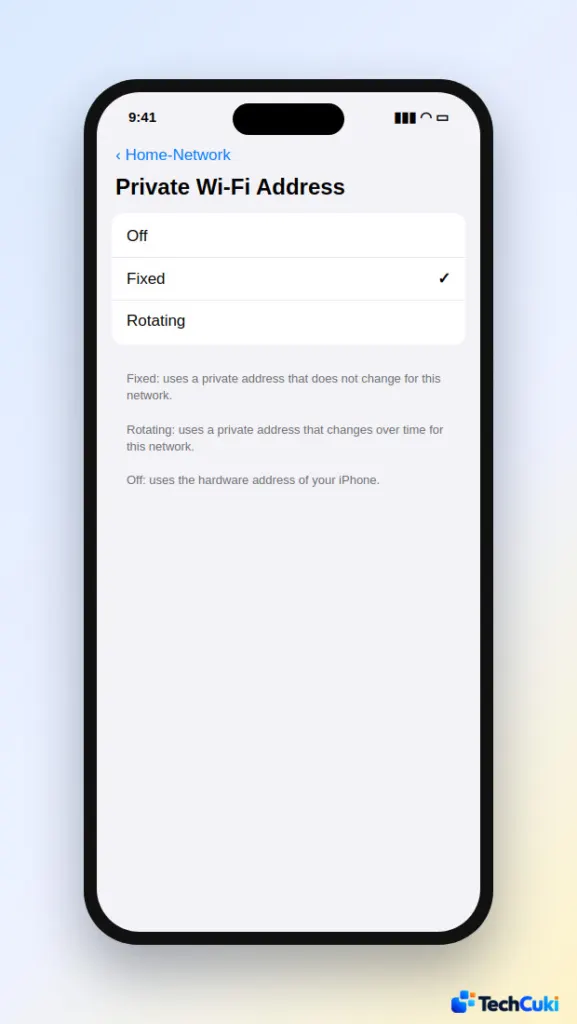
Do this only on your home network. If you manage the router, you can instead add the Wi-Fi Address shown on that screen to its allowed list. The difference between the modes is explained in Private Wi-Fi Address: Fixed vs Rotating.
3. Restart the iPhone and the Router
Turn Wi-Fi off and on, or switch Airplane Mode on and off, then restart the iPhone. Unplug the router and modem, wait a moment and plug them back in. The broader checklist is in our guide to an iPhone that won’t connect to Wi-Fi.
4. Check the Router’s Security Mode, Device Limit and Filters
If the router is the problem, the phone can’t fix it, so look at these settings in the router’s admin page:
- Security mode: WPA3-only or mixed WPA2/WPA3 modes, and old WEP or WPA TKIP, can be refused by some devices. Apple recommends WPA3 Personal or WPA2/WPA3 Transitional.
- Full router: if too many devices are connected or the DHCP pool is used up, existing devices stay online while a new one is refused. Restart the router or raise the limit.
- Guest networks and parental controls: a device limit, time schedule or block rule can reject the phone.
- Firmware and bands: update the router firmware, and if it has separate bands, try the other one (5 GHz or 2.4 GHz).
5. Fix It When Joining a Personal Hotspot
When the network is another iPhone’s hotspot, the fix is on the hotspot phone: turn on Maximize Compatibility, which switches it to 2.4 GHz.
- On the hotspot iPhone, open Settings > Personal Hotspot.
- Turn on Maximize Compatibility.
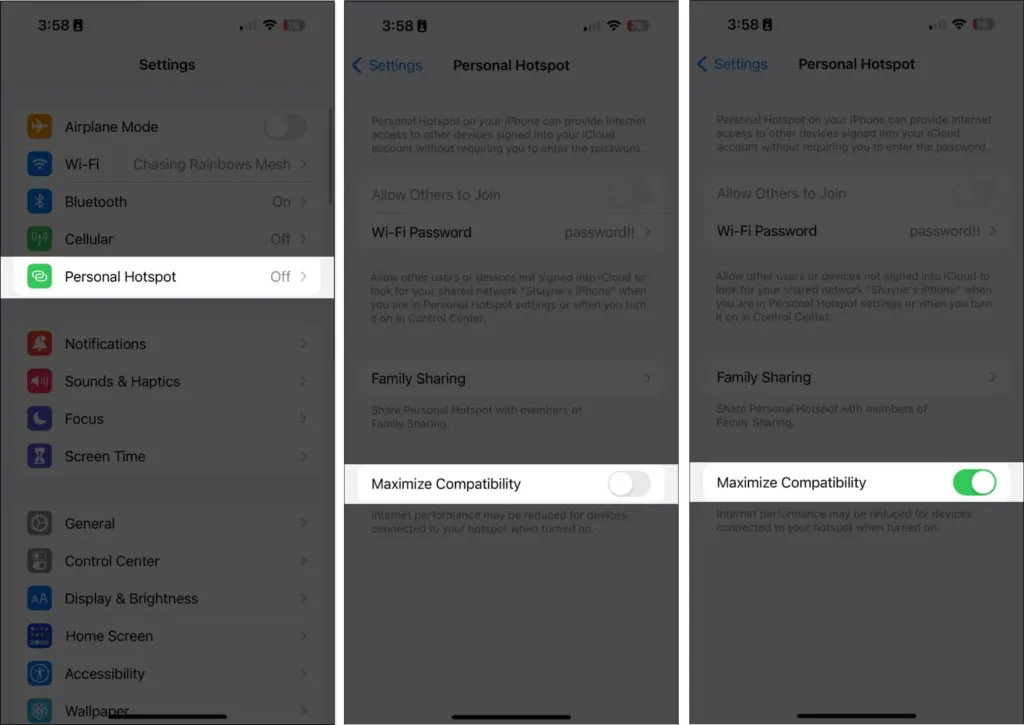
- Stay on the Personal Hotspot screen while the other device joins.
More hotspot causes are covered in iPhone hotspot not working.
6. Remove VPN and Security Profiles
VPN and security software can interfere with joining. Open Settings > General > VPN & Device Management, remove the VPN or security profile you don’t need, restart the iPhone and try the network again.
7. Work or School Networks
Networks that ask for a username plus a certificate (WPA2-Enterprise) show this alert when the certificate isn’t trusted or the credentials are wrong, so ask the IT team to confirm both. Also check Settings > General > Date & Time and turn on Set Automatically, because a wrong date breaks certificate checks.
8. Reset Network Settings
This wipes every setting the phone uses to connect, so use it after the targeted fixes. It erases all saved Wi-Fi networks and passwords, cellular settings, and VPN and APN settings.
- Open Settings > General > Transfer or Reset iPhone.
- Tap Reset > Reset Network Settings.
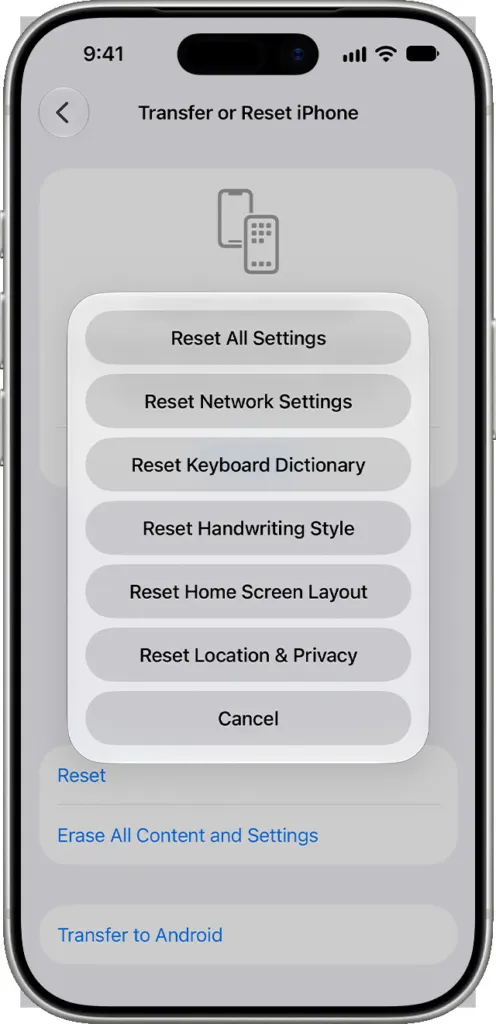
Details are in how to reset network settings on iPhone. If the alert returns after a reset, the cause is almost certainly the router or network settings rather than the phone.
If Your iPhone Is Still Unable to Join the Network
Check whether other devices can join the same network. If they can and every step above failed, try a different network: when the iPhone fails on all of them, contact Apple Support, since the Wi-Fi hardware may be at fault. If only one network fails and you don’t manage it, contact its owner or the internet provider.
Most of these problems clear up with a few small changes, and none of them put your data at risk. If the alert keeps appearing on every network, Apple Support or your internet provider can look deeper at the phone or the router.


