
Your iPhone quietly gives each Wi-Fi network a private address, and the choice behind it can affect how that network treats your phone. The private WiFi address fixed vs rotating options behave differently, and the right one depends on where you connect. The sections cover how each option works, which to use where and how to change it per network.
Table of Contents
What a Private WiFi Address Does
Every network you join sees a MAC address, an identifier tied to your device’s WiFi hardware. A private WiFi address gives your iPhone a different MAC address on each network instead of its real one, so a network can’t easily link your device to its activity on other networks. Apple introduced the feature in iOS 14. It doesn’t change connection speed, it doesn’t hide your traffic, and it isn’t a VPN.
Fixed does not mean permanent. On iOS 18 and later, forgetting a network also discards its private address, unless you forgot it less than 24 hours ago. Erasing all content or resetting network settings gives your iPhone new private addresses too, as covered in our guide to resetting network settings on iPhone. Before iOS 18, a forgotten network kept its address for 2 weeks, and a network you hadn’t joined in 6 weeks got a new address on your next visit.
Private WiFi Address Fixed vs Rotating Compared
iOS 18 and later offer Off, Fixed and Rotating, and each decides which address the network sees. Earlier versions only had an on/off switch.
| Setting | Address the network sees | When it changes | Privacy | Best for |
|---|---|---|---|---|
| Off | Your real hardware MAC address | Never | Lowest, since every network sees the same address | Networks that register devices by MAC address |
| Fixed | A private address unique to that network | Stays the same until you forget the network or reset network settings | Hides your real address from the network | Home and other networks you trust |
| Rotating | A private address unique to that network | Every 2 weeks | Hides your real address, and the private address keeps changing | Open or public WiFi |
New networks get a default automatically: Fixed on WPA2 or stronger security, Rotating on weak or no security such as open hotspots.
Which One to Use
Fixed suits home, Rotating suits public networks, and Off is a per-network exception.
- Home network: Keep Fixed. Your router sees the same address on every visit, so device rules and allow lists keep working. Between Fixed and Off, the privacy gap is small at home, because the only party seeing the address is your own router. Off only helps if you want one address to follow your phone across several networks you control.
- Hotel, cafe, or other public WiFi: Use Rotating, since the address keeps changing and is harder to track.
- Off: Use it only when a network requires your hardware MAC address, such as some school or work networks that register devices by MAC, or older router filters. Change it for that one network, not for every network. iPhone then shows a Privacy Warning under that network, which our guide to the iPhone WiFi privacy warning explains.
If an iPhone won’t join a network or a work app fails after the setting is on, install the latest iOS update before turning it off. Organizations can also push a profile that turns the feature off on enrolled devices.
How to Change Your Private WiFi Address on iPhone
The setting lives on each network’s details screen, so you change it per network.
- Open Settings and tap Wi-Fi.
- Tap the (i) icon next to the network. If you aren’t connected to it, tap Edit in the top-right corner first.
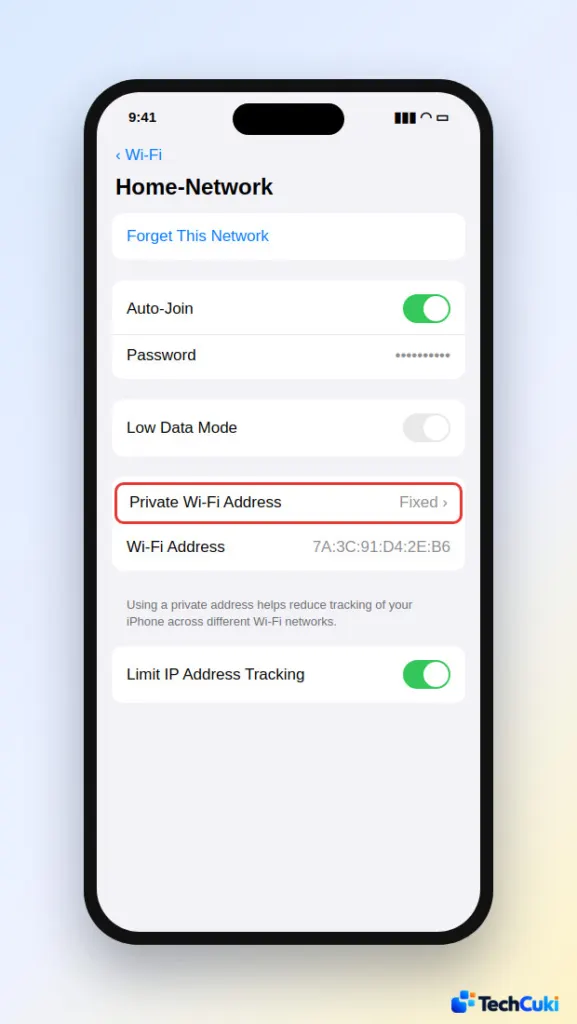
- Tap Private Wi-Fi Address.
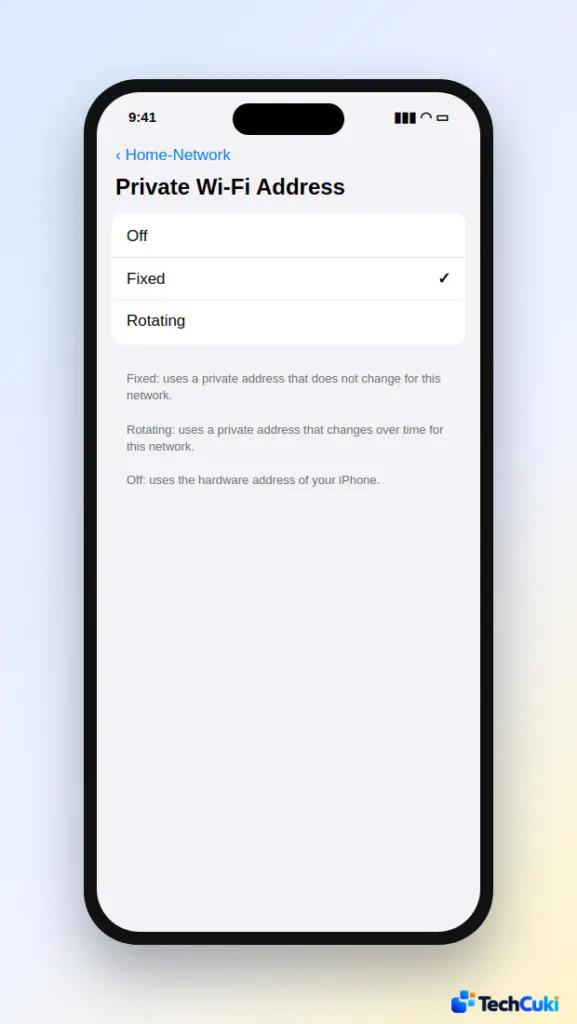
- Choose Off, Fixed, or Rotating.
- If iPhone asks you to rejoin the network, do so to apply the change.
The Wi-Fi Address line on the same screen shows the address your iPhone uses on that network. That is the value to copy into a router reservation or MAC filter, and the one to copy again if you ever forget the network. For your IP address instead, see our guide on how to find your iPhone’s IP address.
Why Rotating Breaks Things on a Home Network
With Rotating, your router sees a brand-new device every two weeks, and any rule tied to the old address stops matching.
- MAC filters or allow lists can block the iPhone once its address changes.
- DHCP reservations and static IP setups tied to the old address stop working.
- Scheduled parental controls can miss the device. A Linksys support article describes a blocked-hours schedule that the phone ignores because the router no longer recognizes it.
- Router privacy features that depend on a known MAC can stop the phone from reconnecting. Linksys names Instant-Privacy as an example.
- “New device joined” alerts can fire each time the address changes.
Hotel and campus captive portals may also ask you to sign in again. Fixed avoids all of this on that network while still hiding your real address.
Private WiFi Address on Mac and Apple Watch
On a Mac running macOS Sequoia 15 or later, open System Settings, go to Wi-Fi, choose Details, and use the Private Wi-Fi Address menu. On Apple Watch, open Settings, tap Wi-Fi, and select the network. The three-way choice needs watchOS 11 or later, and earlier versions only offer on or off.
The right choice mostly comes down to where you connect and how much the network needs to recognize your phone. The setting is easy to change later, so nothing here is permanent. If your iPhone keeps dropping a network anyway, see our guide to an iPhone that keeps disconnecting from WiFi.


