
A bright screen can feel harsh late in the evening, and a darker look is often easier on the eyes. Windows lets you change the look of the system, but a few apps keep their own appearance, so the result is not always consistent. You will find how to turn Windows 11 dark mode on or off, how to run it on a schedule and how to get your everyday apps to match.
Table of Contents
- Turn On Windows 11 Dark Mode From Settings
- Use a Dark Theme From Personalization
- Turn Off Windows 11 Dark Mode
- When Choose Your Mode Is Missing or Keeps Changing Back
- Schedule Windows 11 Dark Mode Automatically
- Use Contrast Themes for Visibility Needs
- Turn On Dark Mode in Edge, Chrome, Firefox and Office
- Is Dark Mode Better for Your Eyes?
Before you start
- Personalization settings, including dark themes, require an activated copy of Windows 11.
1. Turn On Windows 11 Dark Mode From Settings
Pick Dark under Choose your mode in the Colors page, and the system switches at once with no restart.
- Open Settings.
- Go to Personalization, then select Colors.
- Next to Choose your mode, select Dark.
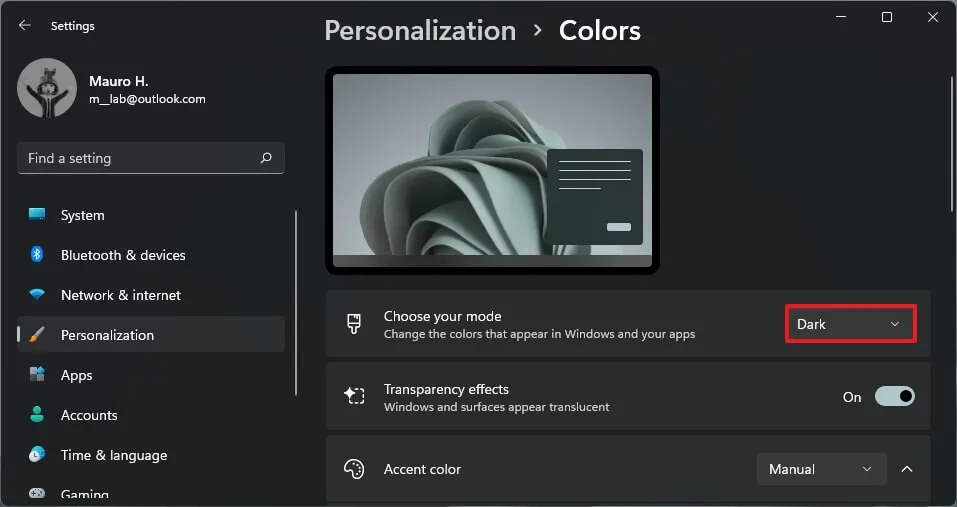
Not every app follows this setting. Software that has no dark theme of its own stays light, which is why a dark Windows can still show bright windows here and there.
2. Use a Dark Theme From Personalization
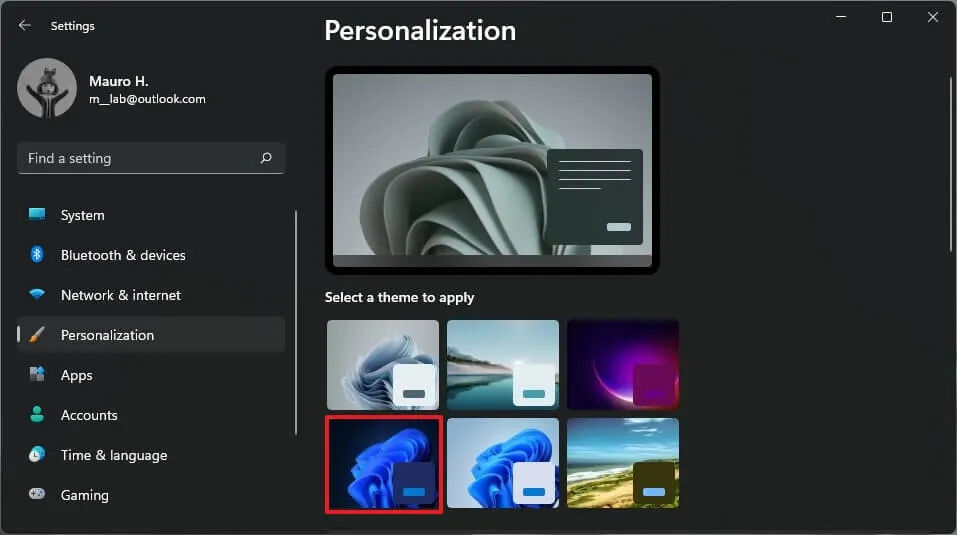
A dark theme turns on dark mode and changes the wallpaper in one step, which is handy if you want the whole look to change.
- Open Settings, then go to Personalization.
- Select a dark theme thumbnail, such as Windows (dark).
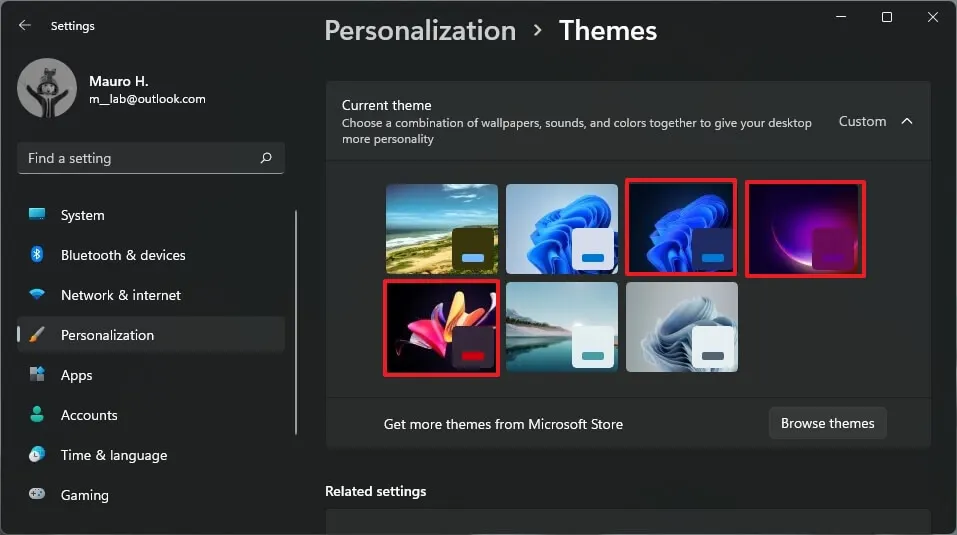
- Select Themes to see more options, such as Glow or Captured Motion.
3. Turn Off Windows 11 Dark Mode
Pick Light in the same dropdown on the Colors page.
- Open Settings, then go to Personalization > Colors.
- Next to Choose your mode, select Light.
If you want Windows and your apps to use different modes, select Custom instead and set the Windows mode and the app mode separately, such as a dark taskbar and Start menu with light apps. Custom is also the way to keep accent colors on the Start menu and taskbar, because that option is available only in dark and custom modes.
When Choose Your Mode Is Missing or Keeps Changing Back
- The option isn’t there, or the page warns that some settings aren’t available in high contrast mode. A contrast theme is active. Go to Settings > Accessibility > Contrast themes, set it to None, and the dropdown returns.
- It flips back to dark (or light) after an hour or so on a work laptop. A Group Policy or device-management rule can reapply a theme at its background refresh, so only your IT admin can change it for good.
- It flips on a personal laptop. A scheduler can be the cause, either the PowerToys Light Switch module or a maker utility, for example a screen burn-in prevention setting in a laptop brand’s own app. Turn off the schedule there.
If you’d rather not use the Settings page, the same switch lives in the registry at HKEY_CURRENT_USER\Software\Microsoft\Windows\CurrentVersion\Themes\Personalize. Set SystemUsesLightTheme to 0 for a dark Windows or 1 for light, and use AppsUseLightTheme the same way for apps.
4. Schedule Windows 11 Dark Mode Automatically
Windows 11 has no built-in schedule, so you need a free app to switch modes by time. Auto Dark Mode is a free, open-source option that switches by custom hours or from sunset to sunrise.
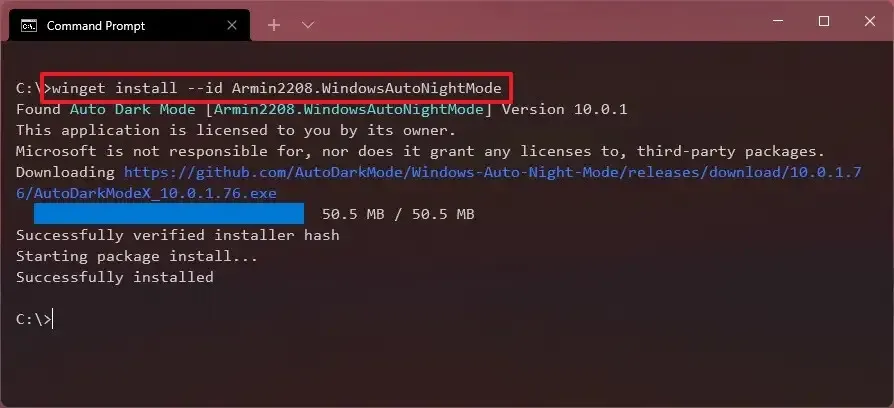
- Open Command Prompt and run
winget install --id Armin2208.WindowsAutoNightMode. You can also find Auto Dark Mode in the Microsoft Store.
- Open Auto Dark Mode and choose Set custom hours.
- Set Light to 7:00 AM and Dark to 8:00 PM.
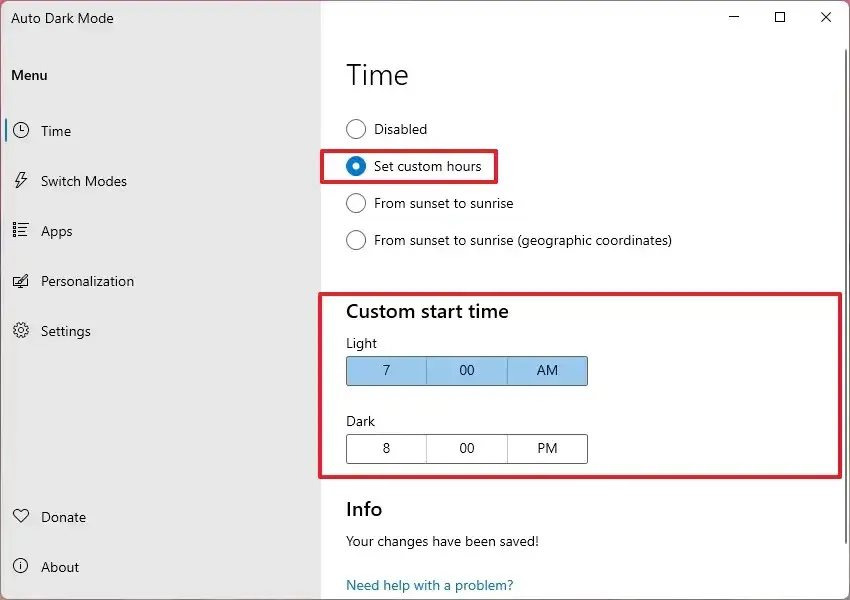
Pick one scheduler only. Two tools fighting over the same setting is the usual reason a mode keeps flipping.
5. Use Contrast Themes for Visibility Needs
Contrast themes are an accessibility feature with high-contrast colors for visibility needs, so they are not the same as dark mode.
- Open Settings and go to Accessibility > Contrast themes.
- Choose a dark option, such as Dusk, then select Apply.
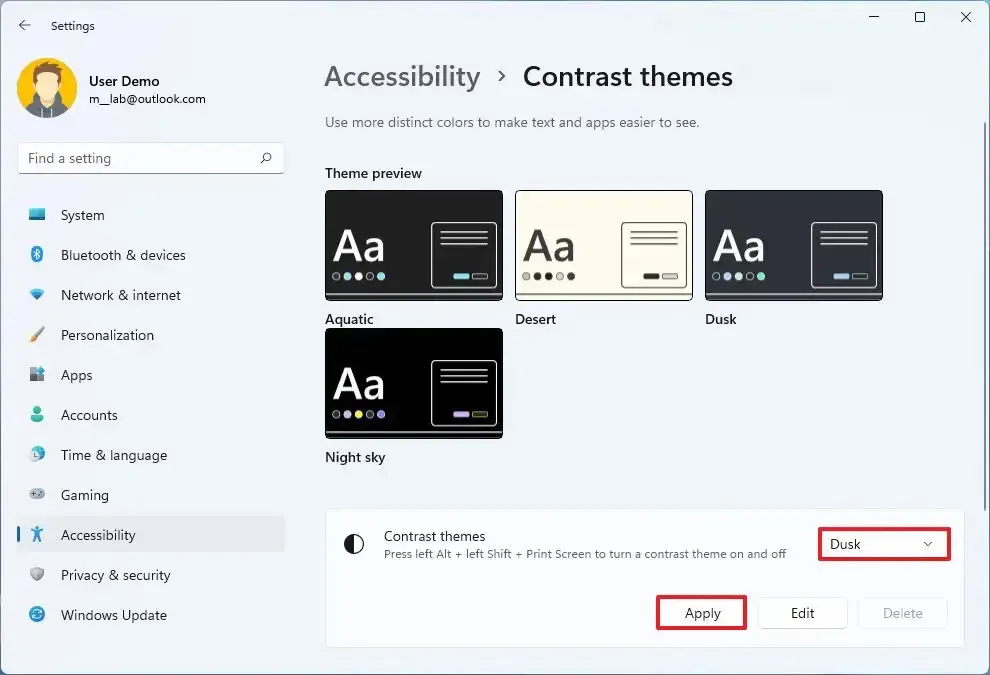
To toggle a contrast theme quickly, press Left Alt + Left Shift + Print Screen. Set it back to None when you want regular dark mode.
6. Turn On Dark Mode in Edge, Chrome, Firefox and Office
Some apps follow the Windows mode, while others need their own setting. That includes your browser, even after you change the default browser in Windows 11.
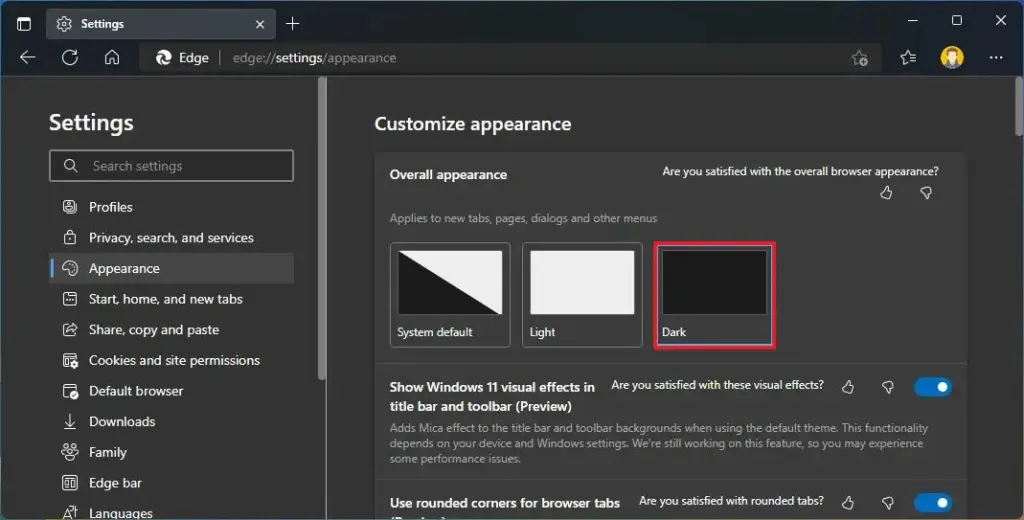
Microsoft Edge
- Open Edge Settings and go to Appearance.
- Under Overall appearance, select Dark.
Google Chrome
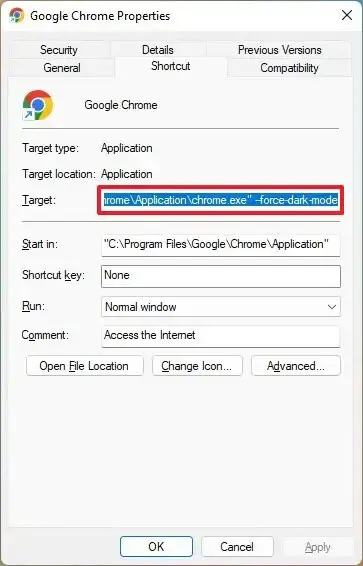
Chrome follows the Windows mode automatically when its theme is set to System default. To keep Chrome dark even when Windows is in light mode, add a flag to its shortcut.
- Right-click the Chrome shortcut and select Properties.
- In the Target box, add
--force-dark-modeafter the path, then select OK.
Mozilla Firefox
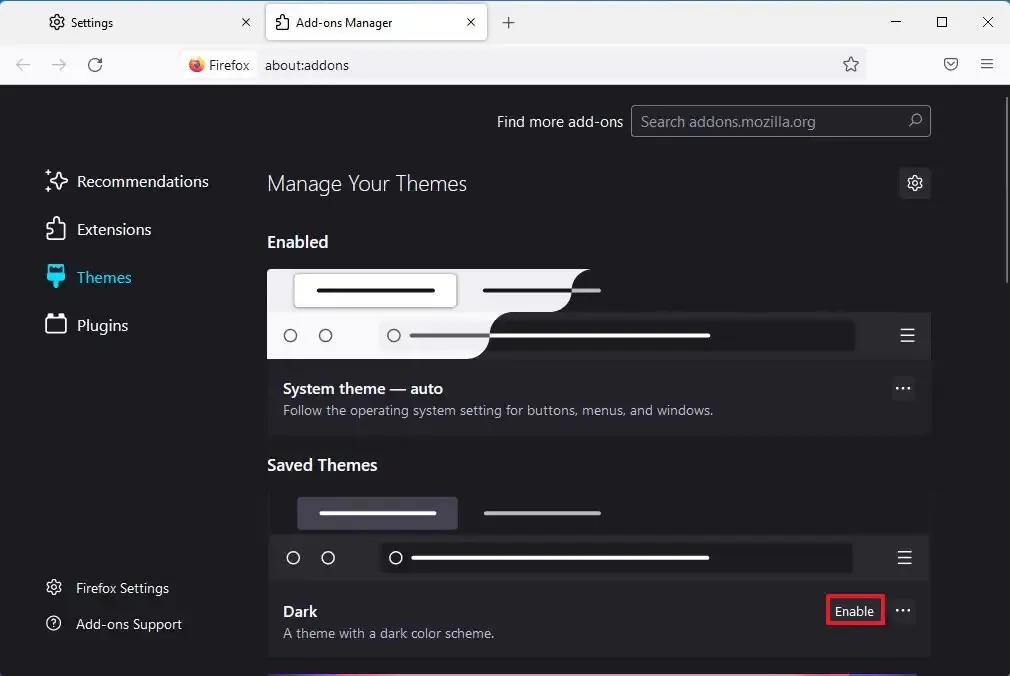
- Open Firefox settings and go to Add-ons and themes.
- Select Themes, choose Dark, then select Enable. To follow Windows instead, choose System theme.
Microsoft Office
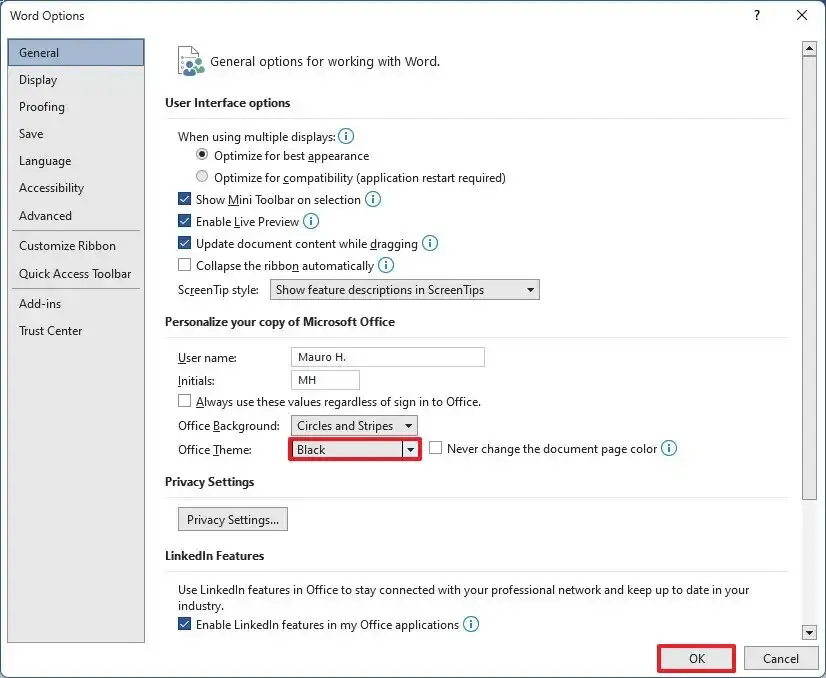
- Open an Office app, such as Word, and go to File > Options > General.
- Under Office Theme, select Black or Use system setting.
Is Dark Mode Better for Your Eyes?
There is no strong evidence that dark mode prevents eye strain, but many people find it more comfortable in low light. It can also reduce glare at night and save battery on OLED screens. Text can be harder to read in a bright room, so light mode may suit daytime use better.
A darker screen can make long evenings at the computer more comfortable, and it costs nothing to try. Light mode may still suit you better during the day, so use whichever feels right. You can change back whenever you like.


