
Clicking a link and watching it open in the wrong browser gets old quickly. Windows 11 handles defaults differently from older versions, so the change is not always where you would expect it. You will find how to change the default browser in Windows 11, how links and files are affected and what to do if the choice does not stick.
Table of Contents
Change the Default Browser in Windows 11 Settings
Open the Default apps page, search for your browser and click its Set default button.
- Open Settings and go to Apps > Default apps.
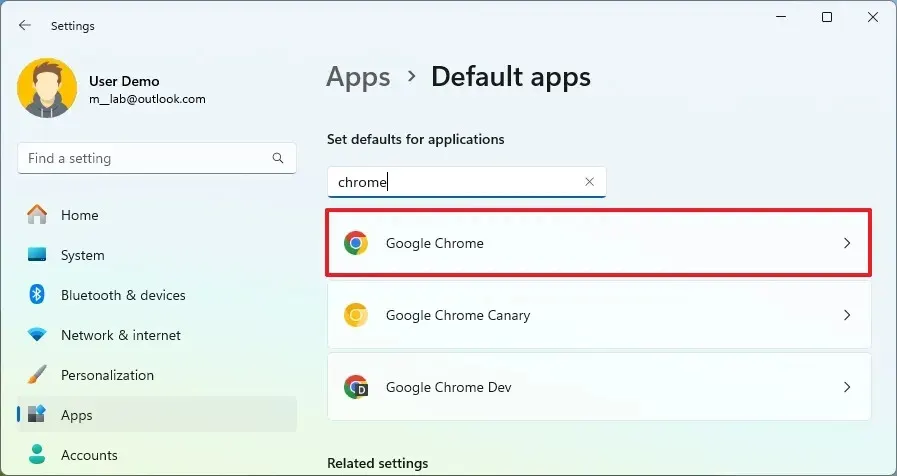
- In the search box, type the browser’s name, such as Chrome, Firefox or Brave, and click it in the results.
- Click Set default on the line at the top, which reads Make Google Chrome your default browser (the name matches your browser).
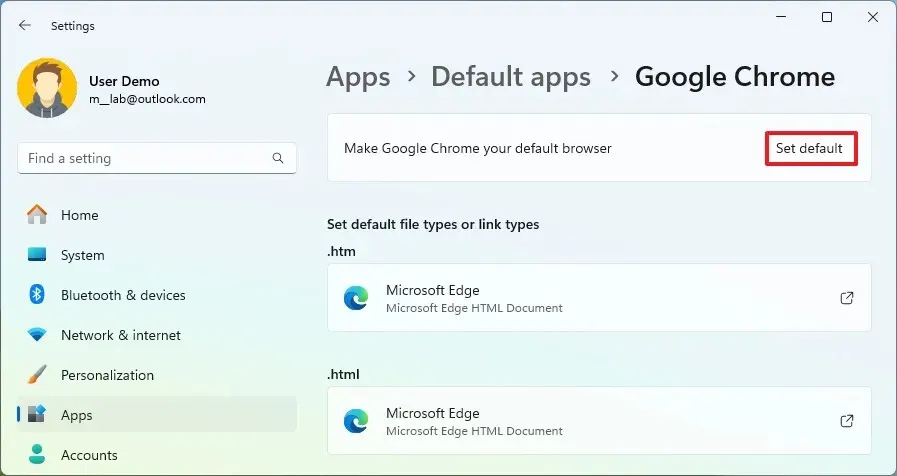
After this, links and those file types open in the new browser. The list under the search box shows each type with its current app, so scan it once to confirm they all changed.
Change the Default App for PDFs and Other File Types
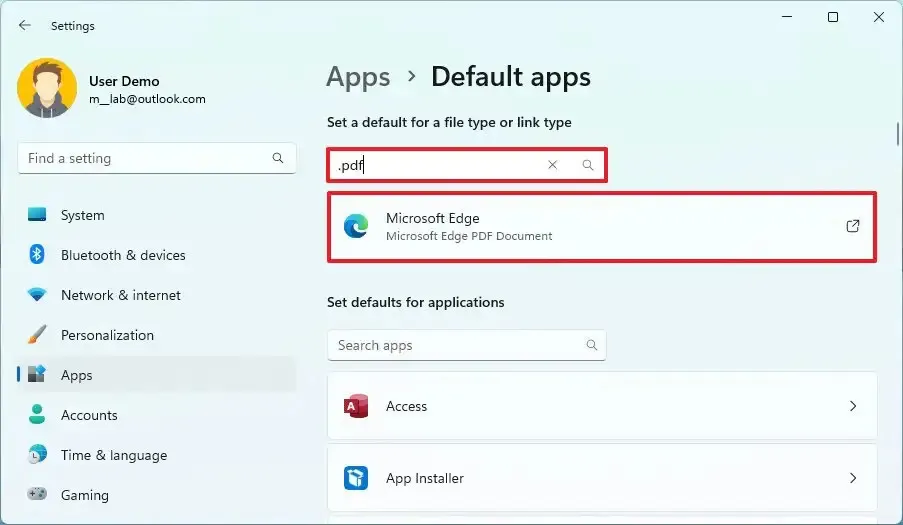
.pdf is the one that most often stays with Edge, since it is a file type rather than a web link.
- Go back to Settings > Apps > Default apps.
- In Set a default for a file type or link type, type the type, such as .pdf, and click the app shown under it.
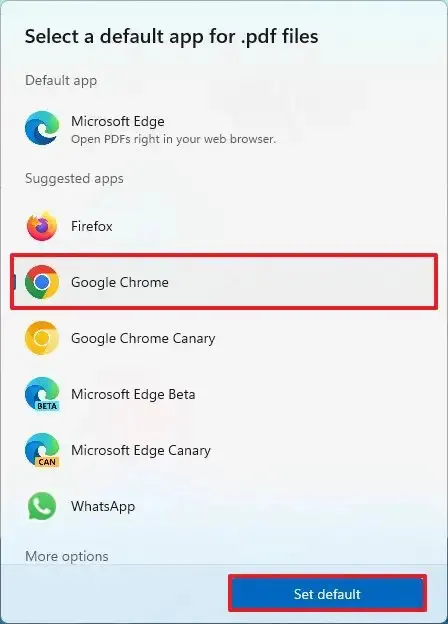
- Choose the browser or PDF app you want and click Set default.
Set the Default From Inside Chrome or Firefox
Each browser has its own button that opens the same Windows page for you.
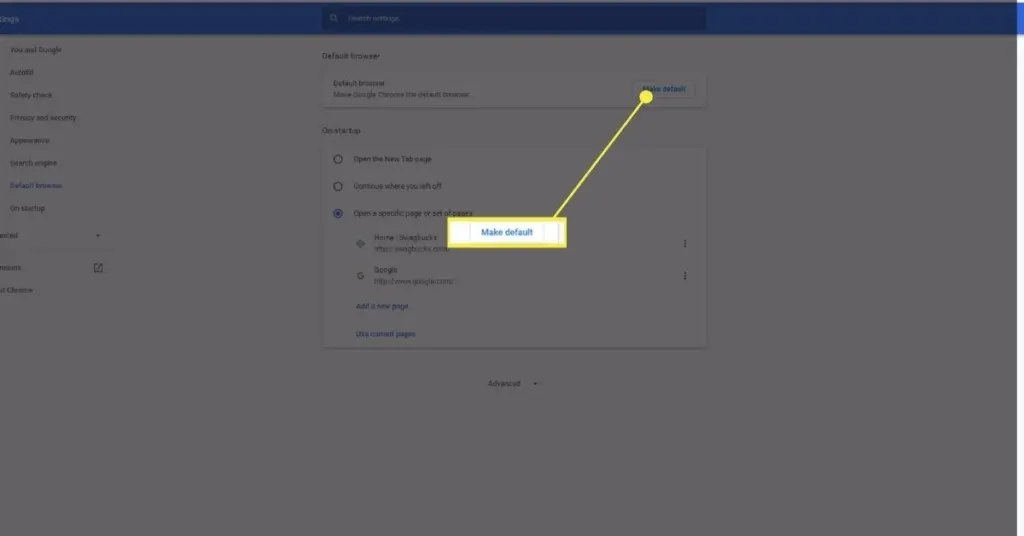
- In Chrome, open the three-dot menu and select Settings > Default browser > Make default. If the button is missing, Chrome is already the default.
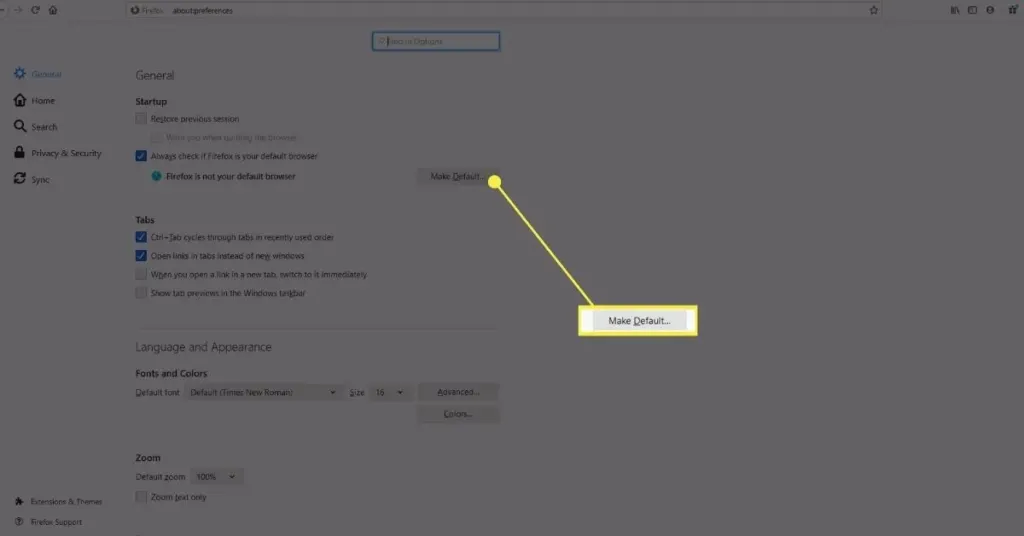
- In Firefox, open Settings > General and select Make Default.
Microsoft Edge shows the same Make default option, so use it if you want to switch back.
Why the Default Browser Keeps Changing Back to Edge
Windows can reset the default after a major update, and Edge may prompt you to switch back. Work from the simplest cause down.
- After a big Windows update, open Default apps again and reset your browser.
- If Edge shows a prompt about Use recommended browser settings, choose Not now or decline it.
- If the change will not stick at all, a background service may be blocking it. In one Microsoft forum case, Default apps threw an access-denied error when writing the http, https, .htm and .html types, and a clean boot exposed a “PCManager Service” as the cause. Disabling that service fixed it, so a clean boot is worth trying before anything drastic.
- As a last resort, reset the two link associations. Open Registry Editor, delete the
UserChoicekey underHKEY_CURRENT_USER\Software\Microsoft\Windows\Shell\Associations\UrlAssociations\httpand the same key under...\UrlAssociations\https, then pick your browser again in Default apps. Export the keys first (File > Export) so you can restore them by double-clicking the saved file.
Make Google Your Default Search Engine in Edge
If you meant the search engine rather than the browser, change it in Edge’s settings. Chrome already uses Google by default.
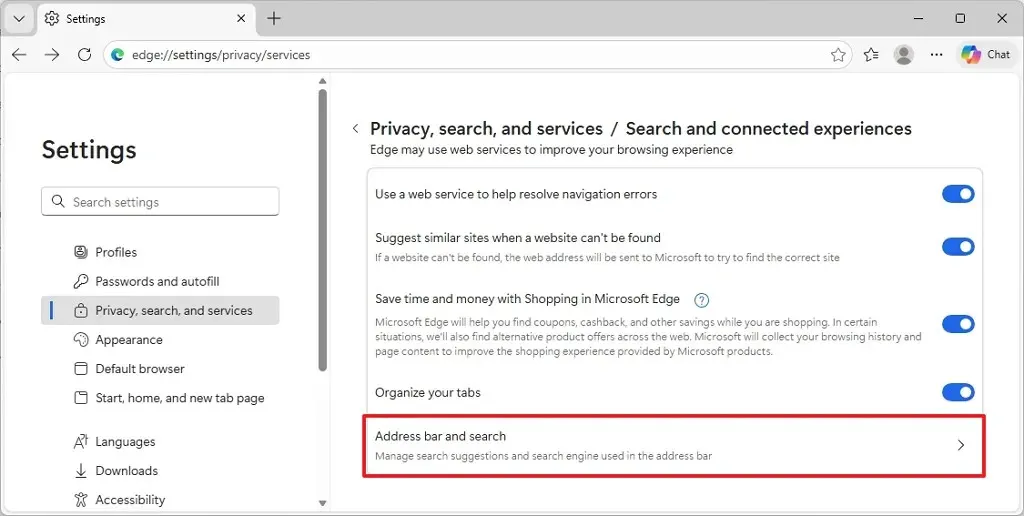
- In Edge, open Settings > Privacy, search, and services.
- Select Address bar and search.
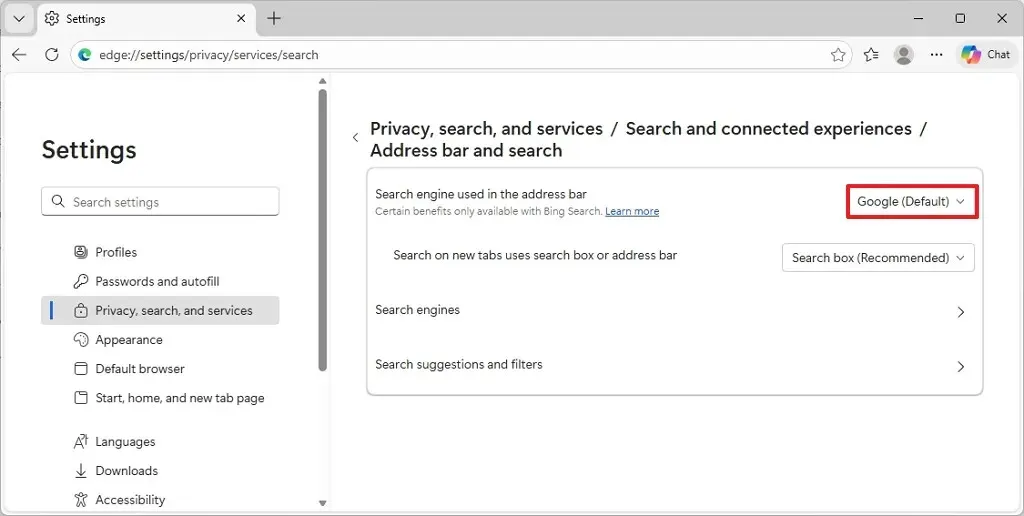
- Next to Search engine used in the address bar, choose Google.
Once your default browser is set, links and files open where you want them, and day-to-day browsing feels less fiddly. Windows can occasionally change the choice after a big update, so it is worth a quick look now and then. You can switch again at any time.


