
Copilot has a habit of showing up in places you never asked for, and closing it once rarely makes it stay gone. It appears in more than one spot, and each place can behave differently. This covers how to disable Copilot in Windows 11 across the system and your everyday apps, so you can decide how much of it to keep.
Table of Contents
- Uninstall the Copilot App
- Remap the Copilot Key
- Turn Off Copilot in Word, Excel and PowerPoint
- Turn Off Copilot in Microsoft Edge
- Turn Off Copilot in Notepad
- Turn Off Copilot in the New Outlook
- Stop Copilot From Opening on Its Own
- Turn Off Copilot on a Work or School PC
- Is It Safe to Disable Copilot in Windows 11?
1. Uninstall the Copilot App
Removing the app is the most direct fix, and Windows runs fine without it.
- Open Settings > Apps > Installed apps.
- Find Copilot, click the three dots beside it and choose Uninstall.
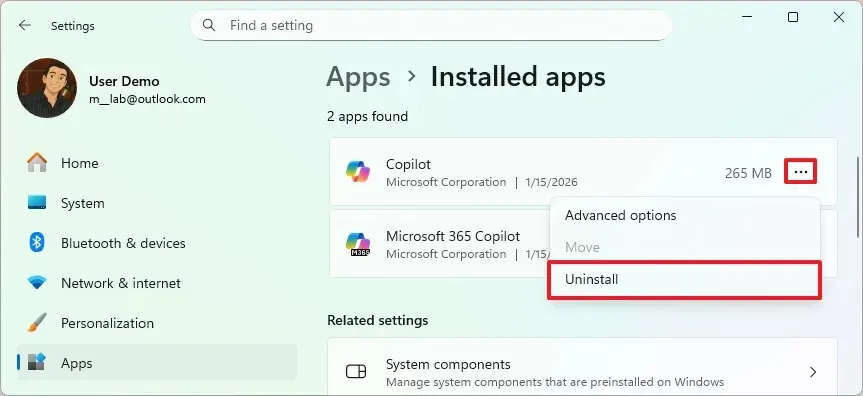
- Confirm with Uninstall again.
The Microsoft Store can bring it back whenever you want it. The Microsoft 365 Copilot app, the renamed Microsoft 365 app, wears the same icon and comes out of the same list if you don’t use it. Word and Excel stay put.
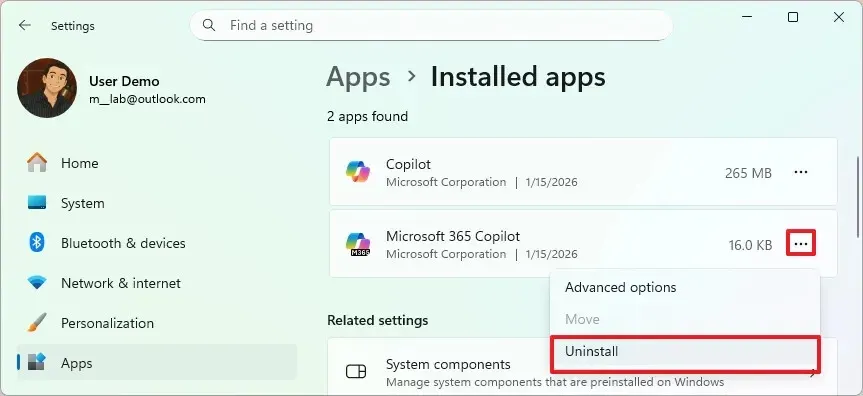
Uninstalling the app does not touch the Copilot built into Office, which is why Word can keep showing its icon afterward. Some users also report Copilot reappearing after a Windows update, so glance at the Installed apps list again if it does.
2. Remap the Copilot Key
A dedicated Copilot key can be repointed instead of fighting it.
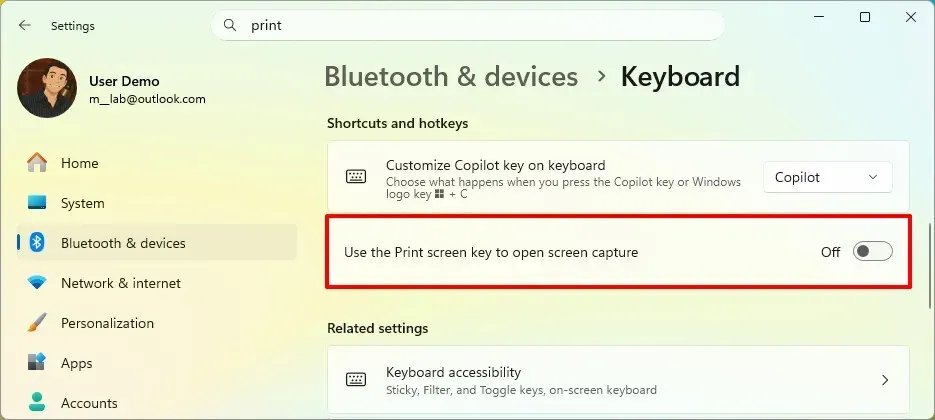
- Go to Settings > Bluetooth & devices > Keyboard.
- Under Customize Copilot key on keyboard, pick Search or a custom app.
3. Turn Off Copilot in Word, Excel and PowerPoint
In Microsoft 365 Personal and Family you can’t uninstall Copilot, but each app has an off switch.
- In Word, Excel or PowerPoint, open File > Options > Copilot.
- Clear Enable Copilot and click OK.
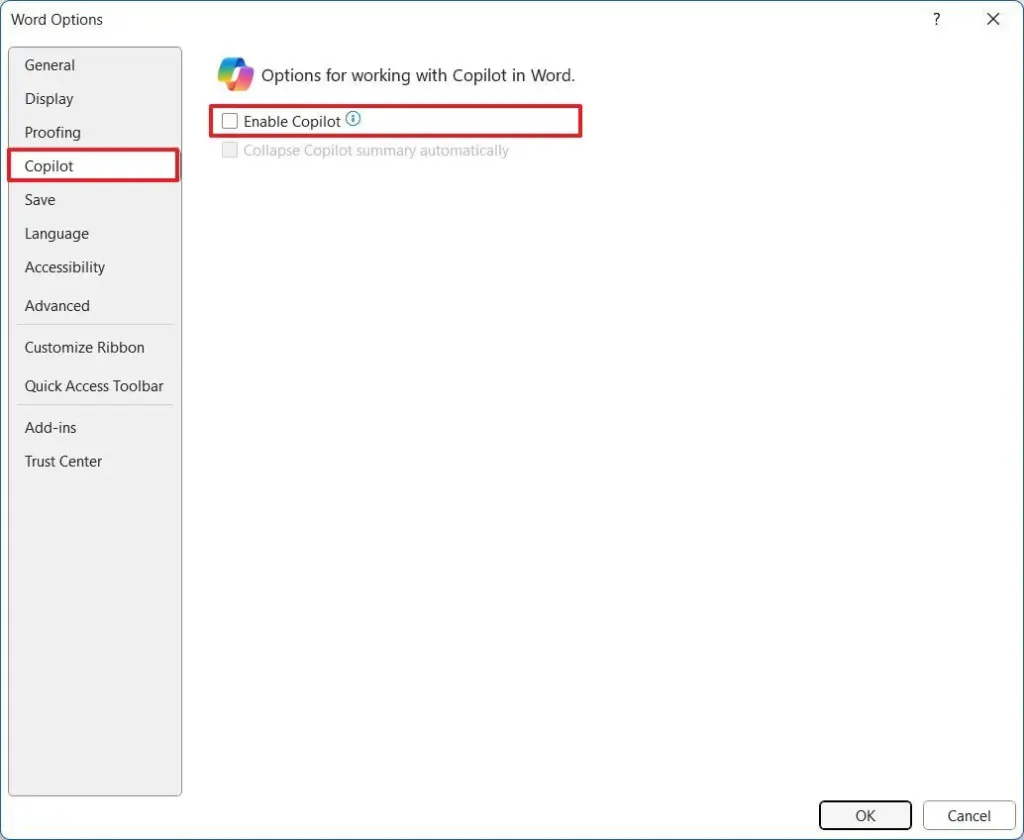
Restart the app afterward. If there is no Copilot tab in the Options list, check your version under File > Account: the checkbox only exists from version 2412 of Word onward, so an older build needs an update first. Users on newer builds have reported the option disappearing, in which case there is no per-app switch to flip.
4. Turn Off Copilot in Microsoft Edge
Edge keeps separate settings for the Copilot button and sidebar.
- Click the … menu and select Settings.
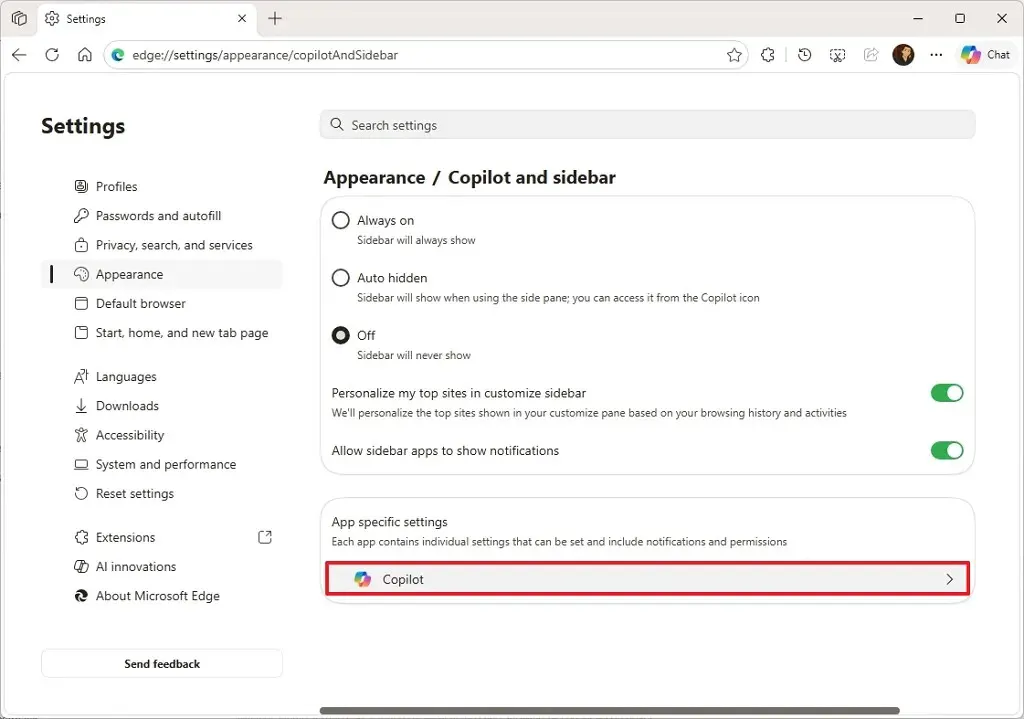
- Open Appearance > Copilot and sidebar, then choose Copilot under App specific settings.
- Switch off Show Copilot button on the toolbar.
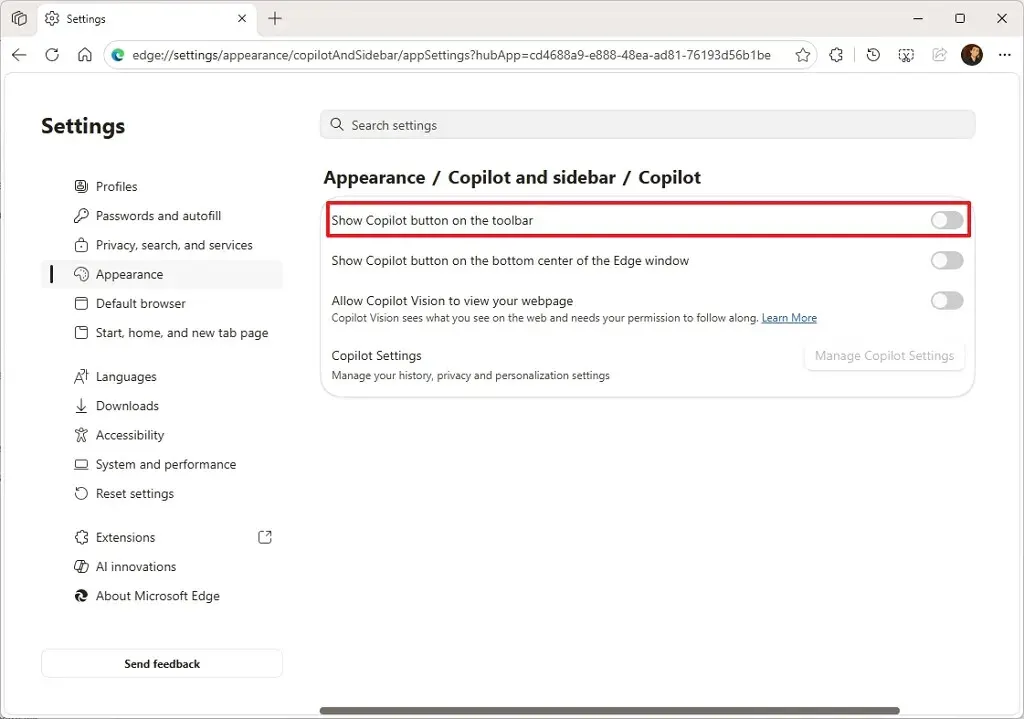
The same page has a bottom-center Copilot button setting and an option letting Copilot Vision see your webpage, so turn those off as well. To lose the sidebar entry too, switch off Show sidebar button.
5. Turn Off Copilot in Notepad
Notepad groups its AI options on one settings page.
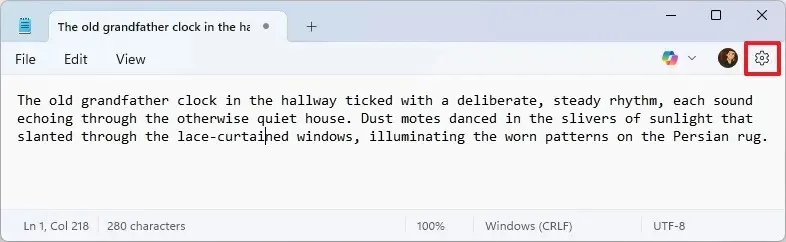
- Open Notepad and click the Settings gear.
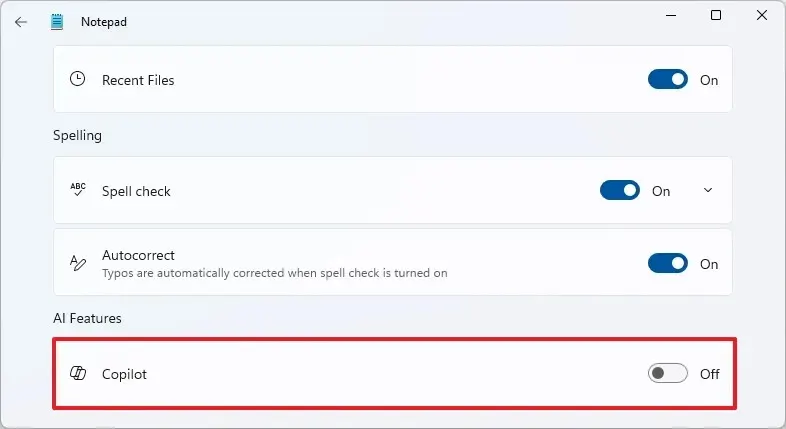
- Under AI Features, set the Copilot toggle to Off.
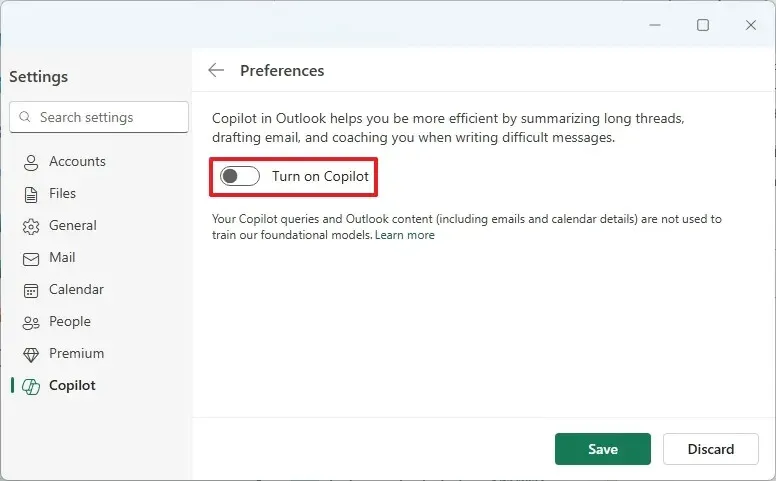
6. Turn Off Copilot in the New Outlook
The new Outlook has its own Copilot option.
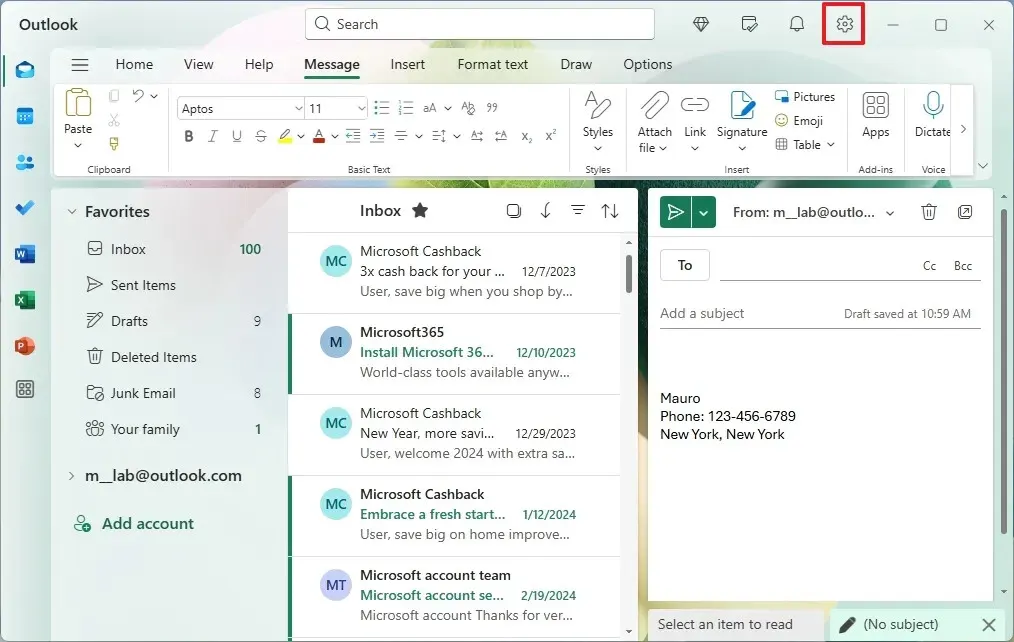
- Open Outlook and click the Settings gear.
- Go to Copilot, clear Turn on Copilot and click Save.
7. Stop Copilot From Opening on Its Own
Uninstalling already prevents this. If you keep the app, go to Settings > Apps > Startup and turn Copilot off.
8. Turn Off Copilot on a Work or School PC
On Windows 11 Pro, Enterprise or Education, an administrator can remove the app with Group Policy.
The policy is Remove Microsoft Copilot App, under User Configuration > Administrative Templates > Windows AI. It only takes effect when both Copilot apps are installed, the user didn’t install Copilot themselves, and Copilot hasn’t been launched in the last 28 days. The older Turn off Windows Copilot policy handled the former sidebar and doesn’t remove today’s app.
Is It Safe to Disable Copilot in Windows 11?
Yes. Nothing else in Windows depends on it, and the Microsoft Store can reinstall it at any time.
Most people do not need every Copilot feature, and it is reasonable to keep only what is useful to you. Updates can change what is switched on, so a quick check now and then keeps things the way you want. Everything here can be reversed if you change your mind If other preinstalled apps are in your way too, our guide to removing bloatware in Windows 11 picks up from here.


