
A new PC often arrives crowded with apps and promotions nobody asked for, and clearing them out can make it feel cleaner and lighter. Not everything that looks installed actually is, and a few built-in apps are worth keeping, so a careless cleanup can cause more trouble than it solves. Three safe ways to remove bloatware from Windows 11 are covered below, along with a list of what to leave alone.
Table of Contents
What Counts as Bloatware in Windows 11?
Bloatware is any preinstalled app, trial program or promoted link you don’t need, from Microsoft or from your PC maker. It is subjective: one person’s junk is another’s daily tool, and Microsoft publishes no official removal list or lite edition.
Most people can safely remove these:
- Games and promo apps, such as Solitaire & Casual Games
- Clipchamp, Microsoft News and Get Started
- A trial antivirus that came with the PC
- Extra apps from your PC maker that you don’t use
Look up any app you don’t recognize before removing it. To tidy the Widgets panel as well, see how to disable widgets in Windows 11.
Remove Bloatware From Windows 11 in Settings
Settings handles most cleanups, for Microsoft apps and PC-maker programs alike. The same page also helps when you uninstall apps in Windows 11 in general.
- Open Start and select Settings.
- Go to Apps > Installed apps.
- Find the app, click the … button next to it, and select Uninstall.
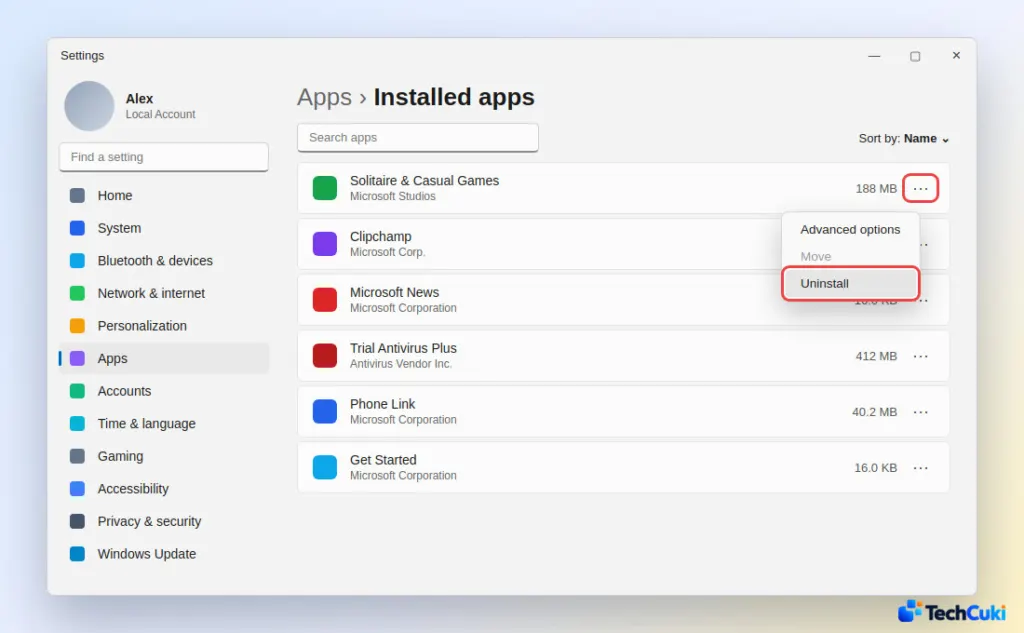
Search the list by name for the usual suspects, such as Clipchamp, Solitaire, Xbox, News, Weather and Copilot. A trial antivirus goes the same way, and Windows Security turns back on once it is gone.
Some clutter hides one page over, under Apps > Optional features. Remove an entry there only when you are sure you never use it, such as the legacy Windows Media Player, Steps Recorder or XPS Viewer.
Remove Bloatware From the Start Menu
Pinned apps and promoted tiles can be removed right where they appear.
- Open Start.
- Right-click the pinned app or promoted link.
- Select Uninstall.
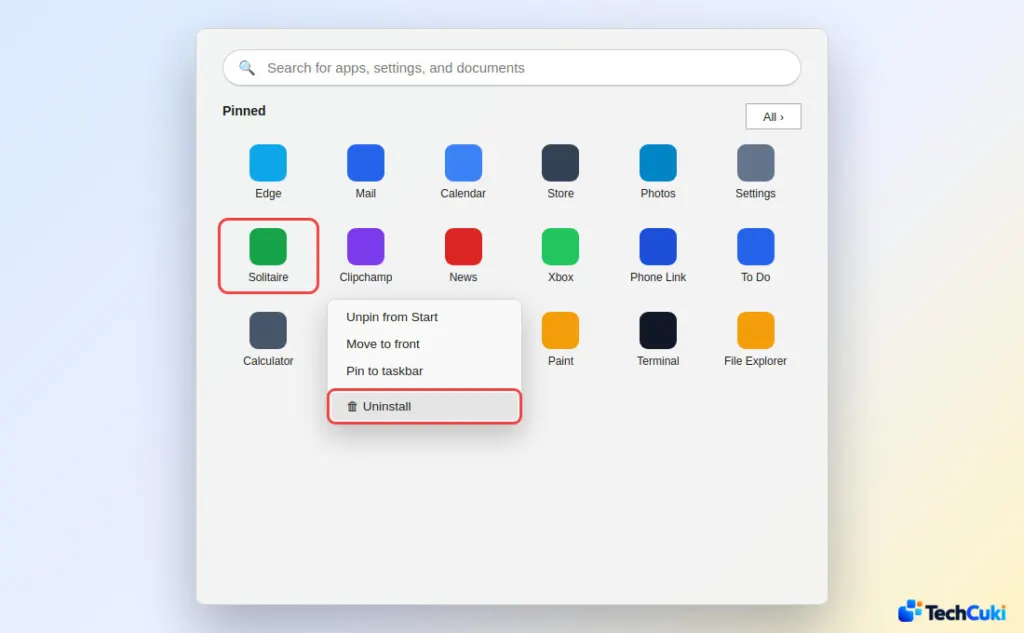
Tiles such as ESPN, Instagram and TikTok are often “quick installer” shortcuts that only download the app when clicked, so uninstalling one just removes the tile instantly. Real apps removed this way go for your user profile only, and other accounts on the PC need the same cleanup.
Remove Built-In Apps With PowerShell
Some built-in apps have no Uninstall button, and PowerShell can remove them for your account. Use it only for apps the first two methods can’t touch.
- Click Start, type
PowerShell, right-click Windows PowerShell, and select Run as administrator. - Find the package by typing
Get-AppxPackage *solitaire*and pressing Enter. Swap “solitaire” for part of the name of the app you want to remove. - Remove it with
Get-AppxPackage *solitaire* | Remove-AppxPackage.
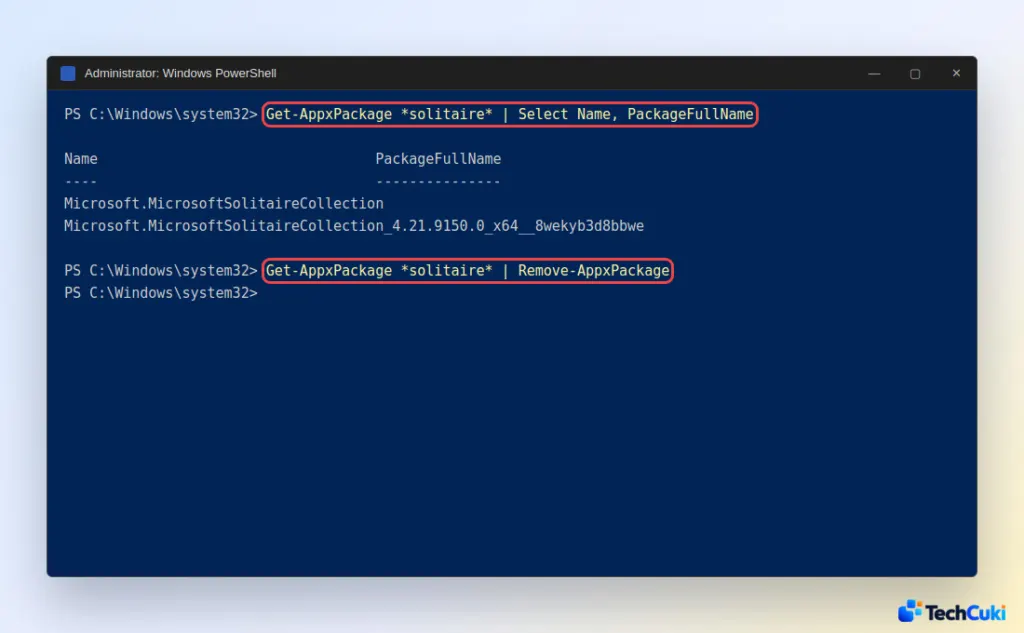
Run the first command alone and read the result before you remove anything. A name too short can match several packages, and system packages should stay. Removed Microsoft apps can be reinstalled from the Microsoft Store if you change your mind.
Which Windows 11 Apps Should You Keep?
- Microsoft Store, which you need to reinstall anything you remove
- Windows Security, which protects your PC
- Drivers and hardware utilities, such as audio, touchpad and graphics control panels
- Your PC maker’s update or support app, if you use it to get drivers
Be wary of one-click “debloat” scripts. A popular one, Win11debloat, goes well past apps: it disables telemetry and services and can remove Edge, and it removes pieces of Windows that other features may rely on. A large Windows folder is not a sign of bloat either, because a fully patched Windows 11 normally takes 35 to 45 GB, and deleting from it is not the fix.
A careful cleanup of a few unwanted apps is usually all a fresh PC needs, and the safest approach is the one that is easy to undo. If the PC still feels slow afterward, disabling startup apps in Windows 11 is the next place to look.


