
Many apps ask to know where you are, and it is not always clear why they need it or how to rein it in. Location access works in layers, so there is more than one way to turn off location on iPhone, depending on how much you want to give up. The sections below cover all apps, single apps, system services, sharing with other people and resetting everything.
Table of Contents
1. How to Turn Off Location on iPhone Completely
Switch off Location Services in Privacy & Security to block every app at once. The path is the same on recent iOS versions.
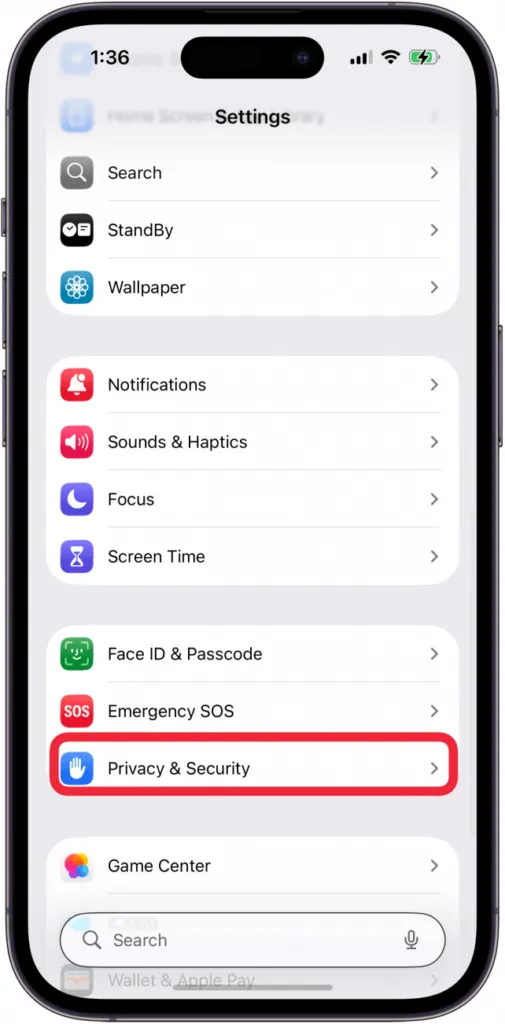
- Open the Settings app and tap Privacy & Security.
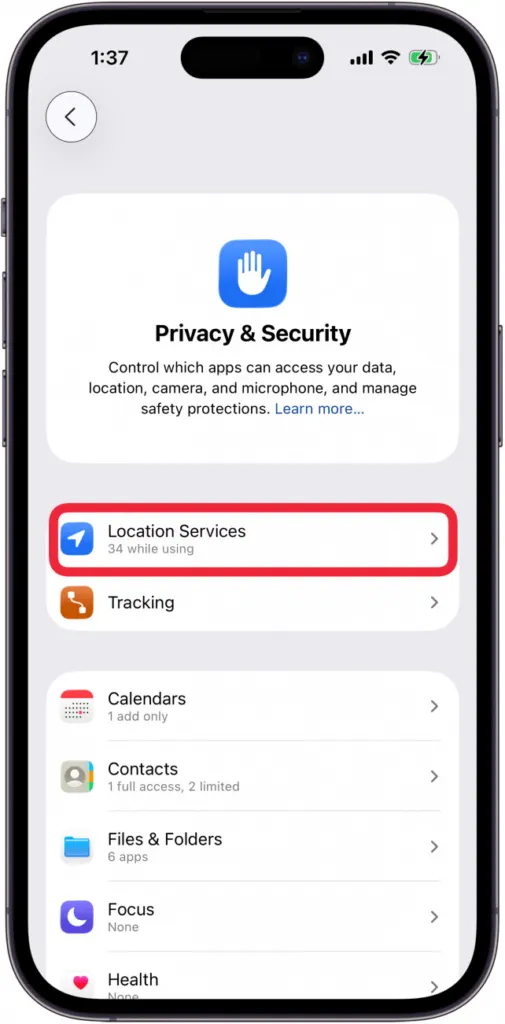
- Tap Location Services.
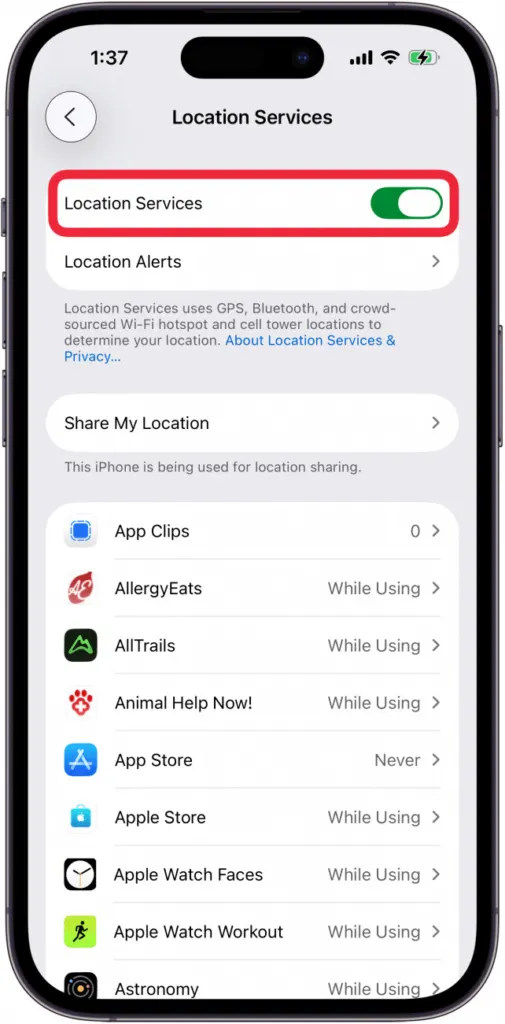
- Tap the Location Services toggle to turn it off.
- Tap Turn Off in the confirmation prompt.
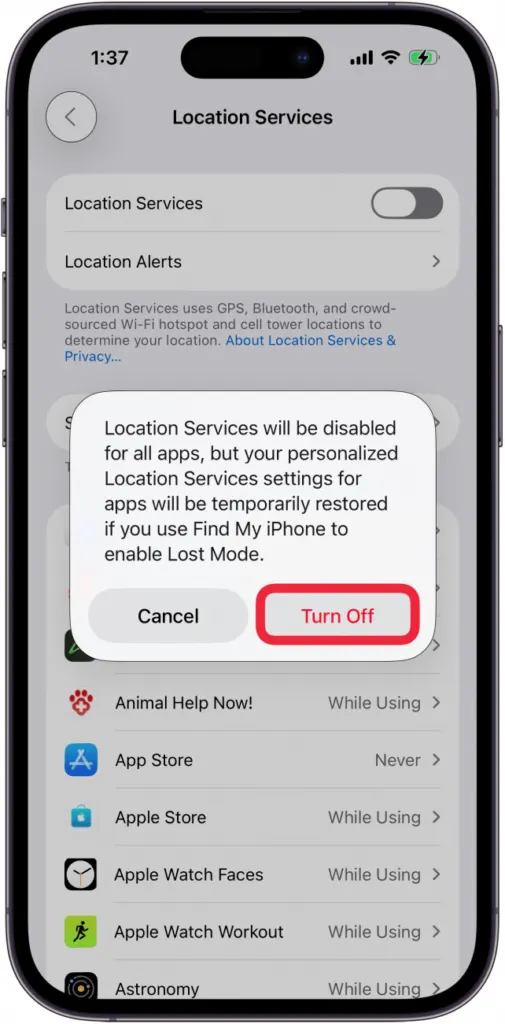
The toggle turns gray, and apps can no longer read your location in the foreground or the background. Maps, Weather and other location-based apps stop working until you turn it back on, using the same toggle.
It isn’t a full disappearance, and three exceptions are worth knowing. Your iPhone may still share its location during an emergency call to help responders. If you put a lost iPhone into Lost Mode with Find My, your personalized Location Services settings for apps are restored for that purpose. And your carrier can still estimate where you are from cell towers.
2. Turn Off Location on iPhone for Specific Apps
Keep the master switch on and tighten each app instead. This is the better choice for most people, because navigation and weather keep working while the apps that don’t need you get cut off.
- Go to Settings > Privacy & Security > Location Services, and make sure the main switch is on.
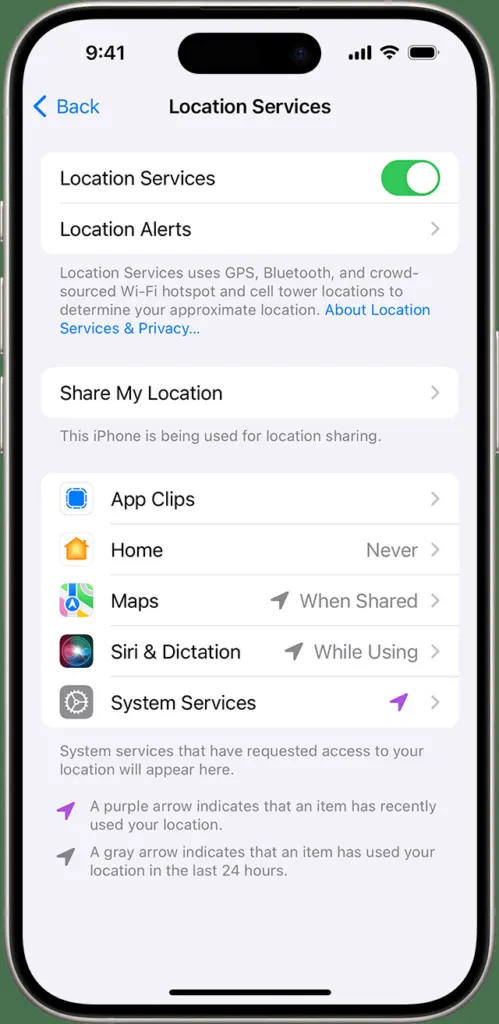
- Scroll to the app you want to change and tap it.
- Choose an access level.
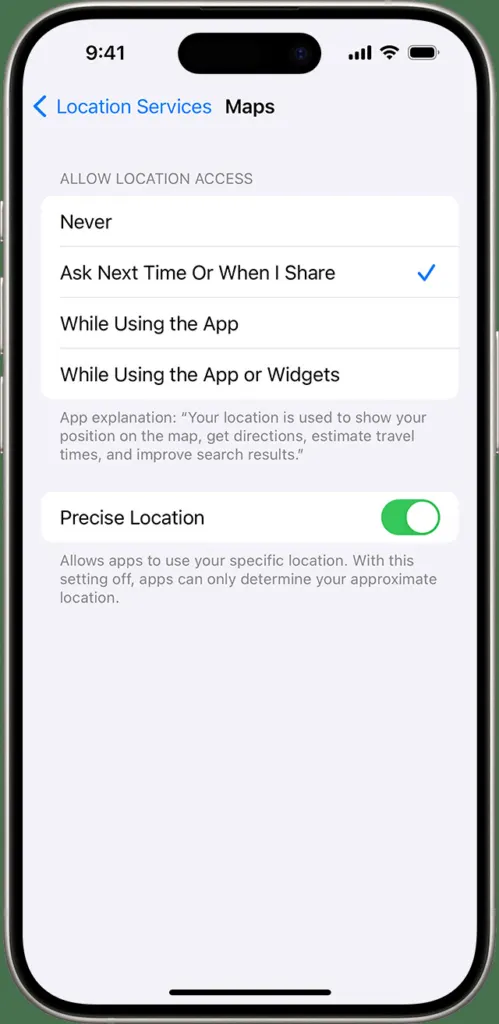
- To share only an approximate area, turn off Precise Location on the same screen. It suits an app that only needs your city, such as a weather or news app.
The levels differ in ways that matter:
- Never blocks the app completely.
- Ask Next Time Or When I Share makes the app ask each time, and you can answer Allow Once, While Using App or Don’t Allow.
- While Using the App gives access only when the app or one of its features is on screen. If it keeps using location in the background, a blue pill shows in the status bar.
- Always allows access in the background too, and appears for some apps only.
Go through the list and move anything you don’t need to a stricter level. Some apps offer only two options, because the app itself decides what to request.
Photos also store location data. To stop the Camera app from saving it, go to Location Services > Camera and choose Never. When you share a single photo, tap Options and turn off Location.
If you also want certain apps out of sight on your home screen, see our guide on how to hide apps on iPhone.
3. Turn Off System Location Services on iPhone
System Services controls Apple’s own features, such as Significant Locations and location-based suggestions. You can switch individual items off without changing any app permission.
- Go to Settings > Privacy & Security > Location Services, then scroll to the bottom and tap System Services.
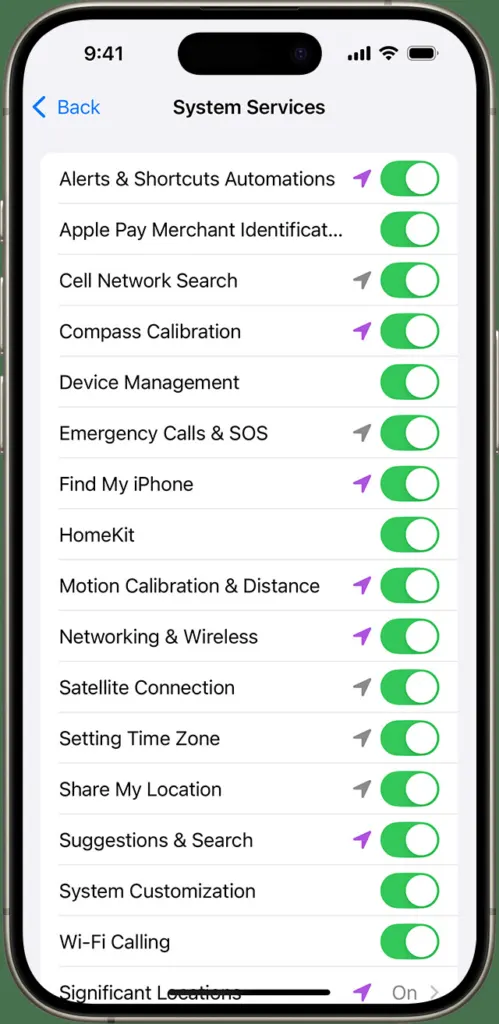
- Switch off the items you don’t need, such as Significant Locations or Suggestions & Search.
Turning off Significant Locations stops your iPhone from learning the places you visit most often. Leave on anything you rely on. Find My iPhone, for example, needs location to find your device.
4. Stop Sharing Your Location With Someone
Sharing with people is a separate setting from app permissions, so it keeps running even when apps are locked down. Pick the level that fits.
Stop Sharing With Everyone
- Open Settings, tap your name at the top, then tap Find My.
- Turn off Share My Location. This stops sharing with all friends and family, and your location stops updating for them. Turn it back on when you want to share again. Nobody gets a notification either way.
Stop Sharing With One Person
- Open the Find My app and tap People.
- Tap the person, then tap Stop Sharing My Location.
Stop Sharing in Messages
- Open the conversation with the person and tap their name at the top.
- Tap Stop Sharing My Location. It appears only if you’re currently sharing with them.
Pause Sharing Without Changing Find My
Another route is to go to Location Services, scroll to Find My and set it to Never. Switch it back to resume. The catch is that it also stops Find My from locating your own iPhone while it’s off.
If you suspect someone is tracking you, check the People tab in Find My first. Remove anyone you don’t recognize with the one-person steps, then turn off Share My Location if you want to be sure nothing else is shared.
5. Reset All Location Settings on iPhone
If your permissions have become a tangle, one reset returns them all to factory defaults. Apps then stop using location until you grant access again, so expect permission prompts the next time you open Maps and similar apps.
- Open Settings and go to General > Transfer or Reset iPhone.
- Tap Reset, then choose Reset Location & Privacy.
A good balance gives each app only the location access it truly needs. Every change can be reversed later, so there is no harm in adjusting things as your habits change.


