
A black screen that ignores every button press feels like the end of a phone, but it is often less serious than it looks. The cause is usually something simple, and most of the checks are safe to try at home. Below are 6 steps to try when your iPhone won’t turn on, with the right approach for each model and what to do if none of them works.
Table of Contents
- iPhone Won’t Turn On? Charge It for an Hour
- Force Restart a Face ID iPhone That Won’t Turn On
- Force Restart an iPhone 7
- Force Restart an iPhone 6s, SE (1st Gen) or Older
- Check Whether the iPhone Is On but the Screen Is Dark
- Update iOS in Recovery Mode If It’s Stuck on the Apple Logo
- When Nothing Brings the Phone Back
iPhone Won’t Turn On? Charge It for an Hour
A fully drained battery looks the same as a broken phone, and a drained iPhone can take several minutes before anything shows on screen. Use a wall outlet, and a cable and adapter you know work.
A frayed cable, a bent connector or a damaged adapter can each block charging even when the outlet is fine. If you have a second Apple cable and adapter, test that pair before blaming the phone.
- Plug your iPhone into a wall outlet using a working cable and power adapter.
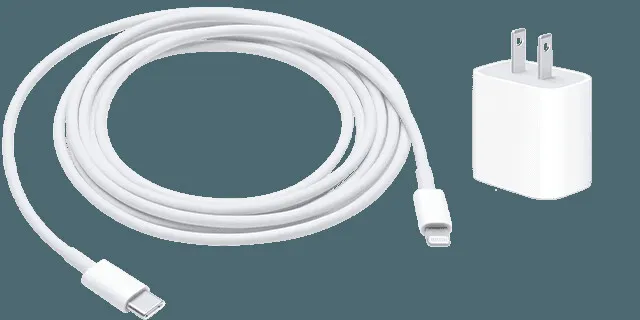
- Leave it charging for one hour, then try to turn it on.
If a low-battery icon appears, check the cable, adapter and port, then charge for 30 minutes or until the phone starts. Extreme temperatures stop an iPhone from turning on too: a phone that overheated shuts itself down and stays off until it cools, so unplug it, remove the case, set it on a cool flat surface out of the sun, and wait about 30 minutes. Never put it in a fridge or freezer. If it still shows no sign of charging, see what to do when an iPhone won’t charge.
Force Restart a Face ID iPhone That Won’t Turn On
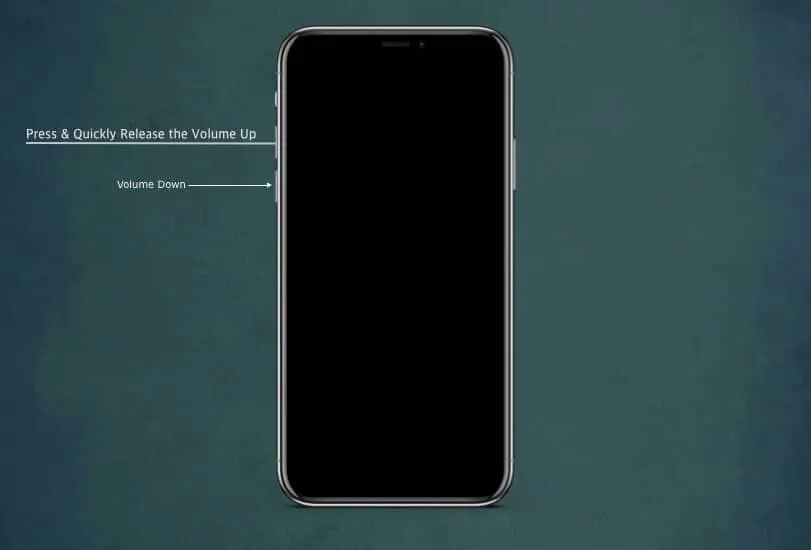
A force restart reboots a frozen phone even with a black screen, and it keeps all your content. This sequence applies to Face ID iPhones, iPhone 8 and later, and the iPhone SE (2nd generation) or newer. The volume buttons are quick press-and-release taps, one after the other, not holds. Only the side button gets the long press.
- Press and quickly release the Volume Up button.
- Press and quickly release the Volume Down button.
- Press and hold the side button until the Apple logo appears.
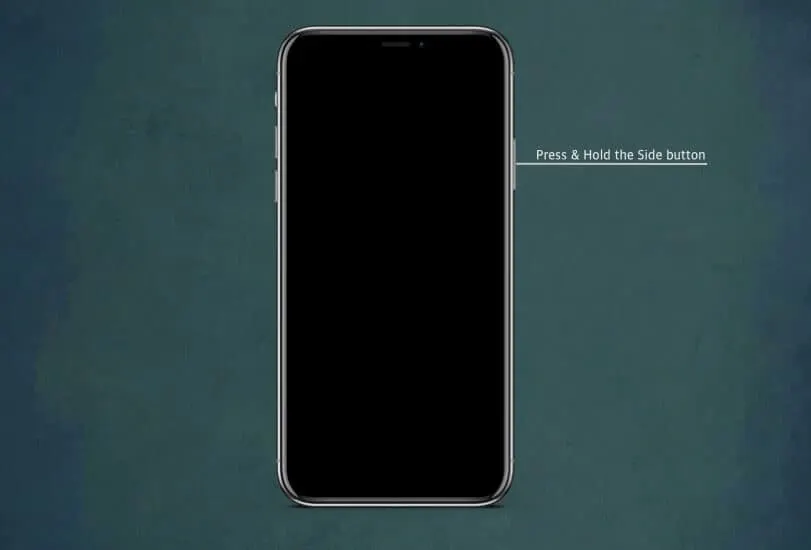
The logo can take longer than 10 seconds, so keep holding past the point where it feels wrong. If the phone gets to the logo but then keeps restarting, jump to the recovery mode section. Once it boots, install any pending update with how to update your iPhone.
Force Restart an iPhone 7
The iPhone 7 and 7 Plus use a different button pair, held together instead of tapped in sequence.
- Press and hold the volume down button and the side button at the same time.
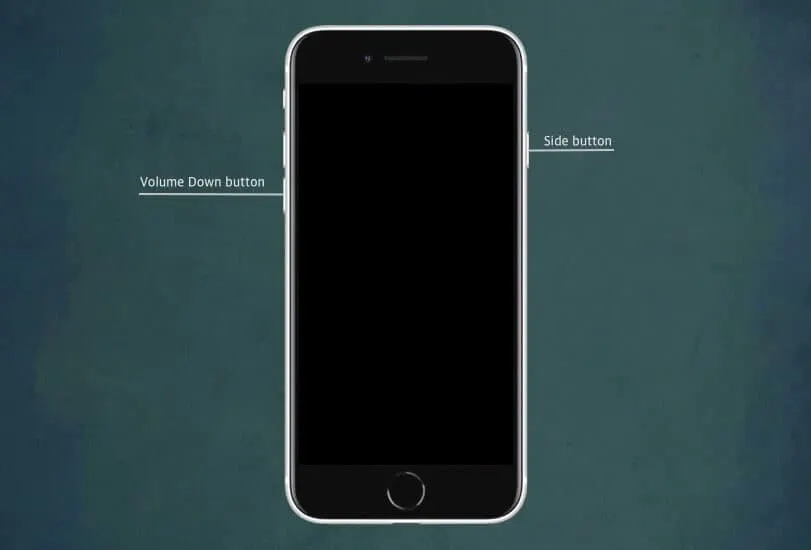
- Keep holding both until the Apple logo appears.
Force Restart an iPhone 6s, SE (1st Gen) or Older
The Home button is part of the sequence on these models. The iPhone SE (1st generation) uses its top button where the others use the side button.
- Press and hold the Home button and the side button (or the top button on an SE 1st generation) together.
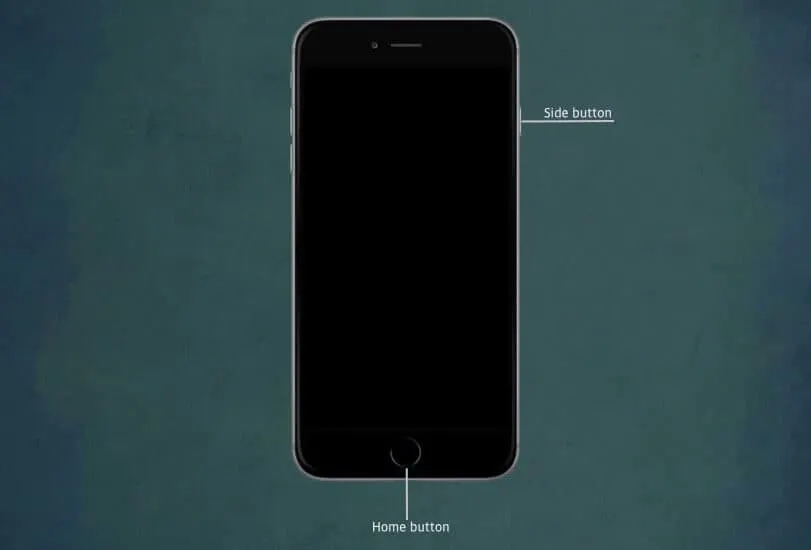
- Keep holding both until the Apple logo appears, which usually takes about 10 seconds.
Check Whether the iPhone Is On but the Screen Is Dark
Sometimes the phone is running and only the display has failed, and a one-minute check tells you which it is.
- Ask someone to call your iPhone from another phone.
- Listen for the ringtone and feel for vibrations, even though the screen stays dark.
- If you hear or feel anything, the phone is running and the display is the problem. A display fault needs service, so contact Apple Support.
Update iOS in Recovery Mode If It’s Stuck on the Apple Logo
If the Apple logo appears, restarts over and over, or never goes away, recovery mode can reinstall iOS. The Update option keeps your data, so choose it before anything else.
- Connect the iPhone to a computer with a cable. On a Mac, open Finder. On Windows, open the Apple Devices app, or iTunes on older versions of Windows.
- Put the iPhone in recovery mode. Use the force restart sequence for your model above, but keep holding the final button (or buttons) past the Apple logo until the screen with a cable pointing to a computer appears.
- When the computer offers the choice, select Update. This reinstalls iOS without erasing your data.
Keep the iPhone connected for the whole process, and disconnect only after the computer finishes. Choose Restore only if Update fails, because Restore erases the iPhone and you will need a backup to get your data back.
When Nothing Brings the Phone Back
A phone that stays black after a full hour of charging, a force restart and a different cable and adapter usually has a hardware fault, such as a failed battery, a damaged charging port, or liquid or drop damage. That needs service rather than another reset, so contact Apple Support.
Many phones come back with simple steps that cost nothing and leave your data alone. If the phone stays dark, Apple Support can take a closer look, and a backup once it boots is wise.


