
A phone that does not charge when plugged in is stressful, especially when you rely on it all day. The cause is often small and easy to check, and it is usually not the phone itself. Below you’ll find the common reasons your iPhone won’t charge, 5 fixes to try, and when it is time to get it looked at.
Table of Contents
Check the outlet and cable when your iPhone won’t charge
A wall outlet is the most dependable power source, so test there before blaming the phone.
- Plug the iPhone into a wall outlet with its own cable and USB power adapter. A computer can charge it too, but it is less reliable.
- Inspect the cable and adapter for breaks, fraying or bent prongs, especially where the cable meets its plug, where wear shows first. Stop using anything damaged.
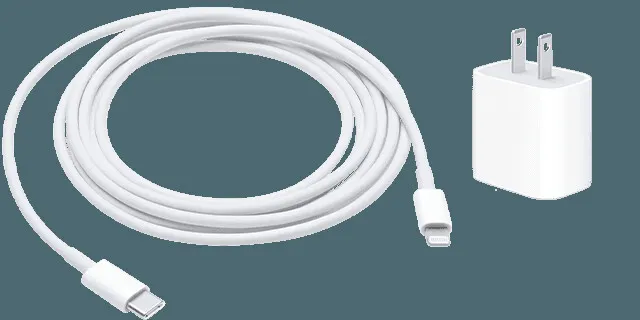
- Make sure both ends are fully seated. If nothing happens, try a different outlet and watch the lock screen for the charging icon.
An Accessory not supported alert means the cable or adapter isn’t certified, so swap it for an Apple or MFi-certified one. For wireless or MagSafe charging, remove any thick case or metal object and center the phone on the charger. Trying a regular cable as well shows whether the wireless setup is the problem. If the phone charges wirelessly but not by cable, suspect the port or cable. If neither works, the cause is more likely the battery or software.
Clean lint out of the charging port
Pocket lint packs into the port over time and stops the cable from seating fully, which is why some phones charge only when the cable is held at an angle.
- Turn off the iPhone, then shine a flashlight into the port at the bottom edge to look for lint or debris.
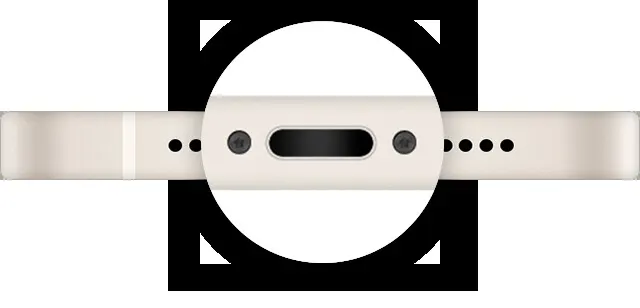
- Gently remove it with a wooden toothpick or a soft, dry brush. Avoid metal objects and liquids, and don’t blow compressed air deep into the port.
- Plug the cable in firmly and charge for about 30 minutes.
A Liquid detected alert means you should unplug the cable and let the port dry completely before charging again.
Restart the iPhone
A restart clears temporary glitches and erases nothing.
- Open Settings, tap General, scroll to the bottom and tap Shut Down.
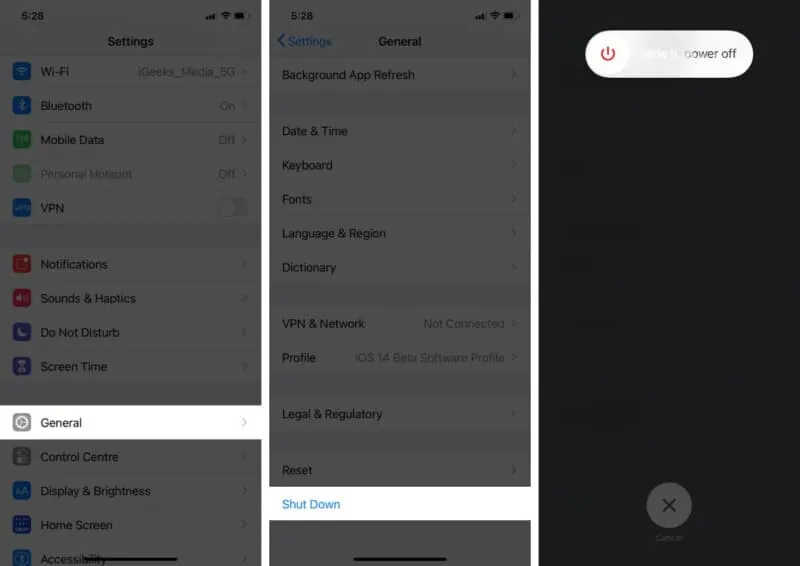
- Drag the slider to turn the phone off, then hold the side button until the Apple logo appears.
- Plug in the iPhone and check whether it starts charging.
Force restart an iPhone that won’t charge or turn on
If the screen stays dark or shows only a battery icon, a force restart can wake a frozen phone that a normal restart can’t. The buttons depend on the model.
- On an iPhone 8 or later, or an iPhone SE (2nd generation) or newer, press and quickly release volume up.
- Press and quickly release volume down.
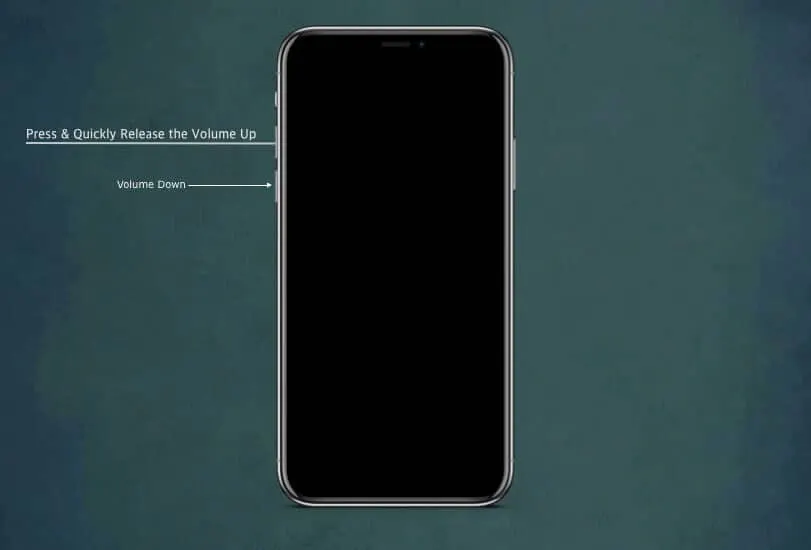
- Press and hold the side button until the Apple logo appears.
- Leave it charging for another 30 minutes.
On an iPhone 7, hold the side button and volume down together until the logo appears. On an iPhone 6s or earlier, hold the side button and the Home button instead.
Update iOS
A software bug can stop the phone from recognizing a charger, so check for an update before assuming hardware failure.
- Open Settings, tap General, then tap Software Update.
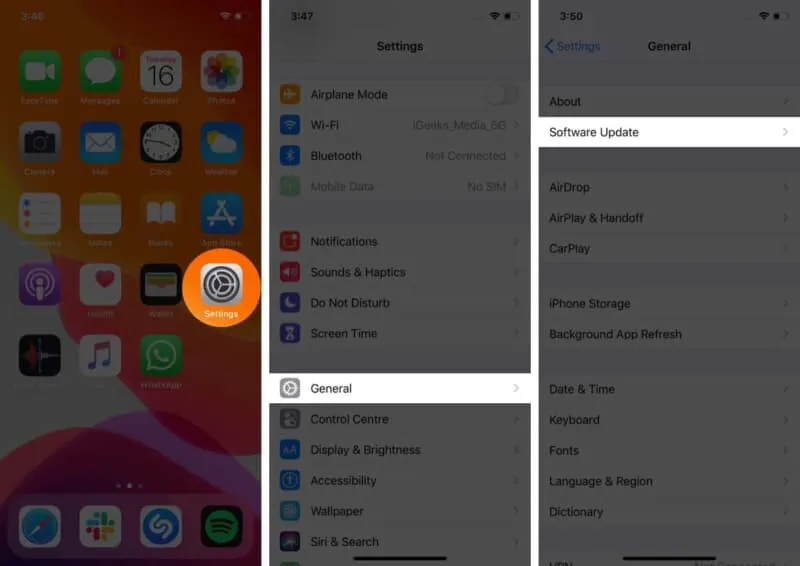
- If an update is listed, tap Download and Install. For the full steps, see our guide on how to update an iPhone.
iPhone won’t charge though it’s plugged in? Check these alerts
Sometimes the phone shows it is connected but the battery level doesn’t move. What it displays points to the cause.
Charging stopped at 80 percent
This is usually a setting, not a fault. Optimized Battery Charging holds the phone at 80 percent and finishes later, but only when the iPhone predicts it will stay plugged in for a long time. Heat can also cap charging above 80 percent, and the phone resumes once it cools, so move it somewhere cooler. On iPhone 15 and later, check Settings > Battery > Charging for a Charge Limit set below 100 percent.
“Accessory May Not Be Supported” alert
The alert appears when the port is dirty or damaged, the accessory is defective, or the USB charger isn’t designed to charge devices.
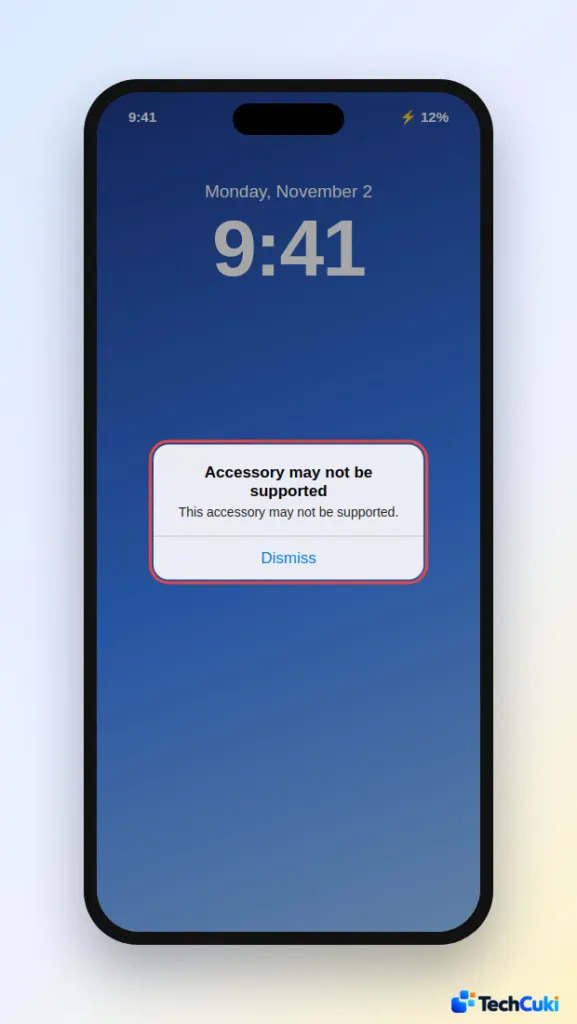
- Plug the cable straight into the charger, with no adapters, hubs or extension cables in between.
- Clean the port as described above.
- Restart the iPhone.
- Try a different cable and USB power adapter, ideally certified ones.
- Make sure the iPhone is on the latest iOS.
With a Liquid Detected alert, let the port dry before charging. Don’t use heat or put the phone in rice.
Check whether the battery is worn out
Go to Settings > Battery > Battery Health & Charging. A Service message, a low maximum capacity or sudden shutdowns mean the battery is wearing out and may need replacing.
Most charging problems turn out to be minor, and a few careful checks can save you a repair bill. If the phone stays dark even after plenty of charging, our iPhone won’t turn on guide is the next place to look, and Apple service can test the rest.


