
A paper form needs to become a file, and the scanner on your desk is nowhere near. Your iPhone can handle it without anything extra, and the results depend mostly on lighting, the surface and the way you save the pages. The steps ahead explain how to scan a document on iPhone, plus the options for editing, signing and sending the result.
Table of Contents
Notes or Files: Which Scanner to Use
Use Notes when you want the pages kept inside a note next to your other text, and you can add more scans to that note later. Use Files when you want a PDF that you can rename, move and attach straight away. The steps are nearly identical.
1. Scan a Document on iPhone With Notes
The steps below match iOS 26 and later. On iOS 17 and earlier, the menu is the Camera button instead of the paperclip.
- Open Notes and pick a note, or start a new one.
- Tap the Attachment button (the paperclip icon), then tap Scan Documents. In a note that’s already open, you can also use More > Scan.
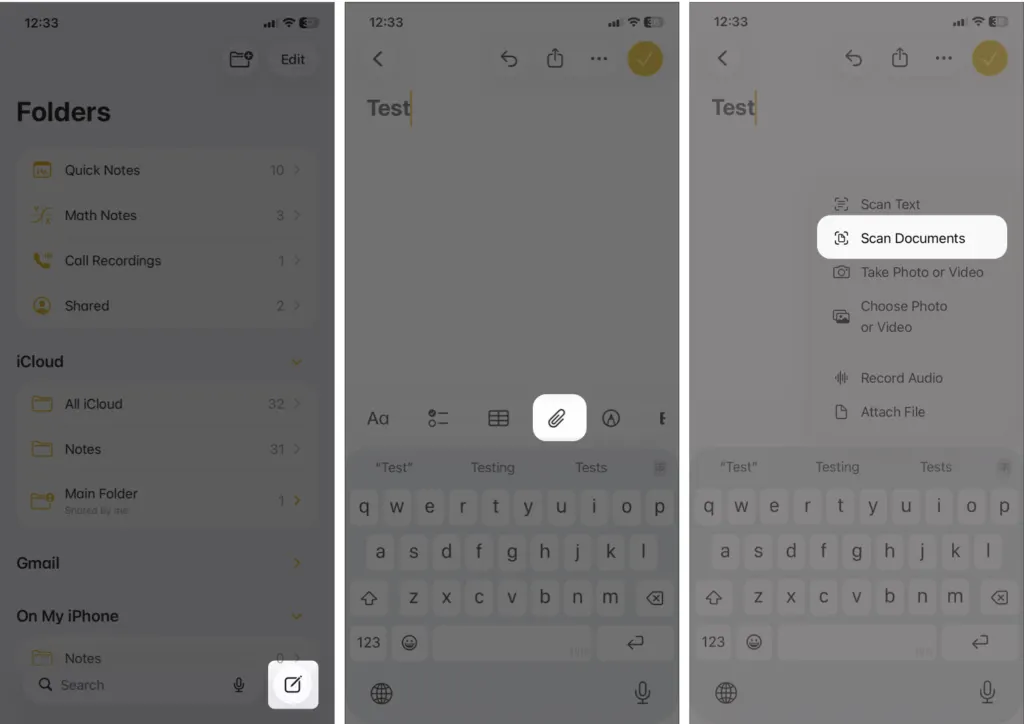
- Lay the page flat in good light and point the camera at it. Flash and image filters are in the options at the bottom of the screen if you want them.
- Auto mode takes the shot once you hold steady. In any other mode, tap the Shutter button or press a Volume button.
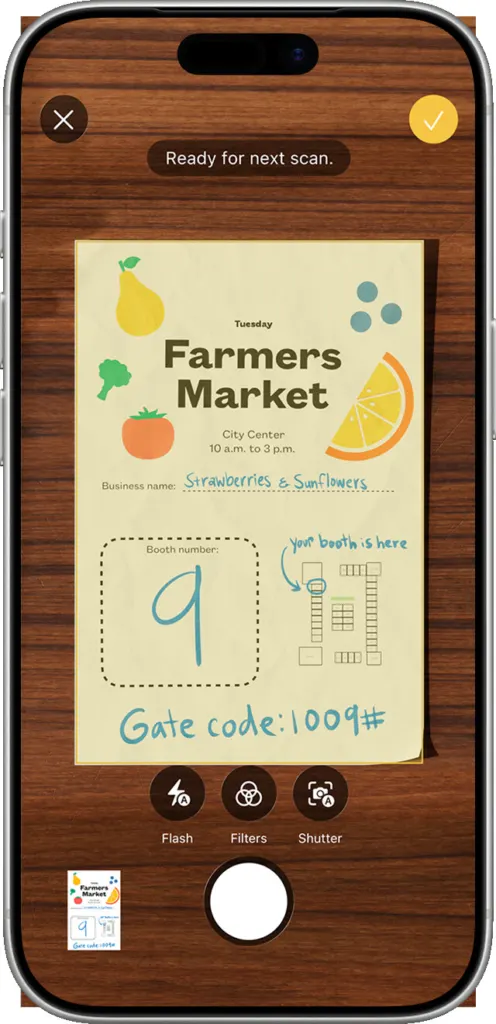
- Drag the corner handles until they sit on the page edges, then tap Keep Scan.
- Tap Done, or scan another page into the same document first.

The scan now sits in the note as an attachment, and tapping it opens the pages. A filter that turns out too harsh isn’t permanent: each page can be recropped from the original photo and switched between color, black and white, grayscale, or the unedited original.
2. Scan a Document on iPhone Straight to PDF in Files
Files skips the note and saves a PDF to the location you pick, which makes it the shorter path when the goal is a file to send.
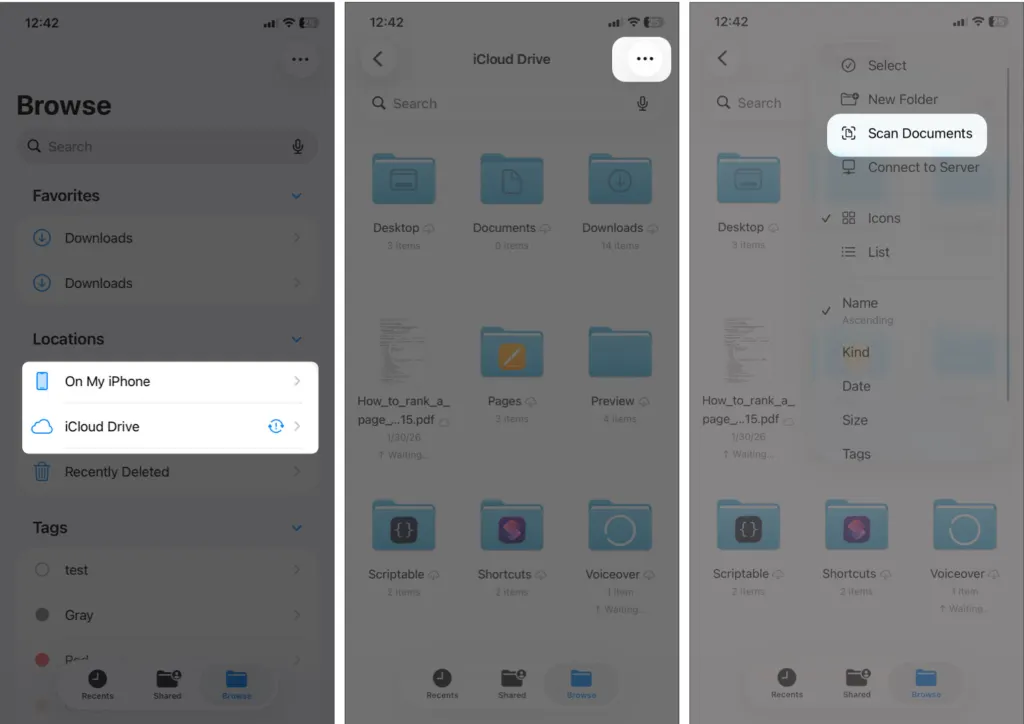
- Open the Files app, then go to Browse and open a location such as On My iPhone or iCloud Drive.
- Tap the More button (the three dots), then tap Scan Documents.
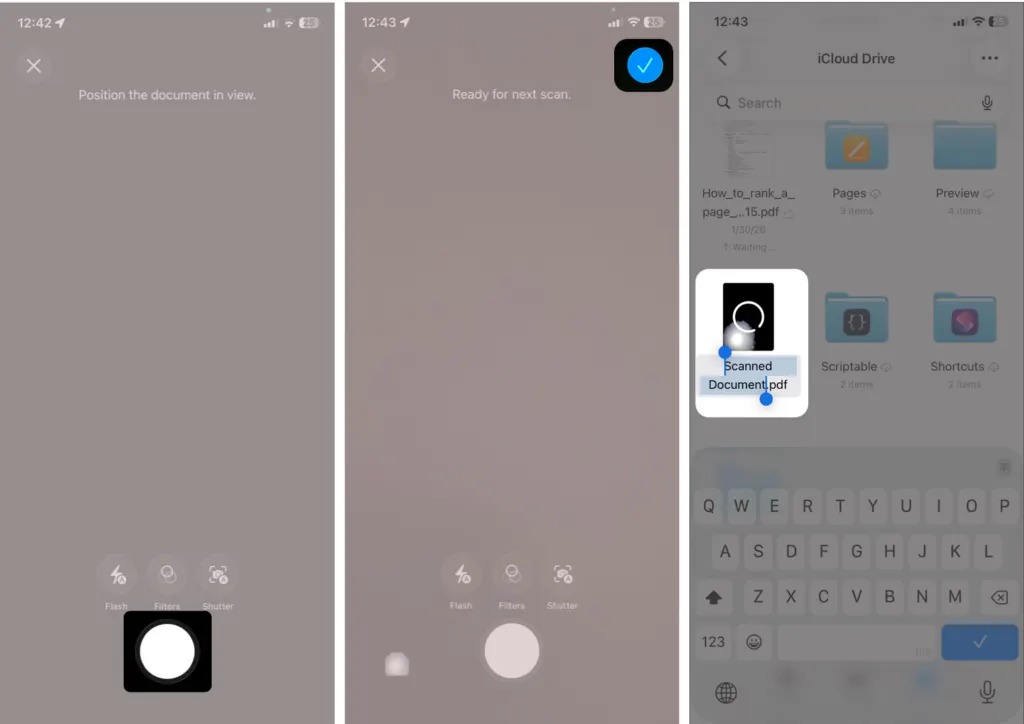
- Aim the camera at the page. The flash and filter options work the same as in Notes.
- Wait for Auto mode to grab the page, or press Shutter or a Volume button yourself.
- Adjust the corner handles, tap Keep Scan, and either add more pages or tap Done.
- Pick where the file should live and tap Save. The new file is named “Scanned Document” by default, so rename it to something you’ll recognize first.
To find it later, open Files and go back to the location you chose. It’s a regular PDF there, so it can be shared or moved like any other file. Keep adding pages before you tap Save if the form has several, so it ends up as one PDF.
Edit and Sign a Scanned Document
Notes can rotate, crop and filter each page and has Markup for signing, so a crooked page doesn’t need a second scan.
Edit the Pages
- Open the note, then tap the scan.
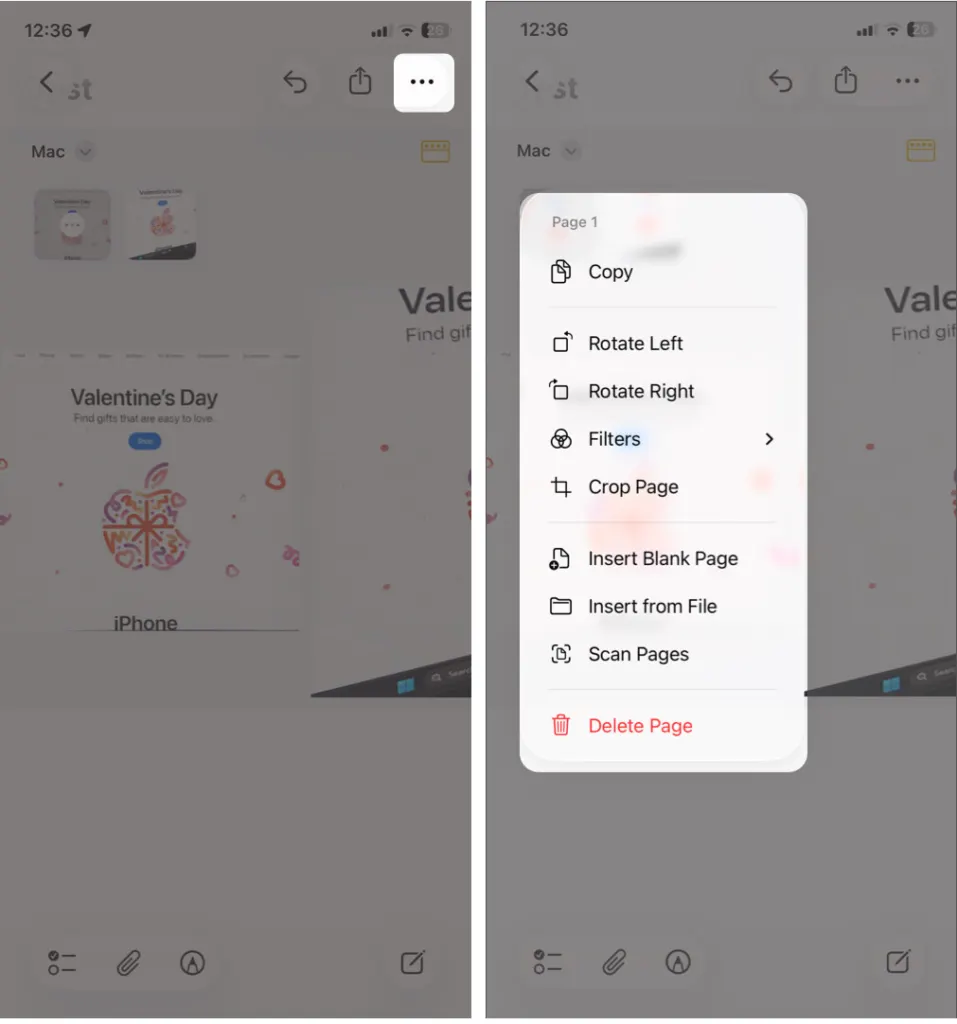
- Tap the More button to see page options such as Rotate Left, Rotate Right, Filters, Crop Page, Insert Blank Page, Scan Pages and Delete Page.
Sign the Scan
- Open the scan in Notes and tap the Markup button.
- Choose Add, then Signature.
- Choose a saved signature or draw a new one, then size the box and drag it onto the signature line.
- Tap Done.
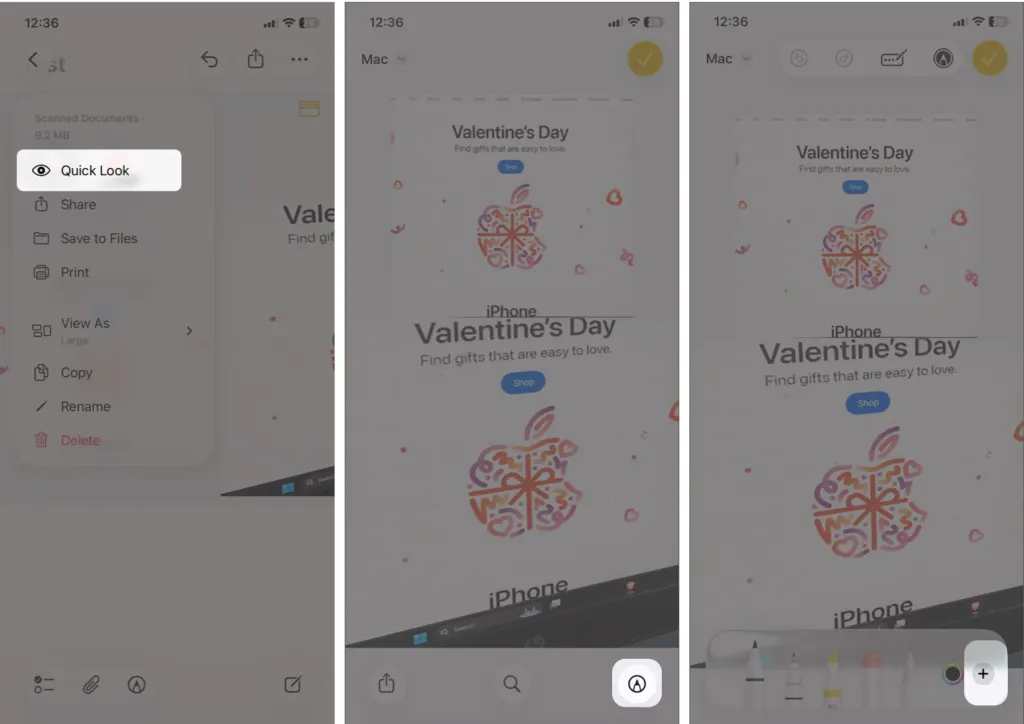
You can also sign by drawing on the page with your finger using one of the markup tools.
Email a Scanned Document From iPhone
Sharing works from either app, and Mail attaches the file for you.
- Open the finished scan, whether it’s in a note or in Files.
- Tap the Share button, then tap Mail.
- Address the message and send it.
To move it to a Mac, AirDrop works too. Our guide on fixing AirDrop when it won’t connect covers what to check if the transfer stalls.
A clean scan saves a trip to the printer shop and keeps important paperwork easy to find later. For everyday forms the phone does the job well, and only unusual needs call for something more specialized.


