
A file that will not send or a device that never appears can ruin a quick transfer between Apple devices, and the Everyone for 10 Minutes option is one reason AirDrop not working is so common. The cause is usually a setting, a connection or something about the other device. The fixes below cover iPhone, iPad and Mac.
Table of Contents
1. Toggle Wi-Fi and Bluetooth
AirDrop uses Bluetooth to find the other device and Wi-Fi to send the file, so both must be on, even if Wi-Fi isn’t joined to a network.
- Move both devices within about 30 feet of each other, and keep both awake and unlocked.
- Swipe down from the top-right corner of your iPhone to open Control Center.
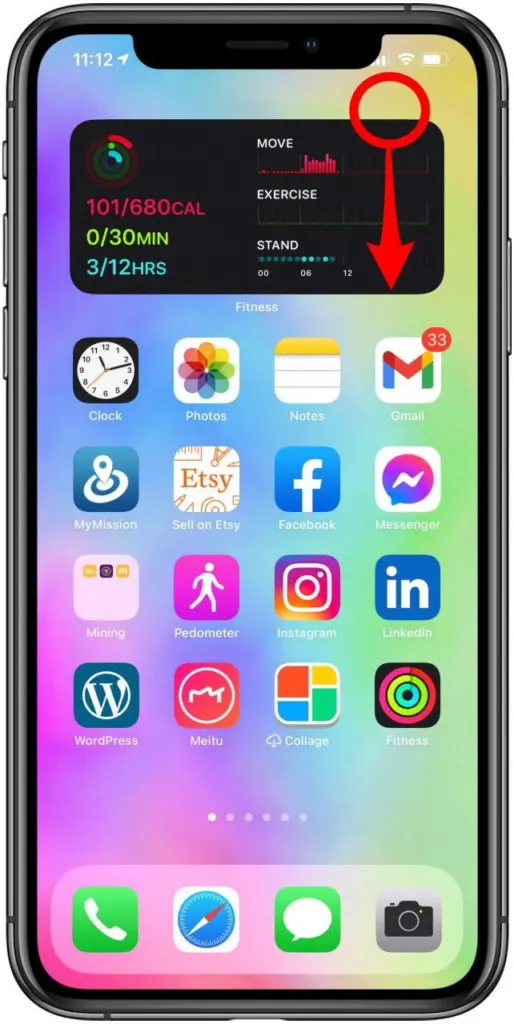
- Tap the Wi-Fi and Bluetooth buttons to turn both off.
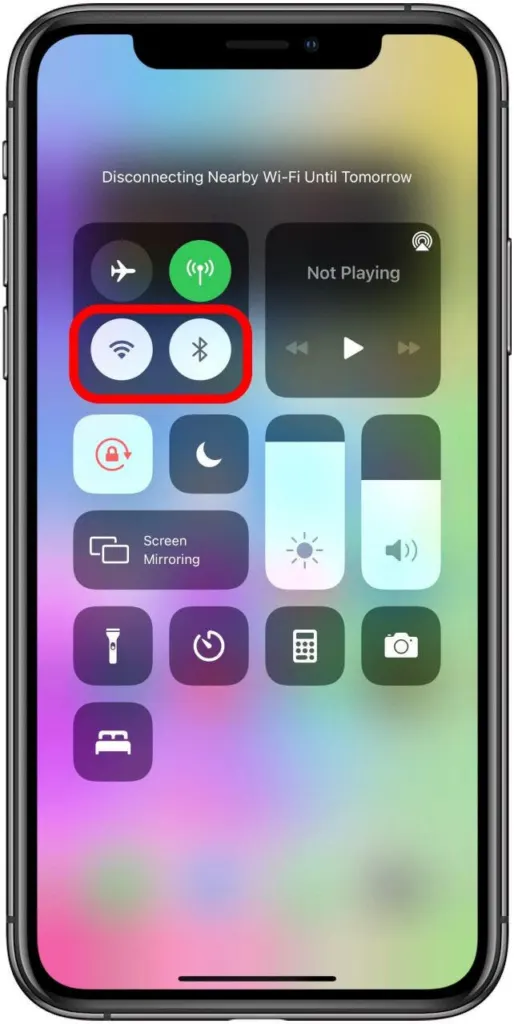
- Wait a few seconds, then tap both buttons again to turn them back on.
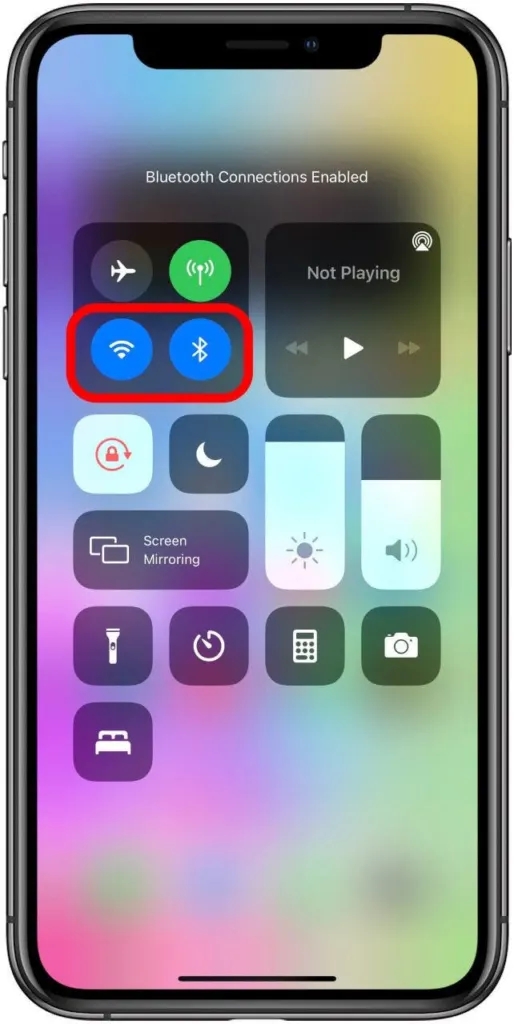
- Try the transfer again.
A transfer that has already started can keep going over the internet on iOS 18 if you move apart, but discovery still needs the devices close together.
2. Change the AirDrop Receiving Setting
If receiving is set to Receiving Off, nobody can send you anything. Use Everyone for 10 Minutes for a one-off transfer and Contacts Only for people you share with regularly.
- Open Settings and tap General.
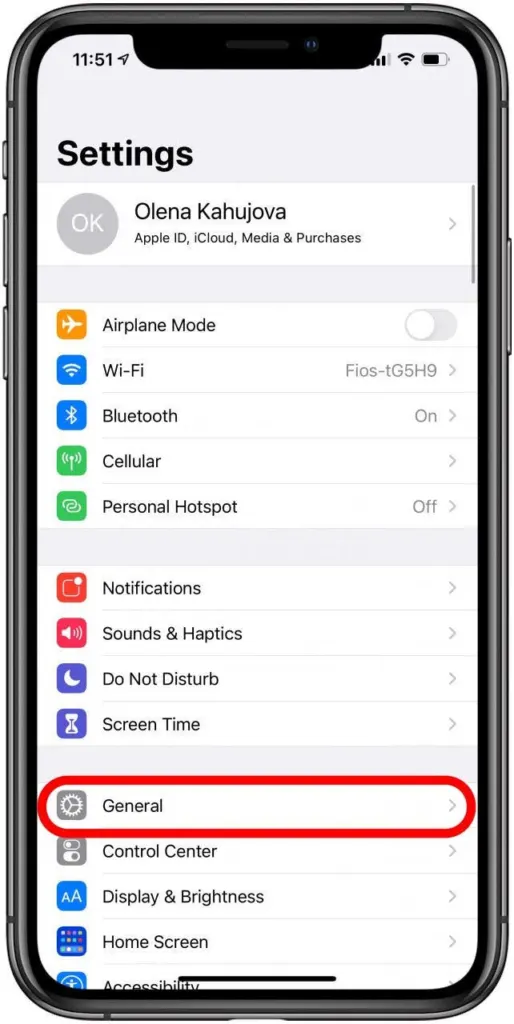
- Tap AirDrop.
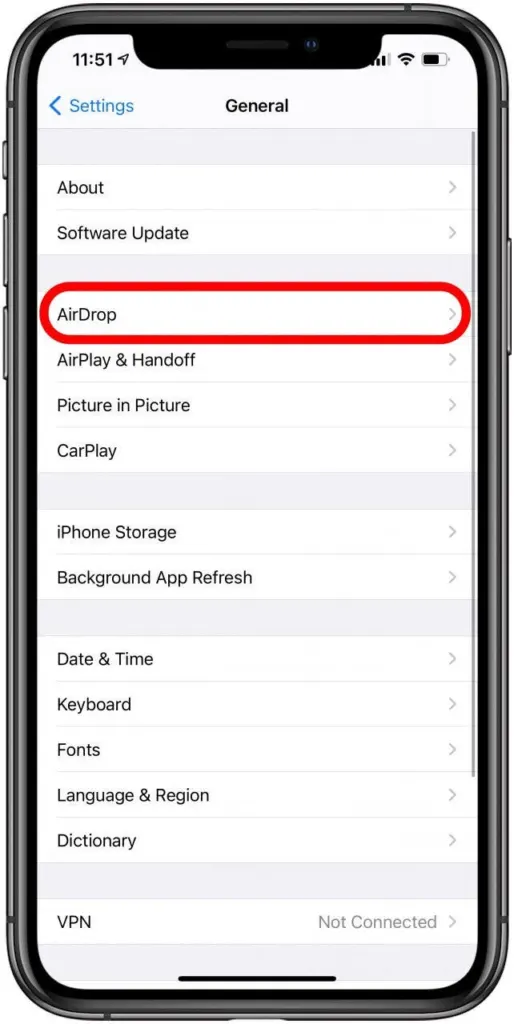
- Under Receiving, choose Everyone for 10 Minutes. Older iOS versions label it simply Everyone.
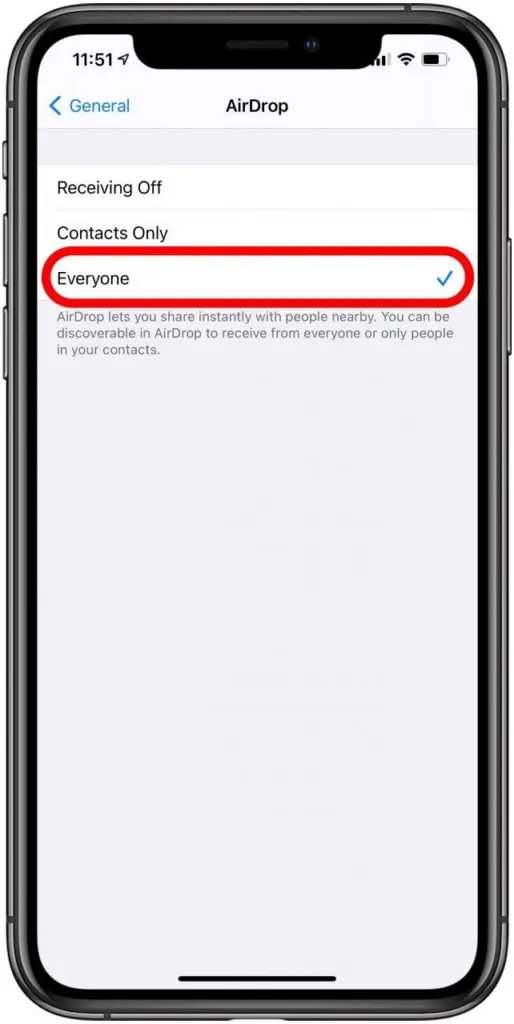
- Ask the sender to send while the 10-minute window is still open.
Contacts Only works only when each person’s Apple Account email address or phone number is saved in the other’s Contacts and you are both signed in to your Apple Account. When that’s missing, Everyone for 10 Minutes is the quick workaround, and it is best used somewhere private. If the sender can’t recognize your device in the list, rename your iPhone to something obvious.
3. Turn Off Personal Hotspot
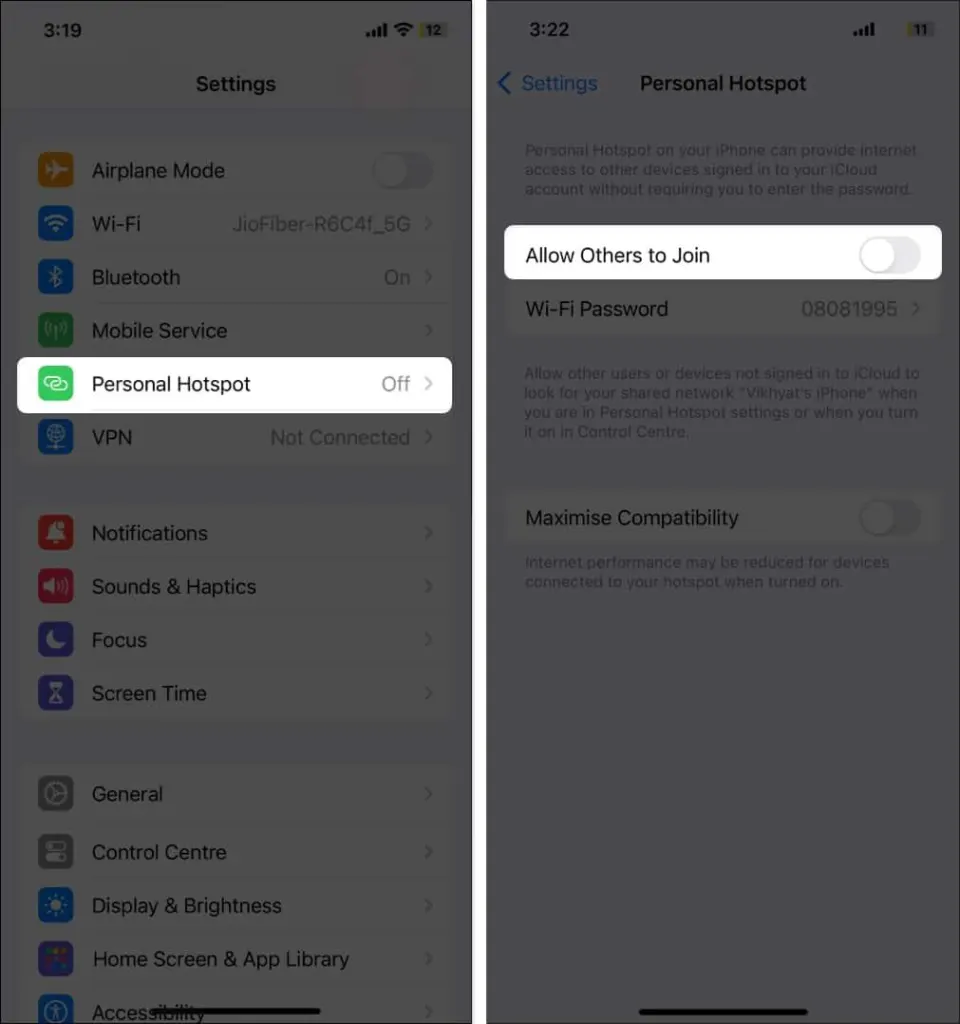
AirDrop doesn’t work while Personal Hotspot is in use, so switch sharing off on both phones.
- Open Settings and tap Personal Hotspot.
- Turn off Allow Others to Join.
4. Check Screen Time Restrictions
A Screen Time restriction blocks AirDrop completely until it is allowed, which is the usual reason the AirDrop option is missing or greyed out on a child’s or work iPhone.
- Open Settings and tap Screen Time.
- Tap Content & Privacy Restrictions.
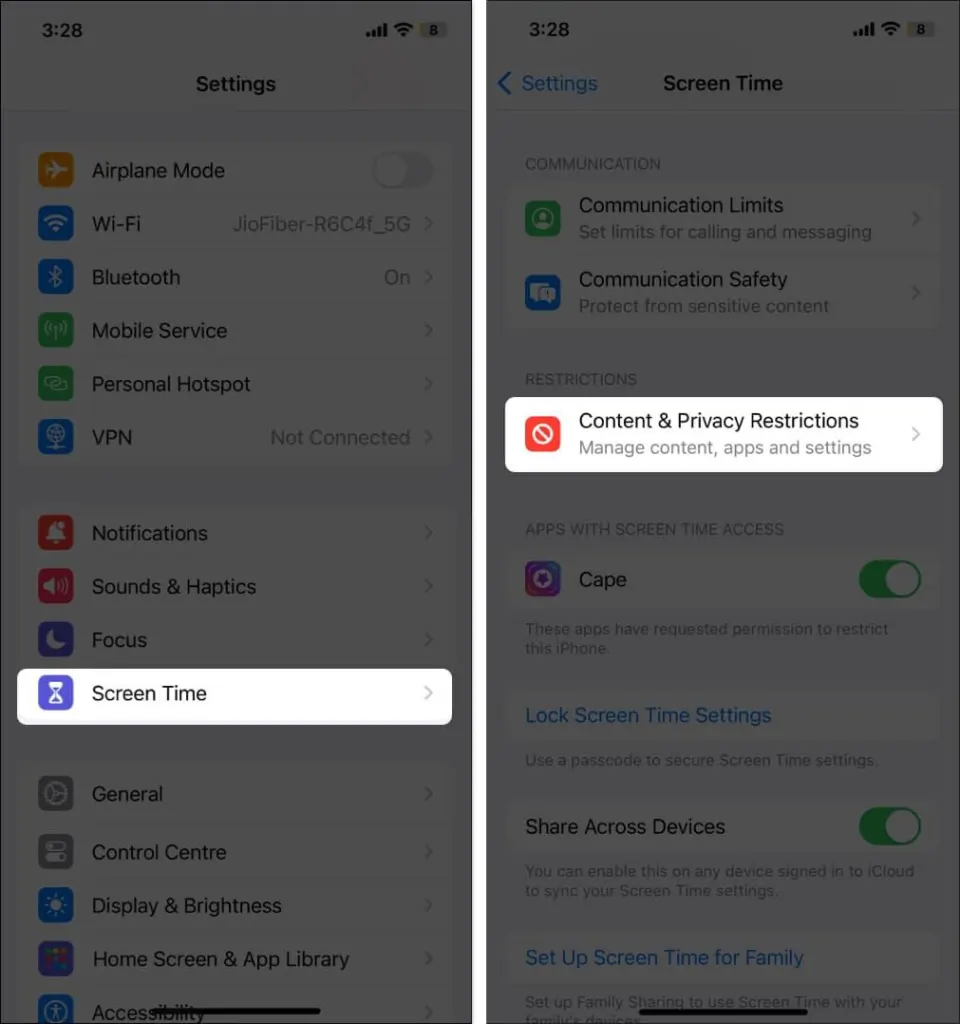
- Tap Allowed Apps & Features and make sure AirDrop is turned on.
5. Turn Off Airplane Mode and VPN
Airplane Mode switches off the Wi-Fi and Bluetooth that AirDrop depends on. A VPN can also get in the way, so allow local networking in the VPN app if it has that option, or disconnect it for the transfer.
- Open Control Center and make sure Airplane Mode is off.
- Open Settings and turn off any active VPN connection.
6. Restart Both Devices and Update the Software
A restart clears a stuck wireless service, and a pending update may include the fix for a known AirDrop bug.
- Restart your iPhone, iPad or Mac, then restart the other device.
- On an iPhone or iPad, open Settings, tap General, then Software Update, and install any pending update. On a Mac, use System Settings > General > Software Update.
If you need help with the update itself, see how to update your iPhone. If a transfer still sits on Waiting afterward, the receiver may be holding a prompt it hasn’t accepted, so keep its screen on and watch for it.
7. Fix AirDrop Not Working on Your Mac
On a Mac, the discovery setting and the firewall are the two usual culprits.
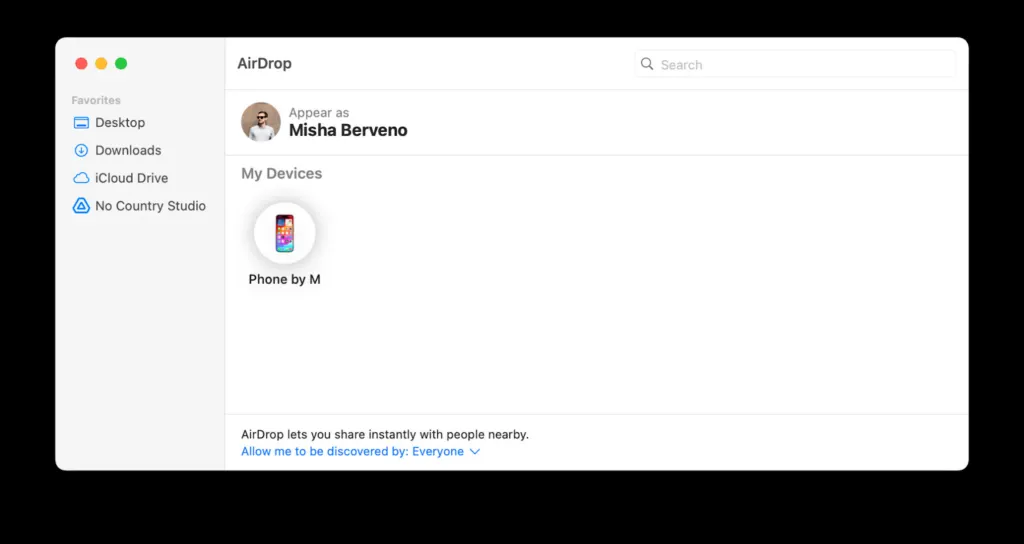
- Open a Finder window and click AirDrop in the sidebar, or press
Shift + Command + R. - Next to Allow me to be discovered by, choose Contacts Only or Everyone.
- On recent macOS versions, also check System Settings > General > AirDrop & Handoff.
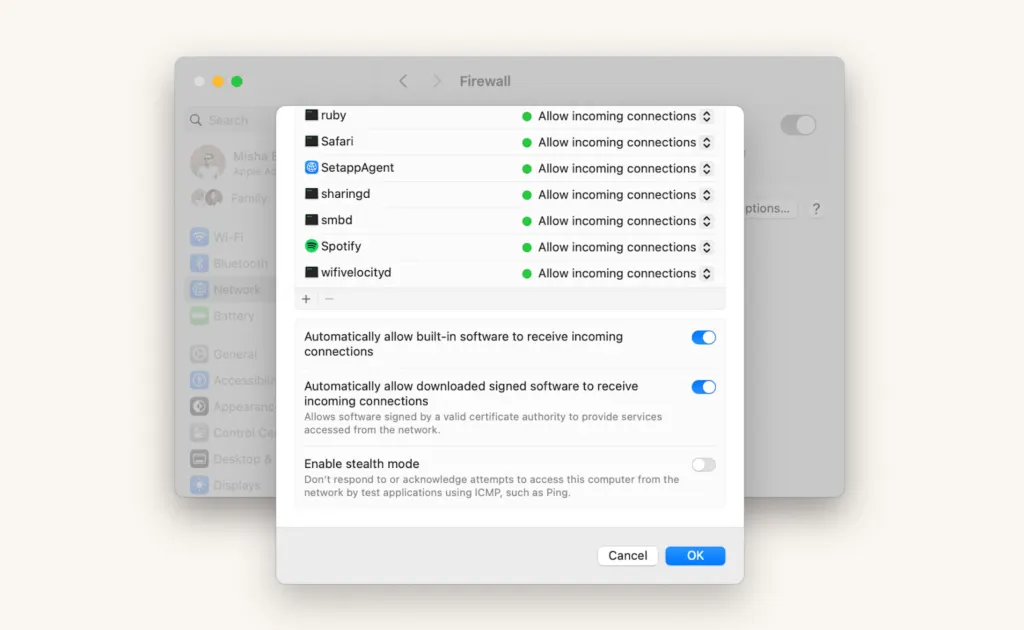
- Open System Settings > Network > Firewall > Options and turn off Block all incoming connections. Turn it back on after the transfer.
8. Reset Network Settings as a Last Resort
This clears Wi-Fi, Bluetooth and VPN configuration that may be blocking discovery, but it also erases saved Wi-Fi passwords, so write them down first.
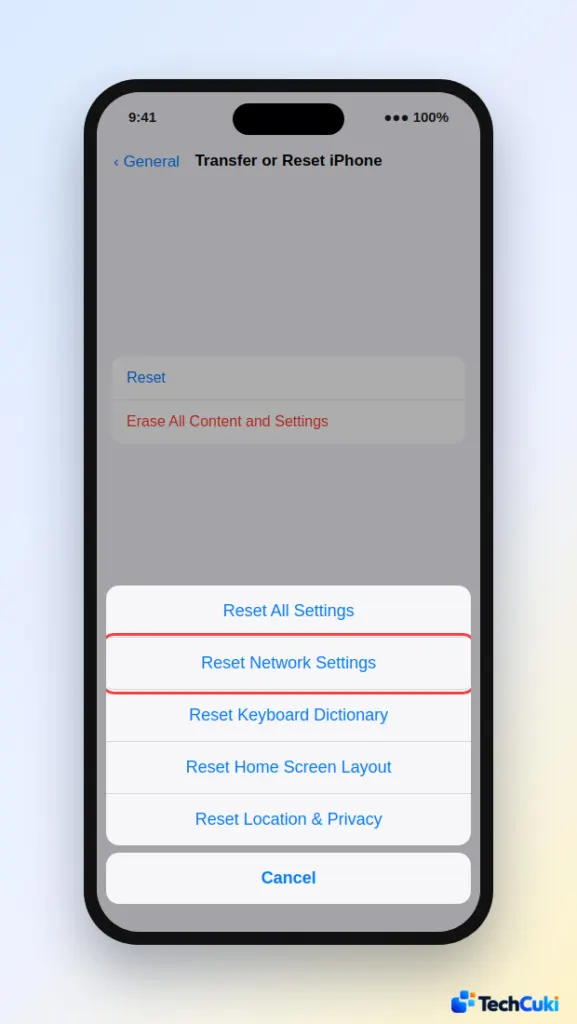
- Open Settings, tap General, then tap Transfer or Reset iPhone.
- Tap Reset, then tap Reset Network Settings. Our guide to resetting network settings on iPhone lists what it erases.
Most sharing problems come down to a handful of simple causes, and checking them in order saves time. AirDrop only works between Apple devices, and it is wise to restore your privacy preferences once you are done.


