
A browsing history that keeps growing can feel clunky, or just a little too revealing if someone else borrows your phone. The place to look has shifted between iOS versions, and different browsers keep their own separate records. The sections below show how to clear history on iPhone in more than one browser, with options for removing everything or only a little.
Table of Contents
How to Clear History on iPhone From Safari Settings
Go to Settings > Apps > Safari, tap Clear History and Website Data, pick a timeframe and confirm.
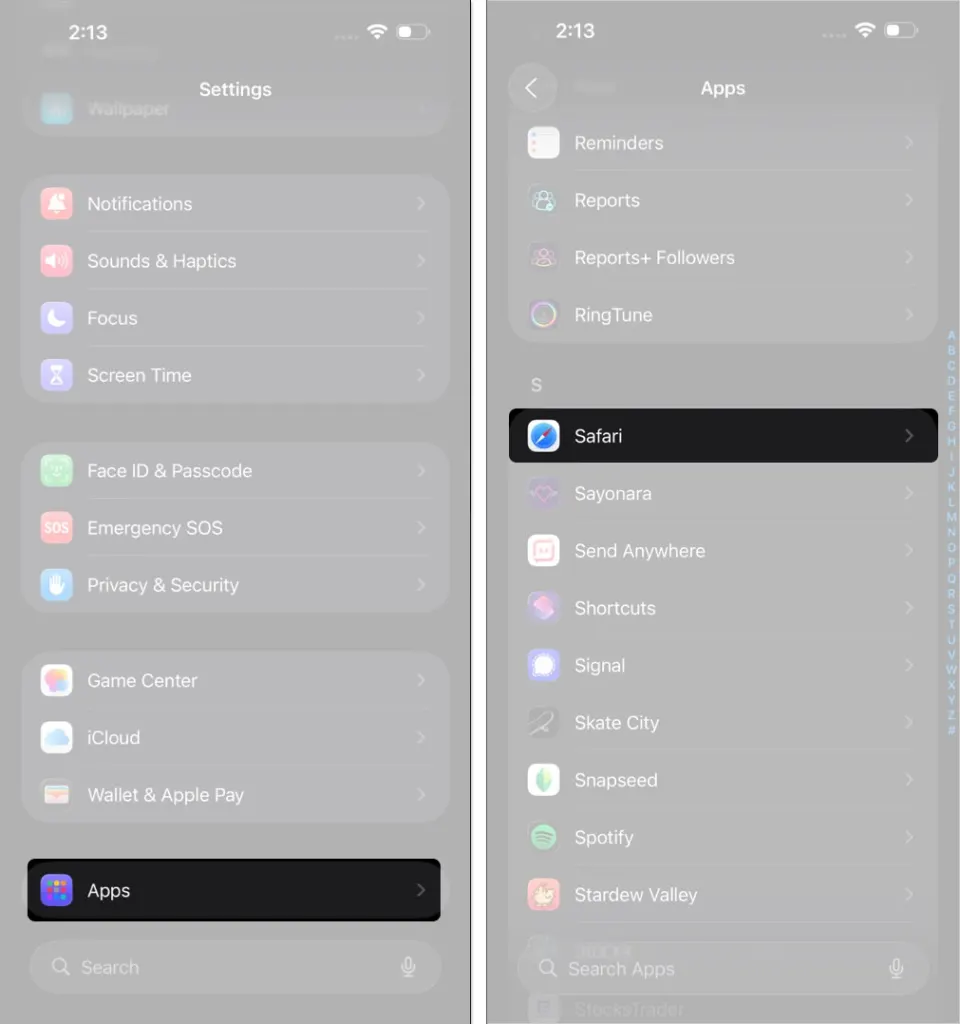
- Open Settings and tap Apps.
- Scroll the list and tap Safari.
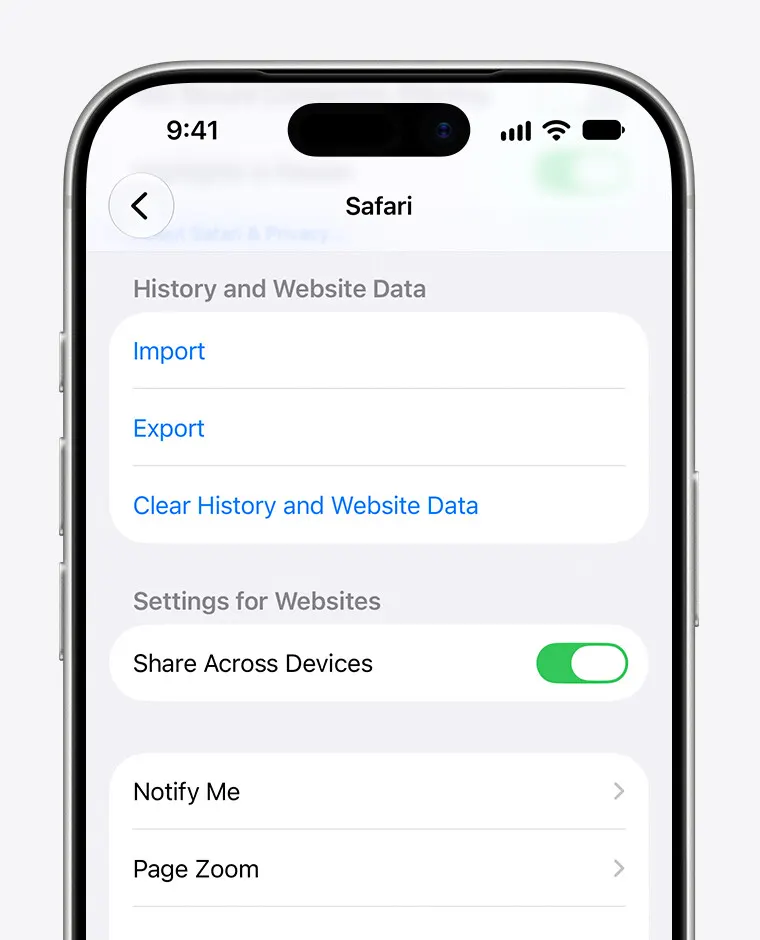
- Scroll down to the History section and tap Clear History and Website Data.
- Choose a timeframe: Last hour, Today, Today and yesterday or All history.
- Turn on Close All Tabs only if you also want your open tabs closed.
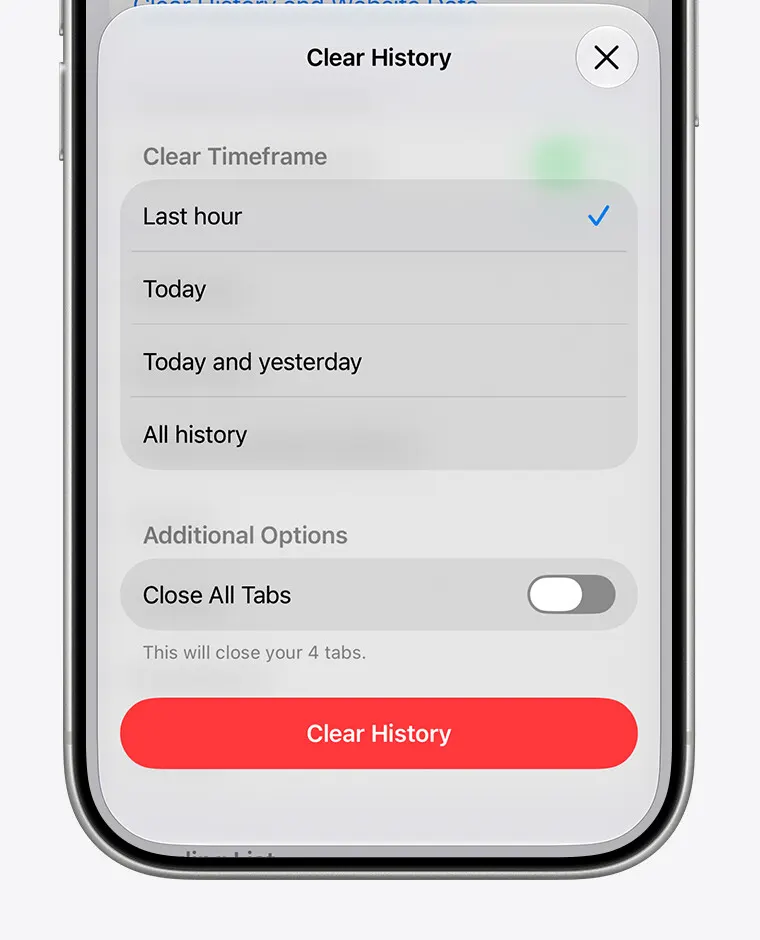
- Tap the red Clear History button.
This removes Safari’s browsing history, cookies and cache but leaves AutoFill information alone. Choose a short timeframe when only recent activity needs to go. Because cookies go too, expect to sign back in to some sites.
Clear Cookies and Cache but Keep Your History
Website data is stored separately from the history list, so you can remove it and keep the list of visited sites.
- Open Settings, tap Apps, then Safari.
- Tap Advanced, then Website Data.
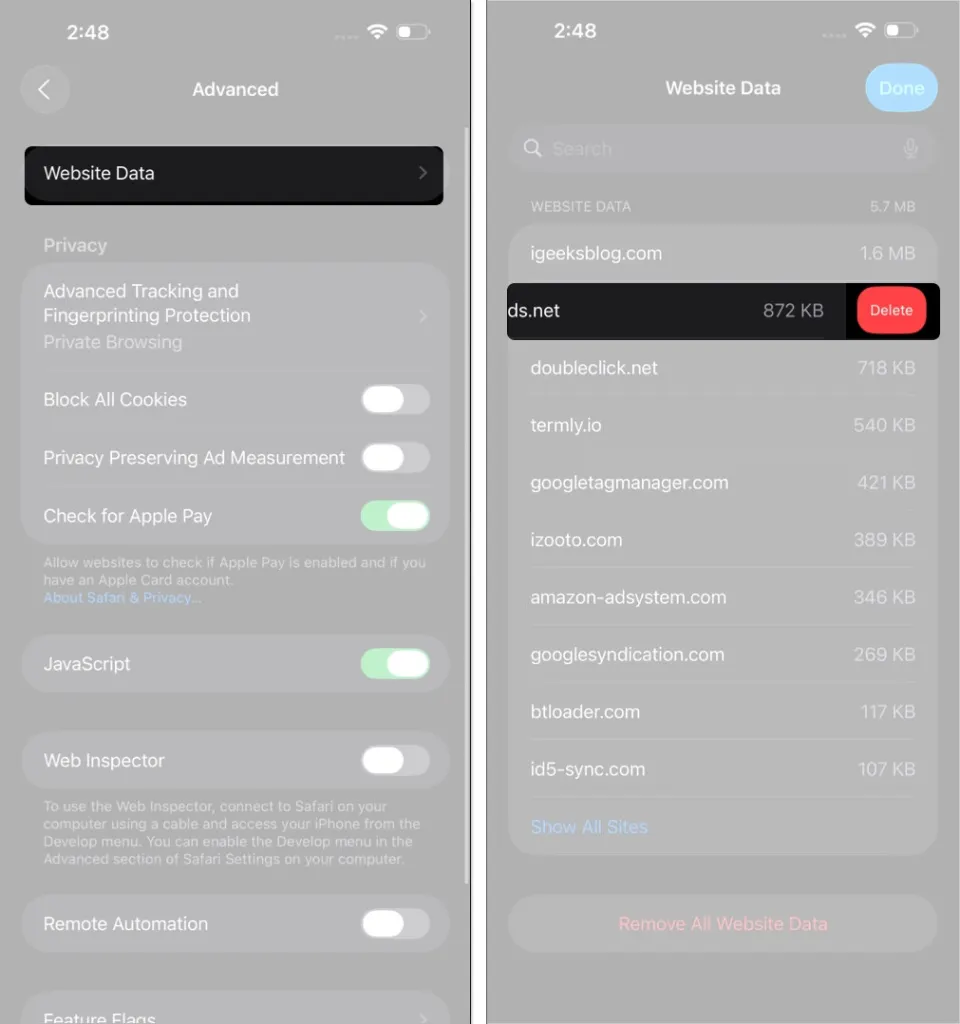
- Tap Remove All Website Data at the bottom, then Remove Now.
This clears the data sites use for tracking and for remembering your logins. To remove only one site, swipe it left in this list and leave the rest alone.
Delete One Website or One Day From Safari History
Use the History screen when only certain visits should go.
- Open Safari and go to the Start Page. If you don’t have one, tap Tabs, then Add to create it.
- Tap the History button, then the More button.
- Tap Select Websites and choose the sites to remove.
- Tap the Trash button.
To drop a whole day instead, open History in the Bookmarks view and swipe left on the date. That list reaches back only about a month, and Safari has no way to clear an arbitrary date range, so anything older needs a timeframe from the first method.
Clear History on iPhone in Chrome
Chrome keeps its own history inside the app, so clearing Safari does nothing to it. Open Chrome, tap the three-dot menu (bottom right), choose History, then Delete browsing data, and pick a time range such as All time. For individual items, open History, tap Edit, select the sites and tap Delete. If you are signed in to Chrome, the deletion also removes that history from your other synced devices, and Google-account search activity can be erased separately at myactivity.google.com.
Clear History Is Grayed Out on iPhone
A gray button means either there is nothing to clear, or Screen Time is restricting web content. The same applies to Remove All Website Data.
- Open Settings, tap Screen Time, then Content & Privacy Restrictions.
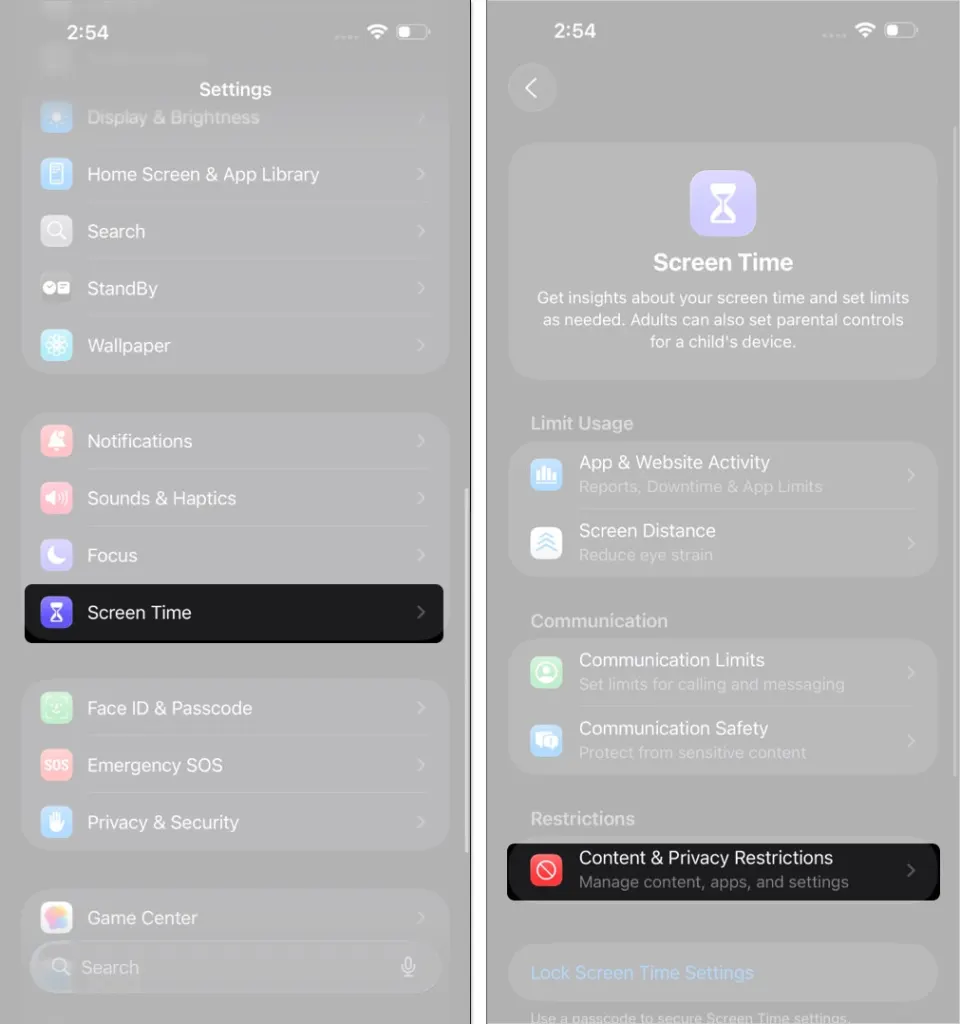
- Tap App Store, Media, Web & Games, then Web Content.
- Select Unrestricted.
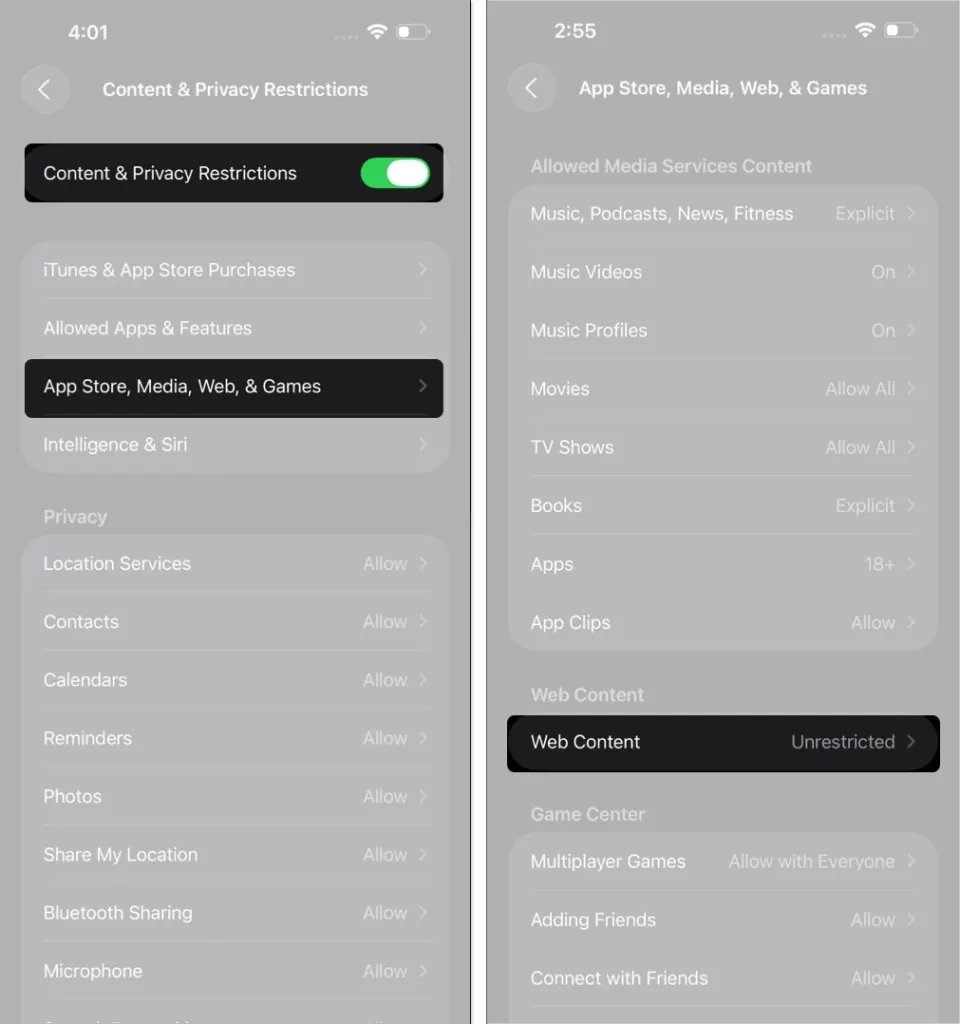
If you set a Screen Time passcode, you need to enter it for this change. Once Web Content is Unrestricted, the button should work. If it is still gray, Safari has no history left to clear.
When cleared history keeps coming back, two other settings are usually the cause. Safari syncs over iCloud, so another signed-in device can restore it: turn Safari off under Settings > your name > iCloud > Saved to iCloud > See All, choose Keep on My iPhone, clear each device, then turn syncing back on. Pages saved to the Reading List also stay after a clear, so remove them in the Bookmarks view.
What Clearing Safari History Does Not Delete
Your photos, messages and apps stay put. With iCloud syncing on, though, the same history disappears from other devices signed in to your Apple Account, and Chrome or other browsers are untouched.
Tidying up your browsing data is a small habit that pays off in privacy, and most of it can be reversed by simply signing in again. A little care before you wipe everything keeps you from losing things you wanted to keep. For a broader privacy checkup, our guide to turning off location on iPhone makes a sensible follow-up.


