
Windows already looks after drive maintenance on its own, so most people never need to defrag Windows 11 by hand. A manual run helps or hurts depending on the kind of drive in your PC, and the wrong choice can do more harm than good. The steps below cover how to tell which drive you have, what the built-in tool does and how to run it from the desktop or the command line.
Table of Contents
Do You Need to Defrag Windows 11 at All?
Only a hard disk drive does. A solid-state drive (SSD) has no moving parts, so scattered files cost it nothing, and defragmenting it gives no benefit.
The same Optimize button treats the two drive types differently. On an HDD it consolidates fragmented files so the read head travels less. On an SSD it sends a TRIM command instead, which tells the drive which blocks are free to clean up. That is safe, so you can click it on an SSD, but it is not a defrag. If your PC feels slow and has an SSD, fragmentation is not the cause, and our guide to speeding up Windows 11 covers what to check instead.
A drive also needs room to work. Leave at least 15% free space on it, or the defrag may fail or stop short.
Open Defragment and Optimize Drives
Search finds the tool faster than digging through Settings, and you need to be signed in as an administrator to run an optimization.
- Click Search on the taskbar.
- Type
defrag. - Select Defragment and Optimize Drives.
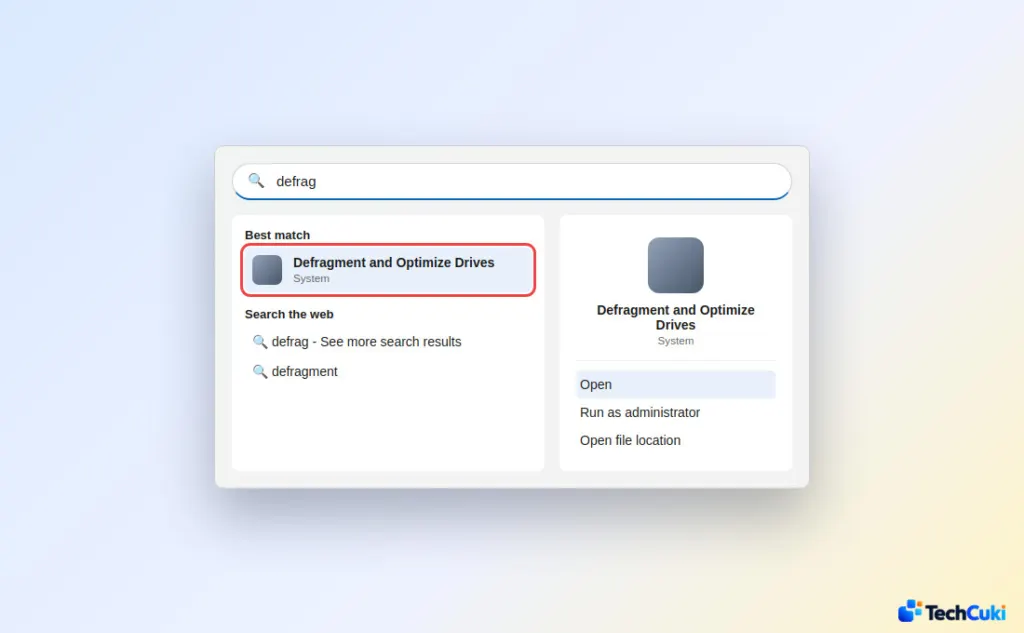
You can also reach it from Settings > System > Storage > Advanced storage settings > Drive optimization, or from a drive’s Properties > Tools tab in File Explorer. On recent Windows 11 builds, opening Storage settings can show a User Account Control prompt, so the search route is the shorter one.
Check Whether a Drive Is an HDD or SSD
The Media type column tells you what each drive is, and it is the quickest way to avoid running the wrong job.
- In the Defragment and Optimize Drives window, find the Media type column.
- Note which drives show Hard disk drive. Those are the only ones worth defragmenting.
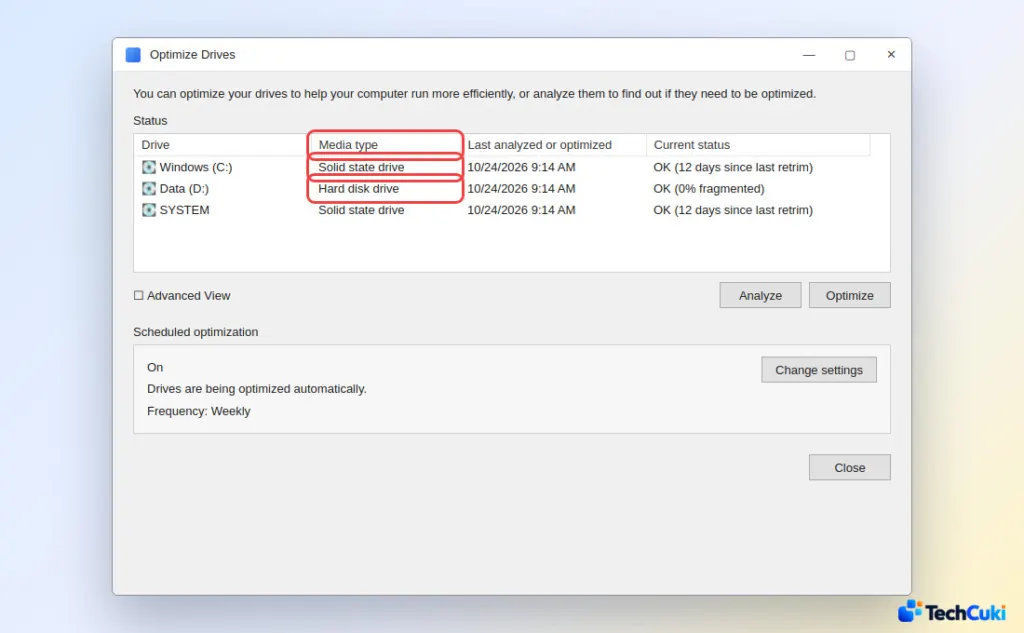
If a drive you expect is missing, reconnect it or tick Advanced View, which also lists hidden volumes. Network drives can’t be optimized, and neither can a drive another program is using or one formatted with a file system other than NTFS, ReFS, FAT or FAT32. On a work PC, network policy can block the tool altogether, in which case your IT admin has to allow it.
Analyze, Then Defrag the Hard Drive
Run Analyze first. It reports the fragmented percentage, and a drive more than 10% fragmented is worth optimizing.
- Select the hard disk drive in the list.
- Click Analyze to see the fragmented percentage.
- If it is above 10%, click Optimize.
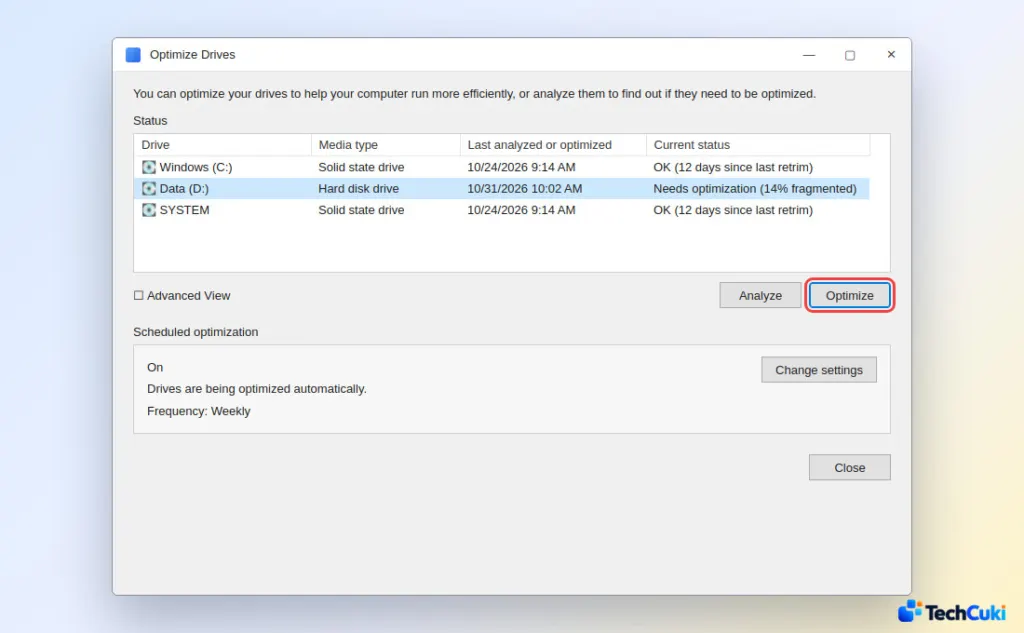
The job runs in the background, so you can keep working. Depending on drive size and how scattered the files are, it takes anywhere from a few minutes to several hours.
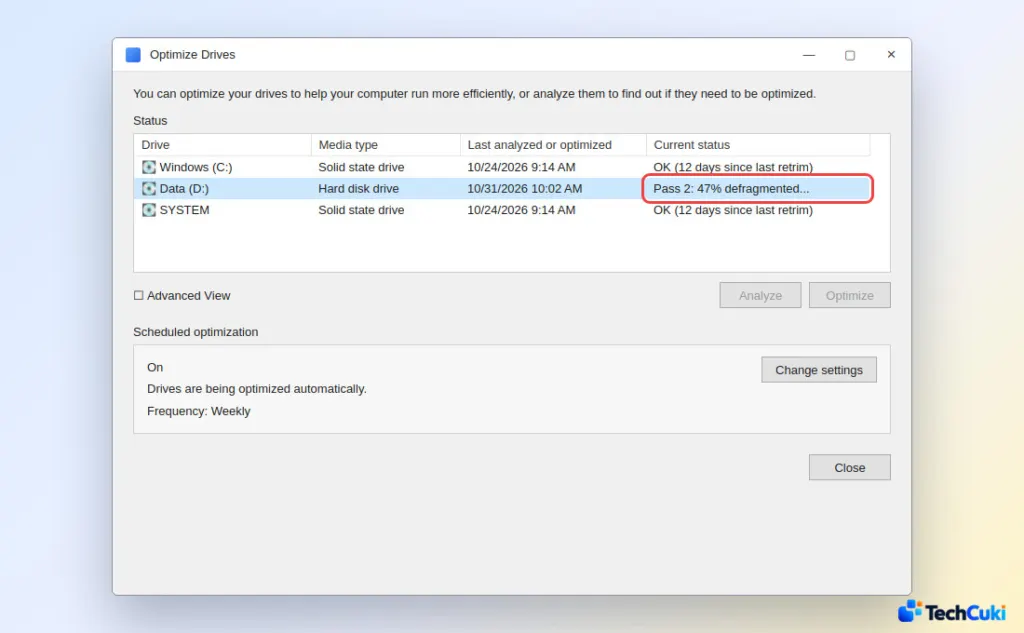
When it finishes, the current status for that drive reads OK.
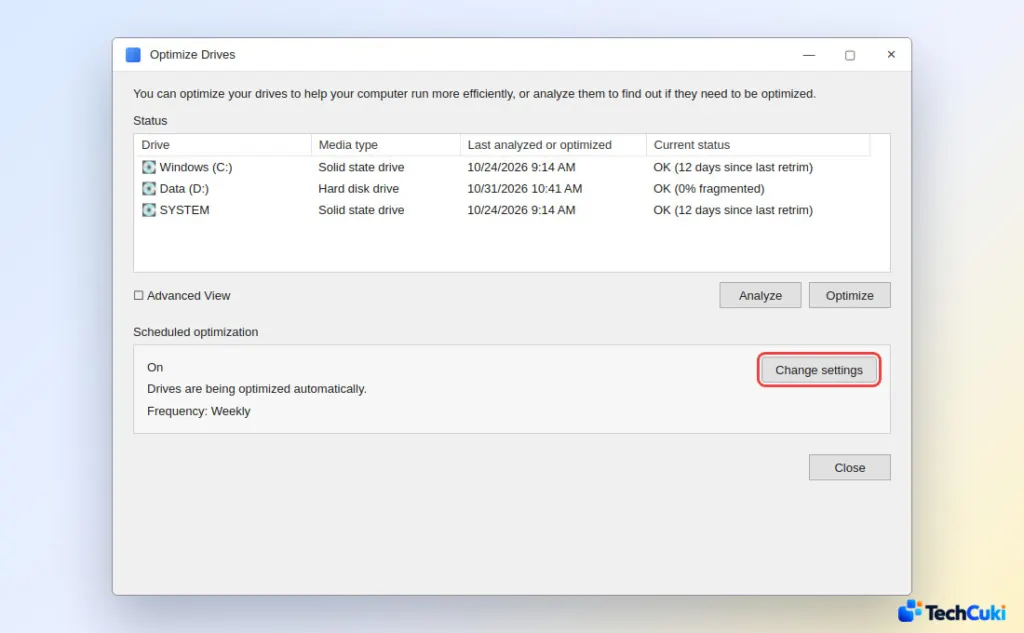
Defragmenting only rearranges file pieces. It does not repair bad sectors or disk errors, so a drive that clicks, freezes or throws errors needs a health check, not another defrag.
Change the Automatic Defrag Schedule
By default Windows optimizes drives once a week, but it skips the run if the PC is usually off then. If that describes your PC, a monthly manual run on an HDD covers the gap, or you can move the schedule to a time the PC is on.
- In Defragment and Optimize Drives, under Scheduled optimization, click Change settings.
- Keep Run on a schedule (recommended) checked.
- Pick a Frequency of Daily, Weekly or Monthly.
- Check Increase task priority if three consecutive scheduled runs are missed, so a PC that is often off still gets optimized.
- Click Choose to select the drives to include.
- Click OK.
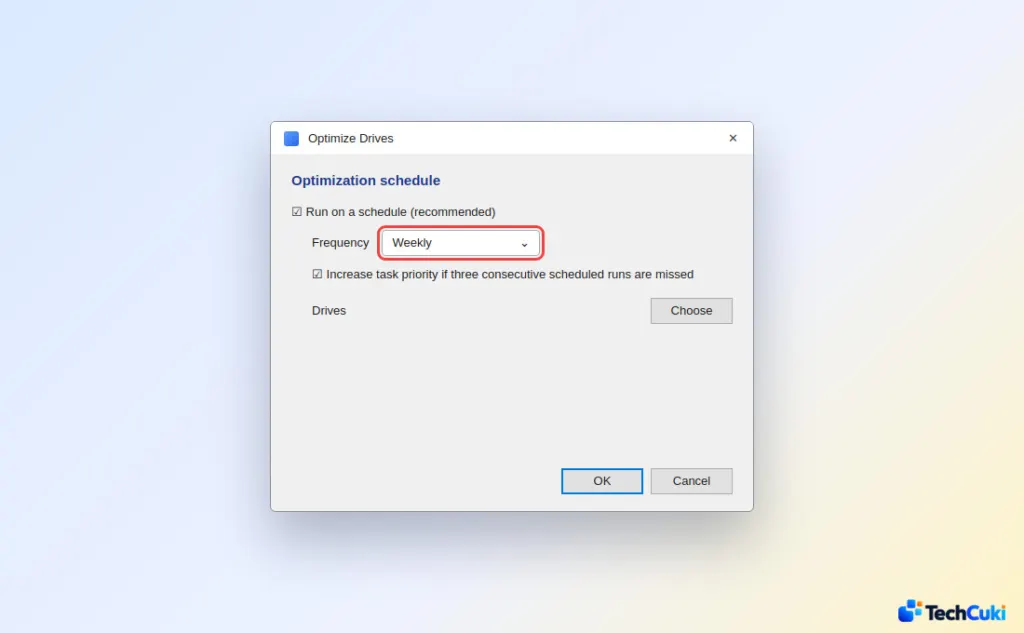
Unchecking Run on a schedule turns automatic optimization off. Leave it on if you have an SSD, since the scheduled run is what keeps TRIM current.
Defrag Windows 11 From Command Prompt
The command line does the same job and is handy when the window won’t open or you want it in a script.
- Open Command Prompt as administrator. Right-click it in the Start menu or search results and select Run as administrator.
- Type
defrag D: /Oand press Enter. ReplaceD:with your drive letter. The/Oswitch picks the right optimization for the media type, so it defrags an HDD and trims an SSD.
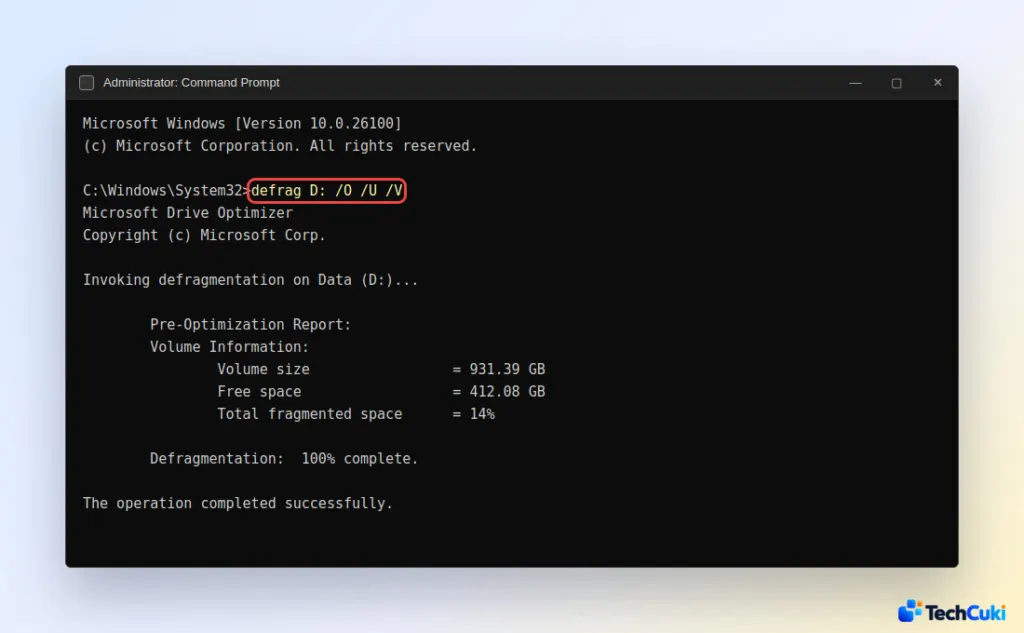
Add /A to analyze only, /U to show progress and /V for verbose output. For example, defrag D: /O /U /V optimizes drive D, prints progress and shows detailed results. In PowerShell opened as administrator, Optimize-Volume -DriveLetter D -Verbose does the same thing.
The right maintenance depends on your drive type, so check that first and let Windows do most of the work. Done correctly, it keeps the drive healthy without wearing it out.


