
Seeing the word Read under a message can create pressure to answer quickly, and you may prefer to reply on your own time. Apple lets you decide who sees that status, and the choice can apply broadly or to just one conversation. The steps below show how to turn off read receipts on iPhone, along with what other people can still see afterward.
Table of Contents
Turn Off Read Receipts on iPhone for All Contacts
The global switch stops “Read” from showing under messages you open in every iMessage chat that doesn’t have its own override.
- Open Settings and tap Apps, then Messages. (On older iOS versions, Messages sits directly in the main Settings list.)
- Turn off Send Read Receipts.
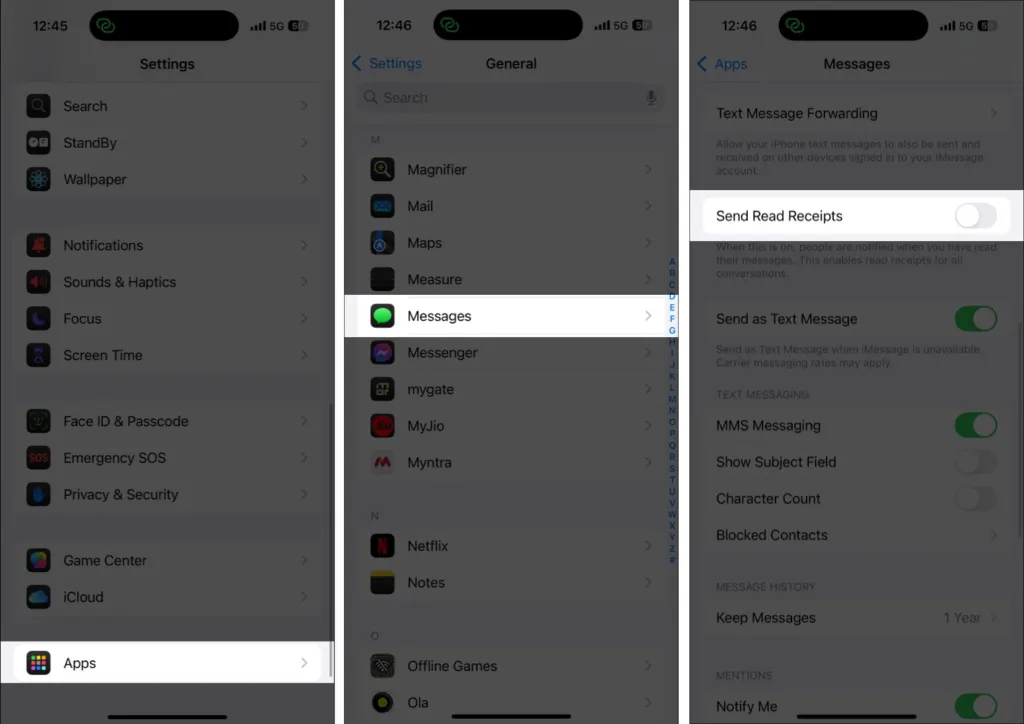
The switch turns gray. From now on, people who message you see “Delivered” instead of “Read.”
Turn Off Read Receipts for One Person Only
Use this when you want receipts on for most people but not for one contact, or when the global switch is off and one chat still shows “Read.”
- Open Messages and tap the conversation.
- Tap the contact’s name or photo at the top.
- Scroll down and turn off Send Read Receipts.
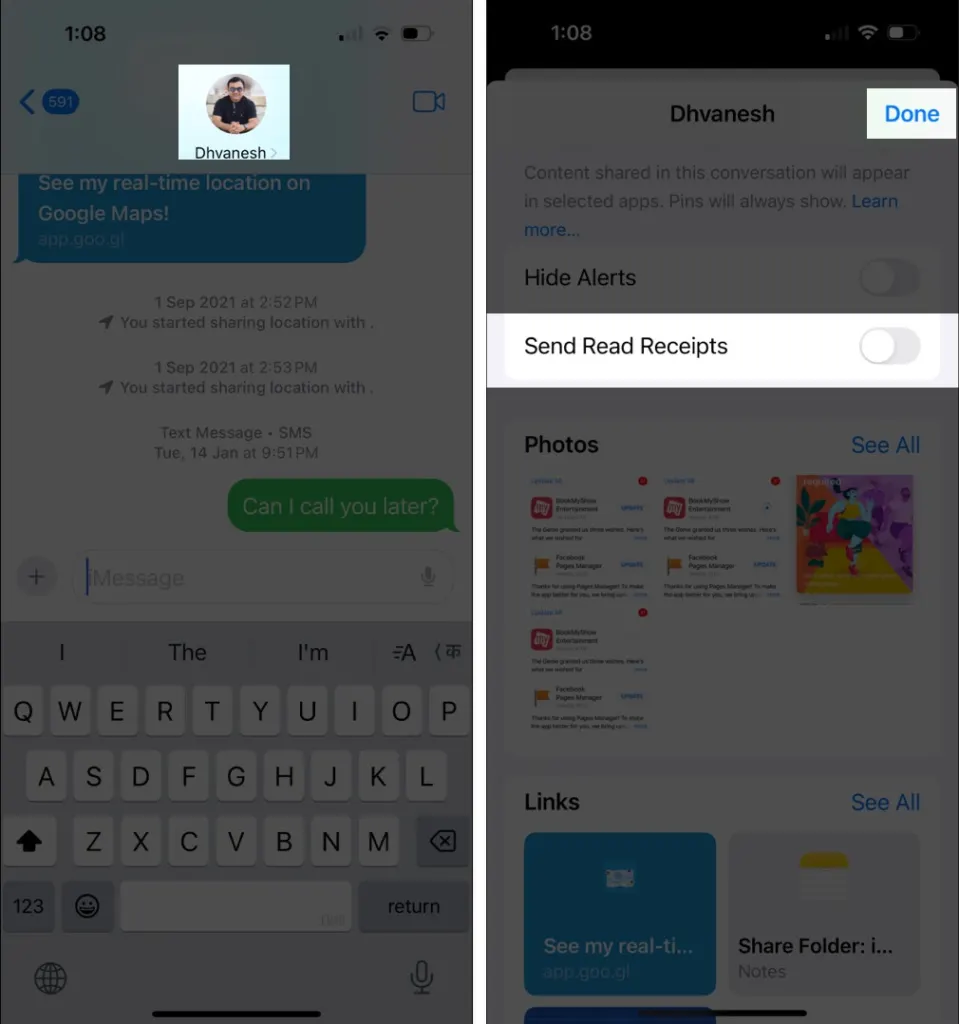
This setting belongs to that one conversation, so repeat it for each person who needs it. It works the other way too: with the global switch off, you can turn it on for a single contact you want to reassure.
Read Receipts Still Showing After You Turned Them Off
A per-contact setting beats the global one, so any chat where the switch was turned on earlier keeps sending “Read” no matter what Settings says. Some users report contacts with the switch on while others in the same phone have it off, which is why a few chats seem to ignore the main switch. Open each chat that still leaks, check the toggle in the contact details, and turn it off.
If the toggle is already off and the sender still sees “Read,” users have fixed it by signing out of the Apple Account on every device and signing back in. Also check that the chat is iMessage: the toggle only appears in blue-bubble conversations.
What the Sender Sees (and What They Don’t)
- Delivered: the message reached your iPhone. With receipts off, it never changes to “Read.”
- Delivered Quietly: your Focus is on and no notification was shown. This is not a read receipt, and Focus doesn’t change your receipt setting.
- SMS and Android contacts: green-bubble texts never show read status, so there is nothing to turn off there.
The setting only controls what you reveal. You still see “Read” under your own messages when the other person has receipts on, and if you never see “Read” from someone, they likely have it off. WhatsApp and other apps have their own receipt settings, so change those inside each app. If someone keeps messaging you and you want it to stop, you can block a number on iPhone.
Privacy settings like this give you control over when and how you reply, though they only hide one signal and not everything about your activity. Check what the other person can still see so the setting does what you expect. You can change your mind at any time.


