
A Wi-Fi switch you cannot tap is a puzzling problem, because the setting that should be easy to change simply will not respond. When you find your iPhone WiFi greyed out, the cause is either a software hiccup or a fault inside the phone, and telling them apart saves time. The sections below explain how to tell the difference and which steps can bring Wi-Fi back.
Table of Contents
Why Is My iPhone WiFi Greyed Out?
Open Settings > Wi-Fi. If the switch itself is dimmed (grayed out) and won’t respond to a tap, this is your problem.
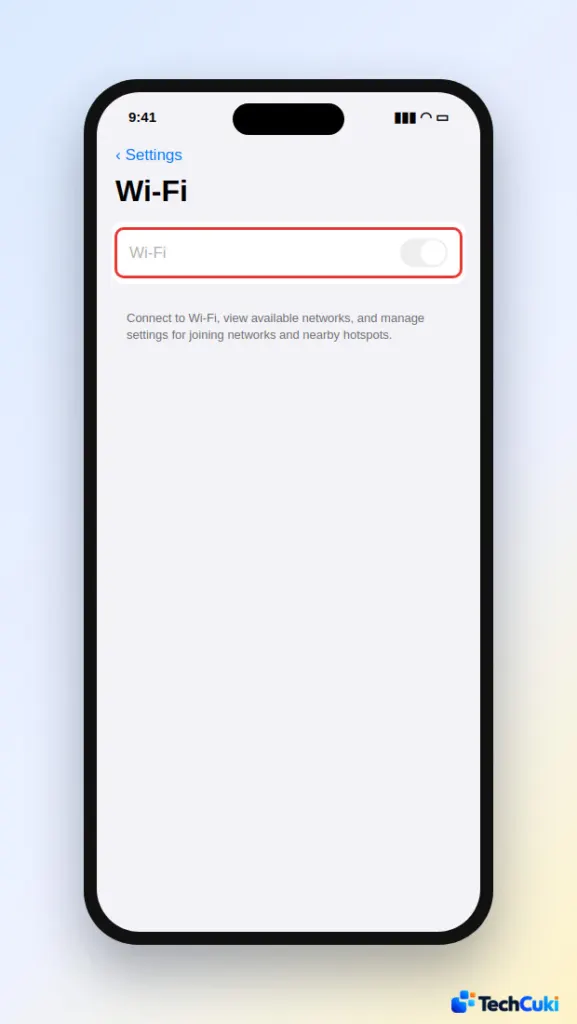
If the switch works but the Control Center Wi-Fi button is grey or white, Wi-Fi is on but not connected, or it was turned off “until tomorrow” from Control Center, which disconnects without fully switching Wi-Fi off. Tap the button or join a network. If the switch works but the phone won’t join anything, see our guide to an iPhone that won’t connect to Wi-Fi, or the unable to join network alert.
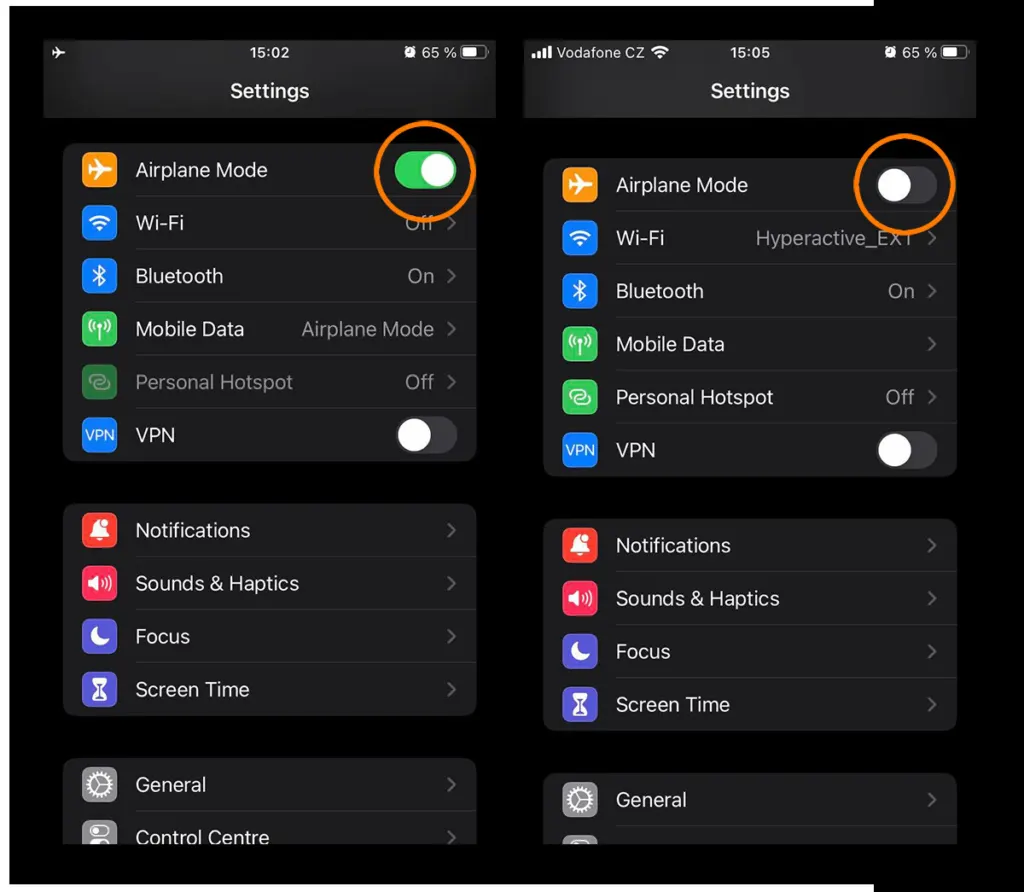
1. Turn Airplane Mode Off and On
Make sure Airplane Mode is off, then switch it on and off again to make iOS restart its radios.
2. Restart or Force Restart
Restarting is Apple’s first advice when the Wi-Fi setting is dimmed. If the iPhone won’t respond, force restart an iPhone 8 or later: press and release Volume Up, press and release Volume Down, then hold the Side button until the Apple logo appears.
3. Update iOS
Grayed-out Wi-Fi after an update is often a bug fixed in the next release, so check for one.
- Open Settings > General > Software Update.
- Tap Update Now if one is offered.
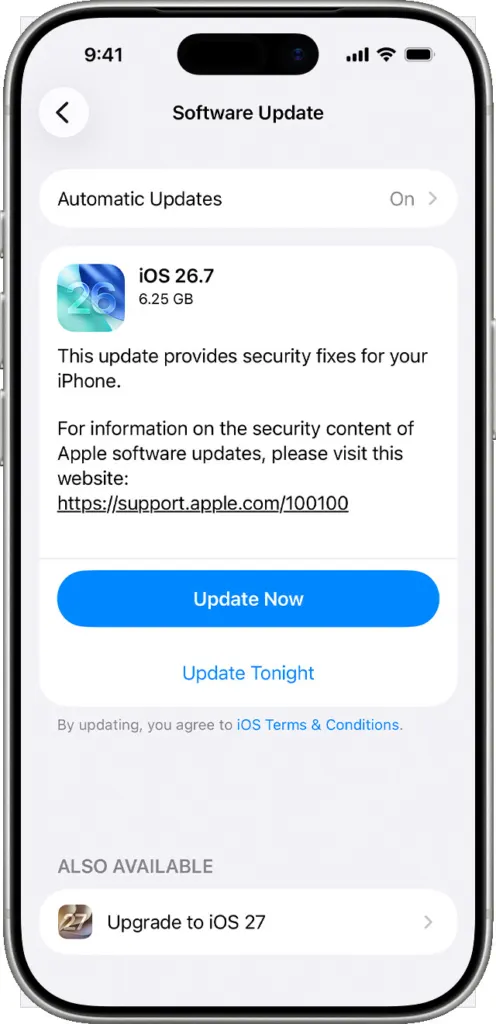
Without Wi-Fi, your iPhone may offer to download the update over cellular data. If it doesn’t, update from a computer using Finder, the Apple Devices app or iTunes. More options are in how to update your iPhone.
4. Reset Network Settings
This rebuilds the phone’s connection settings, which can bring back a switch that iOS has lost track of. It erases saved Wi-Fi passwords and cellular, VPN and APN settings.
- Open Settings > General > Transfer or Reset iPhone.
- Tap Reset > Reset Network Settings.
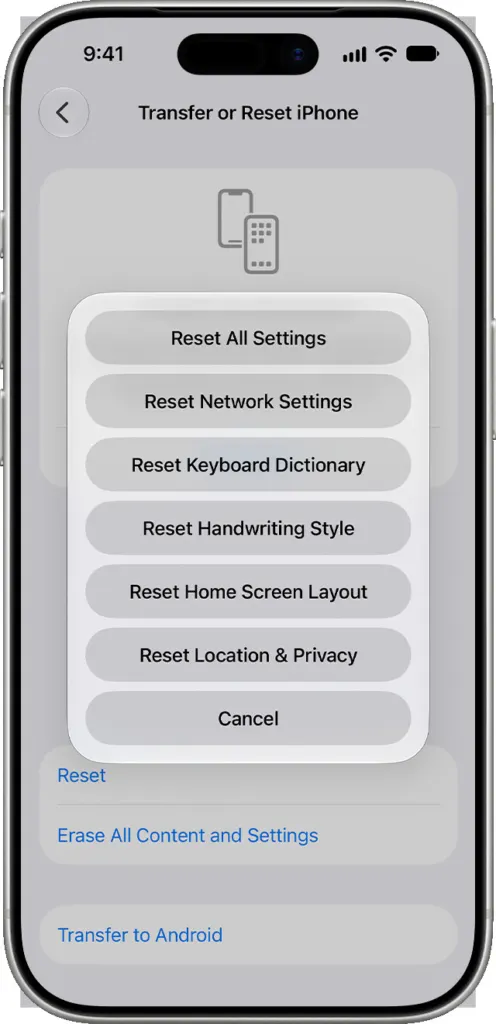
The full walkthrough is in how to reset network settings on iPhone.
5. Reset All Settings
In the same Reset menu, tap Reset All Settings. It removes settings and preferences but not apps, photos or data; back up first anyway.
6. Check Whether iOS Can See the Wi-Fi Chip
Go to Settings > General > About and look at Wi-Fi Address. A normal entry looks like 8C:86:1E:…, while N/A means iOS can’t see the chip at all, which points to hardware.
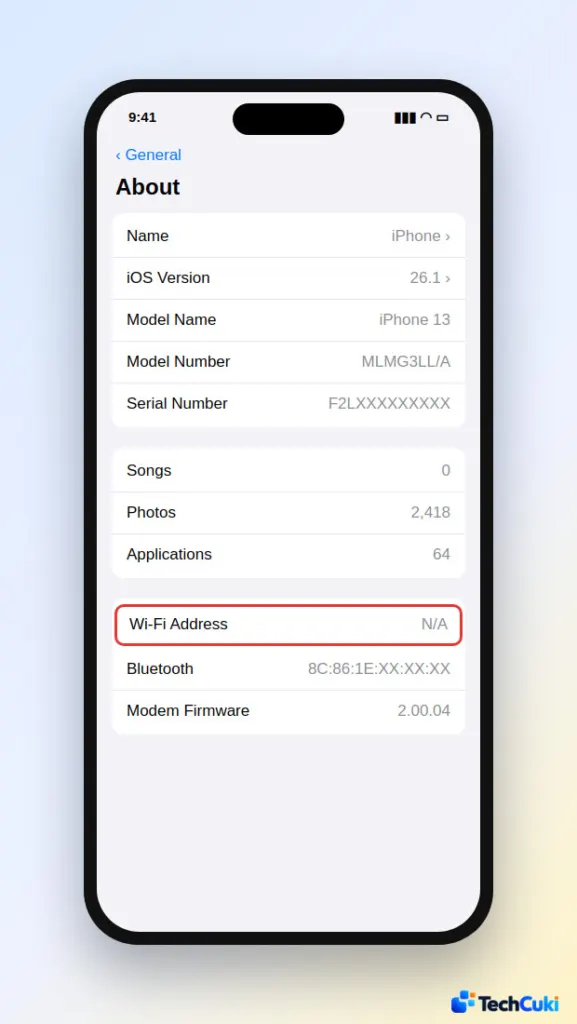
The same goes if Bluetooth is also greyed out or keeps spinning, because Wi-Fi and Bluetooth share a chip on iPhones.
7. Restore the iPhone With a Computer
This is the last software step. Back up, then restore using Finder, the Apple Devices app or iTunes. It erases the phone, so you restore your data from the backup afterward.
When iPhone WiFi Is Greyed Out Because of Hardware
After a drop, water exposure or a third-party repair, the Wi-Fi chip, antenna or its connection is the usual cause. Take the phone to an Apple Store or an Apple Authorized Service Provider, and check your warranty or AppleCare status at checkcoverage.apple.com. Skip the freezer or heat tricks seen online, as they can damage the phone.
Telling a software problem from a hardware one before making big changes protects your data and your time. If the switch stays dim after the simple options, a repair through Apple or an authorized provider is the realistic next step.


