
You want a page on paper, and the iPhone in your hand is the only thing that has it. How smoothly the printing goes usually comes down to the printer, the network or the app you start from. Below you will see how to print from iPhone, how to keep track of a job once it is sent, and what to do when the printer is an older model.
Table of Contents
Before you start
- Confirm your printer supports AirPrint, since that decides whether any of the steps below work. Apple keeps a searchable AirPrint printer list, and the maker can confirm it too.
- Connect the printer to your Wi-Fi network first, then put your iPhone on that same network. AirPrint works over Wi-Fi or a wired network connection.
- A printer plugged into the USB port of an AirPort Base Station or Time Capsule, or linked to a computer over Bluetooth, can’t use AirPrint.
How to Print From iPhone With AirPrint
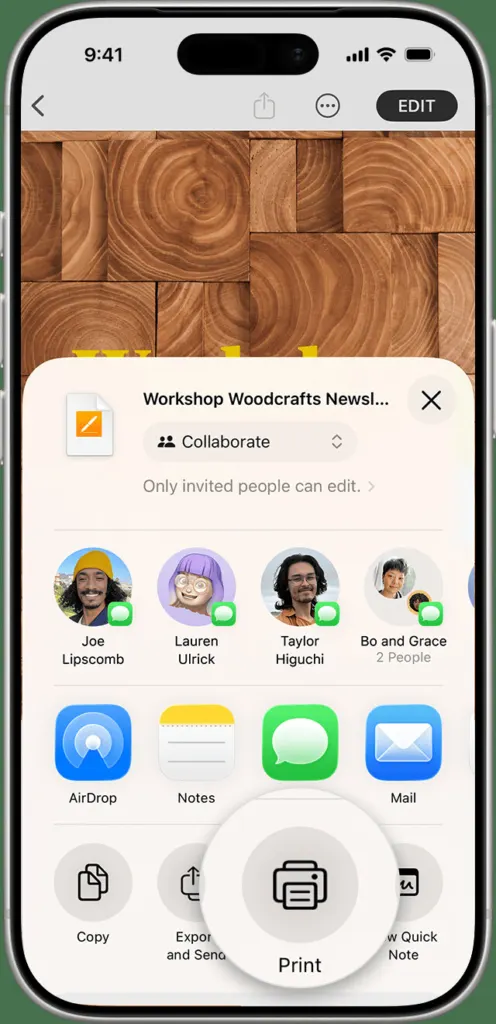
Open the item, find Print under Share or More, pick the printer and tap Print. AirPrint needs no driver or extra app, so there is nothing to install first.
- Open the document, photo or web page in the app you’re printing from.
- Tap the Share button, or the More (Actions) button in apps that use that instead.
- Scroll down or swipe up and tap Print. If it isn’t there, the app may not support printing, so check its help pages, or open the same file in Mail, Photos or Safari, which do.
- Tap No Printer Selected and choose your AirPrint printer. An empty list almost always means the phone and printer aren’t on the same network.
- Set the number of copies and any other options, such as which pages to print.
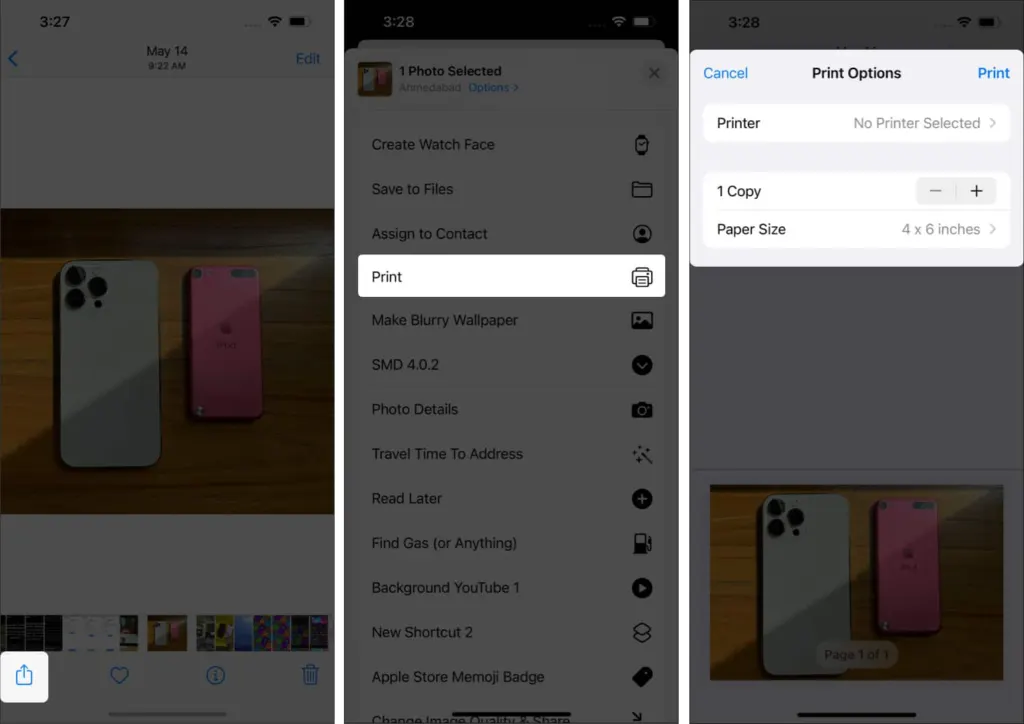
- Tap Print in the upper-right corner. The job joins the queue, which you can watch in Print Center.
The Print Options screen is also where paper size and similar choices appear, depending on the printer and the file. There is no separate printer settings page on iPhone, so you choose these each time you print.
Which Apps Support AirPrint
Apple’s Mail, Photos and Safari all print, and many App Store apps do too. That covers most things you’d print, including email attachments, web pages and saved photos.
Check or Cancel a Print Job
Print Center lists every job waiting to print, so it is the place to stop a wrong file or a run of 40 pages.
- Open the App Switcher.
- Tap Print Center. A badge shows how many documents are waiting.
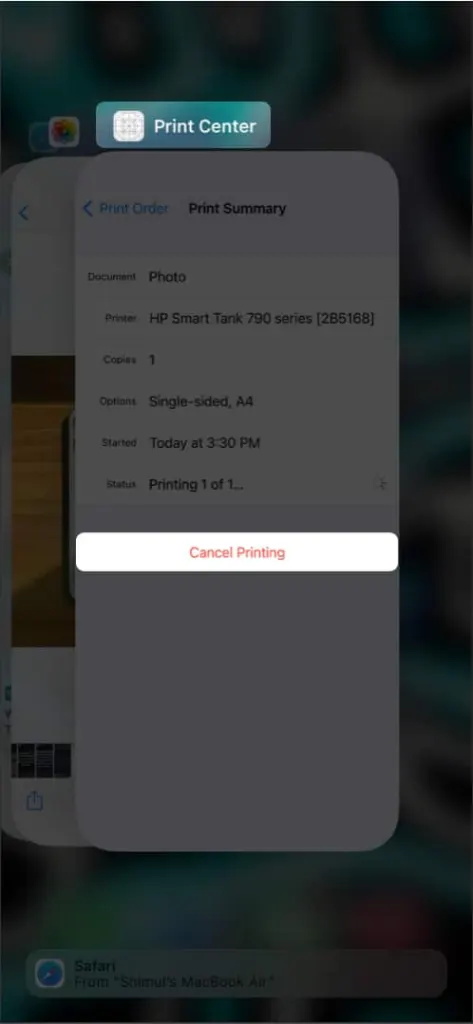
- Select the job and tap Cancel Printing.
If Your Printer Doesn’t Support AirPrint
Look on the maker’s website for an iPhone app built for your model, and send documents and photos to the printer from that app. The route is usually less convenient than AirPrint, so check support before buying a new printer if iPhone printing matters to you.
Common Questions About Printing From iPhone
How do I connect my iPhone to a printer?
There’s no pairing step. With both on the same Wi-Fi network, the printer appears under No Printer Selected the next time you print.
Can I print a document from my iPhone?
Yes, from any app that offers Print, provided the printer supports AirPrint.
When a printer won’t show up, the cause is usually something small on the network or software side rather than a broken printer. Keeping the iPhone up to date is a good habit, and our guide to updating iPhone is there when you need it.


