
Windows 11 can wipe your drive and put a fresh copy of the system back in one go. That makes it a good move before you sell, give away or trade in a laptop, or when a PC has become too unreliable to fix. Three ways to reset Windows 11 to factory settings are covered here, including what to do when Windows won’t start and how to wipe the drive securely.
Table of Contents
Before you start
- Back up your files to an external drive or OneDrive. Remove everything deletes all personal files.
- Write down your apps. All installed apps are removed, so you’ll need to reinstall them afterward.
- Keep your BitLocker recovery key handy if your drive is encrypted. You can find it at account.microsoft.com/devices/recoverykey.
- Plug in your laptop. A reset takes 30 minutes to a few hours and must not be interrupted.
Your Windows license is not affected. Windows reactivates automatically after the reset.
1. Reset Windows 11 to Factory Settings From Settings
- Press
Windows + Ito open Settings, go to System > Recovery, and click Reset PC next to Reset this PC.
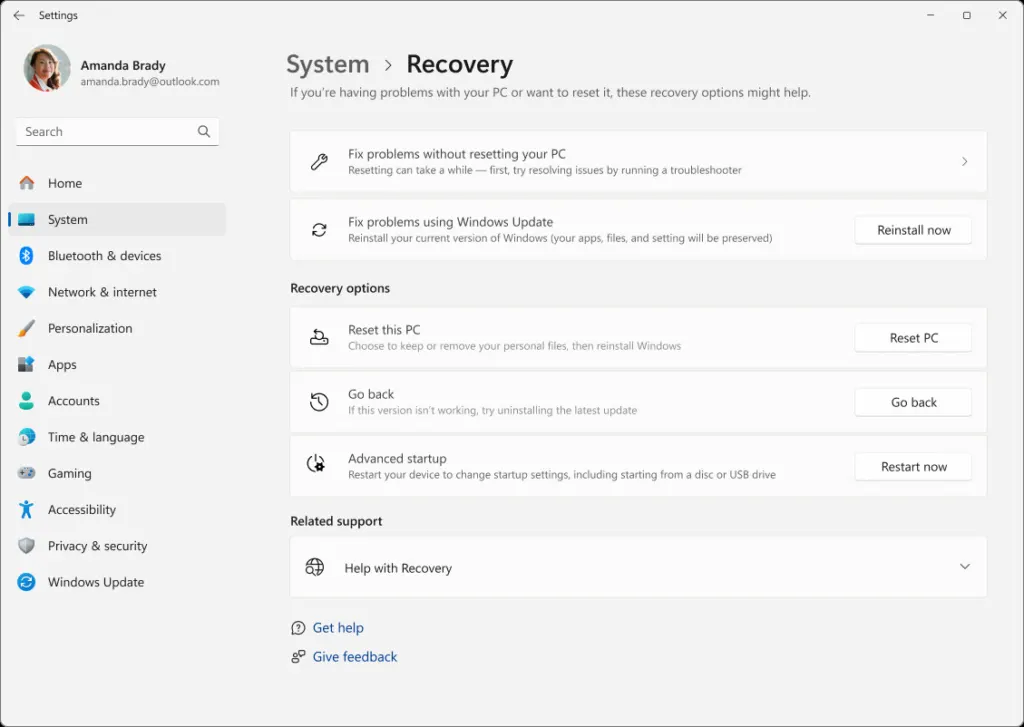
- Choose Remove everything for a full factory reset. Choose Keep my files if you only want to remove apps and settings and keep your personal files.
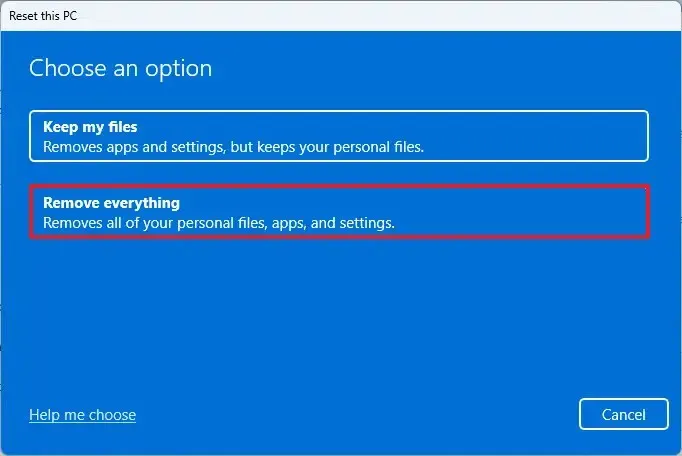
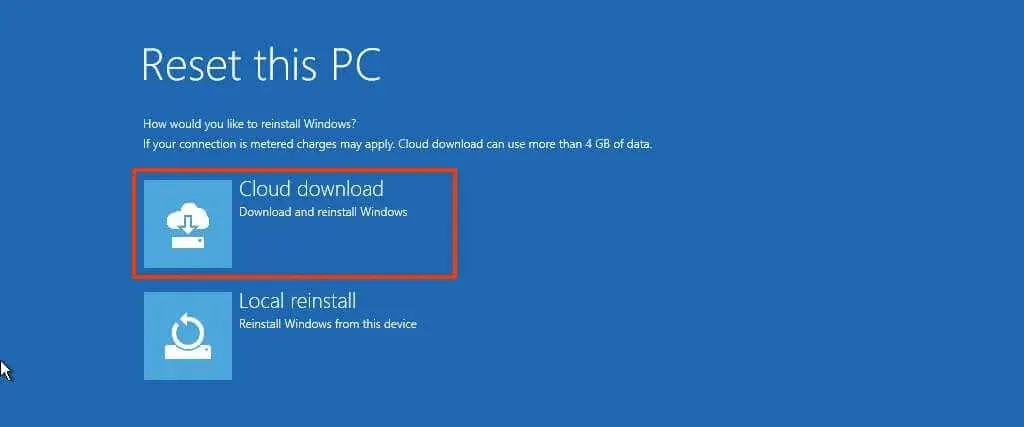
- Choose Cloud download to reinstall a fresh copy of Windows 11 from Microsoft (recommended, uses about 4 GB of data), or Local reinstall to use the files already on your PC.
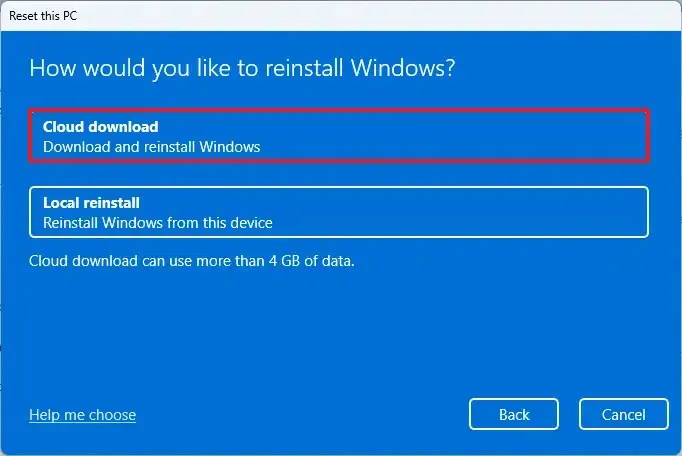
- On the Additional settings screen, click Change settings if you plan to sell or give away the PC. Otherwise, click Next.
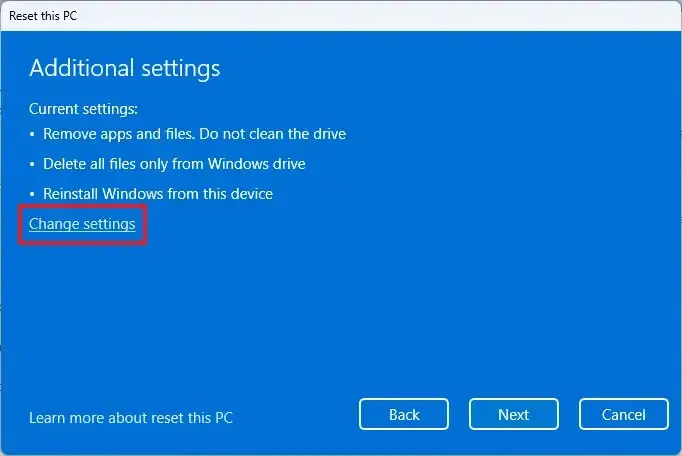
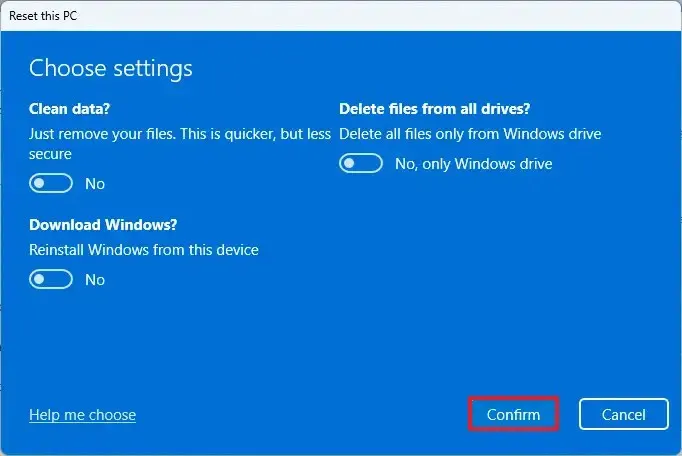
- Turn on Clean data? to securely wipe the drive so your files can’t be recovered. Turn on Delete files from all drives? to also erase other drives such as D:. Click Confirm, then Next.
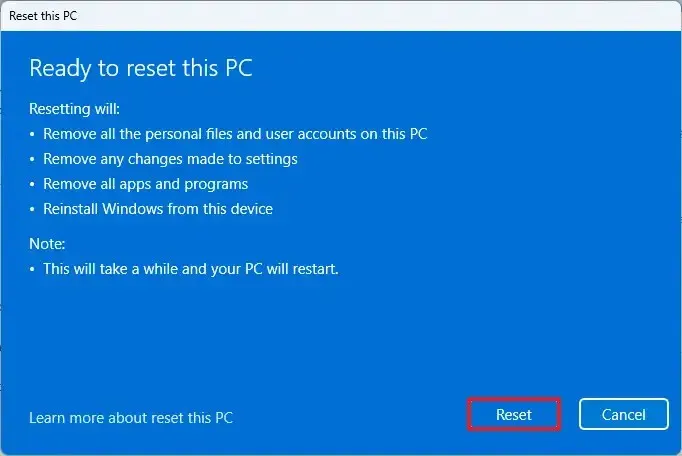
- Review the summary and click Reset. Your PC restarts and reinstalls Windows 11. When it’s done, you’ll see the first-time setup screen, just like a new PC.
2. Factory Reset Windows 11 From the Sign-In Screen
Use this if you can’t sign in, for example because you forgot your password on a PC you own.
- On the sign-in screen, click the Power icon in the bottom-right corner.
- Hold down Shift and click Restart.
- Your PC opens the recovery menu. Follow the steps in Method 3 below, starting from Troubleshoot.
3. Factory Reset Windows 11 From Boot (When Windows Won’t Start)
If Windows won’t load, turn on your PC and, as soon as the Windows logo appears, hold the power button for 10 seconds to force it off. Repeat this 2 more times. On the third start, Windows opens Automatic Repair. Click Advanced options.
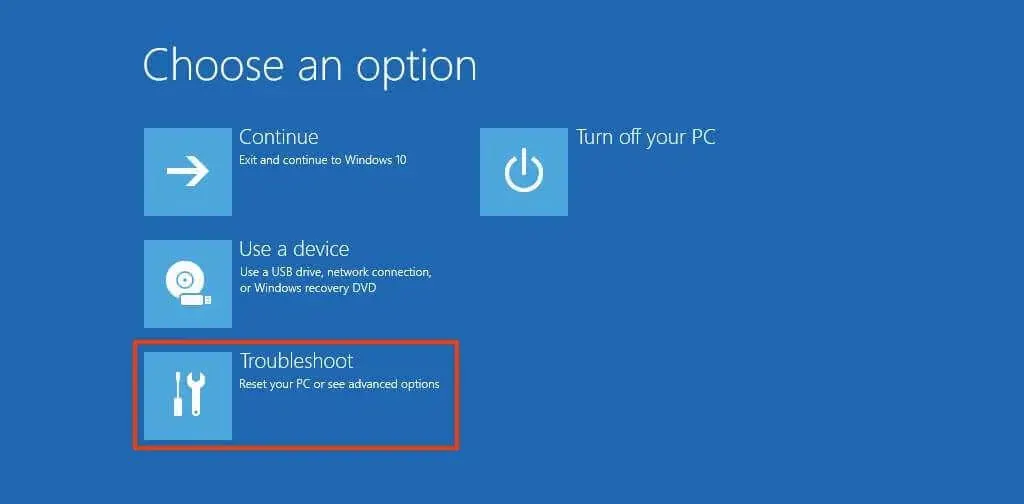
- On the Choose an option screen, select Troubleshoot.
- Select Reset this PC.

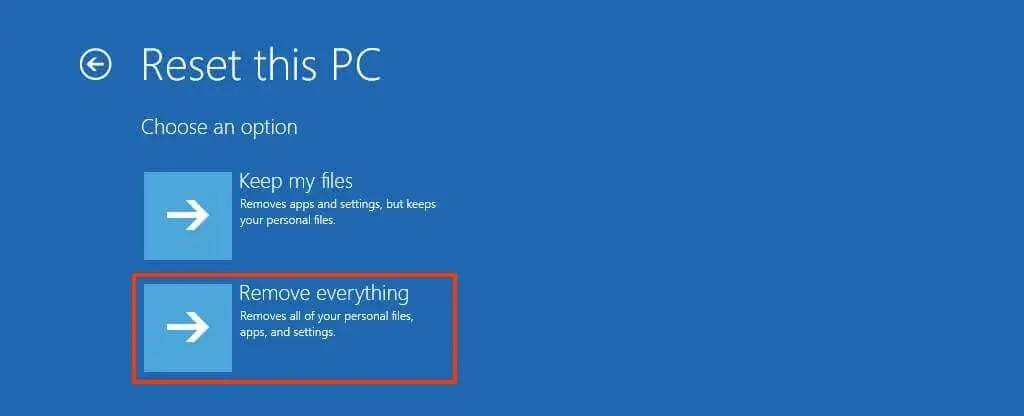
- Select Remove everything.
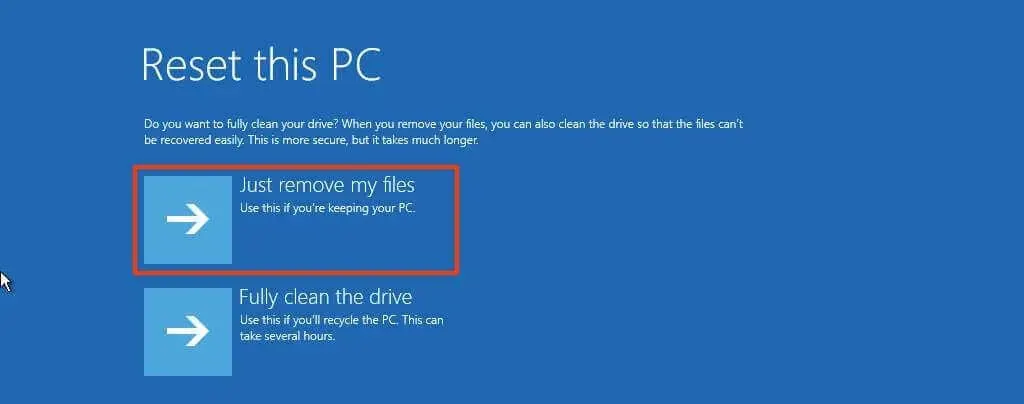
- Choose Just remove my files if you’re keeping the PC, or Fully clean the drive if you’re selling or recycling it. A full clean can take several hours.
- Choose Cloud download or Local reinstall, then click Reset to start.
If the recovery menu doesn’t appear at all, create a Windows 11 USB drive and do a clean install instead. See our guide on how to install Windows 11 from USB.
Tip: reset from Command Prompt
You can also open the reset tool with a command. Press Windows + R, type systemreset --factoryreset, and press Enter. The same Reset this PC window opens, and you follow the steps from Method 1.
How to Reset Windows 11 Before Selling Your PC
A normal reset deletes your files, but they can still be recovered with special software. Before you sell, give away or recycle your PC:
- Choose Remove everything and turn on Clean data (Method 1) or Fully clean the drive (Method 3).
- Sign out of your Microsoft account first and remove the PC from account.microsoft.com/devices so the new owner can’t see it in your account.
- After the reset finishes, stop at the first setup screen (“Is this the right country or region?”) and shut the PC down. The new owner can then set it up with their own account.
How long does a factory reset take?
A standard reset usually takes 30 minutes to 2 hours, depending on your PC’s speed and whether you choose Cloud download. Turning on Clean data or Fully clean the drive can add several more hours, especially on large hard drives. Leave the PC plugged in and don’t turn it off during the reset.
A reset is the cleanest way to hand a PC to someone else or to start over, and it’s worth deciding up front what you want to keep. It can take a while, so keep the PC plugged in and give it time to finish.


