
Wi-Fi that won’t connect, a Bluetooth device that keeps dropping or a cellular signal that vanishes can all point to the phone, not the network around it. A network reset is a strong step, so it helps to know what it does before you commit. The sections below explain how to reset network settings on iPhone, what it erases, what stays safe and what to set up again.
Table of Contents
Check Whether the Phone or the Network Is at Fault
| What you find | Next step |
|---|---|
| Other devices connect, only the iPhone fails | Reset network settings (below) |
| No device can get online on that network | Restart the router and modem; if that fails, contact the internet provider |
| The iPhone connects at another location | The issue is that one network, so check the router first |
| The iPhone fails everywhere | Reset, then contact Apple if it persists |
Before you reset, make sure Airplane Mode is off and that Connectivity Assist is off in the Wi-Fi settings. Remove any VPN or security app briefly to test it, restart the router and modem, and try the 5 GHz band instead of 2.4 GHz if the router offers both. Also check for an iOS update. If a school or employer manages the network, ask IT before resetting.
How to Reset Network Settings on iPhone
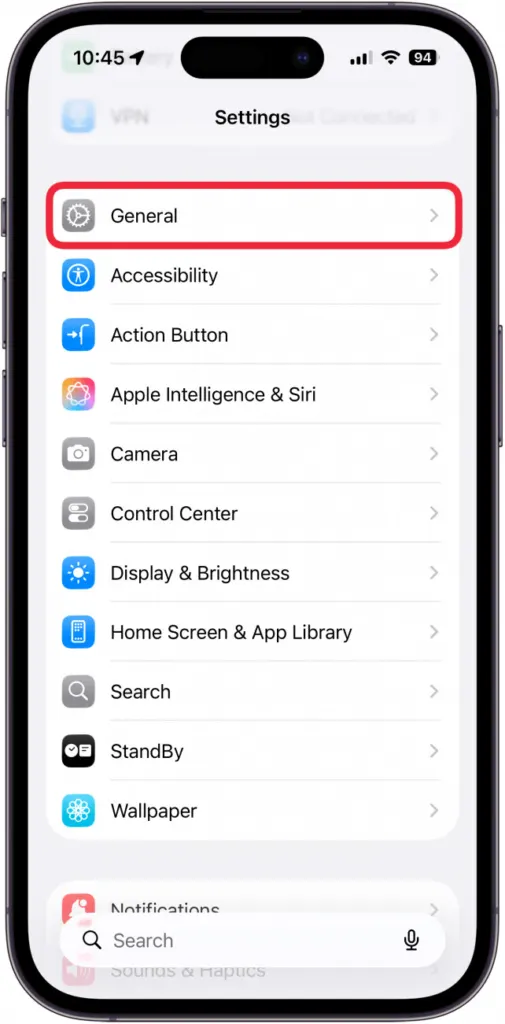
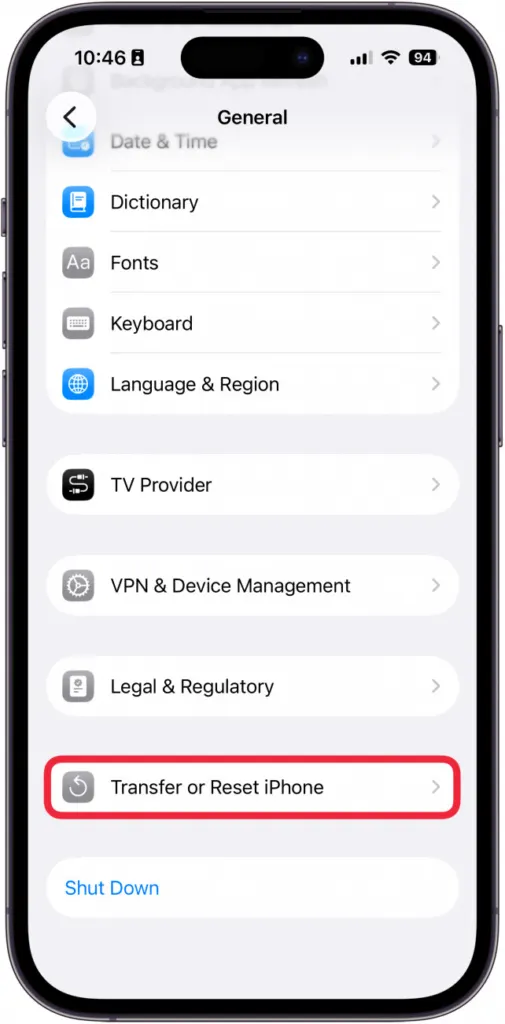
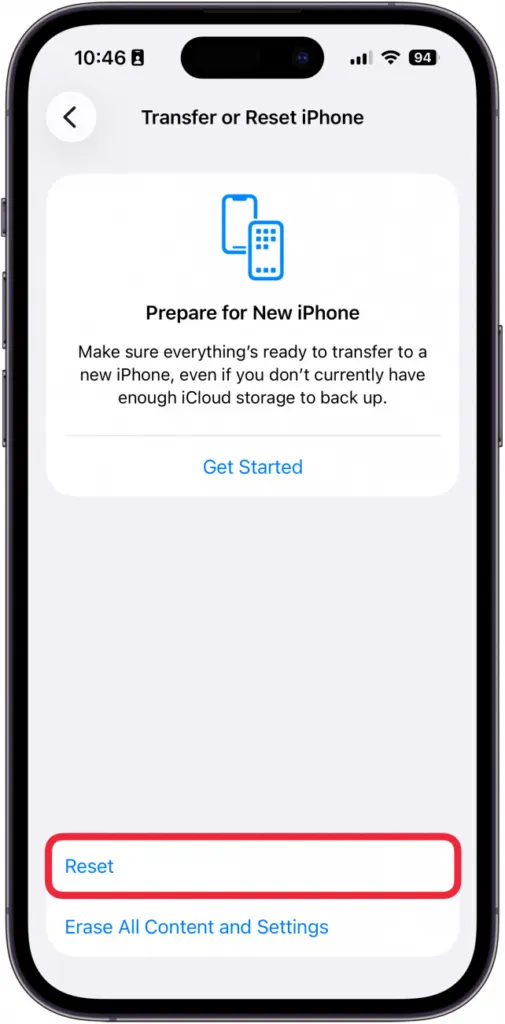
The option lives at Settings > General > Transfer or Reset iPhone > Reset.
- Open Settings and tap General.
- On the General screen, tap Transfer or Reset iPhone.
- Tap Reset at the bottom of the screen.
- Tap Reset Network Settings in the Reset menu.
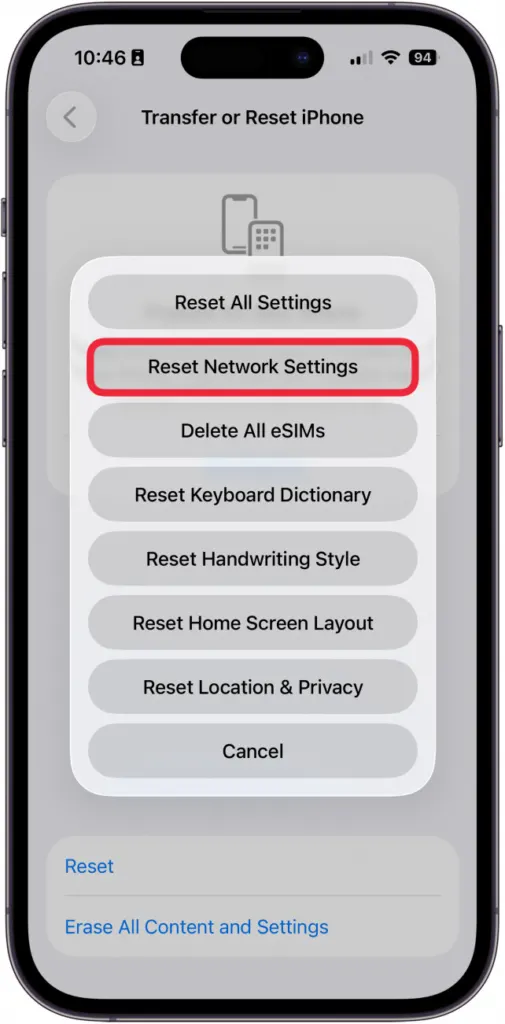
- Enter your passcode, then tap Reset Network Settings again to confirm.
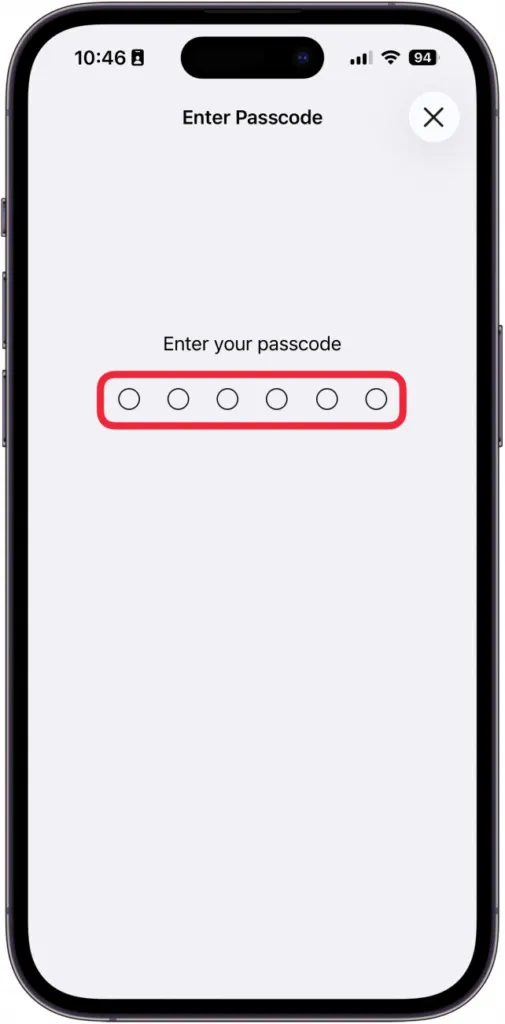
The iPhone restarts when it finishes. If it shows Wi-Fi connected but still no internet after you rejoin, the fault is outside the phone, so contact your internet provider.
What Happens When You Reset Network Settings on iPhone
Only the connection setup goes, and your personal data stays.
- Removed: saved Wi-Fi networks and their passwords, cellular settings, and paired Bluetooth devices.
- Removed: VPN and APN settings you added yourself. Ones installed by a configuration profile or MDM are not affected.
- Reset: your device name goes back to “iPhone” in Settings > General > About, and manually trusted certificates go back to untrusted.
- Kept: photos, messages, apps, contacts and other personal data.
Your eSIM stays in place as well. The Reset menu has a separate “Delete All eSIMs” option, which is not part of this reset, so leave it alone.
Problems a Network Reset Fixes
It helps when the symptoms follow the phone from network to network and the quick fixes did not work:
- Wi-Fi won’t connect or keeps dropping.
- Cellular data or calls fail. Some users report a phone stuck on LTE after an iOS update returning to 5G, or calls failing with a wrong “number doesn’t exist” message, until a reset.
- Bluetooth devices won’t pair.
- AirDrop or Personal Hotspot stops working.
- VPN connections fail.
It is not a routine task. If nothing is broken, there is no benefit from running it after every update.
What to Set Up Again Afterward
- Rejoin your Wi-Fi networks and type in the passwords.
- Re-pair your Bluetooth devices.
- Reinstall VPN apps or profiles if you use them.
- Rename your iPhone if you had a custom name. Here is how to change the iPhone name.
Reset Network Settings vs. Reset All Settings vs. Erase All Content
The three options sit side by side, so confirm which one you tap.
- Reset Network Settings: clears Wi-Fi, cellular, VPN and Bluetooth setup and keeps your data.
- Reset All Settings: resets every setting, including network, keyboard, Home Screen layout, and location and privacy, but keeps your data.
- Erase All Content and Settings: a factory reset that wipes everything on the iPhone.
A reset costs some patience while your connections are rebuilt, and your personal content stays where it is. It is a sound option when the usual troubleshooting hasn’t worked. If problems continue afterward, the cause is likely elsewhere, and our AirDrop not working fixes may help with one common case.


