
Shutting down your PC does not always mean it has fully powered off, which can explain odd behavior that a normal shutdown never seems to clear. Windows 11 uses a startup shortcut by default, and that shortcut can cause trouble with drivers, dual boot setups and firmware access. Below, you can learn how to disable Fast Startup in a few ways and when it is actually worth doing.
Table of Contents
Should You Turn Fast Startup Off?
Turning it off is safe, and the only cost is a slower boot. One test on an NVMe PC went from about 4 seconds to 9–10 seconds, and on an SSD a typical added delay is 10–30 seconds. If boot suddenly takes several minutes after switching it off, the cause is something else, such as a startup app like OneDrive, rather than Fast Startup itself.
| Your problem | Why a full shutdown helps |
|---|---|
| Dual-booting another operating system | Fast Startup marks the Windows disk as “dirty”, so the other OS refuses to mount it or opens it read-only |
| BIOS key not working | The boot window is very short. See getting to BIOS on Windows 11 |
| Driver or device glitches that persist after shutting down | A full shutdown reinitializes drivers and devices |
| Wake-on-LAN or updates that need a clean shutdown | The PC is not left in a hybrid hibernate state |
1. Disable Fast Startup in Control Panel
Control Panel is the best choice for most people because it leaves hibernation untouched. You need to be signed in as an administrator.
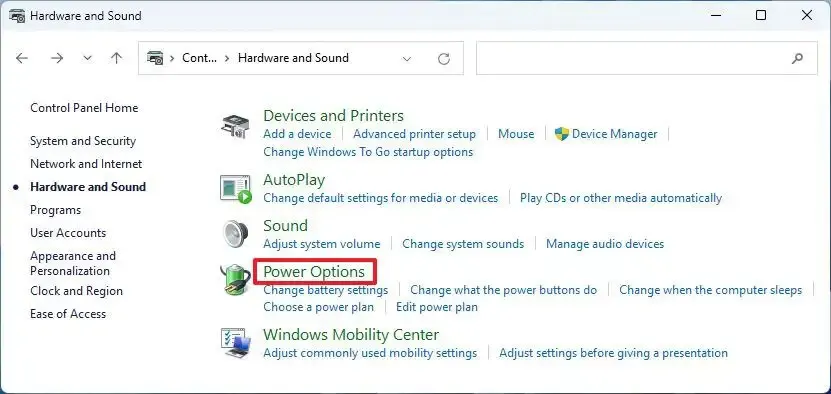
- Open Control Panel, then go to Hardware and Sound > Power Options.
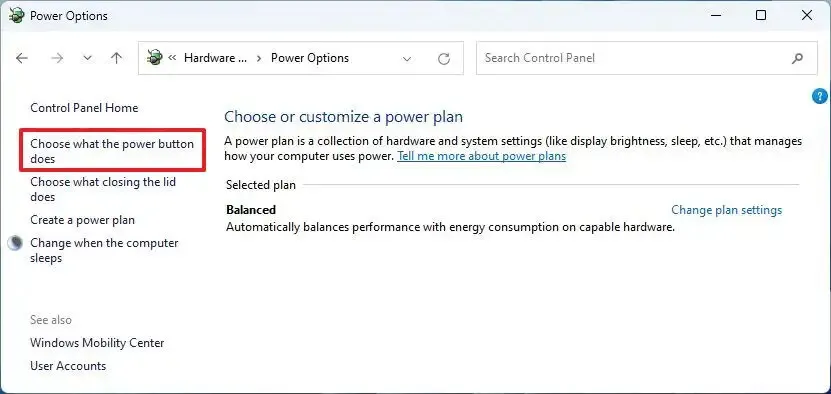
- Click Choose what the power buttons do.
- Click Change settings that are currently unavailable, which unlocks the greyed-out Shutdown settings.
- Uncheck Turn on fast startup (recommended).
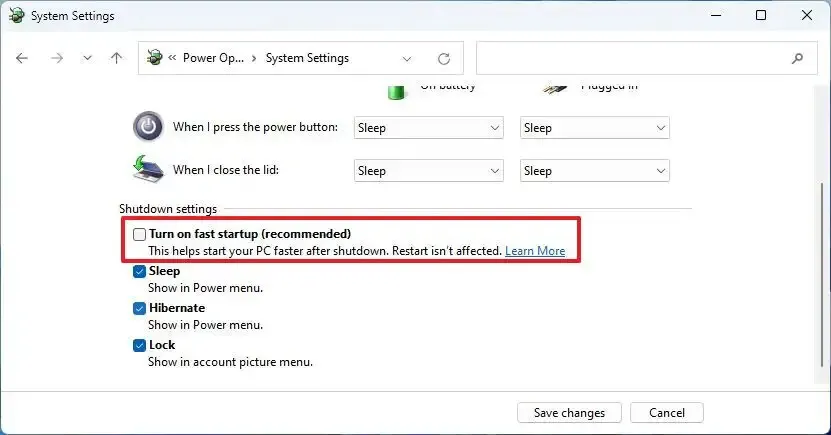
- Click Save changes.
If the checkbox is missing entirely, hibernation is off, so run powercfg /h on in an administrator Command Prompt to bring it back.
2. Disable Fast Startup With a Command
One admin command does it, but it switches off hibernation as well, which removes Hibernate from the power menu.
- Open Command Prompt or Terminal as an administrator.
- Type
powercfg /h offand press Enter.
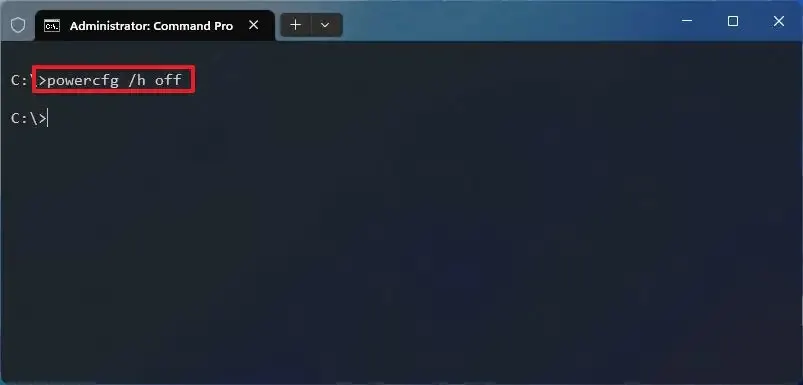
Fast Startup depends on hibernation, so turning hibernation off also disables it even if the checkbox still looks ticked. Run powercfg /h on to restore both.
3. Turn Off Fast Startup in the Registry
The registry value is the switch behind the checkbox, which makes it useful for scripts or when the Control Panel option is stuck. In Registry Editor, go to HKEY_LOCAL_MACHINE\SYSTEM\CurrentControlSet\Control\Session Manager\Power and set HiberbootEnabled to 0. A value of 1 means Fast Startup is on, and you can read the current value in PowerShell with (GP "HKLM:\SYSTEM\CurrentControlSet\Control\Session Manager\Power")."HiberbootEnabled". Back up the registry before editing it.
Switching this off is a small trade-off, and you can turn it back on whenever you like. A slightly slower boot is usually a fair price for a PC that behaves predictably. If updates still give you trouble afterward, our guide to a stuck Windows 11 update is worth a look.


