
You press the key at startup, and the PC still lands in Windows, which can feel like the machine is ignoring you. Newer computers start so quickly that the timing is tricky, and the screen you are after goes by different names depending on the maker. Below are four ways to get to BIOS on Windows 11, with brand-by-brand details and options for when the usual approach fails.
Table of Contents
1. Get to BIOS on Windows 11 From Settings
This route restarts into the Advanced startup menu and works on any UEFI PC, with no key press to time.
- Open Settings and go to System > Recovery. Searching for “Change advanced startup options” gets you to the same page.
- Next to Advanced startup, click Restart now.
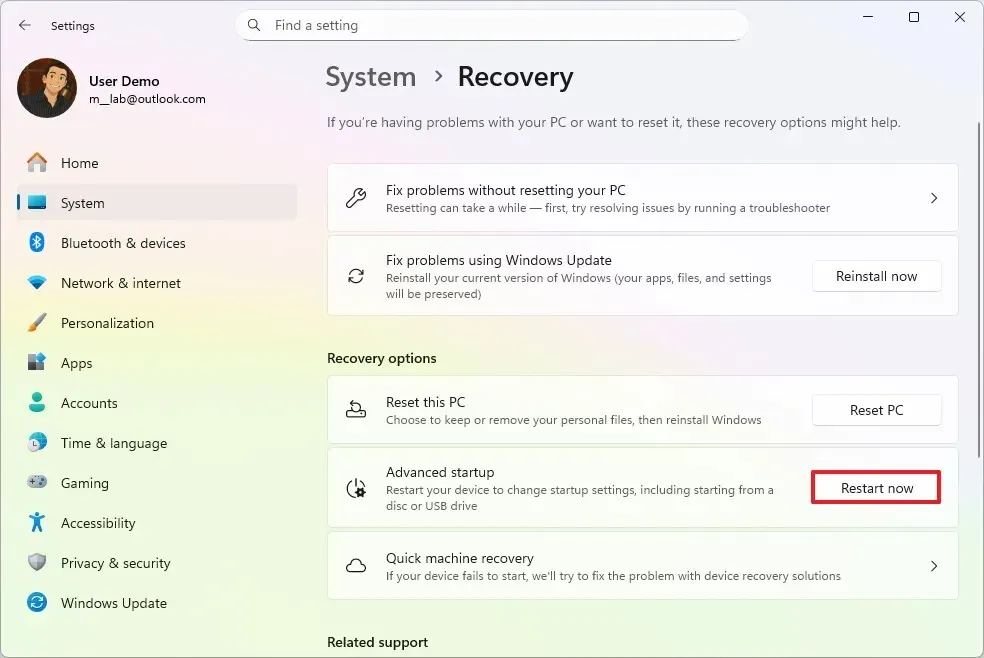
- In the We’ll restart your device so save your work dialog, click Restart now.
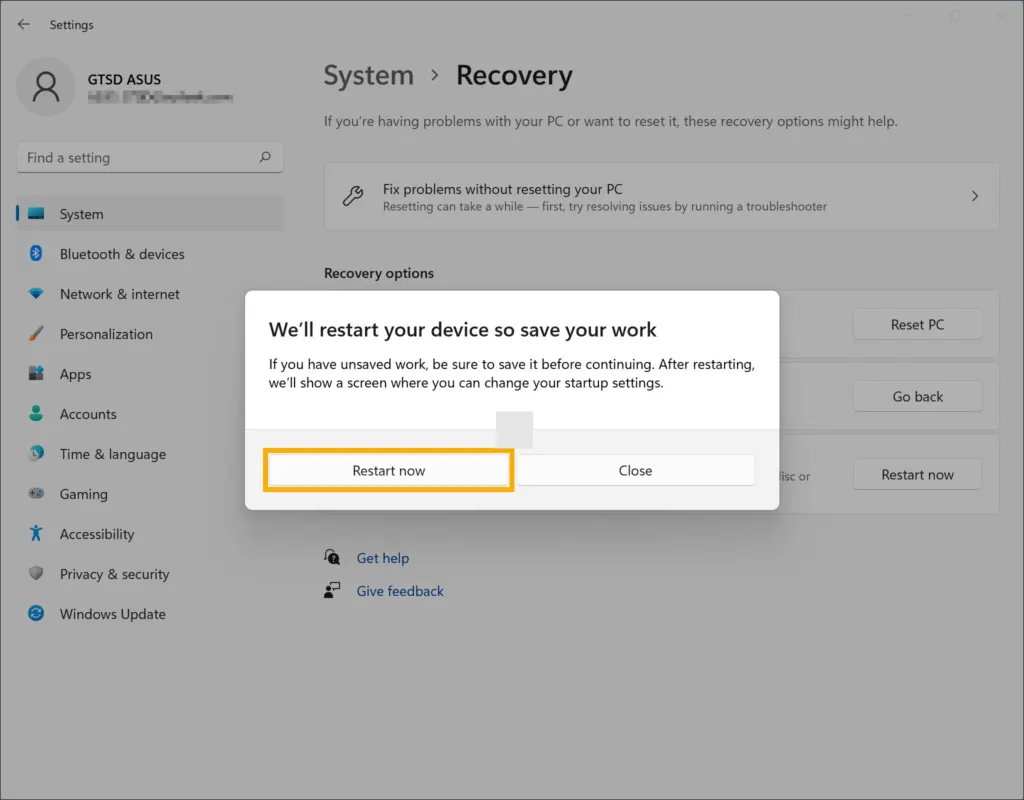
- On the blue Choose an option screen, click Troubleshoot.
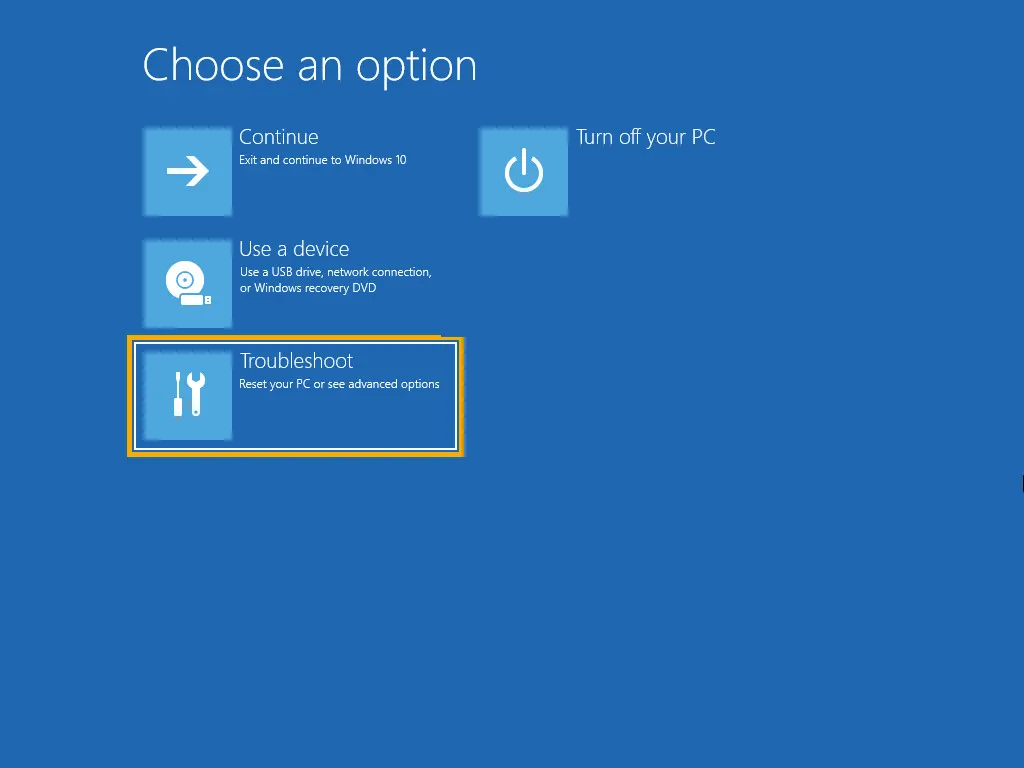
- Click Advanced options.
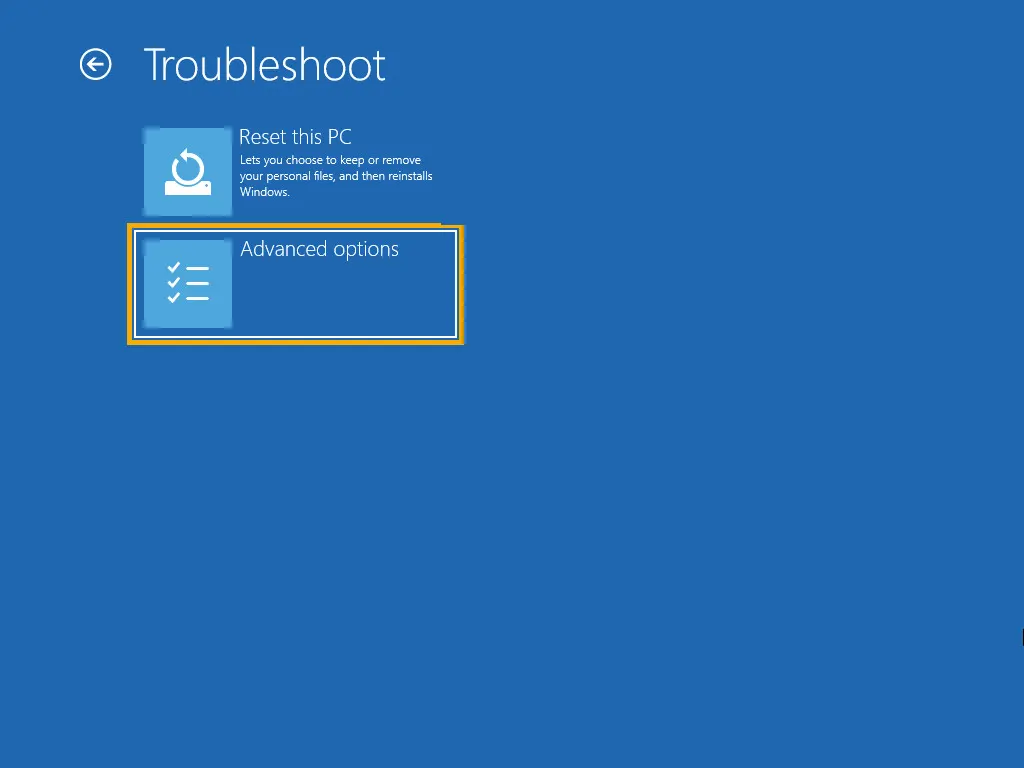
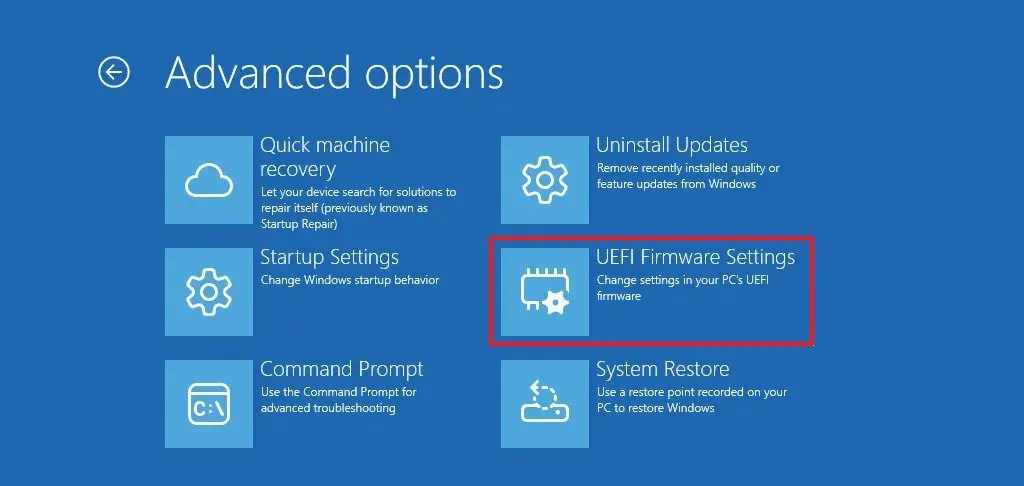
- Click UEFI Firmware Settings.
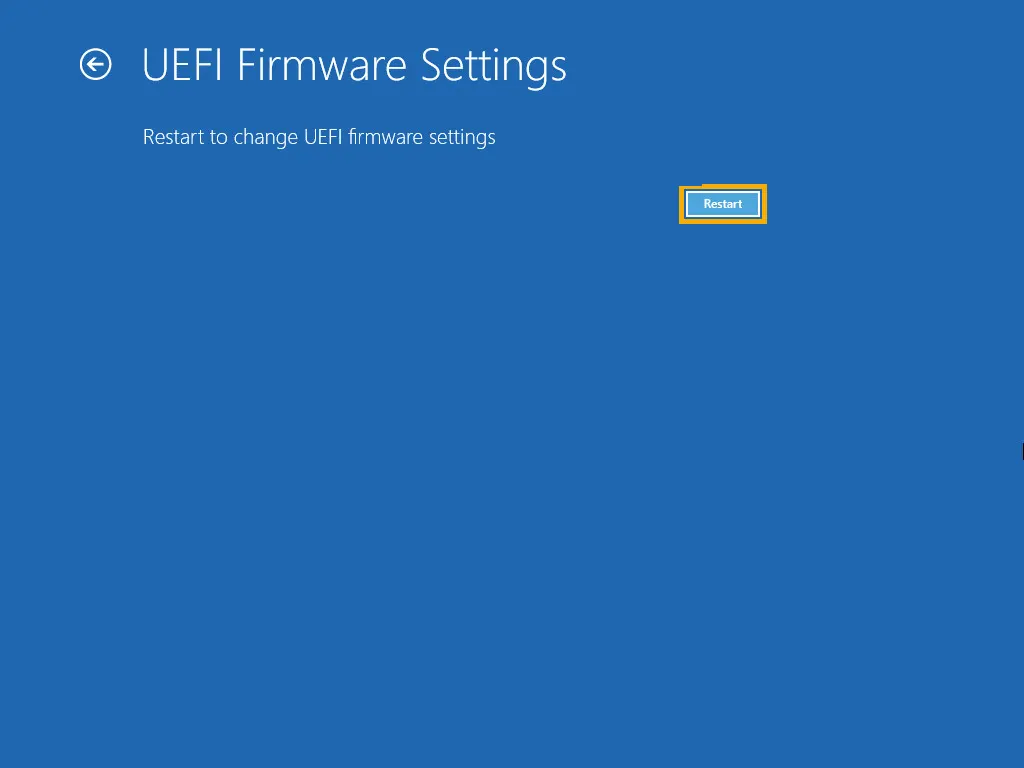
- Click Restart. The PC reboots into the BIOS/UEFI setup screen.
If UEFI Firmware Settings is not listed under Advanced options, the PC is in Legacy BIOS mode or the maker does not expose it, so go to Method 4. The same screens appear when you boot into Safe Mode on Windows 11, and people often come here to enable Secure Boot on Windows 11.
2. Shift + Restart From the Start Menu
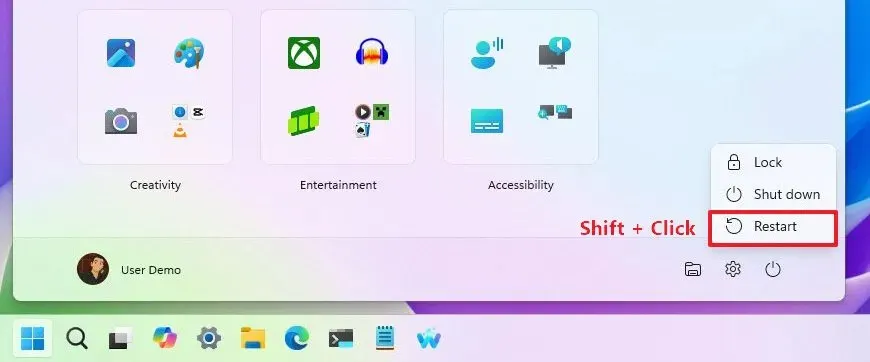
Holding Shift while you restart opens the same Advanced startup screens in fewer steps, and it also works from the sign-in screen when you cannot log in.
- Open the Start menu and click the Power button.
- Hold
Shiftand click Restart.
- Click Troubleshoot, then Advanced options.
- Click UEFI Firmware Settings, then Restart.
3. Get to BIOS on Windows 11 With a Command
The /fw switch tells Windows to restart into the firmware setup, and it only does anything on UEFI systems.
- Open Terminal or Command Prompt as administrator.
- Type
shutdown /r /fw /t 0and press Enter.
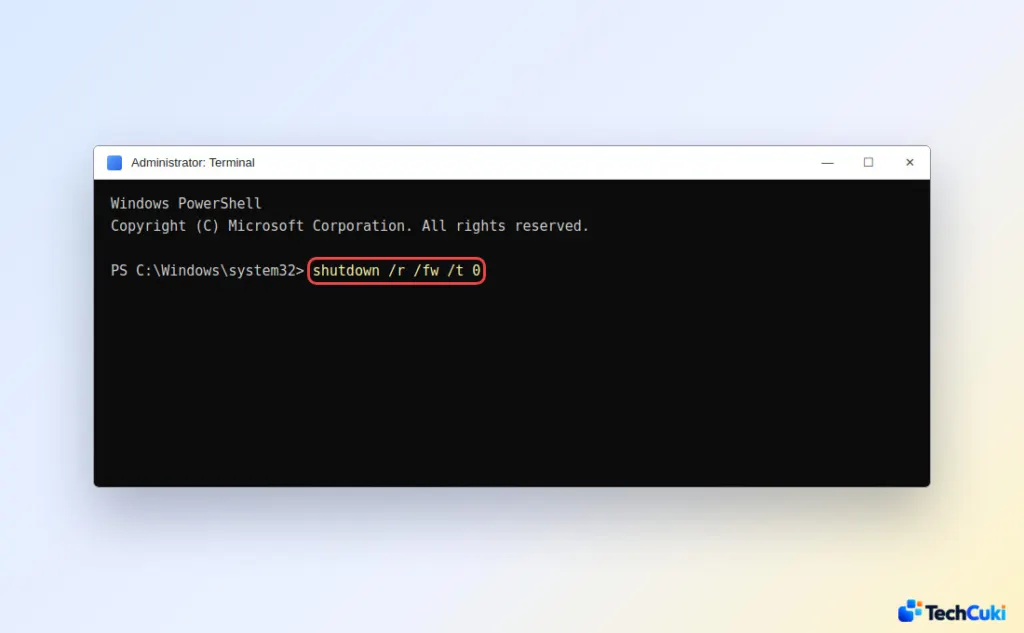
- The PC restarts straight into the firmware settings.
If nothing restarts, you are probably not running as administrator, or the PC is not UEFI. Use Method 4.
4. Use the Startup Key for Your Brand
This is the only route when Windows cannot load. Turn the PC off completely, then press the key for your brand as it powers on. A restart is not the same as a full shutdown, and Fast startup can make the key window too short, so shut down first.
| Brand | Key at startup |
|---|---|
| Dell | F2 |
| HP | Esc, then F10 (or F10 alone) |
| Lenovo | F2 or Fn+F2 (ThinkPad: F1) |
| ASUS | Hold F2 while pressing the power button (older desktop boards: Del; gaming handhelds: hold Volume Down, then press power) |
| Acer | F2 or Del |
| MSI | Del |
| Gigabyte | Del |
| Microsoft Surface | Hold Volume Up, press and release the power button, then keep holding Volume Up until the Surface UEFI screen appears |
The ASUS method holds the key down from the moment you press power and releases it once the BIOS screen appears, which beats trying to catch a short window. The manufacturer’s logo screen often prints the key for a second or two, and your motherboard or laptop manual lists it too.
If You Still Cannot Get In
- Interrupt the boot: if Windows fails to start three times in a row (hold the power button while the spinning logo shows), it opens the recovery environment, where Troubleshoot > Advanced options may list UEFI Firmware Settings.
- Turn off Fast startup: go to Settings > Power & battery > Additional power settings > Choose what the power buttons do and untick Turn on fast startup, then try the key again.
- MSI boards: the maker’s click2bios program restarts the PC into BIOS, without a key press.
- 2-in-1 laptops: connect the keyboard before you start, since the key presses come from it.
Common Questions About Entering BIOS
Is it F10 or F12 for BIOS?
F10 is the BIOS key on HP PCs, while F12 usually opens the one-time boot menu, where you pick a USB drive to boot from, rather than BIOS setup. On many other PCs, F10 means Save and Exit inside BIOS.
Can I get into BIOS without restarting?
No. The firmware runs before Windows, so every method restarts the PC.
Is going into BIOS risky?
Looking around is safe. Changing settings you do not understand, such as boot mode, storage mode or overclocking, can stop Windows from booting. Exit without saving if you are unsure, and use the Load default settings option (often F9) to undo changes.
Getting into the firmware screen is much less stressful when you know the route and don’t have to race the clock. Take a careful look before changing anything, because small tweaks there can have large effects. If heat was your reason for visiting, check the CPU temperature on Windows 11 afterward.


